
Introduction
This manual provides detailed instructions for the operation and maintenance of your NIA X3 Wireless Bluetooth Headphones. Please read this manual thoroughly before using the product to ensure proper function and longevity.
What's in the Box
- NIA X3 Wireless Bluetooth Headphones
- USB Charging Cable
- User Manual (this document)
- Ear Cushions (pre-installed or spare, as applicable)
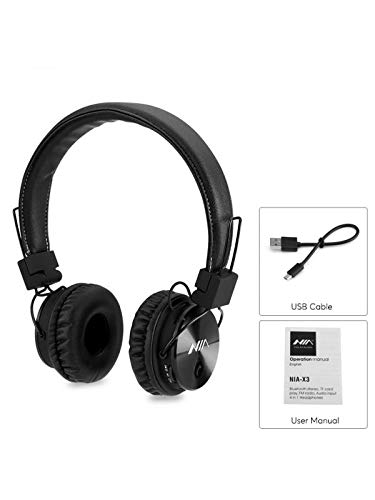
Figure 1: Contents of the NIA X3 package, including the headphones, a USB charging cable, and the user manual.
Product Overview
Familiarize yourself with the various parts of your NIA X3 headphones.

Figure 2: Front view of the NIA X3 headphones, showcasing the earcups and headband.
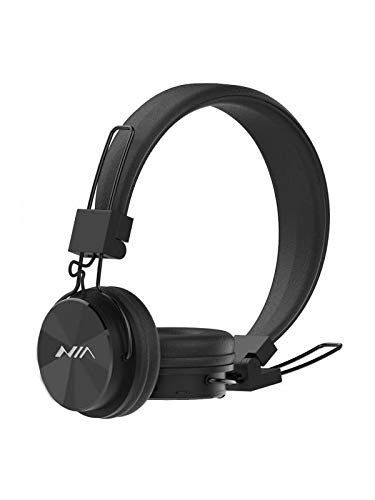
Figure 3: Side view of the NIA X3 headphones, highlighting the adjustable headband and earcup design.
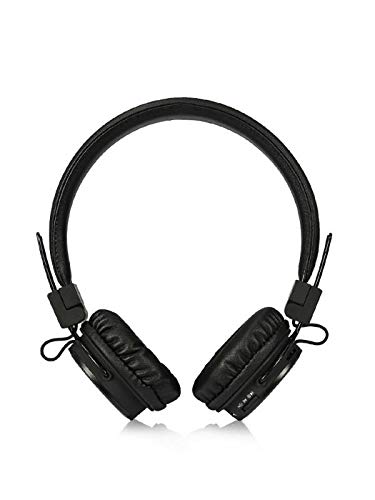
Figure 4: Top view of the NIA X3 headphones, showing the overall structure and earcups.
Setup
1. Charging the Headphones
- Connect the micro USB end of the charging cable to the charging port on the headphones.
- Connect the standard USB end of the cable to a USB power adapter (5V DC, 500mA recommended) or a computer's USB port.
- The LED indicator will illuminate to show charging status.
- Charging typically takes approximately 2 hours for a full charge.
- Once fully charged, the LED indicator will change or turn off (refer to specific product LED behavior).
2. Power On/Off
- To Power On: Press and hold the Power button (usually multi-function button) for a few seconds until the LED indicator lights up and an audible prompt is heard.
- To Power Off: Press and hold the Power button for a few seconds until the LED indicator turns off and an audible prompt is heard.
3. Bluetooth Pairing
- Ensure the headphones are powered off.
- Press and hold the Power button for approximately 5-7 seconds until the LED indicator flashes red and blue alternately, indicating pairing mode.
- On your Bluetooth-enabled device (smartphone, tablet, computer), go to the Bluetooth settings.
- Search for available devices. You should see "NIA X3" or a similar name in the list.
- Select "NIA X3" to connect. Once paired, the LED indicator will typically flash blue slowly or remain solid blue, and an audible confirmation will be heard.
- If prompted for a password, enter "0000".
4. Wired Connection (AUX Mode)
- To use the headphones with a 3.5mm audio cable, ensure the headphones are powered OFF first.
- Connect one end of a 3.5mm audio cable (not included) to the AUX input port on the headphones.
- Connect the other end to the audio output jack of your device.
- Audio will now be played through the wired connection.
Operating Instructions
1. Bluetooth Mode
- Play/Pause: Press the Multi-function button once.
- Next Track: Press and hold the Volume Up (+) button.
- Previous Track: Press and hold the Volume Down (-) button.
- Volume Up: Short press the Volume Up (+) button.
- Volume Down: Short press the Volume Down (-) button.
- Answer/End Call: Press the Multi-function button once.
- Reject Call: Press and hold the Multi-function button for 2 seconds.
- Redial Last Number: Double-press the Multi-function button.
2. Micro SD Card Playback
- Insert a Micro SD card (up to 32GB, FAT32 format) with supported audio files (MP3/WAV/WMA/FLAC/APE) into the Micro SD card slot.
- The headphones will automatically switch to Micro SD card playback mode.
- Use the Play/Pause, Next Track, Previous Track, Volume Up, and Volume Down buttons as described for Bluetooth mode.
3. FM Radio
- Press the Mode button (if available, or Multi-function button with short press) to switch to FM Radio mode.
- Press the Play/Pause button once to auto-scan and save available FM stations.
- Use the Next Track/Previous Track buttons to navigate between saved stations.
- Adjust volume with the Volume Up/Down buttons.
4. APP Control
- Scan the QR code provided on the product packaging or in the quick start guide to download the dedicated control application.
- Install the application on your mobile phone.
- Ensure your headphones are connected via Bluetooth to your phone.
- Open the application to control various functions of the headphones, such as mode switching, equalizer settings, and more.
Maintenance
- Cleaning: Use a soft, dry cloth to clean the headphones. Do not use abrasive cleaners or solvents.
- Storage: Store the headphones in a cool, dry place away from direct sunlight and extreme temperatures.
- Battery Care: To prolong battery life, charge the headphones fully at least once every three months if not in regular use. Avoid fully discharging the battery frequently.
- Water Exposure: These headphones are not waterproof. Avoid exposure to water or excessive moisture.
Troubleshooting
| Problem | Possible Solution |
|---|---|
| Headphones do not power on. | Ensure the headphones are fully charged. Connect to a power source and try again after a few minutes. |
| Cannot pair with Bluetooth device. |
|
| No sound in Bluetooth mode. |
|
| Micro SD card not playing. |
|
| FM Radio not working or poor reception. |
|
Specifications
| Feature | Detail |
|---|---|
| Model | NIA-X03 |
| Sound Mode | Stereo |
| Speaker Driver Unit | Customized 40mm Nd Driver |
| Impedance | 32 Ohm |
| Sensitivity | 108+/-3dB |
| Frequency Response | 20-20000Hz |
| Input Power | 3.7 VDC, 280mAh (Built-in Li-ion Battery) |
| Charging Input | 5 VDC 500mA, Micro USB |
| Operating Time | 5-6 Hours |
| Charging Time | Approx. 2 Hours |
| Bluetooth Version | 4.0 |
| Transmission Frequency | 2402 Mhz to 2480 Mhz |
| Communication Range | 10M (Max) |
| Standby Time | Approx. 48 Hours |
| Bluetooth Profiles | A2DP, AVRCP, HSP, HFP |
| Micro SD Audio Formats | MP3/WAV/WMA/FLAC/APE |
| Micro SD Card Capacity | 32GB (Max) |
| Micro SD Card Format | FAT32 |
| FM Radio Frequency | 88-108Mhz |
| Audio Input | 3.5mm Jack |
| Material | Plastic |
| Control Method | Touch |
Warranty and Support
For warranty information or technical support, please refer to the warranty card included with your product or contact NIA customer service through their official website or the retailer where the product was purchased. Keep your proof of purchase for warranty claims.
