1. Product Overview
The Yealink T53 is an entry-level IP phone designed for business environments, offering a balance of features and ease of use. It supports 12 VoIP accounts and features a 3.7-inch graphical display for clear visual information. Key functionalities include HD Voice with Yealink Acoustic Shield technology, a USB 2.0 port for various peripherals, and dual-port Gigabit Ethernet with 802.3af Power over Ethernet (PoE) support.
This manual provides instructions for setting up, operating, and maintaining your Yealink T53 IP Phone.
2. Package Contents
Verify that your package contains the following items:
- Yealink T53 IP Phone Unit
- Handset
- Handset Cord
- Ethernet Cable (CAT5E UTP Cable)
- Phone Stand
- Quick Start Guide (this document)
Note: A power adapter is not included and must be purchased separately if PoE is not available.
3. Physical Features

Figure 3.1: Front view of the Yealink T53 IP Phone with its adjustable display showing call information. This image highlights the main display, line keys, and navigation buttons.
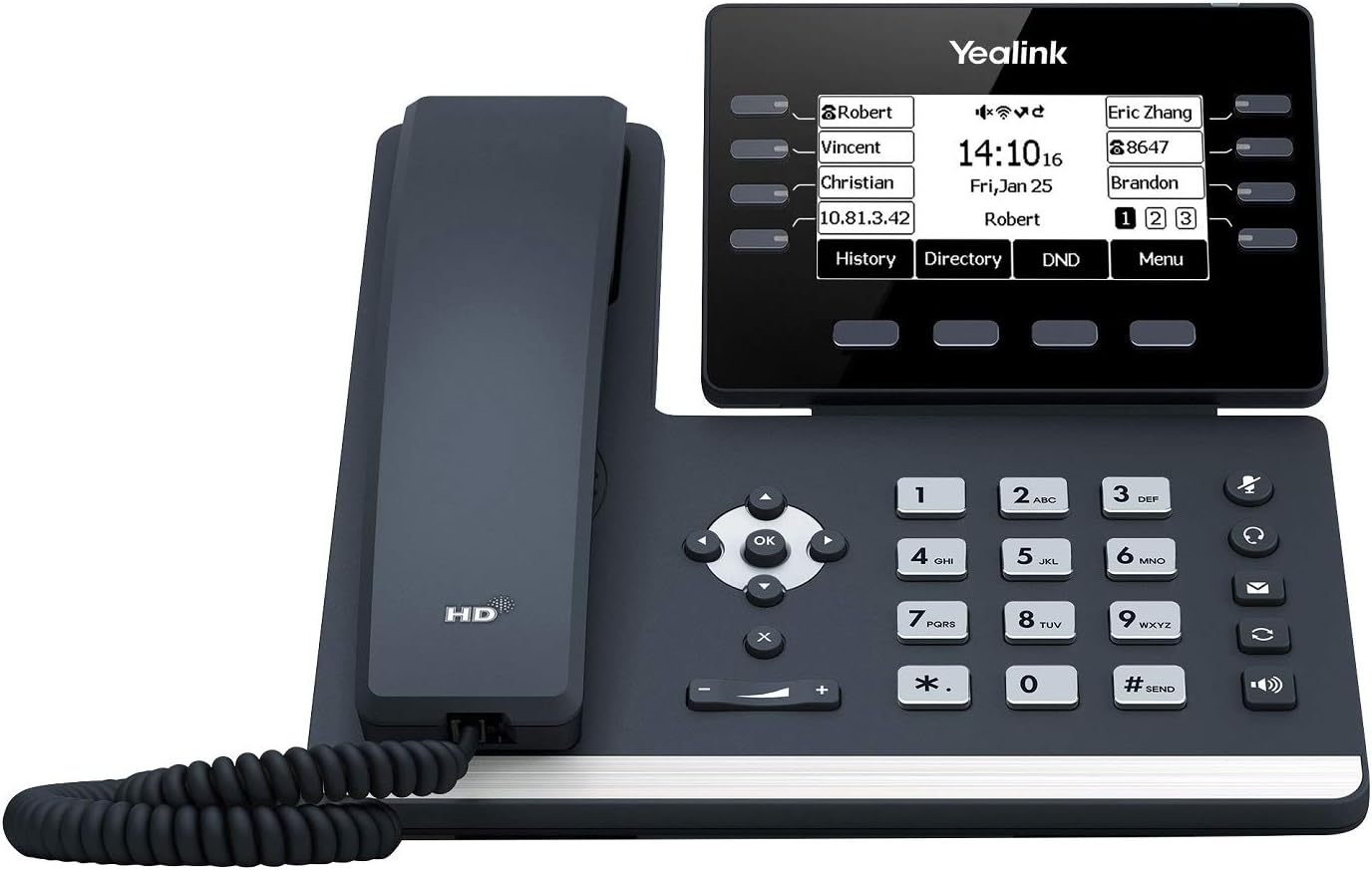
Figure 3.2: Top-down view of the Yealink T53 IP Phone, highlighting the keypad and handset. This perspective shows the layout of the numeric keypad and function keys.
3.1. Phone Components
- Adjustable Graphical Display: 3.7-inch (360x160-pixel) LCD for call information, menus, and status.
- Line Keys: Programmable keys located next to the display for line appearances, speed dials, or feature access.
- Navigation Keys: Up, Down, Left, Right, and OK buttons for menu navigation.
- Function Keys: Dedicated keys for features such as Message, Headset, Mute, Redial, Speakerphone, and Volume control.
- Numeric Keypad: Standard 0-9, *, # keys for dialing.
- Handset: Standard telephone handset.
- USB 2.0 Port: Located on the side, supports USB recording, USB headsets, or expansion modules (e.g., Yealink EXP50).
- Ethernet Ports: Two Gigabit Ethernet ports (LAN and PC) for network connection and PC pass-through.
- Handset Port: RJ9 port for connecting the handset.
- Headset Port: RJ9 port for connecting a wired headset.
- Power Port: For connecting an optional power adapter (if PoE is not used).
4. Setup Instructions
4.1. Assembling the Phone
- Attach the Stand: Align the stand with the slots on the back of the phone unit and push until it clicks into place. You can adjust the angle of the display.
- Connect the Handset: Plug one end of the handset cord into the handset port on the phone unit and the other end into the handset.
4.2. Connecting to Network and Power
The Yealink T53 supports Power over Ethernet (PoE) or an optional power adapter.
- Network Connection: Plug one end of the Ethernet cable into the LAN port on the phone and the other end into a network switch or router.
- PC Connection (Optional): If you wish to connect a computer through the phone, plug an Ethernet cable from your PC into the PC port on the phone.
- Power Supply:
- PoE: If your network switch supports PoE, the phone will power on automatically once connected to the LAN port.
- Power Adapter (Not Included): If PoE is not available, connect a compatible Yealink power adapter (DC 5V/2A) to the power port on the phone and then to an electrical outlet.
4.3. Initial Configuration
Upon first power-up, the phone will boot and attempt to obtain network settings via DHCP. Your network administrator will provide the necessary account details (SIP server address, username, password) for registration. Configuration can typically be done via the phone's menu or a web-based interface accessible through its IP address.
5. Operating Instructions
5.1. Basic Call Functions
- Making a Call:
- Pick up the handset, press the Speakerphone key, or press a Line key.
- Enter the phone number using the numeric keypad.
- Press the Dial soft key or the # key.
- Answering a Call:
- Pick up the handset.
- Press the Speakerphone key.
- Press the Answer soft key.
- Ending a Call: Hang up the handset, press the Speakerphone key, or press the End Call soft key.
5.2. Call Management
- Hold: During an active call, press the Hold soft key. To resume, press the Resume soft key.
- Transfer: During an active call, press the Transfer soft key, dial the new number, and then press Transfer again (for blind transfer) or wait for the other party to answer before pressing Transfer (for attended transfer).
- Mute: Press the Mute key to mute your microphone during a call. Press it again to unmute.
- Volume Adjustment: Use the Volume keys to adjust the handset, headset, or speakerphone volume during a call, or the ringer volume when idle.
5.3. USB Port Functions
The USB 2.0 port on the Yealink T53 offers enhanced functionality:
- Call Recording: Insert a USB flash drive to record calls.
- USB Headset: Connect a compatible USB headset for hands-free communication.
- Expansion Modules: Connect up to three Yealink EXP50 expansion modules for additional programmable keys.
- Wireless Connectivity: Use with Yealink Bluetooth USB Dongle BT40 or Wi-Fi USB Dongle WF40/WF50 for wireless headset or network connectivity (dongles sold separately).
6. Maintenance
6.1. Cleaning the Phone
Use a soft, dry cloth to clean the phone's surface. Avoid using abrasive cleaners or solvents, as these can damage the finish and electronic components.
6.2. Firmware Updates
Regular firmware updates are recommended to ensure optimal performance and access to new features. Consult your network administrator or Yealink support for information on available updates and the update procedure.
7. Troubleshooting
This section addresses common issues you might encounter with your Yealink T53 IP Phone.
- Phone Does Not Power On:
- Ensure the Ethernet cable is securely connected to the LAN port and the network switch provides PoE.
- If using a power adapter, ensure it is correctly connected to the phone and a working power outlet.
- No Dial Tone:
- Check network connectivity. The phone's display should show network status.
- Verify that the SIP account is registered. The display should indicate registration status.
- Ensure the handset cord is properly connected.
- Poor Call Quality:
- Check your network connection for stability and bandwidth.
- Ensure the microphone and speaker are not obstructed.
- Adjust volume levels.
- Display Issues:
- If the display is blank, refer to "Phone Does Not Power On."
- If the display is frozen, try restarting the phone by disconnecting and reconnecting the power/Ethernet cable.
For further assistance, contact your system administrator or Yealink technical support.
8. Specifications
| Feature | Specification |
|---|---|
| Model Number | T53 |
| Display | 3.7" 360x160-pixel graphical LCD, adjustable |
| VoIP Accounts | 12 SIP accounts |
| Ethernet Ports | Dual-port Gigabit Ethernet |
| PoE Support | 802.3af Power over Ethernet |
| USB Port | 1 x USB 2.0 (for call recording, USB headset, EXP50 expansion modules) |
| HD Voice | Yes, with Yealink Acoustic Shield technology |
| Dimensions (L x W x H) | 8.29 x 8.35 x 6.87 inches (21.06 x 21.21 x 17.45 cm) |
| Item Weight | 2.55 pounds (1.16 kg) |
| Color | Black |
| Date First Available | February 6, 2019 |
9. Warranty and Support
For warranty information and technical support, please refer to the official Yealink website or contact your authorized Yealink reseller. Yealink is committed to providing support for its products to ensure optimal user experience.
You can visit the official Yealink store for more information: Yealink Store


