1. Introduction
Thank you for choosing the X Printer XP-Q600 Thermal Receipt Printer. This manual provides detailed instructions to help you set up, operate, and maintain your printer effectively. Please read this manual thoroughly before using the product to ensure proper function and longevity.
2. Safety Information
- Always use the power adapter supplied with the printer.
- Do not expose the printer to water or excessive humidity.
- Avoid placing the printer in direct sunlight or near heat sources.
- Ensure proper ventilation around the printer.
- Do not attempt to disassemble or repair the printer yourself. Contact qualified service personnel.
- Keep out of reach of children.
3. Package Contents
Please check the package contents upon unpacking. If any items are missing or damaged, contact your vendor.
- X Printer XP-Q600 Thermal Receipt Printer
- Power Adapter
- USB Cable
- Thermal Paper Roll (starter)
- User Manual (this document)
- Driver CD (or download link)
4. Product Overview
The X Printer XP-Q600 is a high-speed thermal receipt printer designed for various applications. It features multiple connectivity options and supports different operating systems.
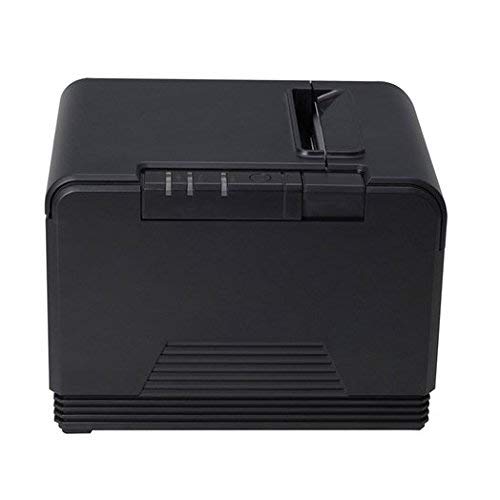
Figure 4.1: Front and side view of the X Printer XP-Q600 Thermal Receipt Printer, highlighting the power switch and Xprinter logo.
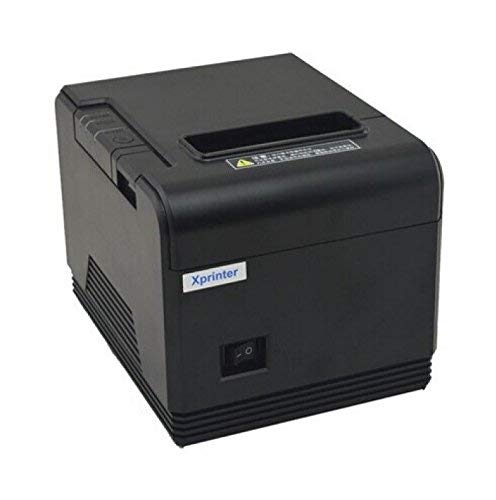
Figure 4.2: Rear and side view of the X Printer XP-Q600 Thermal Receipt Printer, illustrating the various connectivity ports.
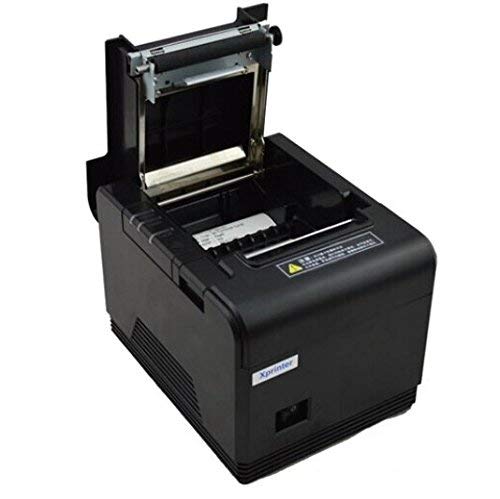
Figure 4.3: Top view of the X Printer XP-Q600 Thermal Receipt Printer with the cover open, revealing the thermal paper roll compartment and loading mechanism.
Key Features:
- Printing Method: Direct thermal printing.
- High Speed Printing: Up to 300mm/s.
- Interfaces: USB and Bluetooth connectivity.
- Network Configuration: Ability to change IP through Web or Serial port.
- Operating System Support: Compatible with Linux and Windows 8.1 systems.
- Printer Output: Monochrome.
- Specific Uses: Optimized for receipt printing.
5. Setup
5.1 Connecting the Printer
- Power Connection: Connect the power adapter to the printer's power port and then plug it into a power outlet.
- USB Connection: For USB connectivity, connect one end of the USB cable to the printer's USB port and the other end to your computer.
- Bluetooth Connection: For Bluetooth connectivity, ensure the printer is powered on. Refer to your device's Bluetooth settings to pair with the printer. The printer's Bluetooth name typically includes "XP-Q600".
5.2 Loading Thermal Paper
- Open the printer cover by pressing the release latch (refer to Figure 4.3).
- Insert a new thermal paper roll into the compartment, ensuring the paper feeds from the bottom and the leading edge is straight.
- Pull a small amount of paper out past the cutter.
- Close the printer cover firmly until it clicks into place.
5.3 Driver Installation
- For Windows systems (including Windows 8.1), insert the driver CD or download the latest drivers from the X Printer official website. Follow the on-screen instructions for installation.
- For Linux systems, drivers are typically available through package managers or can be downloaded from the X Printer official website. Consult your Linux distribution's documentation for specific installation procedures.
5.4 Network Configuration (for Ethernet models, if applicable)
The XP-Q600 supports changing its IP address via Web interface or Serial port. Refer to the advanced configuration guide on the X Printer website for detailed instructions on network setup.
6. Operating Instructions
6.1 Basic Printing
- Ensure the printer is powered on and connected to your device (via USB or Bluetooth).
- Verify that thermal paper is correctly loaded.
- From your application (e.g., POS software, text editor), select the "X Printer XP-Q600" as your printer.
- Initiate the print command. The printer will automatically print the receipt.
6.2 Indicator Lights
The printer features indicator lights to show its status. Common indicators include:
- Power Indicator: Lit when the printer is on.
- Error Indicator: Flashes or lights up to indicate an error (e.g., paper out, cover open, print head overheat).
- Paper Out Indicator: Lit when the paper roll is empty or nearly empty.
7. Maintenance
7.1 Cleaning the Print Head
Regular cleaning of the print head ensures optimal print quality and extends the printer's lifespan.
- Turn off the printer and disconnect the power cable.
- Open the printer cover.
- Use a cotton swab lightly dampened with isopropyl alcohol to gently wipe the thermal print head surface.
- Allow the print head to dry completely before closing the cover and reconnecting power.
7.2 Cleaning the Paper Path
Remove any paper dust or debris from the paper path using a soft brush or compressed air.
8. Troubleshooting
| Problem | Possible Cause | Solution |
|---|---|---|
| Printer does not power on. | Power cable disconnected; power outlet faulty. | Check power cable connection; try a different outlet. |
| No printing. | Paper out; cover open; incorrect driver; printer not selected. | Load paper; close cover; install correct driver; select printer in software. |
| Poor print quality. | Dirty print head; low quality thermal paper. | Clean print head (Section 7.1); use recommended thermal paper. |
| Bluetooth connection fails. | Printer not in pairing mode; incorrect pairing code; interference. | Ensure printer is discoverable; re-enter pairing code; reduce interference. |
If the problem persists after attempting these solutions, please contact customer support.
9. Specifications
| Feature | Detail |
|---|---|
| Model | XP-Q600 |
| Printing Method | Direct Thermal |
| Print Speed | 300mm/s |
| Interfaces | USB, Bluetooth |
| Operating System Support | Linux, Windows 8.1 (and compatible versions) |
| Specific Uses | Receipt Printing |
| Printer Output | Monochrome |
| Hardware Interface | USB |
| Manufacturer | X Printer |
10. Warranty and Support
For warranty information and technical support, please refer to the warranty card included with your product or visit the official X Printer website. Keep your purchase receipt as proof of purchase.
X Printer Official Website: www.xprinter.net (This is a placeholder link, please verify the actual official website for X Printer)


