
1. Introduction
The VIOTEK GFT27DB is a 27-inch WQHD Gaming Monitor designed to deliver a superior visual experience for gaming and general use. It combines the rapid response times of a TN panel with enhanced color reproduction, offering a 115% sRGB color gamut. This monitor supports a 144Hz refresh rate and a 1ms response time, ensuring smooth and fluid motion.
Key features include AMD FreeSync with Low Framerate Compensation (LFC) and compatibility with NVIDIA G-SYNC (when manually enabled), providing tear-free and stutter-free gameplay. It also integrates GamePlus Crosshairs for improved aiming accuracy and FPS/RTS optimization for enhanced visibility in dark scenes. The GFT27DB offers flexible connectivity options, including multiple HDMI ports and DisplayPort, along with built-in speakers and a 3.5mm audio output.
2. Safety Information
Please read all instructions carefully before using this product. Retain this manual for future reference.
- Do not expose the monitor to rain, moisture, or extreme temperatures.
- Ensure proper ventilation around the monitor to prevent overheating.
- Use only the power adapter supplied with the monitor.
- Avoid placing heavy objects on the power cord.
- Clean the monitor screen and casing with a soft, lint-free cloth. Do not use abrasive cleaners or solvents.
- Do not attempt to disassemble or repair the monitor yourself. Refer all servicing to qualified personnel.
- Position the monitor on a stable, level surface to prevent it from falling.
3. Package Contents
Verify that all items listed below are present and in good condition upon opening the package:
- VIOTEK GFT27DB 27-Inch WQHD Gaming Monitor
- Monitor Stand (Base and Neck)
- Power Cable
- DisplayPort Cable
- User Manual (this document)
- Screws for stand assembly
4. Setup and Assembly
4.1 Assembling the Stand
- Carefully remove the monitor from its packaging and place it face down on a soft, clean surface to prevent scratches.
- Attach the stand neck to the monitor's rear panel. Secure it with the provided screws.
- Connect the stand base to the stand neck and tighten the thumb screw or screws from the bottom.
- Carefully lift the assembled monitor and place it on a stable, flat surface.
Note: The monitor also supports VESA mount (75x75mm) for wall mounting or alternative monitor stands.
4.2 Connecting to a Device
The GFT27DB monitor offers multiple input options. Choose the appropriate cable for your device (PC, gaming console, etc.).
- DisplayPort (DP): Connect one end of the DisplayPort cable to the DP port on the monitor and the other end to the DP output on your computer's graphics card. This connection is recommended for achieving the full 144Hz refresh rate and enabling FreeSync/G-SYNC compatibility.
- HDMI: Connect an HDMI cable to one of the three HDMI ports on the monitor and the other end to the HDMI output on your device.
- Audio Out: For external audio, connect headphones or external speakers to the 3.5mm audio jack on the monitor.

Figure 4.2.1: Monitor Connectivity Ports. This image displays the rear of the monitor, highlighting the audio output, three HDMI ports (one 2.0, two 1.4), and one DisplayPort 1.2 input, illustrating the various connection options available for the monitor.
4.3 Powering On
- Connect the power cable to the monitor's power input and then to a power outlet.
- Press the power button, typically located on the bottom right side of the monitor, to turn it on. The power indicator light will illuminate.
- Ensure your connected device is also powered on. The monitor should automatically detect the input signal.
5. Operating the Monitor
5.1 On-Screen Display (OSD) Menu
The OSD menu allows you to adjust various monitor settings. The control buttons are located on the bottom right side of the monitor. Press any button to activate the OSD, then use the navigation buttons to select and adjust settings.
- Power Button: Turns the monitor on/off.
- Menu Button: Opens the main OSD menu.
- Navigation Buttons: Used to navigate through menu options and adjust values (Up/Down, Left/Right).
- Exit Button: Exits the current menu or OSD.
5.2 Display Features and Settings
The GFT27DB offers advanced display technologies for an optimized viewing experience.
- Resolution & Refresh Rate: The monitor supports WQHD (2560x1440) resolution at up to 144Hz refresh rate. Ensure your graphics card and cable support these specifications.
- Color Gamut: Experience vibrant and accurate colors with the 115% sRGB color gamut.
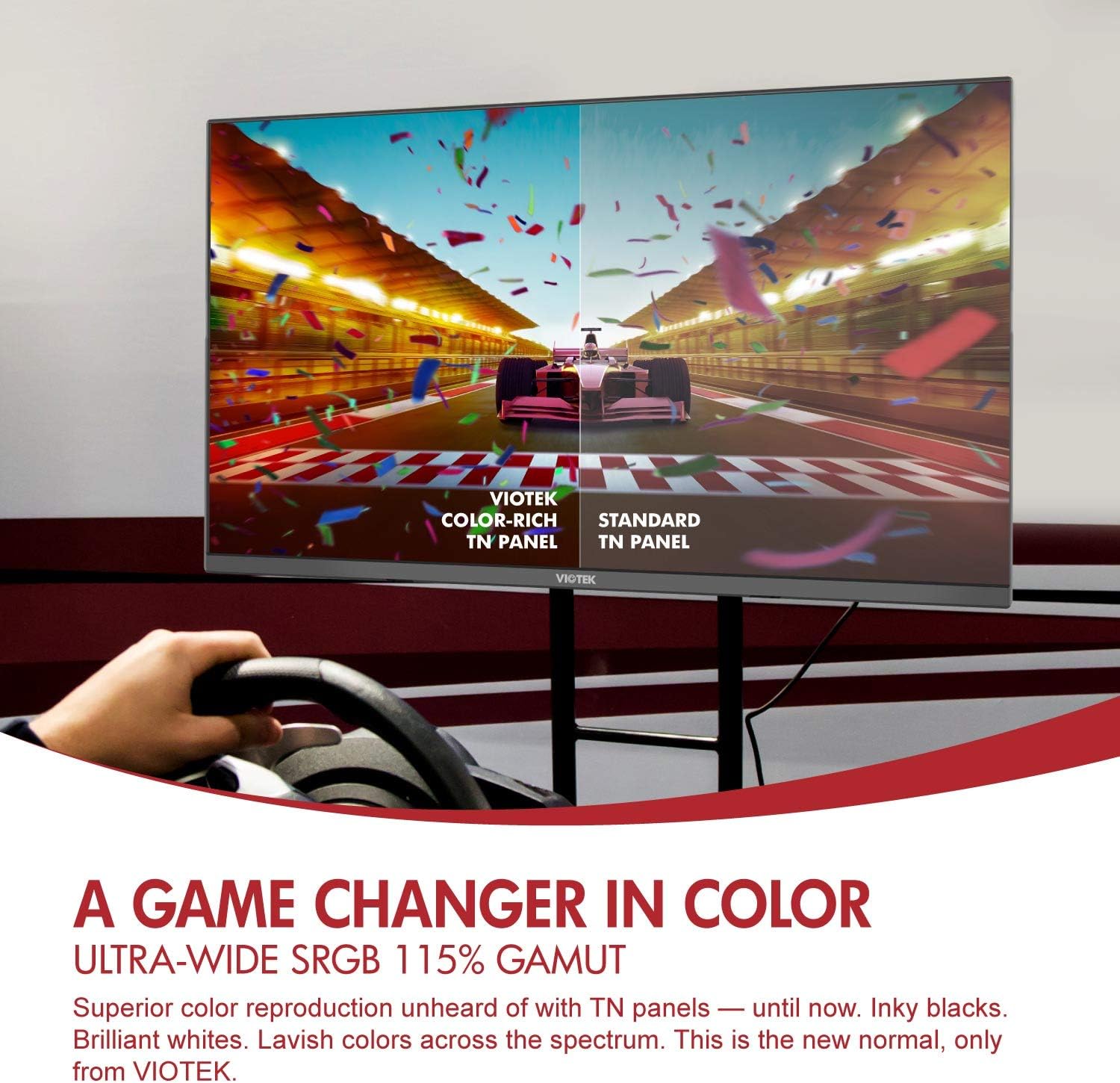
Figure 5.2.1: Enhanced Color Reproduction. This image illustrates the superior color depth and richness of the Viotek GFT27DB's TN panel compared to a standard TN panel, showcasing its 115% sRGB color gamut.
- Response Time: Enjoy a rapid 1ms response time, reducing motion blur and ghosting in fast-paced scenes.

Figure 5.2.2: Blistering Speeds. This image highlights the monitor's performance capabilities, featuring WQHD (1440p) resolution, 144Hz refresh rate, and 1ms response time, with a visual comparison between 144Hz and 60Hz refresh rates in a racing game.
- Low Blue Light Mode: Reduce eye strain during prolonged use by activating the Low Blue Light mode in the OSD.
- Picture-in-Picture (PIP) / Picture-by-Picture (PBP): Display content from two different sources simultaneously. Configure these modes via the OSD menu.
5.3 Gaming Features
- AMD FreeSync & G-SYNC Compatibility: Enable FreeSync in the OSD menu to synchronize the monitor's refresh rate with your AMD GPU's frame rate, eliminating screen tearing and stuttering. For NVIDIA GPUs, G-SYNC compatibility can be manually enabled through NVIDIA's control panel after enabling FreeSync on the monitor.
- GamePlus Crosshairs: Activate built-in crosshairs from the OSD to assist with aiming in games, even those that disable in-game crosshairs.

Figure 5.3.1: Built-in GamePlus Crosshairs. This image demonstrates the GamePlus crosshairs feature, showing various crosshair options overlaid on a first-person shooter game, designed to enhance aiming accuracy.
- FPS/RTS Optimization: Adjust display settings to enhance visibility in specific game genres, bringing out details in dark areas.
6. Maintenance and Care
- Cleaning the Screen: Gently wipe the screen with a soft, lint-free cloth. For stubborn marks, lightly dampen the cloth with water or a specialized screen cleaner. Do not spray liquid directly onto the screen.
- Cleaning the Casing: Use a soft, dry cloth to wipe the monitor casing. Avoid using harsh chemicals or abrasive materials.
- Storage: If storing the monitor for an extended period, disconnect all cables and store it in a cool, dry place, preferably in its original packaging.
7. Troubleshooting
| Problem | Possible Cause | Solution |
|---|---|---|
| No image on screen | Power cable not connected; Input source not selected; Device not powered on. | Ensure power cable is securely connected. Check if the input source is correctly selected in the OSD. Verify the connected device is powered on. |
| Image is blurry or distorted | Incorrect resolution; Cable issue. | Set the display resolution to 2560x1440. Check cable connections and try a different cable if necessary. |
| No sound from speakers | Volume too low; Audio output not selected; Cable issue. | Increase monitor volume via OSD. Ensure audio output is set to the monitor on your device. Check audio cable if using external speakers. |
| Screen tearing or stuttering (with FreeSync/G-SYNC enabled) | FreeSync/G-SYNC not properly configured; Outdated graphics drivers. | Ensure FreeSync is enabled in the monitor's OSD. For G-SYNC, verify it's enabled in NVIDIA Control Panel. Update graphics drivers to the latest version. Ensure DisplayPort connection is used for G-SYNC compatibility. |
| Image is off-center | Auto-adjustment needed. | Access the OSD and look for an "Auto Adjust" or "Auto Setup" option to automatically center the image. |
8. Specifications
| Feature | Detail |
|---|---|
| Model | GFT27DB |
| Screen Size | 27 Inches |
| Panel Type | TN |
| Resolution | 2560x1440 (WQHD) |
| Refresh Rate | 144 Hz |
| Response Time | 1 Millisecond |
| Aspect Ratio | 16:9 |
| Color Gamut | 115% sRGB |
| Contrast Ratio | 1000:1 |
| Connectivity | 3x HDMI (1x 2.0, 2x 1.4), 1x DisplayPort 1.2, 1x 3.5mm Audio Out |
| VESA Compatibility | 75x75mm |
| Dimensions (with stand) | 61.72 x 20.07 x 44.45 cm |
| Weight | 4.4 kg |
| Special Features | Adaptive Sync (FreeSync & G-SYNC Compatible), GamePlus Crosshairs, FPS/RTS Optimization, Low Blue Light, PIP/PBP |
9. Warranty and Support
The VIOTEK GFT27DB monitor is backed by a 3-Year Limited Warranty. This warranty covers manufacturing defects and ensures your product performs as expected.
VIOTEK also offers a Pixel Perfect Promise, addressing concerns related to dead pixels. For specific details regarding the Pixel Perfect Promise, please refer to the official VIOTEK website or contact customer support.
For technical assistance, warranty claims, or general inquiries, please contact our expert customer support team. Our team is fully staffed in the U.S. and ready to assist you.
Contact Information:
- Website: www.viotek.com
- Email: support@viotek.com
- Phone: 1-800-XXX-XXXX
Please have your monitor's model number (GFT27DB) and serial number ready when contacting support to expedite the process.


