
1. Introduction
This manual provides comprehensive instructions for the installation, operation, and maintenance of your Sierra Wireless AirLink LX40 LTE Router. The LX40 is a compact LTE router designed for IoT and edge processing applications, offering reliable cellular connectivity.
Key features include 4G LTE Cat 4 support, Power-over-Ethernet (PoE) capability for flexible deployment, and compatibility with the ALEOS Application Framework (AAF) for advanced edge processing. It also integrates with AirLink Complete for remote network management and support.
2. Package Contents
Verify that all items are present in your product package:
- Sierra Wireless AirLink LX40 LTE Router Unit
- Power Supply Unit
- LTE Antennas (typically two)
- Ethernet Cable
- Quick Start Guide and Safety Information
3. Physical Overview
Familiarize yourself with the physical components and connectors of the LX40 router.
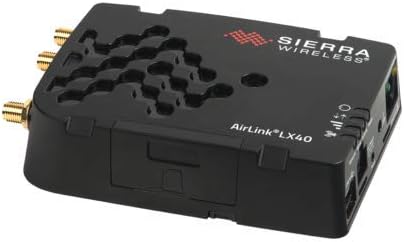
Image: Front-top view of the Sierra Wireless AirLink LX40 LTE Router, showing the Sierra Wireless logo, AirLink LX40 model name, ventilation pattern, and antenna connectors on the left side. The right side shows LED indicators and ports.
3.1 Front Panel Indicators
- Power LED: Indicates power status.
- Signal Strength LEDs: Multiple LEDs indicating cellular signal strength.
- Network LED: Indicates cellular network connection status.
3.2 Rear/Side Panel Connectors
- Antenna Connectors: SMA connectors for LTE antennas.
- Ethernet Ports: RJ45 ports for wired network connections, supporting PoE.
- Power Input: Connector for the external power adapter.
- SIM Card Slot: Slot for inserting the cellular SIM card.
4. Setup
4.1 Hardware Installation
- Insert SIM Card: Open the SIM card slot cover and carefully insert your activated cellular SIM card into the designated slot until it clicks into place. Ensure correct orientation.
- Attach Antennas: Screw the provided LTE antennas onto the corresponding antenna connectors on the router. Hand-tighten only.
- Connect Ethernet (Optional): If connecting a device via wired network, plug one end of an Ethernet cable into an Ethernet port on the LX40 and the other end into your device (e.g., computer, switch).
- Connect Power: Plug the power adapter into the router's power input and then into a suitable power outlet.
4.2 Initial Power On
Upon connecting power, the router will begin its startup sequence. Observe the Power LED, which should illuminate steadily. The Signal Strength and Network LEDs will flash and then stabilize as the router establishes a cellular connection. This process may take a few minutes.
5. Operation
5.1 LED Indicators
Understanding the LED indicators is crucial for monitoring the router's status:
| LED | Status | Description |
|---|---|---|
| Power | Solid Green | Device is powered on. |
| Signal | Varies (1-3 Green) | Indicates cellular signal strength (more LEDs = stronger signal). |
| Network | Solid Green | Connected to cellular network. |
| Network | Flashing Green | Attempting to connect to cellular network. |
5.2 Accessing the Web Interface
To configure advanced settings, access the router's web-based management interface:
- Ensure your computer is connected to the LX40 via an Ethernet cable.
- Open a web browser (e.g., Chrome, Firefox).
- Enter the router's default IP address (commonly
192.168.1.1or192.168.13.31, refer to the Quick Start Guide for exact details) into the address bar and press Enter. - Log in using the default username and password (also found in the Quick Start Guide or on the device label).
The LX40 also supports the ALEOS Application Framework (AAF) for custom edge processing and IoT applications, allowing for advanced customization and integration.
6. Maintenance
6.1 Firmware Updates
Regularly check the Sierra Wireless support website for firmware updates. Keeping your router's firmware up-to-date ensures optimal performance, security, and access to new features. Follow the instructions provided with the firmware update package carefully.
6.2 Cleaning
To clean the router, disconnect it from power. Use a soft, dry cloth to wipe the exterior surfaces. Avoid using liquid cleaners or abrasive materials, as these can damage the device.
7. Troubleshooting
If you encounter issues with your AirLink LX40 router, consider the following basic troubleshooting steps:
- No Power: Ensure the power adapter is securely connected to both the router and a working power outlet. Check the Power LED.
- No Cellular Connection: Verify the SIM card is correctly inserted and activated. Check the Signal Strength and Network LEDs. Ensure antennas are properly attached. Try restarting the router.
- No Internet Access: If the Network LED is solid, but you have no internet, check your device's network settings. Ensure the router's cellular data plan is active.
- Cannot Access Web Interface: Confirm your computer is connected via Ethernet and its IP address is in the same subnet as the router. Clear your browser's cache or try a different browser.
For more detailed troubleshooting guides and solutions, please visit the official Sierra Wireless support website.
8. Specifications
The following table outlines key technical specifications for the Sierra Wireless AirLink LX40 LTE Router:
| Feature | Detail |
|---|---|
| Model Name | LX40 |
| Connectivity Technology | Ethernet, Cellular (LTE) |
| Wireless Communication Standard | 802.11ac (Note: Product description states 'No Wi-Fi' for this specific model, verify configuration) |
| Frequency Band Class | Dual-Band |
| Compatible Devices | Personal Computer, IoT Devices |
| Recommended Uses For Product | Home, Industrial IoT, Edge Computing |
| Color | Black |
| Antenna Type | Fixed (External SMA connectors for user-supplied antennas) |
| Item Weight | 13.6 ounces |
| Package Dimensions | 6.1 x 5.7 x 2.1 inches |
9. Warranty and Support
The Sierra Wireless AirLink LX40 LTE Router is covered by a manufacturer's warranty. Please refer to the warranty documentation included with your product or visit the official Sierra Wireless website for detailed terms and conditions.
For technical assistance, product registration, and access to the latest resources, visit the Sierra Wireless Support Portal. Your purchase includes the first year of network management and support with AirLink Complete, providing comprehensive assistance for your device.
10. Official Product Videos
No official product videos from the seller were found for this product in the provided data.


