
1. Introduction and Overview
This manual provides comprehensive instructions for the safe and efficient use of your Huawei Y6 (2019) smartphone. The Huawei Y6 (2019) is a dual SIM smartphone featuring a 6.088-inch TFT LCD display with a resolution of 1560 x 720 pixels, a 13 MP main camera, an 8 MP front camera, 2 GB of RAM, and 32 GB of internal storage, expandable up to 512 GB. It operates on Android 9.0 with EMUI 9.0 and is powered by a 3020 mAh battery. This device is designed for reliable mobile communication and multimedia use.

Figure 1: Front view of the Huawei Y6 (2019) smartphone, highlighting its display.
2. What's in the Box
Upon unboxing your Huawei Y6 (2019), please verify that all components listed below are present:
- Huawei Y6 (2019) Smartphone
- Fixed Battery (integrated)
- Charger
- Headphones
- USB Cable
- SIM Tool
- Quick Start Guide
- Protective film for the battery cover
- Screen protector film (pre-applied)
3. Product Features
The Huawei Y6 (2019) incorporates several features designed for an enhanced user experience:
- Display: 6.088-inch TFT LCD screen with 1560 x 720 pixel resolution and 282 PPI.
- Cameras: 8 MP front camera and 13 MP main camera.
- Operating System: Android 9.0 with Huawei's EMUI 9.0 interface.
- Battery: 3020 mAh capacity for extended use.
- Memory: 2 GB RAM and 32 GB internal storage, expandable up to 512 GB via microSD.
- Connectivity: Bluetooth and mobile network support.
- Dual SIM: Supports two SIM cards for flexible network usage.

Figure 2: Front view of the Huawei Y6 (2019) showcasing the model branding.
4. Setup
4.1. Inserting SIM Cards and microSD Card
The Huawei Y6 (2019) supports dual SIM cards and a microSD card for expanded storage. Locate the SIM card tray on the side of the device.
- Power off the device before inserting or removing cards.
- Insert the provided SIM tool into the small hole on the SIM card tray to eject it.
- Place your Nano-SIM cards into the designated slots (SIM1 and SIM2) and the microSD card into its slot, ensuring correct orientation as indicated on the tray.
- Gently push the tray back into the device until it clicks into place.
4.2. Initial Power On and Setup
- Press and hold the Power button (located on the right side) until the Huawei logo appears.
- Follow the on-screen prompts to select your language, region, and connect to a Wi-Fi network.
- Sign in with your Google account or create a new one to access Google services and the Play Store.
- Configure security settings such as facial recognition or a PIN/pattern/password.
4.3. Charging the Battery
Before first use, it is recommended to fully charge the device. Connect the USB cable to the phone's USB Type-C port and the other end to the charger. Plug the charger into a power outlet. The charging indicator will appear on the screen.
5. Operating Instructions
5.1. Basic Navigation
- Touchscreen Gestures: Tap to select, swipe to scroll, pinch to zoom.
- Home Screen: Access apps, widgets, and notifications.
- Notification Panel: Swipe down from the top of the screen to view notifications and quick settings.
- Recent Apps: Use the navigation buttons or gestures to switch between recently used applications.
5.2. Camera Usage
To open the camera, tap the Camera icon on the home screen or lock screen. The 13 MP main camera is located on the back, and the 8 MP front camera is for selfies and video calls.
- Tap the shutter button to take a photo.
- Switch between photo and video modes.
- Adjust settings like flash, HDR, and filters.
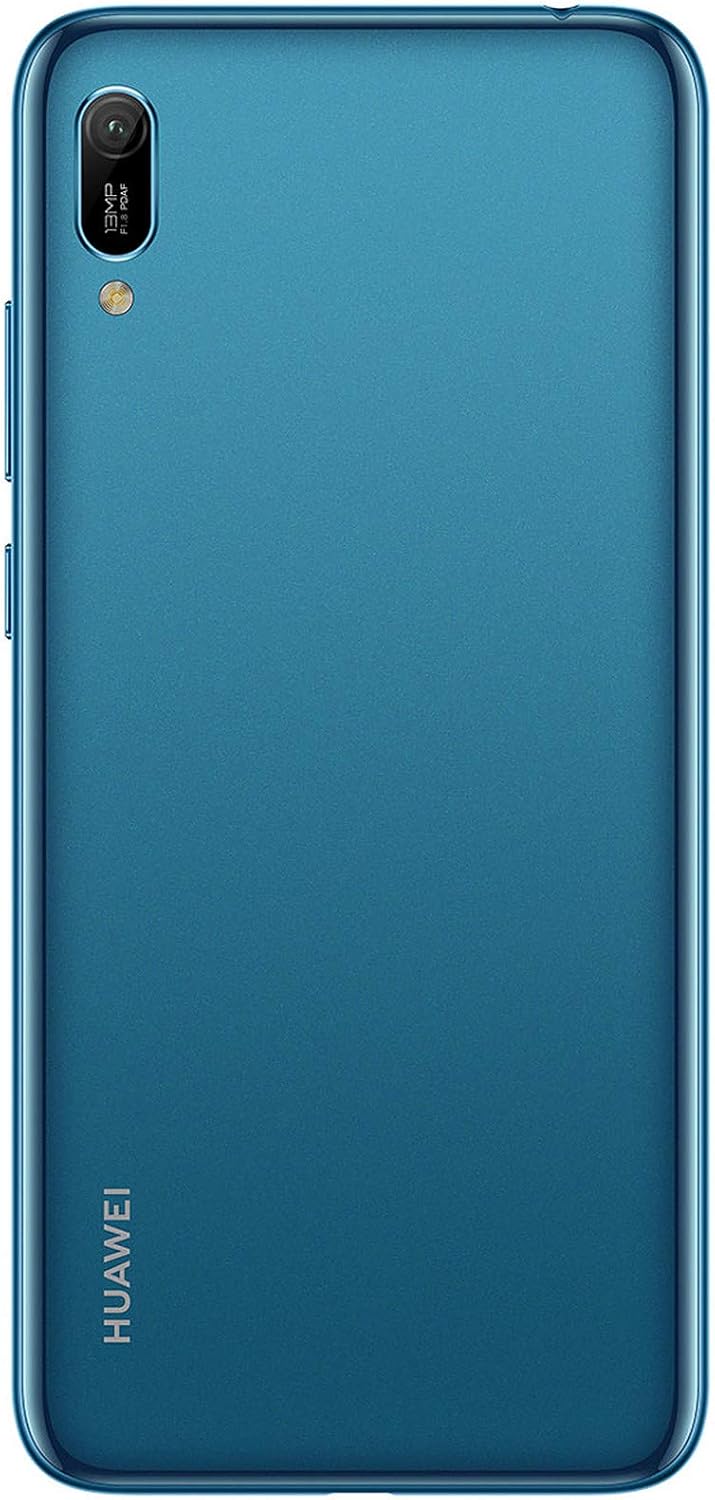
Figure 3: Rear view of the Huawei Y6 (2019) highlighting the main camera module.
5.3. Connectivity
- Wi-Fi: Go to Settings > Wireless & networks > Wi-Fi to connect to available networks.
- Bluetooth: Enable Bluetooth in Settings > Device connection > Bluetooth to pair with other devices like headphones or speakers.
- Mobile Data: Ensure mobile data is enabled in Settings > Wireless & networks > Mobile network for internet access via your SIM card.
6. Maintenance
6.1. Cleaning Your Device
To maintain the appearance and functionality of your Huawei Y6 (2019):
- Use a soft, lint-free cloth to wipe the screen and body.
- Avoid using harsh chemicals, abrasive cleaners, or aerosol sprays.
- Keep ports free of dust and debris.
6.2. Battery Care
- Avoid extreme temperatures, which can degrade battery life.
- Do not allow the battery to fully discharge frequently.
- Use only the original charger and USB cable provided with the device.
6.3. Software Updates
Regularly check for software updates to ensure optimal performance and security. Go to Settings > System > Software update to check for and install available updates.
6.4. Storage Management
To optimize performance, manage your device's storage. Delete unnecessary files, clear app caches, and consider moving large files to a microSD card.
7. Troubleshooting
7.1. Common Issues and Solutions
- Device not turning on: Ensure the battery is charged. Connect the charger and wait a few minutes before attempting to power on again.
- Poor signal or no network: Check if SIM cards are correctly inserted. Try restarting the device. Verify network settings and contact your service provider if issues persist.
- Apps crashing or freezing: Close and reopen the app. Clear the app's cache (Settings > Apps > [App Name] > Storage > Clear cache). If the problem persists, uninstall and reinstall the app.
- Battery drains quickly: Reduce screen brightness, disable unused features like Bluetooth or Wi-Fi, close background apps, and check for power-intensive apps in battery settings.
- Device slow: Clear cache, free up storage space, and restart the device.
7.2. Factory Reset
If your device experiences persistent issues that cannot be resolved through other troubleshooting steps, a factory reset may be necessary. Warning: A factory reset will erase all data on your device. Back up important data before proceeding.
- Go to Settings > System > Reset > Factory data reset.
- Confirm your decision and follow the on-screen instructions.
8. Specifications
| Feature | Detail |
|---|---|
| Brand | HUAWEI |
| Model Name | HUAWEI Y6 2019-L21A/Dual SIM Sapphire Blue |
| Model Number | 51093MGE |
| Color | Sapphire Blue |
| Operating System | Android 9.0 (EMUI 9.0) |
| Screen Size | 6.09 Inches |
| Resolution | 1560 x 720 pixels |
| RAM Size | 2 GB |
| Storage Capacity | 32 GB (expandable up to 512 GB) |
| Rear Camera Resolution | 13 Megapixels |
| Front Camera Resolution | 8 Megapixels |
| Battery Composition | Lithium-polymer (3020 mAh) |
| Connectivity | Bluetooth, Wi-Fi, 3G Mobile Network |
| USB Type | USB Type C |
| SIM Type | Dual SIM (Nano-SIM) |
9. Warranty and Support
Warranty information for your Huawei Y6 (2019) is typically provided with your purchase documentation. Please refer to the warranty card or contact your point of purchase for specific details regarding warranty coverage and terms.
For technical support, software updates, or further assistance, please visit the official Huawei support website or contact their customer service. Keep your device's model number (MRD-LX1, 51093MGE) and serial number ready when seeking support.
Official Huawei Support: consumer.huawei.com/en/support/


