
Spider A-EMIC-BT100
User Manual
Spider Truly Wireless Bluetooth Earphones BT100
Model: A-EMIC-BT100
Introduction
The Spider Truly Wireless Earphones BT100 are designed to provide a balanced and detailed audio experience with powerful bass. Their stylish design ensures a comfortable and secure fit for extended use. These earphones offer easy pairing and maintain a stable Bluetooth connection for uninterrupted listening. The BT100 has successfully passed the UN38.3 test, ensuring the safety of its battery for user peace of mind.
Key features include HD Sound with Noise-Isolation, easy and stable connectivity, up to 16 hours of total playtime with the charging case, automatic pairing and charging, and an iOS Battery Capacity Display.
What's Included
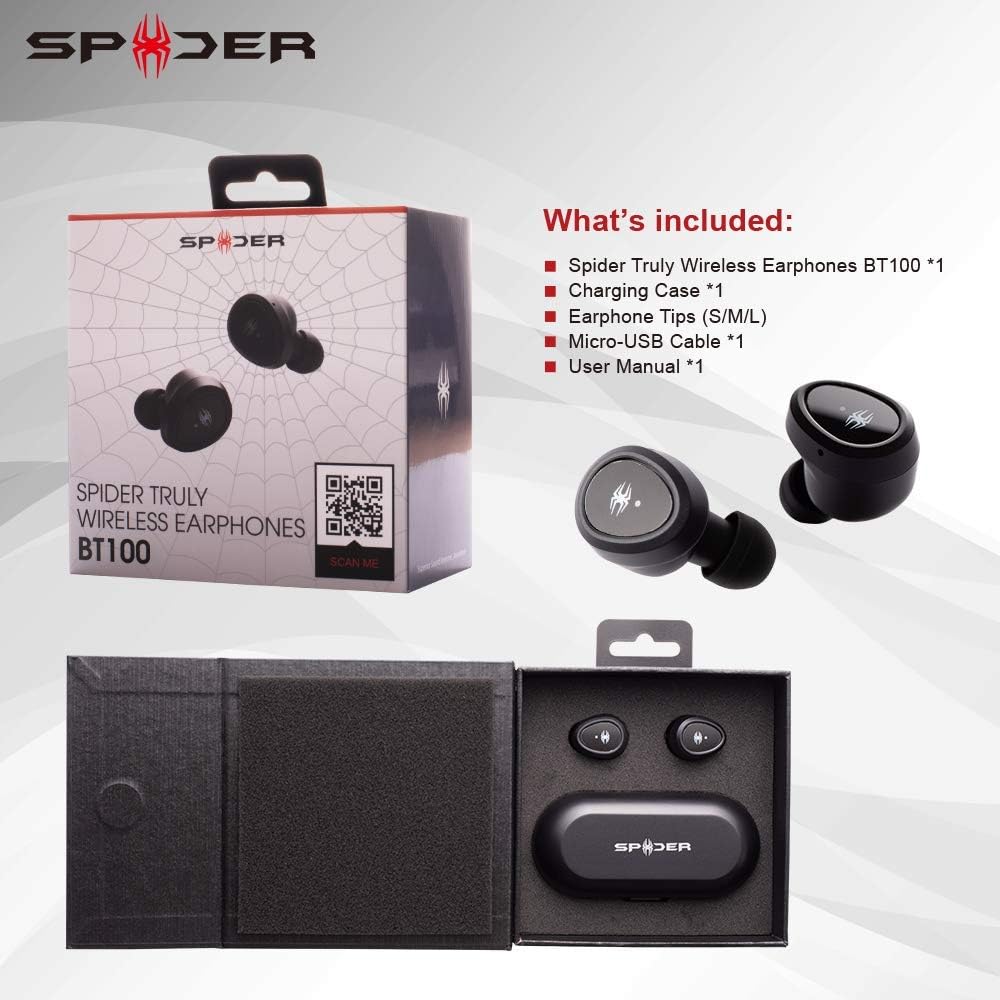
This image displays the Spider BT100 retail packaging and its contents. The box is open, revealing the earphones and charging case nestled in their compartments. Alongside the main product, the image shows the included accessories: a Micro-USB cable, various sizes of earphone tips (S/M/L), and the user manual. This visual confirms all items you should find in your package.
- Spider Truly Wireless Earphones BT100 (1 pair)
- Charging Case (1)
- Earphone Tips (S/M/L sizes)
- Micro-USB Cable (1)
- User Manual (1)
Product Overview

This diagram highlights the key components of the Spider BT100 earphones and their charging case. For the headset, it points out the Status LED Indicator and the Power On/Off Button. For the charging case, it shows the LED Power Indicator, which turns red when the capacity is below 50%. The image also lists key features such as HD Sound with Noise-Isolation, Easy Pairing and Stable Connectivity, 2-3 hours playing time per charge, up to 16 hours total playing time with the case, automatic pairing and charging, and iOS Battery Capacity Display.
- Earphones: Each earphone features a multi-function button for controls and an LED indicator.
- Charging Case: A compact case that charges the earphones and provides extended battery life. It has LED indicators for its own battery status and a Micro-USB charging port.
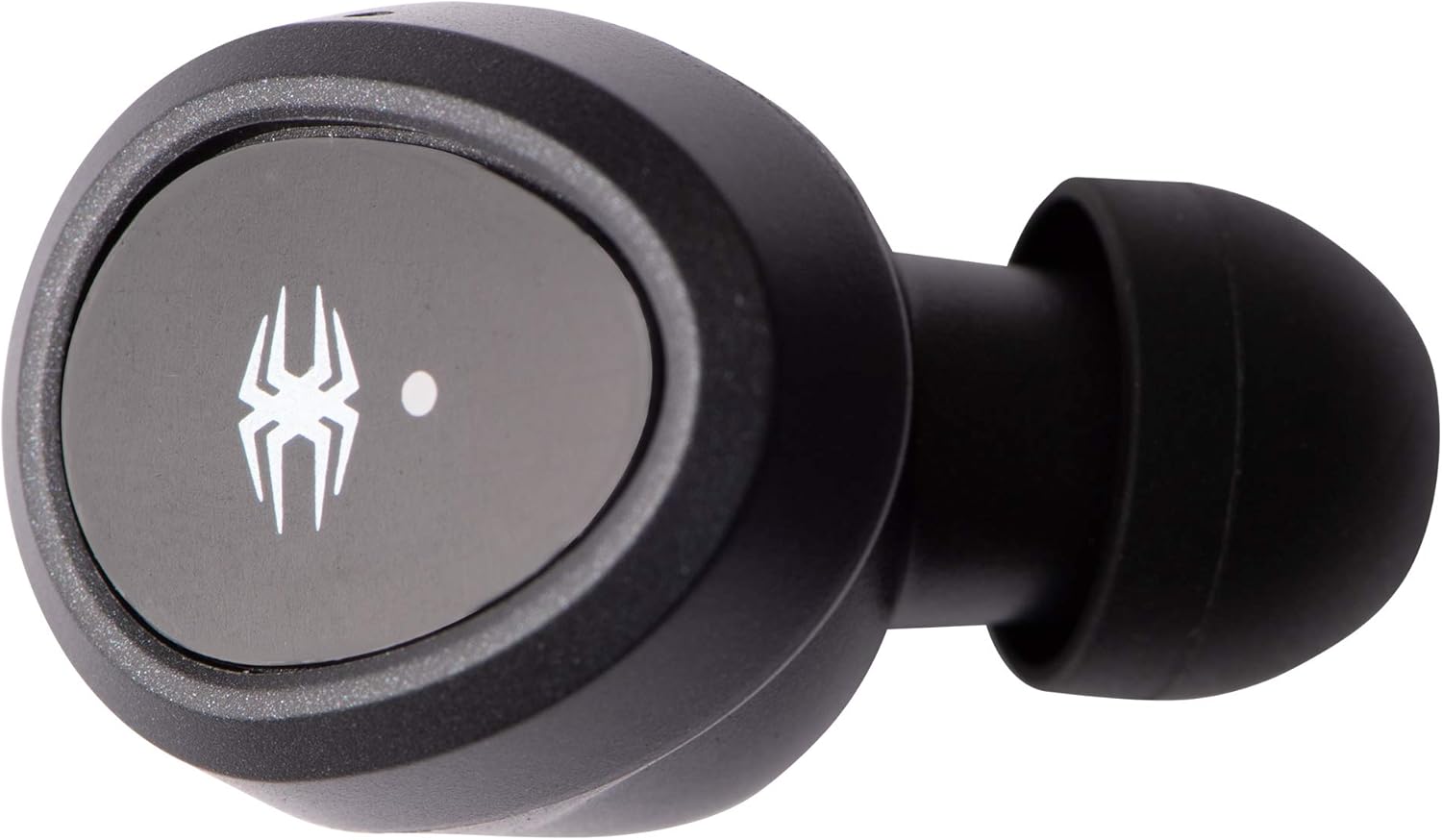
Single earphone, top view.

Single earphone, side view.

Charging case, closed.
Setup
1. Initial Charging
Before first use, fully charge both the earphones and the charging case.
- Connect the Micro-USB cable to the charging case and a USB power source (e.g., computer, wall adapter).
- The LED indicators on the charging case will show charging status.
- Place the earphones into the charging case. They will automatically begin charging.
- Charging time for the case is approximately 2 hours. Earphones charge in about 1.5 hours.
2. Pairing Instructions
The Spider BT100 earphones feature automatic pairing for convenience.
- Power On: Take both earphones out of the charging case. They will automatically power on and enter pairing mode. The LED indicators on the earphones will flash.
- Bluetooth Activation: On your device (smartphone, tablet, etc.), enable Bluetooth.
- Select Device: Search for "Spider BT100" in the list of available Bluetooth devices and select it to connect.
- Connection Confirmation: Once successfully paired, the earphone LED indicators will stop flashing, and you may hear an audible confirmation.
Note: If the earphones do not automatically pair with each other, place them back into the charging case and then take them out again. If issues persist, refer to the Troubleshooting section.
Operating
Power On/Off
- Power On: Take the earphones out of the charging case. They will power on automatically. Alternatively, press and hold the multi-function button on each earphone for 3 seconds.
- Power Off: Place the earphones back into the charging case. They will power off automatically. Alternatively, press and hold the multi-function button on each earphone for 5 seconds.
Music Playback Controls
- Play/Pause: Press the multi-function button on either earphone once.
- Next Track: Double-press the multi-function button on the Right earphone.
- Previous Track: Double-press the multi-function button on the Left earphone.
- Volume Up: Triple-press the multi-function button on the Right earphone.
- Volume Down: Triple-press the multi-function button on the Left earphone.
Call Management
- Answer/End Call: Press the multi-function button on either earphone once.
- Reject Call: Press and hold the multi-function button on either earphone for 2 seconds.
- Activate Voice Assistant: Press and hold the multi-function button on either earphone for 1.5 seconds (e.g., Siri, Google Assistant).
Battery Status
- Earphones: When connected to an iOS device, the battery capacity of the earphones will be displayed on the device's screen.
- Charging Case: The LED power indicator on the charging case will turn red when its battery capacity is below 50%.
Maintenance
Cleaning
- Use a soft, dry, lint-free cloth to clean the earphones and charging case.
- Do not use abrasive cleaners, solvents, or aerosol sprays.
- Gently remove earwax or debris from the ear tips and speaker mesh using a small, soft brush or cotton swab.
Storage
- When not in use, always store the earphones in their charging case to protect them and keep them charged.
- Store in a cool, dry place away from extreme temperatures and direct sunlight.
Troubleshooting
| Problem | Possible Cause | Solution |
|---|---|---|
| Earphones not powering on. | Low battery. | Place earphones in the charging case and ensure the case is charged. |
| Only one earphone working. | Earphones not paired with each other. | Place both earphones back into the charging case, close the lid for 5 seconds, then take them out again. They should automatically re-sync. |
| Cannot pair with device. | Bluetooth off, earphones not in pairing mode, or too far from device. | Ensure Bluetooth is enabled on your device. Make sure earphones are out of the case and flashing. Move closer to your device. Try forgetting "Spider BT100" in your device's Bluetooth settings and re-pairing. |
| Poor sound quality or disconnections. | Interference, distance, or low battery. | Move closer to your device. Avoid areas with strong Wi-Fi or other Bluetooth signals. Ensure earphones and case are fully charged. |
| Charging case not charging. | Faulty cable or power source. | Try a different Micro-USB cable and/or a different USB power adapter. Ensure the cable is securely connected. |
Specifications

This image presents a detailed table of technical specifications for the Spider Truly Wireless Earphones BT100 and its charging case. It includes information such as Bluetooth version, profiles, connecting distance, driver unit size, sensitivity, frequency response, play time, charging time, microphone type, and weight for the headset. For the charging case, it lists battery voltage, type, charging time, extra hour supply playtime, battery status indicator, charging connector, weight, and dimensions. A frequency response graph is also visible above the table.
Headset:
- Bluetooth Version: 4.2
- Bluetooth Profiles: A2DP, AVRCP, HFP, HSP
- Connecting Distance: Maximum 10 Meters (33 feet)
- Driver Unit: 5mm dynamic
- Sensitivity: 98dB@1KHz
- Frequency Response: 20-20KHz
- Play Time: 2-3 hours (per charge)
- Charging Time: 1.5 hours
- Microphone: Omnidirectional
- Weight: 4.5g (per earphone)
Charging Case:
- Battery Voltage: 3.7V
- Battery Type: Lithium Polymer
- Charging Time: 2 hours
- Extra Hour Supply Playtime: 16 hours (total with case)
- Charging Connector: Micro USB
- Weight: 63g
- Dimensions: 97mm x 46mm x 37mm

Bottom of the charging case, displaying model number (BT100), input/output specifications, FCC ID (2AQ5M-T100), CE mark, and "MADE IN CHINA" text.
Warranty and Support
The Spider Truly Wireless Earphones BT100 come with a 1-year Limited Warranty from the date of purchase. This warranty covers manufacturing defects in materials and workmanship under normal use.
The warranty does not cover:
- Damage caused by accident, abuse, misuse, flood, fire, earthquake, or other external causes.
- Damage caused by operating the product outside the permitted or intended uses described by Spider.
- Damage caused by service performed by anyone who is not a representative of Spider.
- Products or parts that have been modified to alter functionality or capability without the written permission of Spider.
For warranty claims or technical support, please visit the official Spider product website or contact their customer service. You can find more information and support at: www.spiderproduct.com
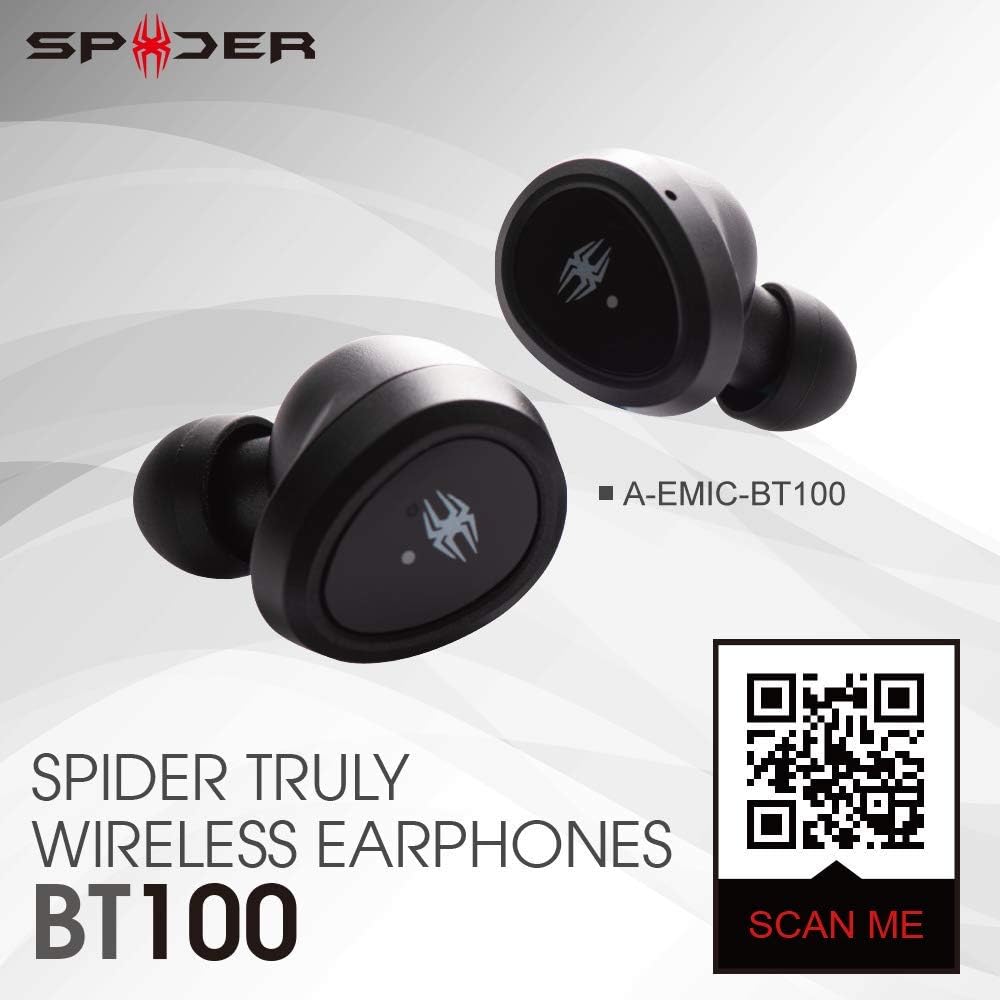
Image showing the Spider BT100 earphones alongside a QR code. Scanning this QR code will direct you to the official product website for more details and support.
Related documentsA-EMIC-BT100

Ask a question about this manual
Ask about setup, troubleshooting, compatibility, parts, safety, or missing instructions. Manuals+ will review the question and use this page’s manual context to help answer it.