
1. Introduction
This manual provides comprehensive instructions for setting up, operating, and maintaining your Huawei Wireless Router. Please read this manual carefully before using the device to ensure proper functionality and safety. This router is designed to provide high-speed internet access via 4G LTE and Wi-Fi connectivity for multiple devices.
2. Package Contents
Verify that all items are present in your product package:
- Huawei Wireless Router
- Power Adapter
- Ethernet Cable
- Quick Start Guide
- Warranty Card
3. Product Overview
Familiarize yourself with the router's components and indicators.

Figure 3.1: Front View. This image shows the Huawei Wireless Router from the front, highlighting its compact design and the illuminated top panel, which indicates device status.
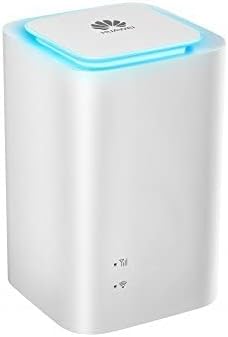
Figure 3.2: Side View. This image displays the side of the Huawei Wireless Router, showing the various ports (RJ45, RJ11) and LED indicators for signal strength and Wi-Fi status.
LED Indicators:
- Power LED: Indicates power status.
- Network LED: Shows network connectivity (4G/LTE).
- Wi-Fi LED: Indicates Wi-Fi status.
Ports:
- RJ45 Port: For wired LAN connection.
- RJ11 Port: For telephone connection (if supported by model).
- Power Port: Connects to the power adapter.
- SIM Card Slot: Insert your 4G LTE SIM card here.
4. Setup
- Insert SIM Card: Locate the SIM card slot, usually on the bottom or side. Insert your standard 4G LTE SIM card into the slot until it clicks into place. Ensure the SIM card is correctly oriented.
- Connect Power: Connect the power adapter to the router's power port and then plug the adapter into a power outlet. The Power LED should light up.
- Power On: Press the Power button (if available) or wait for the router to automatically power on. The router will begin to boot up.
- Network Connection: Wait for the Network LED to turn solid, indicating a successful connection to the 4G LTE network. This may take a few minutes.
- Initial Wi-Fi Connection: On your device (smartphone, tablet, laptop), search for available Wi-Fi networks. The default Wi-Fi name (SSID) and password (Wi-Fi Key) are typically printed on a label on the bottom or back of the router. Select the router's SSID and enter the password to connect.
- Access Web Interface: Open a web browser and enter the default IP address (e.g., 192.168.8.1 or 192.168.1.1) found on the router's label. Log in using the default username and password (also on the label) to configure advanced settings.
5. Operating Instructions
Connecting Devices:
- Wi-Fi: Use the SSID and password to connect wireless devices. The router supports up to 32 wireless users simultaneously.
- Wired: Connect devices like desktop computers or gaming consoles to the RJ45 LAN port using an Ethernet cable.
Managing Settings:
Access the web management interface (refer to Setup Step 6) to:
- Change Wi-Fi SSID and password.
- Configure network settings (APN, roaming).
- View connected devices.
- Update firmware.
- Set up parental controls or guest networks.
6. Maintenance
- Cleaning: Use a soft, dry cloth to clean the router. Do not use liquid cleaners or aerosols.
- Ventilation: Ensure the router is placed in a well-ventilated area to prevent overheating. Do not cover ventilation openings.
- Firmware Updates: Regularly check for and install firmware updates through the web management interface to ensure optimal performance and security.
- Restarting: If you experience connectivity issues, try restarting the router by unplugging the power adapter, waiting 10 seconds, and plugging it back in.
7. Troubleshooting
| Problem | Possible Cause | Solution |
|---|---|---|
| No Power LED | Power adapter not connected or faulty. | Check power connections. Try a different power outlet. |
| No Network Connection (Network LED off/red) | SIM card not inserted correctly or no signal. | Reinsert SIM card. Move router to an area with better signal. Contact your service provider. |
| Cannot connect to Wi-Fi | Incorrect Wi-Fi password or Wi-Fi disabled. | Verify password. Check Wi-Fi settings in the web interface. |
| Slow Internet Speed | Poor signal, too many connected devices, or network congestion. | Relocate router. Disconnect unused devices. Contact service provider. |
8. Specifications
| Feature | Detail |
|---|---|
| Brand | Huawei |
| Model Number | 2724329958597 |
| Product Dimensions | 7.8 x 13.6 x 11.2 cm |
| Item Weight | 1.52 Kilograms |
| Color | White |
| Connectivity Technology | Wi-Fi |
| Wireless Communication Standard | 802.11b/g/n |
| Frequency | 2.4 GHz |
| Frequency Band Class | Dual-Band |
| Compatible Devices | Smartphone, Tablet, Laptop |
| Special Feature | Access Point Mode |
| Included Components | Router |
9. Warranty and Support
Your Huawei Wireless Router comes with a standard manufacturer's warranty. Please refer to the warranty card included in your package for specific terms and conditions. For technical support, product inquiries, or warranty claims, please visit the official Huawei support website or contact their customer service hotline. Keep your purchase receipt for warranty validation.


