
1. Introduction
Welcome to the user manual for your Samsung Galaxy S10. This guide provides essential information on setting up, operating, maintaining, and troubleshooting your device. The Samsung Galaxy S10 offers a premium mobile experience with advanced camera features, an intelligent battery, in-display ultrasonic fingerprint ID, and an immersive cinematic screen.
2. What's in the Box
The Samsung Galaxy S10 package typically includes the following items:
- Samsung Galaxy S10 Smartphone
- USB-C Cable
- Wall Charger Adapter
- SIM Ejection Tool
- Quick Start Guide
3. Device Layout
Familiarize yourself with the physical components of your Samsung Galaxy S10.
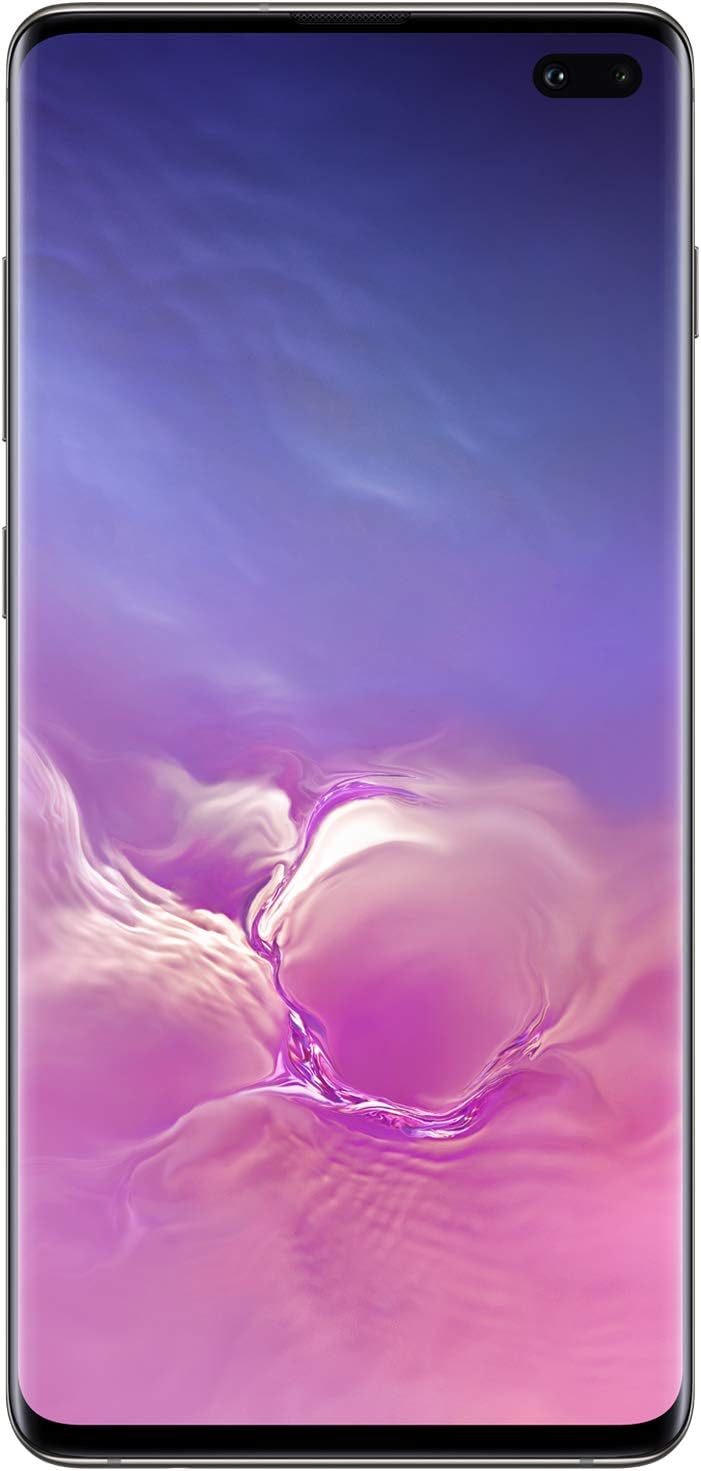
Front view of the Samsung Galaxy S10, showcasing the Infinity-O display and front camera.

Rear view of the Samsung Galaxy S10, highlighting the triple camera system and Samsung branding.

Left side view of the Samsung Galaxy S10, showing the volume buttons and Bixby button.
4. Setup
4.1. Inserting the SIM Card
- Locate the SIM card tray on the top edge of the device.
- Insert the SIM ejection tool into the small hole next to the tray and push gently until the tray pops out.
- Place your Nano-SIM card (and microSD card, if applicable) into the tray with the gold contacts facing down.
- Carefully push the tray back into the slot until it clicks into place.
4.2. Powering On Your Device
Press and hold the Power/Side key located on the right side of the device until the Samsung logo appears on the screen.
4.3. Initial Setup Wizard
Follow the on-screen prompts to complete the initial setup, including connecting to Wi-Fi, signing into your Google account, and setting up security features.
5. Operating Your Device
5.1. Camera Features
The Galaxy S10 features a versatile pro-grade camera system. It includes ultrawide lenses for landscapes and micro-zoom for detailed shots. Software updates provide features like Single Take AI and Pro Video mode.
- Single Take AI: Capture multiple images and videos simultaneously with one tap.
- Pro Video Mode: Gain manual control over camera settings such as exposure and focus.
- Live Video Bokeh: Apply background blur effects to videos in real-time.
5.2. Battery Management
The Galaxy S10 is equipped with a long-lasting, intelligent battery that adapts to your usage patterns to optimize battery life. It supports fast charging and Wireless PowerShare.
- Fast Charging: Use the included fast charger for quicker power replenishment.
- Wireless PowerShare: Share your phone's battery power wirelessly with compatible devices by placing them on the back of your Galaxy S10.
5.3. Connectivity
The device supports various wireless communication technologies for seamless connectivity.
- Wi-Fi: Connect to wireless networks for internet access.
- Bluetooth: Pair with Bluetooth accessories like headphones or smartwatches.
- NFC: Enable Near Field Communication for mobile payments and quick pairing.
- Wi-Fi Direct: Share content directly with other Wi-Fi Direct enabled devices.
5.4. Security Features
Protect your device and data using the advanced security options.
- In-display Ultrasonic Fingerprint ID: Register your fingerprints for secure and convenient unlocking.
- Facial Recognition: Unlock your device using your face.
- PIN/Pattern/Password: Standard security methods for device access.
6. Maintenance
To ensure the longevity and optimal performance of your Samsung Galaxy S10, follow these maintenance guidelines:
- Keep your device clean by gently wiping it with a soft, dry cloth.
- Avoid exposing the phone to extreme temperatures, direct sunlight, or excessive moisture.
- Regularly update your device's software to benefit from the latest features, security patches, and performance improvements.
- Manage storage by regularly clearing unnecessary files and apps.
7. Troubleshooting
If you encounter issues with your device, refer to the following common troubleshooting steps:
- Device not turning on: Ensure the battery is charged. Connect the device to its charger and wait a few minutes before attempting to power on again.
- Screen unresponsive: Try restarting the device by holding the Power/Side key and Volume Down button simultaneously for about 7 seconds.
- Apps crashing or freezing: Close the problematic app and reopen it. If the issue persists, clear the app's cache or reinstall it. Ensure your device software is up to date.
- Poor battery life: Adjust screen brightness, disable unnecessary background apps, turn off Wi-Fi/Bluetooth when not in use, and review battery usage in settings to identify power-hungry apps.
- Connectivity issues (Wi-Fi/Bluetooth): Toggle Wi-Fi or Bluetooth off and on. Restart your device and the router/Bluetooth accessory.
8. Specifications
Key technical specifications for the Samsung Galaxy S10 (SM-G973U1ZKAX):
| Feature | Detail |
|---|---|
| Product Dimensions | 5.94 x 2.78 x 0.31 inches |
| Item Weight | 1.65 ounces |
| Item Model Number | SM-G973U1ZKAX |
| Operating System | Android 9.0 (upgradable) |
| RAM | 8 GB |
| Memory Storage Capacity | 128 GB |
| Screen Size | 6.1 Inches |
| Display Technology | AMOLED |
| Resolution | 3040 x 1440 |
| Battery Capacity | 3100 Milliamp Hours |
| Wireless Communication Technologies | Wi-Fi, Bluetooth, Wi-Fi Direct, NFC |
| Audio Jack | 3.5 mm |
| Color | Prism Black |
9. Warranty and Support
For detailed warranty information and further support, please refer to the official Samsung website or the full user manual. You can often find the complete user manual in PDF format for download.
Official User Manual (PDF): Download Here
For additional assistance, contact Samsung customer support or visit an authorized service center.


