
1. Introduction
The TC Helicon GO GUITAR is a portable audio interface designed for connecting electric guitars, bass guitars, and other line-level instruments to mobile devices and computers. This device allows users to record high-quality audio directly to iOS, Android, Mac, and PC platforms, integrating seamlessly with various music applications and software.
2. Safety Instructions
- Do not expose the device to rain, moisture, or extreme temperatures.
- Avoid dropping or subjecting the device to strong impacts.
- Do not attempt to disassemble or modify the device. Refer all servicing to qualified personnel.
- Use only specified accessories and cables.
- Keep out of reach of children.
3. Package Contents
Verify that all items are present in your package:
- TC Helicon GO GUITAR Portable Guitar Interface
- Quick Start Guide (if applicable)

Image: The TC Helicon GO GUITAR unit with its integrated cable, illustrating the compact design and primary connection.
4. Product Overview
The GO GUITAR features a simple and intuitive design for ease of use.

Image: An angled view of the GO GUITAR, highlighting the 'GAIN' knob on the side and the output jack at the bottom.
Key Components:
- Integrated TRRS Cable: Connects to your mobile device's headphone/microphone jack or computer's combo jack.
- 1/4" Instrument Input: For connecting your electric guitar, bass, or other line-level instrument.
- 1/8" Headphone Output: For monitoring your audio with headphones.
- Gain Control: Adjusts the input level of your instrument.
- Belt Clip: For convenient attachment to clothing or a strap.

Image: A close-up view of the bottom of the GO GUITAR, clearly showing the 1/4-inch instrument input and the 1/8-inch headphone output jacks.
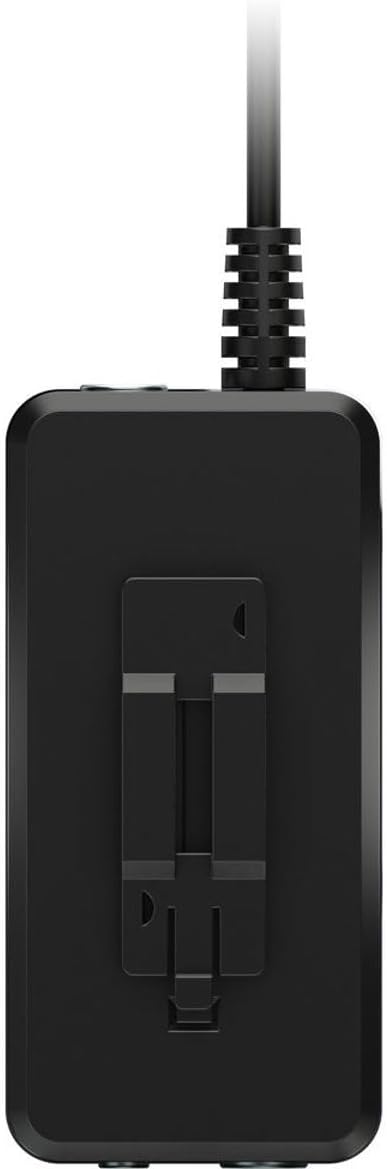
Image: Side view of the GO GUITAR, illustrating the integrated belt clip for portable use.
5. Setup
- Connect to Device: Plug the integrated TRRS cable of the GO GUITAR into the headphone/microphone jack of your iOS/Android device or the combo jack of your Mac/PC.
- Connect Instrument: Plug your electric guitar, bass, or other line-level instrument into the 1/4" Instrument Input jack on the GO GUITAR.
- Connect Headphones (Optional): For monitoring your sound, plug your headphones into the 1/8" Headphone Output jack.
- Launch Application: Open your preferred recording or music application on your mobile device or computer. Ensure the application recognizes the GO GUITAR as an audio input.
6. Operating
- Adjust Gain: While playing your instrument, slowly turn the 'GAIN' knob on the GO GUITAR until you achieve a strong signal without clipping (distortion). Most applications will have a visual indicator for input level.
- Monitor Sound: If headphones are connected, you will hear your instrument's sound through them. Adjust the volume on your connected device or within the application.
- Record: Use your chosen application's recording functions to capture your performance.
- Experiment with Apps: The GO GUITAR is compatible with a wide range of iOS apps, Android apps, and desktop software. Explore different applications to find the sounds and effects that suit your needs.
Note: The GO GUITAR is a passive device and does not require batteries or external power. It draws power directly from the connected mobile device or computer.
7. Maintenance
- Cleaning: Wipe the device with a soft, dry cloth. Do not use liquid cleaners or solvents.
- Storage: Store the GO GUITAR in a cool, dry place away from direct sunlight when not in use.
- Cable Care: Avoid sharp bends or excessive pulling on the integrated cable to prevent damage.
8. Troubleshooting
| Problem | Possible Solution |
|---|---|
| No sound from instrument. |
|
| Sound is distorted or clipping. |
|
| No sound from headphones. |
|
9. Specifications
| Brand | TC Helicon |
| Model | GO GUITAR |
| Connectivity Technology | USB (via TRRS jack) |
| Number of Channels | 1 |
| Compatible Devices | iOS, Android, Mac, PC |
| Supported Software | TC Helicon mobile apps, popular iOS apps, 3rd-party vendors' apps, and software |
| Power Source | Bus-powered (from connected device) |
10. Warranty and Support
For detailed warranty information and technical support, please refer to the official TC Helicon website or contact their customer service directly. Keep your purchase receipt for warranty claims.
Online Resources: www.tchelicon.com


