1. Introduction
The ENHANCE Infiltrate USB Gaming Mouse is designed for an enhanced gaming experience, featuring customizable controls and dynamic lighting. This manual provides instructions for setting up, operating, and maintaining your gaming mouse.

Image: The ENHANCE Infiltrate USB Gaming Mouse, showcasing its ergonomic design and sleek black finish.
2. Key Features
- Multi-Color LED Light: Dynamic rainbow lighting pattern illuminates the mouse accents, slowly fading between colors.
- On-the-Fly DPI Adjustment: Quickly select from 4 DPI intervals (800, 1200, 1600, 2400) using the dedicated DPI button.
- Ergonomic Design with Smooth Rubber Grip: The top features a sleek rubber coating, while the side includes two extra thumb buttons with a textured grip for comfort.
- 6 Programmable Buttons: Customize your gaming experience with additional buttons for macros or specific functions.
- Plug & Play Design: Connects easily to your PC via a gold-plated USB connector for immediate use.
- Durable Braided Cable: Designed for longevity and resistance to tangles.
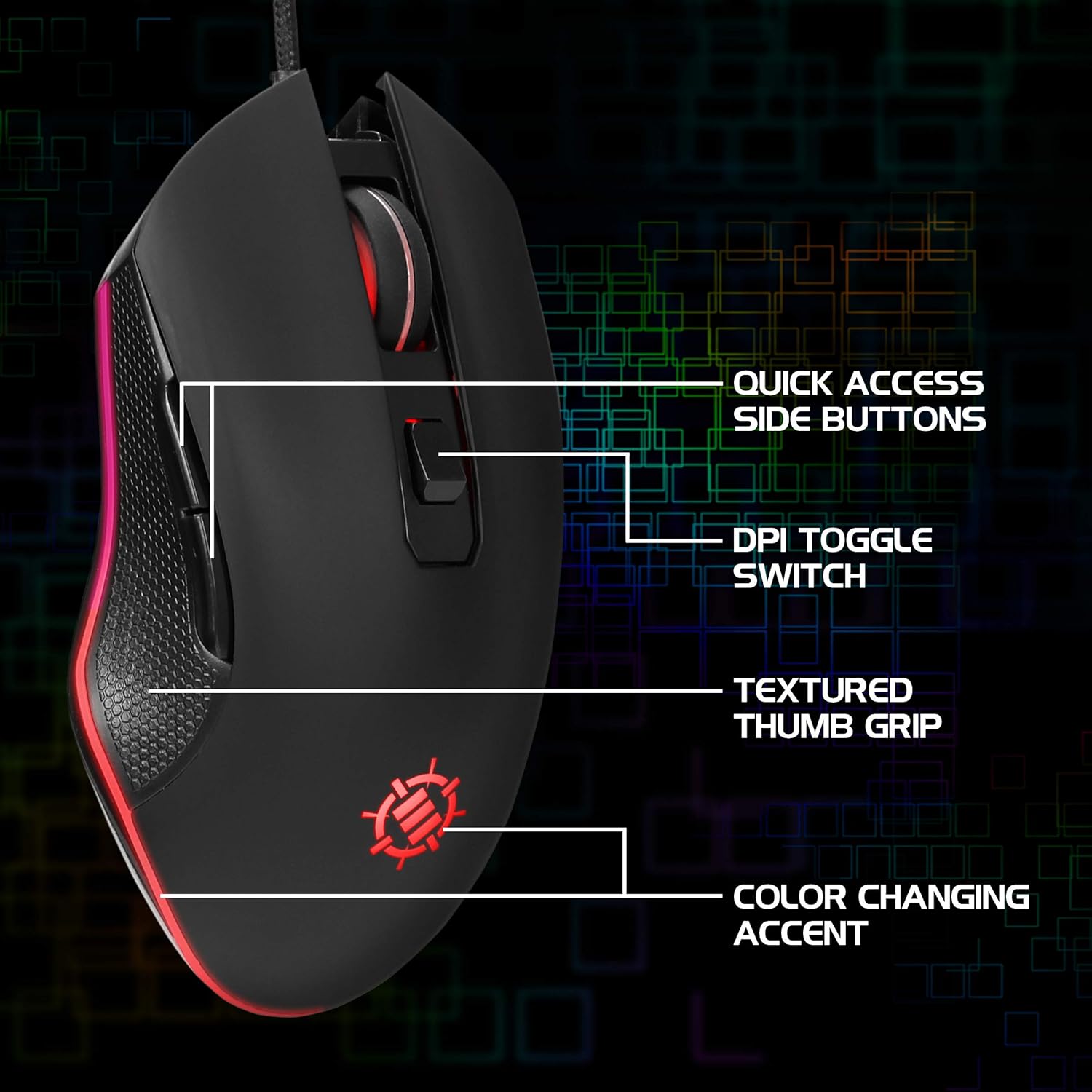
Image: Diagram highlighting key features of the ENHANCE Infiltrate mouse, including quick access side buttons, DPI toggle switch, textured thumb grip, and color-changing accent.
3. Setup Guide
- Unpack the Mouse: Carefully remove the ENHANCE Infiltrate USB Gaming Mouse from its packaging.
- Connect to Computer: Locate an available USB port on your computer. Insert the gold-plated USB connector of the mouse into the USB port. The mouse is plug-and-play, so no additional drivers are typically required for basic functionality.
- Initial Recognition: Your operating system should automatically detect and install the necessary drivers. This process may take a few moments.
- Verify Functionality: Once installed, the mouse's LED lighting should activate, and you should be able to move the cursor on your screen.

Image: A close-up view of the heavy-duty braided cable and gold-plated USB connector, ready for connection.
For a visual guide on connecting and using the mouse, please watch the official product video below.
Video: Official product video demonstrating the ENHANCE Infiltrate USB Gaming Mouse, including connection and feature highlights.
4. Operating Instructions
4.1 Basic Mouse Functions
The ENHANCE Infiltrate mouse functions like a standard USB mouse. It includes left-click, right-click, and a scroll wheel with a clickable middle button.

Image: A hand demonstrating the ergonomic grip of the ENHANCE Infiltrate Gaming Mouse on a gaming mouse pad.
4.2 DPI Adjustment
The mouse features a dedicated DPI button located behind the scroll wheel. Press this button to cycle through four preset DPI (Dots Per Inch) sensitivity levels:
- 800 DPI
- 1200 DPI
- 1600 DPI
- 2400 DPI
Each DPI setting may correspond to a different LED color on the mouse, providing visual feedback for the current sensitivity level.
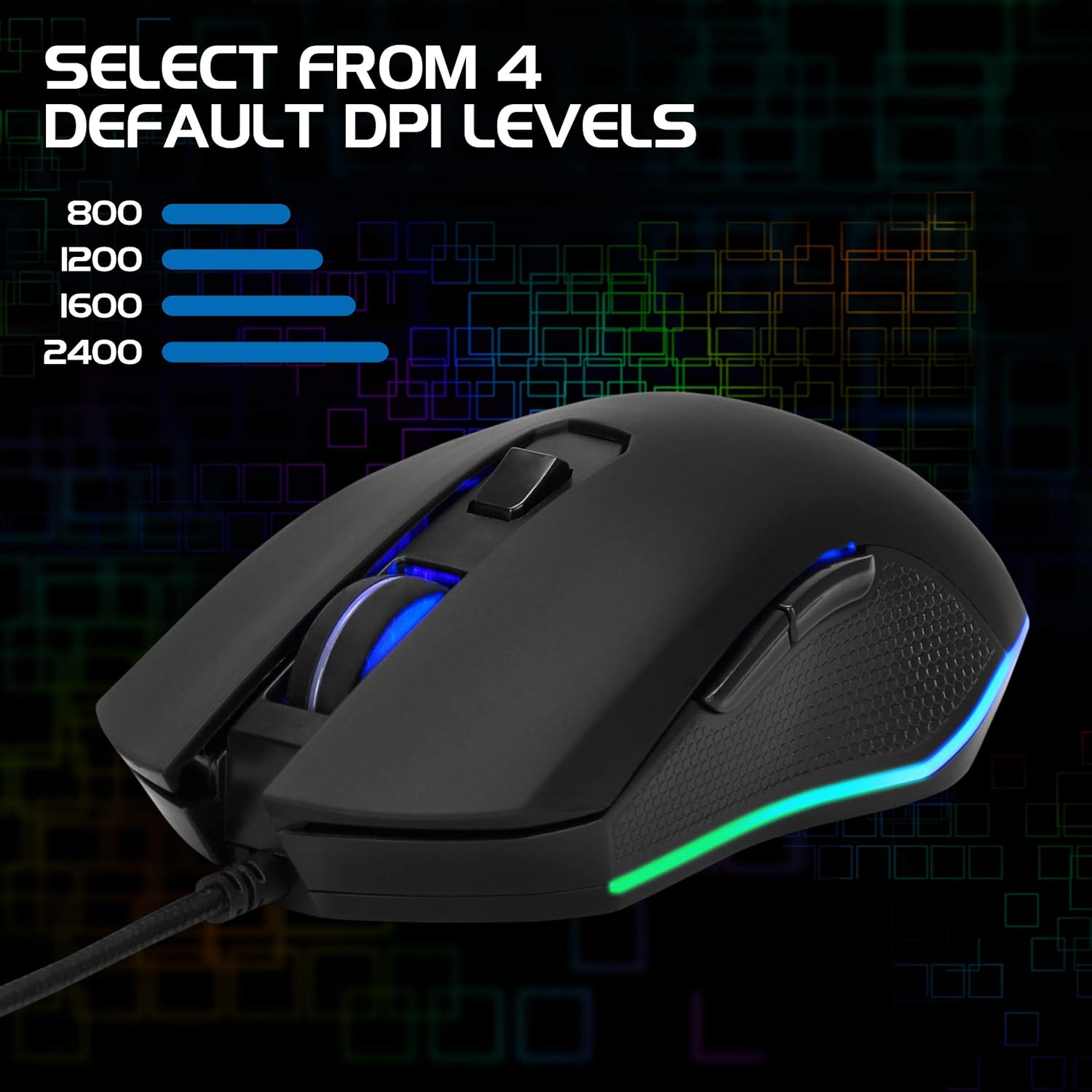
Image: The ENHANCE Infiltrate Gaming Mouse illustrating the four selectable DPI levels (800, 1200, 1600, 2400) and their corresponding LED indicators.
4.3 Multi-Color LED Lighting
The Infiltrate mouse features dynamic multi-color LED lighting that cycles through a rainbow pattern. This lighting is automatic and provides an aesthetic enhancement to your gaming setup.

Image: The ENHANCE Infiltrate Gaming Mouse displaying its sleek color-changing lighting accents.

Image: Side profile of the ENHANCE Infiltrate Gaming Mouse, showcasing its blue LED lighting.
4.4 Programmable Buttons
The mouse includes 6 programmable buttons. For advanced customization and programming of these buttons, please refer to your operating system's mouse settings or any third-party software compatible with generic gaming mice. Specific software for this model is not provided by the manufacturer.
5. Maintenance
- Cleaning: Use a soft, dry cloth to wipe the surface of the mouse. For stubborn dirt, a slightly damp cloth can be used, ensuring no moisture enters the internal components.
- Optical Sensor: Periodically clean the optical sensor area on the underside of the mouse with a cotton swab to ensure optimal tracking performance.
- Cable Care: Avoid sharp bends or excessive pulling on the braided USB cable to prevent damage.
- Storage: When not in use, store the mouse in a clean, dry environment away from extreme temperatures.
6. Troubleshooting
- Mouse Not Responding:
- Ensure the USB cable is securely plugged into a working USB port on your computer.
- Try plugging the mouse into a different USB port.
- Restart your computer.
- Test the mouse on another computer to determine if the issue is with the mouse or your system.
- Cursor Movement is Erratic or Jumpy:
- Clean the optical sensor on the underside of the mouse.
- Ensure you are using the mouse on a clean, non-reflective surface. A mouse pad is recommended.
- Check for any software conflicts or outdated drivers on your computer.
- LED Lights Not Working:
- Verify the mouse is properly connected to your computer.
- The LED lighting is automatic and should activate upon connection. If not, try a different USB port or computer.
- DPI Button Not Changing Sensitivity:
- Ensure the mouse is fully recognized by your computer.
- Press the DPI button firmly.
7. Specifications
| Brand | ENHANCE |
| Model Number | ENINMNU100BOEW |
| Hardware Platform | Mac, PC |
| Item Weight | 4.4 ounces |
| Product Dimensions (LxWxH) | 4.92 x 2.68 x 1.56 inches |
| Color | Black |
| Power Source | Corded Electric (USB) |
| Connectivity Technology | USB |
| Special Feature | Ergonomic Design |
| Movement Detection Technology | Optical |
| DPI Levels | 800, 1200, 1600, 2400 |
8. Warranty and Support
The ENHANCE Infiltrate USB Gaming Mouse is backed by a 3-Year Manufacturer Warranty. This warranty covers defects in materials and workmanship under normal use.
For warranty claims or technical support, please contact ENHANCE customer service. Keep your proof of purchase for warranty validation.
For further assistance, visit the official ENHANCE Gaming website or contact their support channels.


