
1. Introduction
The Bionik Power Stand is designed to provide a convenient and efficient charging and storage solution for your Xbox One, Xbox One S, and Xbox One Elite wireless controllers. This manual provides essential information for the proper setup, operation, and maintenance of your Power Stand.
2. Package Contents
Please verify that all items listed below are included in your package:
- Bionik Power Stand
- Power Adapter
- Two (2) 1100 mAh Rechargeable Battery Packs
- Two (2) Battery Covers
- User Guide (this document)
3. Setup Instructions
Follow these steps to set up your Bionik Power Stand and prepare your controllers for charging.
3.1. Installing Battery Packs
- Open the battery compartment on the back of your Xbox One, Xbox One S, or Xbox One Elite wireless controller.
- Insert one of the provided 1100 mAh rechargeable battery packs into the compartment, ensuring correct polarity.
- Attach one of the provided battery covers over the battery compartment. Ensure it clicks securely into place.
- Repeat for the second controller and battery pack.

Image: Two Bionik rechargeable battery packs and two custom battery covers designed for Xbox One controllers.
3.2. Connecting the Power Stand
- Connect the power adapter cable to the power input port on the back of the Bionik Power Stand.
- Plug the power adapter into a standard wall outlet.
- The Power Stand is now ready for use.
4. Operating Instructions
The Bionik Power Stand allows for convenient charging and storage of up to two Xbox One wireless controllers simultaneously.
4.1. Charging Controllers
- Gently place an Xbox One wireless controller, equipped with a Bionik rechargeable battery pack and cover, onto one of the charging docks of the Power Stand. Ensure the controller is seated correctly and the charging contacts align.
- The back-lit status indicator for that dock will illuminate to show the charging status.
- The Power Stand is designed for fast charging, optimizing current delivery for efficient charging times.
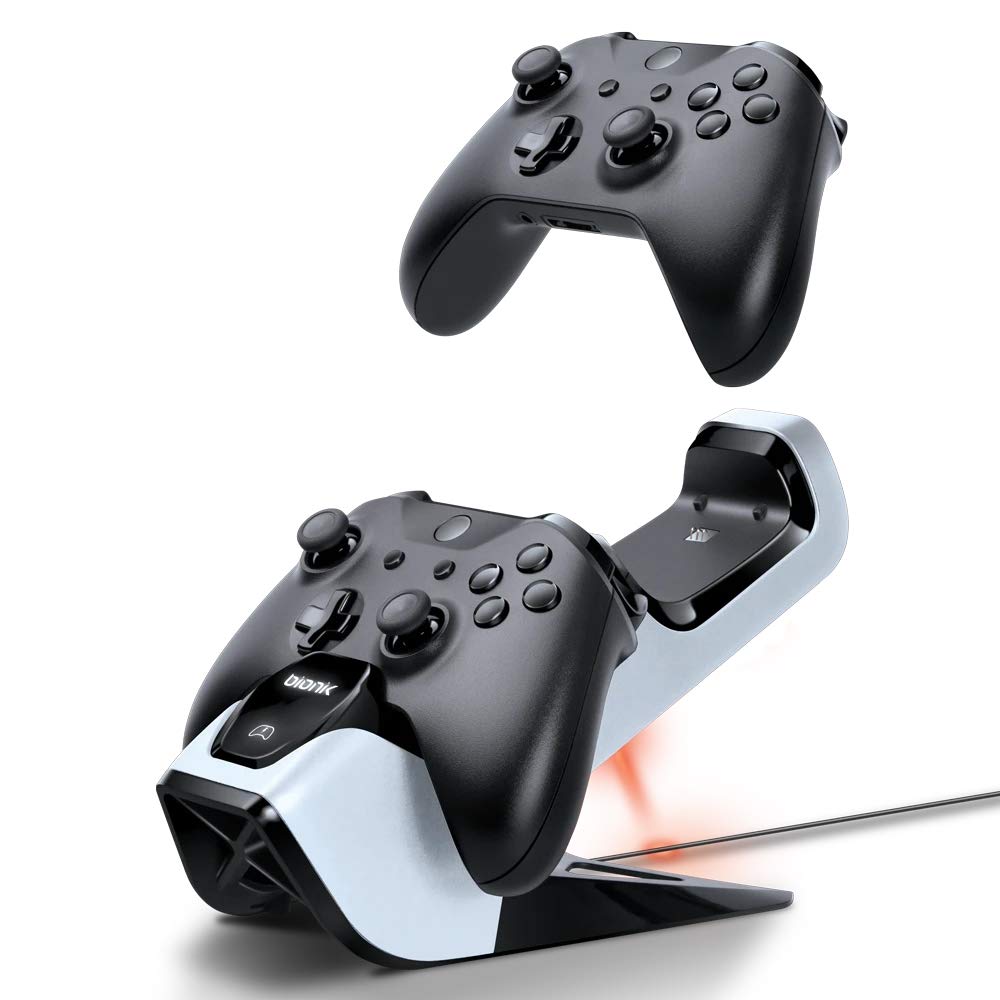
Image: An Xbox One controller being placed onto the Bionik Power Stand, illustrating the charging position.
4.2. Back-Lit Status Indicators
The Power Stand features back-lit indicators to quickly communicate the charging status:
- Red Light: Indicates the controller is currently charging.
- Green Light: Indicates the controller is fully charged.
- No Light: Indicates no controller is present or the controller is not properly seated for charging.
4.3. Storing Controllers
The Power Stand also serves as a convenient and neat storage solution for your controllers when not in use, keeping them organized and ready for your next gaming session.

Image: Two Xbox One controllers securely docked and charging on the Bionik Power Stand.
5. Maintenance
Proper care will ensure the longevity and optimal performance of your Bionik Power Stand.
- Cleaning: Use a soft, dry cloth to wipe down the Power Stand. Avoid using abrasive cleaners, solvents, or harsh chemicals, as these can damage the surface.
- Storage: Store the Power Stand in a cool, dry place away from direct sunlight and extreme temperatures when not in use for extended periods.
- Battery Care: While the rechargeable batteries are designed for many charge cycles, their capacity may diminish over time. If a battery pack no longer holds a charge effectively, it may need to be replaced.
6. Troubleshooting
If you encounter issues with your Bionik Power Stand, please refer to the following common problems and solutions:
- Controller Not Charging:
- Ensure the power adapter is securely connected to both the Power Stand and a working wall outlet.
- Verify that the controller is properly seated on the charging dock and the charging contacts are aligned. Gently adjust the controller if necessary.
- Check that the Bionik rechargeable battery pack is correctly installed in the controller.
- Status Indicator Not Illuminating:
- Confirm the Power Stand is receiving power.
- Ensure the controller is correctly placed on the charging dock.
- Battery Pack Not Holding Charge:
- Rechargeable batteries have a finite lifespan. If a battery pack consistently fails to hold a charge after proper charging, it may need to be replaced.
- Controller Does Not Fit Properly:
- The Bionik Power Stand is designed for Xbox One, Xbox One S, and Xbox One Elite wireless controllers. Ensure you are using a compatible controller model.
7. Specifications
| Feature | Description |
|---|---|
| Model Number | BNK-9029 |
| Compatibility | Xbox One, Xbox One S, Xbox One Elite Wireless Controllers |
| Battery Capacity | 2 x 1100 mAh Rechargeable Battery Packs |
| Charging Features | Fast Charging, Current Optimization |
| Indicators | Back-Lit Status Indicators (Red for Charging, Green for Charged) |
| Dimensions | 5 x 9.5 x 5.75 inches |
| Weight | 1.2 Pounds |
| Power Input | Power Adapter (Included) |
8. Warranty Information
For detailed warranty information regarding your Bionik Power Stand, please refer to the warranty card included with your product or visit the official Bionik website. Warranty terms and conditions may vary by region and retailer.
9. Support
If you require further assistance or have questions not covered in this manual, please contact Bionik customer support through their official website or the contact information provided with your product packaging.


