
Introduction
This manual provides detailed instructions for the setup, operation, maintenance, and troubleshooting of your webcamera_usb 1080P USB Webcam with a 2.8-12mm Vari-Focus Lens. This camera is designed for various applications requiring high-resolution video capture and adjustable focus, including industrial, medical, research, and general PC use.
What's in the Box
Verify that all items are present in the package:
- 1x USB Camera Module
- 1x 3-meter USB Cable
- 1x User Manual (this document)
Product Features
The webcamera_usb 1080P USB Webcam offers advanced features for versatile use:
- Full HD 1080P Resolution: Captures crystal clear images and records video at 1080p@30fps or 480p@100fps.
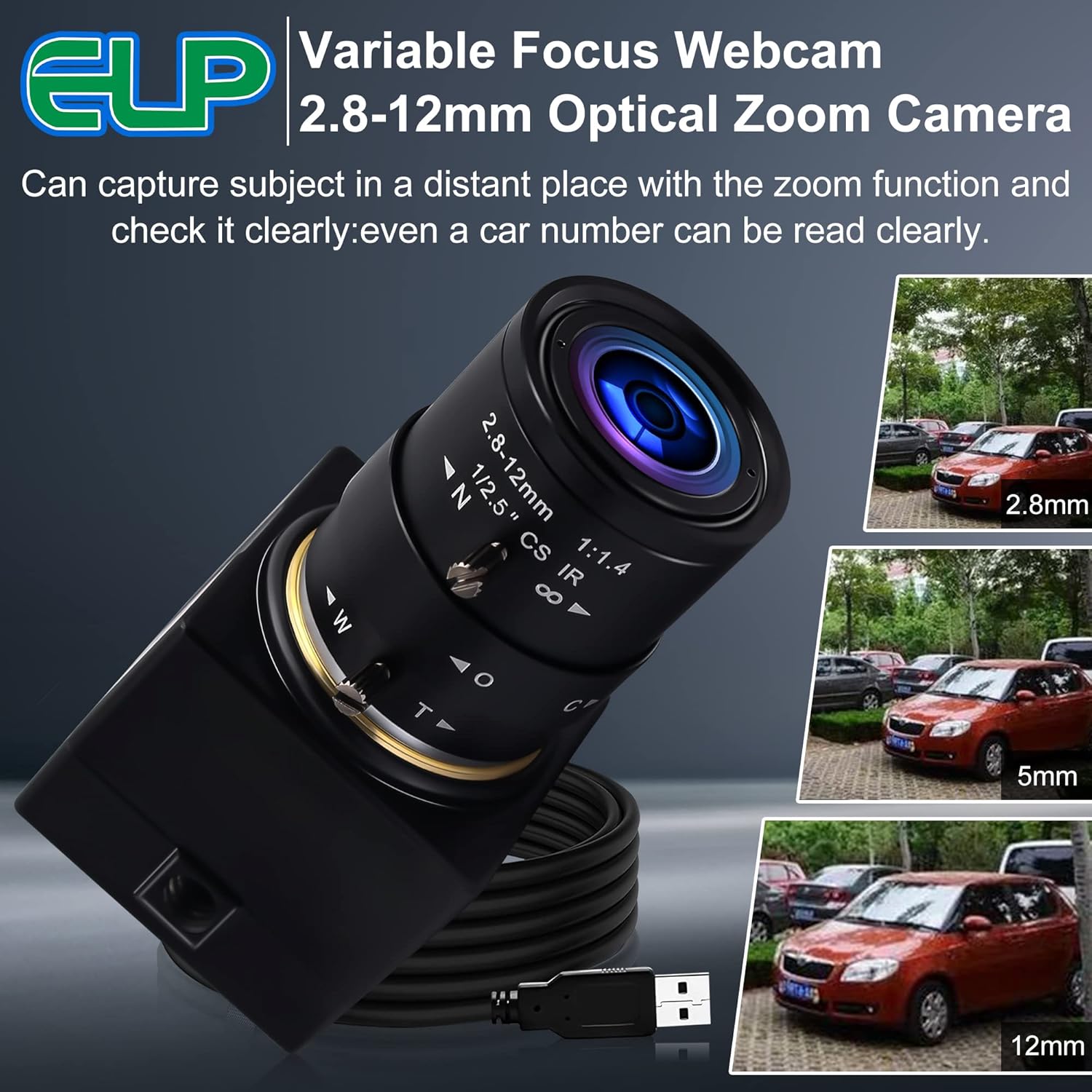
- 2.8-12mm Vari-Focus Lens: Provides 4X optical zoom capability, allowing for adjustable angle of view and tighter cropping.
- CMOS OV2710 Image Sensor: Ensures high-quality imaging with 2.0 Megapixel resolution.
- High Frame Rate: Supports up to 100fps at 640x480 resolution for smooth video.
- MJPEG/YUY2 Compression: Offers flexible compression formats to optimize storage and streaming performance.
- UVC Compliant: Plug-and-play functionality with most operating systems, requiring no additional drivers.
- IR-Cut Filter: Equipped with a 650nm IR-cut filter for accurate color reproduction in daylight conditions.

Setup
- Connect the Camera: Insert the USB cable into an available USB 2.0 port on your computer or compatible device. The camera is UVC compliant and should be recognized automatically by most operating systems without requiring driver installation.
- Initial Recognition: Allow your operating system a few moments to detect and configure the new hardware. A notification may appear indicating that the device is ready for use.
- Software Configuration (Optional but Recommended): While the camera is plug-and-play, for optimal performance and to adjust settings such as brightness, contrast, color saturation, definition, gamma, and white balance, third-party software may be required. Applications like Amcap (for Windows) or similar webcam utilities can provide access to these manual adjustments.

Operating the Camera
The 2.8-12mm vari-focus lens allows for manual adjustment of both zoom and focus to achieve the desired field of view and image clarity.
- Adjusting Zoom (Focal Length): Rotate the zoom ring on the lens to change the focal length between 2.8mm (wide angle) and 12mm (telephoto). This will alter the field of view, allowing you to capture subjects at different distances or crop into a specific area.
- Adjusting Focus: After adjusting the zoom, rotate the focus ring until the image appears sharp and clear. Since this is a vari-focal lens, the focus will need to be readjusted whenever the zoom setting is changed.
- Adjusting Aperture (Clarity): The lens may also feature an aperture ring to control the amount of light entering the sensor and the depth of field. Adjust this ring to achieve desired brightness and background blur.

Specifications
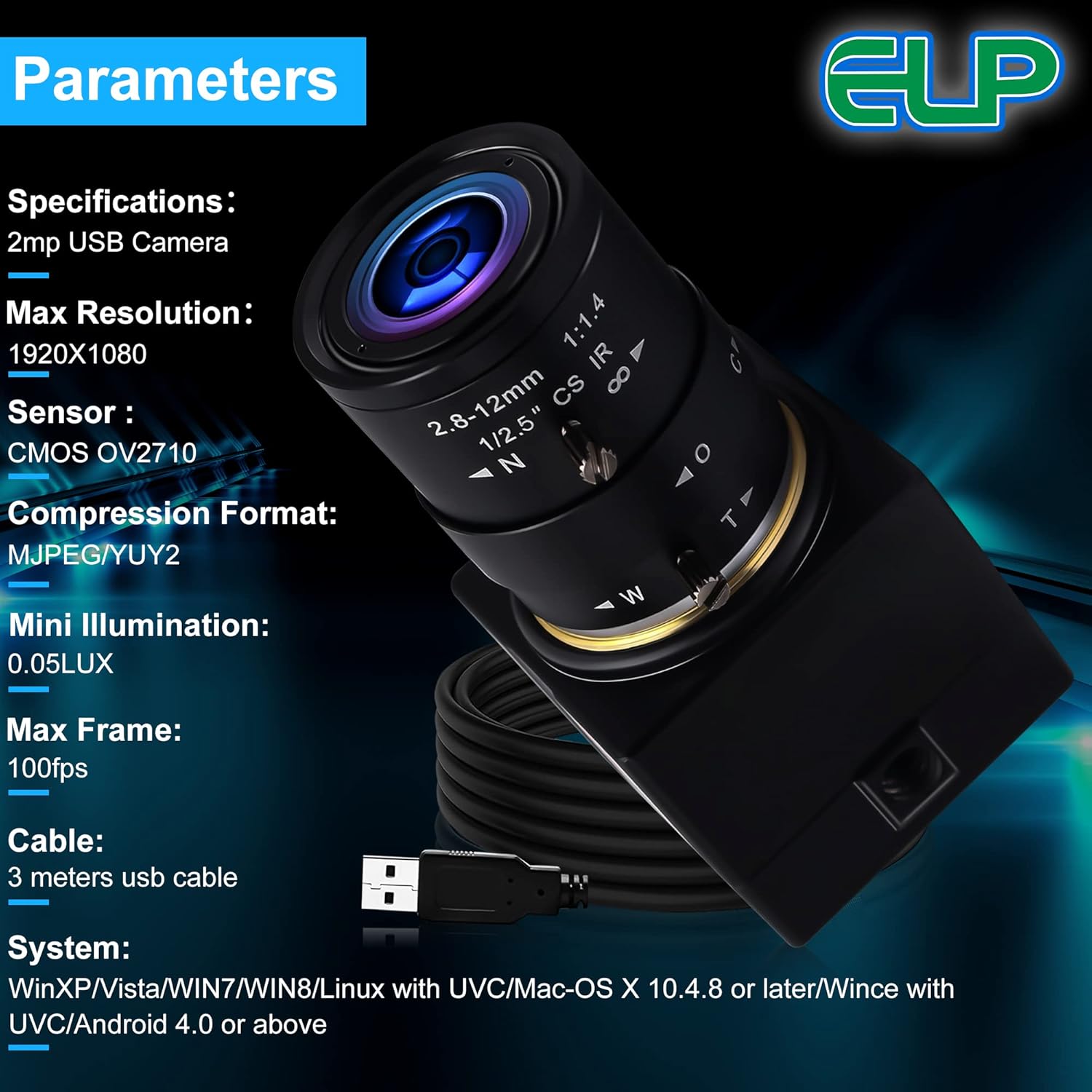
Detailed technical specifications for the webcamera_usb 1080P USB Webcam:
| Feature | Description |
|---|---|
| Brand | webcamera_usb |
| Model Number | webcam usb video camera module |
| Photo Sensor Technology | CMOS (OV2710) |
| Video Capture Resolution | 1080P (1920x1080) |
| Maximum Focal Length | 12 Millimeters |
| Minimum Focal Length | 2.8 Millimeters |
| Optical Zoom | 4x |
| Maximum Aperture | f/2 |
| Focus Type | Manual Focus |
| Connectivity Technology | USB 2.0 |
| Image Capture Speed | 100 fps (at 640x480), 60fps (at 1280x720), 30fps (at 1920x1080) |
| Compression Format | MJPEG / YUY2 |
| Operating Temperature | -20°C to 70°C |
| Power Supply | DC 5V / 150mA |
| Dimensions | 32x32mm / 38x38mm (module size) |
Compatibility
The camera is UVC (USB Video Class) compliant, ensuring broad compatibility with various operating systems and devices:
- Windows (WinXP/Vista/WIN7/WIN8/WIN9/WIN10/WIN11 and above)
- Linux (with UVC, kernel 2.6.26 or later)
- Mac-OS X (10.4.8 or later)
- Android (4.0 or above with UVC support)
- Other UVC-compatible systems like UBUNTU CHROME OS, Raspberry Pi, etc.
Compatible devices include desktop computers, laptops, smartphones, and tablets that support USB OTG (On-The-Go) functionality.
Maintenance
To ensure the longevity and optimal performance of your webcam, follow these maintenance guidelines:
- Cleaning the Lens: Use a soft, lint-free cloth specifically designed for optical lenses to gently wipe the lens surface. Avoid using abrasive materials or harsh chemicals.
- Cleaning the Body: Wipe the camera body with a dry or slightly damp soft cloth. Do not use liquid cleaners directly on the camera.
- Storage: When not in use, store the camera in a clean, dry environment away from extreme temperatures and direct sunlight.
- Handling: Handle the camera with care to avoid dropping or impacting it, which could damage internal components or the lens.
Troubleshooting
If you encounter issues with your webcam, refer to the following common problems and solutions:
- No Image or Device Not Recognized:
- Ensure the USB cable is securely connected to both the camera and the computer.
- Try connecting to a different USB port.
- Test the camera on another computer to rule out a system-specific issue.
- Verify that your operating system is UVC compatible and up to date.
- Image is Dark or Overexposed:
- Adjust the aperture ring on the lens to control light intake.
- Use third-party software (e.g., Amcap) to manually adjust brightness, exposure, and gain settings. The camera may not automatically adjust these parameters.
- Ensure adequate lighting in your environment.
- Image is Blurry or Out of Focus:
- Manually adjust the focus ring on the lens until the image is sharp. Remember to refocus after changing the zoom level.
- Ensure the lens is clean and free from smudges or dust.
- Video Lag or Distortion:
- Ensure the camera is connected to a high-speed USB 2.0 port.
- Close other applications that might be consuming significant system resources (CPU, RAM).
- If using a USB hub, ensure it is powered.
- Check for updated graphics drivers on your computer.
Warranty and Support
For any questions, issues, or support inquiries regarding your webcamera_usb product, please contact our customer service team.
- Contact Email: webcamera_usb@sina.com
- Please include your order number and a detailed description of the issue when contacting support to facilitate a quicker resolution.
This product is designed for various applications, including medical treatment, HD surveillance, remote site monitoring, environmental monitoring, and more. As a camera module manufacturer, webcamera_usb also supports customization. Please reach out if you have specific requirements.