
PETWANT PF-102
PETWANT PF-102 Automatic Pet Feeder User Manual
Model: PF-102
Introduction
Thank you for choosing the PETWANT PF-102 Automatic Pet Feeder. This device is designed to provide scheduled and portion-controlled meals for your cats and dogs, ensuring they are fed consistently even when you are away. Please read this manual thoroughly before operating the feeder to ensure proper setup and optimal performance.

Image: The PETWANT PF-102 Automatic Pet Feeder, showing its main body, food hopper, and feeding tray.
Package Contents
Before you begin, please ensure all items are present in the package:
- PETWANT PF-102 Automatic Pet Feeder Unit
- Food Tray
- Power Adapter
- User Manual (this document)
Setup
1. Power Connection
Connect the power adapter to the feeder's power input port and plug it into a standard wall outlet. For backup power during outages, install three D-size batteries (not included) into the battery compartment located at the bottom of the unit. The feeder will automatically switch to battery power if AC power is interrupted.
2. Attaching the Food Tray
Align the food tray with the base of the feeder. Gently slide the tray into place until it clicks securely. Ensure it is firmly attached to prevent accidental detachment by your pet.
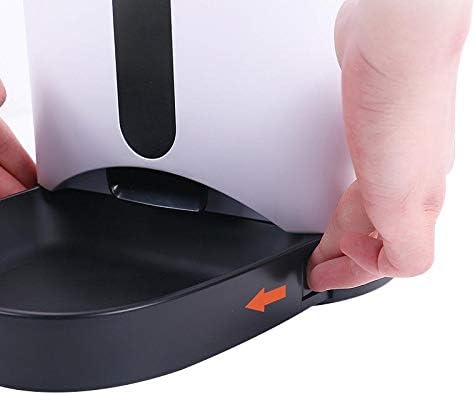
Image: Hands demonstrating how to slide and secure the food tray to the main unit of the feeder.
3. Filling the Food Hopper
Open the lid of the food hopper by pressing the release button located at the top of the feeder. Pour dry pet food into the hopper. Ensure the food kibble size is appropriate for the feeder mechanism (typically 5-15mm in diameter) to prevent jamming. Close the lid securely after filling.
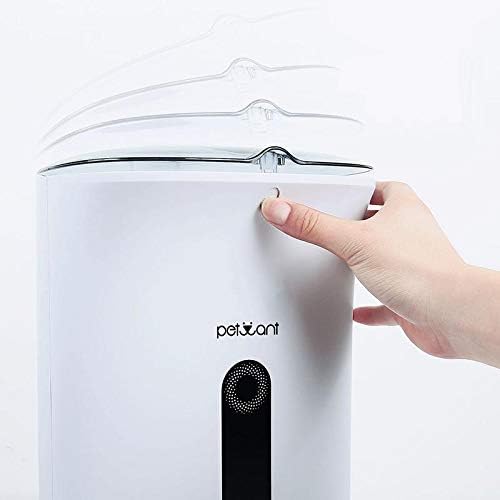
Image: A hand pressing the release button to open the top lid of the feeder, revealing the food hopper opening.
Operating Instructions
Control Panel Overview

Image: A detailed view of the feeder's control panel, showing the LCD screen and buttons labeled REC, PLAY, SET, and arrow keys.
- SET Button: Enters programming mode and confirms settings.
- Up/Down Arrow Buttons: Navigates through options and adjusts values.
- REC Button: Initiates voice recording.
- PLAY Button: Plays back recorded voice message.
1. Setting the Current Time
- Press and hold the SET button for 3 seconds until the hour digit flashes.
- Use the Up/Down arrow buttons to adjust the hour.
- Press SET to confirm and move to the minute setting.
- Use the Up/Down arrow buttons to adjust the minute.
- Press SET to save the time and exit.
2. Programming Meal Times and Portions
The feeder supports up to 4 meals per day. Each meal can be set with a specific time and portion size.
- Press the SET button once to enter meal setting mode. "MEAL 1" will appear on the display.
- Use the Up/Down arrow buttons to select the meal number (MEAL 1-4) you wish to program.
- Press SET to set the time for the selected meal. The hour digit will flash.
- Adjust the hour using Up/Down, then press SET to move to minutes.
- Adjust the minutes using Up/Down, then press SET to move to portion size.
- Adjust the portion size (typically 1-9 portions, where 1 portion is approximately 10g-12g depending on kibble size) using Up/Down.
- Press SET to save the settings for this meal.
- Repeat for other meals as desired. To disable a meal, set its portion size to 0.
3. Recording a Voice Message
You can record a 10-second voice message that will play at each scheduled meal time to call your pet.
- Press and hold the REC button. The recording indicator will appear on the display.
- Speak clearly into the microphone located near the control panel.
- Release the REC button when finished. The recording will automatically stop after 10 seconds if not released.
- Press the PLAY button to listen to your recorded message.
4. Manual Feeding
To dispense food immediately, press and hold the Up arrow button for 3 seconds. One portion of food will be dispensed. Repeat as needed for additional portions.
Maintenance
Cleaning the Feeder
Regular cleaning is essential to maintain hygiene and ensure proper operation.
- Food Tray: The food tray is detachable and can be washed with mild soap and water. Rinse thoroughly and dry completely before reattaching.
- Food Hopper: The food hopper can be wiped clean with a damp cloth. Do not submerge the main unit in water. Ensure the hopper is completely dry before refilling with food.
- Main Unit: Wipe the exterior of the main unit with a soft, dry cloth. Avoid using abrasive cleaners or solvents.
Always unplug the feeder and remove batteries before cleaning.
Battery Replacement
If using battery backup, replace the D-size batteries when the low battery indicator appears on the display or if the feeder fails to operate during a power outage. Ensure correct polarity when inserting new batteries.
Troubleshooting
| Problem | Possible Cause | Solution |
|---|---|---|
| Feeder not dispensing food. |
|
|
| Feeder beeps continuously but no food dispenses. |
|
|
| Display is blank or feeder is unresponsive. |
|
|
| Voice message not playing. |
|
|
Specifications
| Brand | PETWANT |
| Model | PF-102 |
| Capacity | 4.2 Liters |
| Material | Plastic |
| Package Dimensions | 41.5 x 28.1 x 21.5 cm |
| Item Weight | 2.91 Kilograms |
| Special Features | Automatic Feeding Schedule, Portion Control |
| Target Species | Cat, Dog |
Warranty and Support
For warranty information and technical support, please refer to the documentation provided with your purchase or visit the official PETWANT website. Keep your purchase receipt as proof of purchase for any warranty claims.
For further assistance, you may contact PETWANT customer service directly.
Related Documents - PF-102
 |
PETWANT 102 Automatic Pet Feeder User Manual and Instructions Detailed user manual for the PETWANT 102 automatic pet feeder. Learn how to set up, program feeding schedules, record voice messages, clean, and maintain your pet's automatic food dispenser. Includes specifications and troubleshooting tips. |
 |
Petwant PF-122 Automatic Pet Feeder with Window User Guide User guide for the Petwant PF-122 Automatic Pet Feeder with Window. Learn about features, assembly, setting up feeding schedules, recording voice messages, and troubleshooting common issues. |
 |
Automatic Pet Feeder User Guide: Setup, Operation, and Troubleshooting This user guide provides comprehensive instructions for the Automatic Pet Feeder, covering safety precautions, component identification, setup, programming feeding schedules, manual feeding, recording meal calls, troubleshooting common issues, and cleaning procedures. |
 |
PetWant F11-L Automatic Pet Feeder User Manual This user manual provides detailed instructions for the PetWant F11-L automatic pet feeder, covering setup, operation, maintenance, troubleshooting, and safety guidelines. Learn how to program feeding schedules, use the voice recording feature, and ensure optimal performance for your pet. |
 |
Petwant PF-103 Automatic Pet Feeder with Camera User Manual Comprehensive user manual for the Petwant PF-103 automatic pet feeder with camera, covering setup, app installation, feeding schedules, and troubleshooting. Learn how to connect, configure, and operate your smart pet feeder. |
 |
Petwant PF-126 Automatic WiFi Pet Feeder User Manual User manual for the Petwant PF-126 Automatic WiFi Pet Feeder, covering features, assembly, app setup, operation, troubleshooting, and cleaning instructions. |