
MEETION MT-C500
Contents
Meetion MT-C500 USB Gaming Kit Instruction Manual
Model: MT-C500 | Brand: MEETION
1. Introduction
Thank you for choosing the Meetion MT-C500 USB Gaming Kit. This comprehensive 4-in-1 kit is designed to enhance your gaming experience on both game consoles and personal computers. It includes a high-performance gaming keyboard, a precise gaming mouse, a comfortable gaming headset, and a durable mouse pad. This manual provides essential information for setup, operation, maintenance, and troubleshooting to ensure optimal performance and longevity of your gaming kit.

Figure 1.1: Meetion MT-C500 4-in-1 Gaming Kit components.
2. Product Overview
2.1 Kit Components
- Gaming Keyboard: A full-sized USB keyboard with backlit keys, designed for responsive and comfortable gaming.
- Gaming Mouse: A USB wired mouse offering precise tracking and ergonomic design for extended gaming sessions.
- Gaming Headset: A comfortable headset with integrated microphone, providing clear audio and communication.
- Mouse Pad: A durable surface optimized for mouse tracking accuracy.
2.2 Key Features
- USB Connectivity: All components connect via standard USB ports for universal compatibility.
- Backlit Keyboard: Features vibrant backlighting for enhanced visibility and aesthetic appeal in low-light conditions.
- Ergonomic Design: Keyboard and mouse are designed for comfort during prolonged use.
- Plug and Play: No additional drivers typically required for basic functionality.

Figure 2.1: Gaming Keyboard.
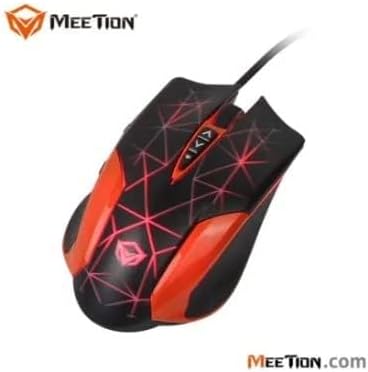
Figure 2.2: Gaming Mouse.

Figure 2.3: Gaming Headset.
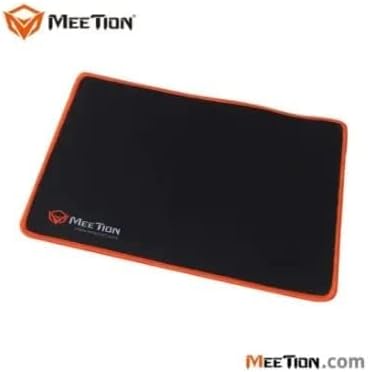
Figure 2.4: Mouse Pad.
3. Setup Instructions
Follow these steps to set up your Meetion MT-C500 Gaming Kit:
- Unpack Components: Carefully remove all components (keyboard, mouse, headset, mouse pad) from the packaging.
- Position Mouse Pad: Place the mouse pad on a flat, stable surface where you intend to use your mouse.
- Connect Keyboard: Locate an available USB port on your game console or PC. Insert the USB connector of the keyboard firmly into the port.
- Connect Mouse: Insert the USB connector of the mouse into another available USB port on your game console or PC.
- Connect Headset: The headset typically uses a single 3.5mm audio jack for both audio and microphone. Connect this jack to the corresponding audio port on your game console controller, PC, or a USB audio adapter if required. If your headset has separate audio and microphone jacks, connect them to the respective ports.
- System Recognition: Your operating system or game console should automatically detect and install the necessary drivers. This process may take a few moments.
- Test Functionality: Once recognized, test the keyboard by typing, the mouse by moving the cursor and clicking, and the headset by playing audio and testing the microphone.
4. Operating Instructions
4.1 Keyboard Usage
- Typing: Use the standard QWERTY layout for text input.
- Backlight Control: The keyboard features a single-color backlight. Specific key combinations (e.g., Fn + Scroll Lock or a dedicated light key) may be used to toggle the backlight on/off or adjust brightness. Refer to the keyboard's markings for exact controls.
- Function Keys: Utilize the F1-F12 keys, often in combination with the 'Fn' key, for multimedia control or system shortcuts as indicated by their secondary icons.
4.2 Mouse Usage
- Movement: Move the mouse across the mouse pad to control the cursor on screen.
- Clicking: Use the left and right buttons for primary and secondary actions.
- Scroll Wheel: Use the scroll wheel for vertical scrolling in documents and web pages. The scroll wheel may also function as a clickable button.
- DPI Adjustment: If present, use the dedicated DPI button (often located near the scroll wheel) to cycle through different sensitivity settings for the mouse.
4.3 Headset Usage
- Audio Output: Ensure the headset is selected as the default audio output device in your system settings for game audio and communication.
- Microphone Input: Position the microphone appropriately for clear voice capture. Verify the microphone is enabled and selected as the input device in your system or game communication settings.
- Volume Control: Adjust audio volume using the inline volume control on the headset cable or through your system's audio settings.
5. Maintenance
Proper maintenance ensures the longevity and performance of your gaming kit:
- Cleaning the Keyboard: Use a soft, dry cloth to wipe down the keyboard surface. For dust between keys, use compressed air. Avoid liquid cleaners directly on the keys.
- Cleaning the Mouse: Wipe the mouse surface with a soft, slightly damp cloth. Ensure no moisture enters the internal components. Clean the optical sensor area gently with a cotton swab if tracking issues occur.
- Cleaning the Headset: Wipe earcups and headband with a soft, dry cloth. Do not immerse in water. Clean the microphone foam cover if applicable.
- Cleaning the Mouse Pad: Most fabric mouse pads can be gently hand-washed with mild soap and water, then air-dried completely before use.
- Cable Management: Avoid sharp bends or excessive pulling on the USB cables to prevent damage.
- Storage: Store the kit in a clean, dry environment away from extreme temperatures and direct sunlight when not in use.
6. Troubleshooting
If you encounter issues with your Meetion MT-C500 Gaming Kit, refer to the following common problems and solutions:
- Keyboard/Mouse Not Responding:
- Ensure the USB cable is securely plugged into the port.
- Try plugging the device into a different USB port.
- Restart your game console or PC.
- Test the device on another computer or console to rule out system-specific issues.
- Keyboard Backlight Not Working:
- Press the backlight control key (e.g., Fn + Scroll Lock) to toggle the light.
- Ensure the keyboard is properly connected and receiving power.
- Mouse Tracking Issues:
- Ensure the mouse pad surface is clean and free of debris.
- Clean the optical sensor on the bottom of the mouse.
- Headset No Audio/Microphone Not Working:
- Check that the 3.5mm audio jack(s) are fully inserted into the correct ports.
- Verify that the headset is selected as the default playback and recording device in your system's sound settings.
- Check the inline volume control on the headset cable and ensure it is not muted or set to minimum volume.
- Test the headset on another device to confirm its functionality.
7. Specifications
| Feature | Description |
|---|---|
| Model Number | MT-C500 |
| Brand Name | MEETION |
| Connectivity Technology | USB |
| Compatible Devices | Gaming Console, PC |
| Keyboard Description | Gaming |
| Recommended Uses For Product | Gaming |
| Special Features | Backlit, Ergonomic |
| Color | Black |
| Keyboard Backlighting Color Support | Single Color |
| Style | Modern |
| Package Dimensions | 50.1 x 24.4 x 13.8 cm |
| Item Weight | 2.11 kg |
8. Warranty and Support
For information regarding warranty coverage, technical support, or service for your Meetion MT-C500 Gaming Kit, please refer to the warranty card included with your product or visit the official Meetion website. You may also contact the retailer from whom you purchased the product for assistance.
Please retain your proof of purchase for warranty claims.
Documents and downloads
Ask a question about this manual
Ask about setup, troubleshooting, compatibility, parts, safety, or missing instructions. Manuals+ will review the question and use this page’s manual context to help answer it.