
ASHATA
ASHATA Portable Slim 2.4Ghz Keyboard Handheld with Touchpad User Manual
Model: ASHATAq7bgawg249
1. Introduction
Thank you for purchasing the ASHATA Portable Slim 2.4Ghz Keyboard Handheld with Touchpad. This compact and versatile device is designed to enhance your control over various systems, including PCs, notebooks, and TV boxes. Its 2.4GHz wireless connection ensures a stable and reliable experience, while the integrated touchpad offers efficient navigation. Please read this manual carefully to ensure proper setup, operation, and maintenance of your new keyboard.
2. Product Features
- 2.4GHz Wireless Connection: Utilizes a plug-and-play USB receiver for strong and stable connectivity without additional software installation.
- Efficient and Sensitive Touchpad: Features an integrated touchpad that can be switched with number keys (FN+F12) to adapt to different user needs.
- Mini and Portable Design: Constructed from durable material, its compact size allows for easy portability.
- Smart Power Saving: Operates on two AAA batteries and includes an energy-saving sleep mode to extend battery life.
- Wide Compatibility: Universally compatible with Android, iOS, and Windows systems. Suitable for notebooks, desktop computers, TV boxes, and more.
3. Package Contents
Please verify that all items are present in your package:
- 1 x Portable Slim 2.4Ghz Keyboard Handheld with Touchpad
- 1 x USB Receiver
- 1 x USB Cable

Figure 3.1: The ASHATA Portable Slim 2.4Ghz Keyboard and its accompanying USB receiver.
4. Specifications
| Feature | Detail |
|---|---|
| Product Dimensions | 10.24 x 3.94 x 0.51 inches (26cm x 10cm x 1.3cm) |
| Item Weight | 6.7 ounces |
| Connectivity Technology | 2.4GHz Wireless (USB Receiver) |
| Power Source | 2 x AAA Batteries |
| Number of Keys | 59 |
| Compatible Devices | Laptop, PC, TV Box (Android, iOS, Windows systems) |
| Model Number | ASHATAq7bgawg249 |
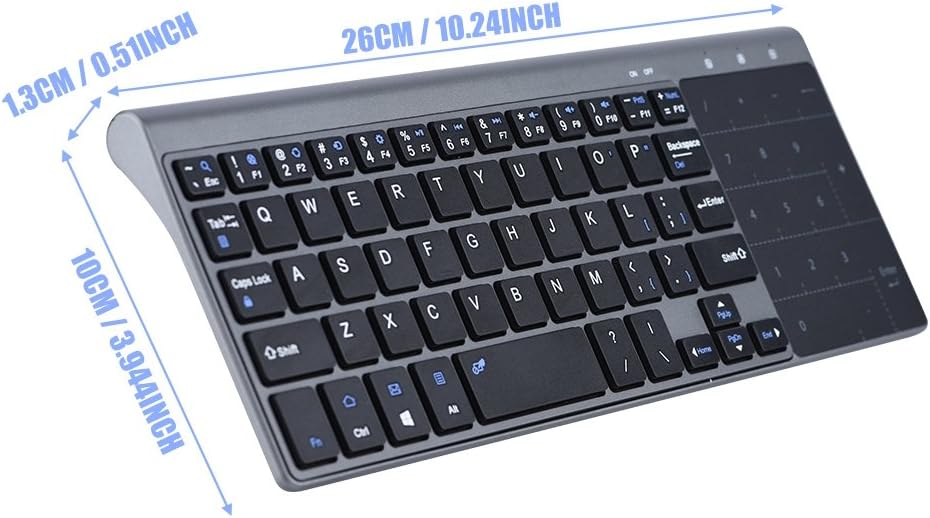
Figure 4.1: Physical dimensions of the ASHATA Portable Slim Keyboard.
5. Setup Guide
5.1. Installing Batteries
- Locate the battery compartment on the back of the keyboard.
- Slide open the battery compartment cover.
- Insert two (2) AAA batteries, ensuring correct polarity (+/-) as indicated inside the compartment.
- Close the battery compartment cover securely.

Figure 5.1: Rear view of the keyboard with the battery compartment.
5.2. Connecting the USB Receiver
- Locate the USB receiver, typically stored within the keyboard's battery compartment or a dedicated slot.
- Plug the USB receiver into an available USB port on your PC, notebook, or TV box.
- The system should automatically detect and install the necessary drivers. This is a plug-and-play device and usually requires no manual driver installation.

Figure 5.2: The compact USB receiver.
5.3. Powering On the Keyboard
Locate the ON/OFF switch on the keyboard (usually on the side or top edge). Slide the switch to the "ON" position. The keyboard is now ready for use.
6. Operating Instructions
6.1. Basic Keyboard Functions
The keyboard layout is standard QWERTY. All alphanumeric keys, function keys (F1-F12), and special characters operate as they would on a full-sized keyboard. Refer to the key labels for specific functions.

Figure 6.1: Overview of the keyboard layout.
6.2. Using the Touchpad
The integrated touchpad functions like a mouse, allowing you to control the cursor on your screen. It supports standard gestures:
- Single Finger Tap: Left-click.
- Two Finger Tap: Right-click.
- Two Finger Scroll: Scroll vertically or horizontally.
Switching Touchpad and Number Keys: To toggle between touchpad mode and numeric keypad mode, press the FN + F12 keys simultaneously. This allows you to use the right side of the keyboard as either a touchpad or a dedicated numeric keypad.

Figure 6.2: Keyboard in use with a tablet.
6.3. Power Saving Mode
The keyboard is equipped with an intelligent power-saving feature. If left idle for a period, it will automatically enter sleep mode to conserve battery life. To wake the keyboard, simply press any key or tap the touchpad.
7. Maintenance
- Cleaning: Use a soft, dry cloth to clean the keyboard surface. For stubborn dirt, a slightly damp cloth can be used, but ensure no moisture enters the device. Avoid harsh chemicals or abrasive cleaners.
- Battery Replacement: When the keyboard's performance degrades or it becomes unresponsive, replace the AAA batteries. Always replace both batteries at the same time with new ones.
- Storage: When not in use for extended periods, turn off the keyboard using the ON/OFF switch and consider removing the batteries to prevent leakage. Store in a cool, dry place.
8. Troubleshooting
| Problem | Possible Cause | Solution |
|---|---|---|
| Keyboard is unresponsive. |
|
|
| Touchpad not working or acting as number pad. |
|
|
| Lag or intermittent connection. |
|
|
9. Warranty and Support
ASHATA products are manufactured to high quality standards. For any issues or questions regarding your Portable Slim 2.4Ghz Keyboard, please contact ASHATA customer support. Details for support can typically be found on the product packaging or the official ASHATA website.
Please retain your proof of purchase for warranty claims. Warranty terms and conditions may vary by region and retailer.
For further assistance, visit the ASHATA Store on Amazon.
Ask a question about this manual
Ask about setup, troubleshooting, compatibility, parts, safety, or missing instructions. Manuals+ will review the question and use this page’s manual context to help answer it.