1. Introduction
Welcome to the instruction manual for your new Telefunken XU43G521 43-inch 4K Ultra HD Smart TV. This guide provides essential information for safe and efficient use of your television. Please read it thoroughly before operating the device and keep it for future reference.
What's in the Box
- Telefunken XU43G521 43-inch 4K Ultra HD Smart TV
- Remote Control (including 2x AAA batteries)
- Instruction Manual

Image: Contents of the Telefunken XU43G521 TV box, showing the television, remote control, and user manual.
2. Important Safety Instructions
To ensure safe operation and prevent damage, please observe the following safety precautions:
- Power Supply: Connect the TV only to an AC power outlet with the correct voltage. Do not overload power outlets.
- Ventilation: Ensure adequate ventilation around the TV. Do not block ventilation openings. Avoid placing the TV on soft surfaces or in enclosed spaces.
- Heat: Keep the TV away from heat sources such as radiators, heat registers, stoves, or other heat-producing appliances.
- Moisture: Do not expose the TV to rain or moisture. Do not place objects filled with liquids, such as vases, on the TV.
- Cleaning: Unplug the TV from the power outlet before cleaning. Use a soft, dry cloth. Do not use liquid cleaners or aerosol cleaners.
- Placement: Place the TV on a stable, level surface. If wall-mounting, ensure the mount is suitable for the TV's weight and installed by qualified personnel.
- Children: Supervise children to ensure they do not play with the TV or remote control.
- Servicing: Do not attempt to service the TV yourself. Refer all servicing to qualified service personnel.
3. Setup
3.1 Unpacking
Carefully remove the TV from its packaging. Retain the packaging materials for potential future transport or servicing.
3.2 Attaching the Stand or Wall Mounting
If using the included stand, attach it securely to the base of the TV following the instructions provided in the separate quick start guide. Ensure all screws are tightened. If wall-mounting, use a VESA-compatible wall mount (not included) and follow the mount manufacturer's instructions. Professional installation is recommended for wall mounting.
3.3 Connecting Peripherals
Connect your external devices to the appropriate ports on the TV. The Telefunken XU43G521 features multiple connectivity options:
- HDMI: Connect Blu-ray players, game consoles, or other HDMI-enabled devices (3x HDMI ports).
- USB: Connect USB storage devices for media playback (2x USB ports).
- Antenna/Cable: Connect your terrestrial (DVB-T2), cable (DVB-C), or satellite (DVB-S2) antenna/cable for integrated triple tuner functionality.
- Ethernet: For a wired internet connection.
- CI+: For conditional access modules (CAM) to decrypt encrypted channels.

Image: Side view of the Telefunken XU43G521 TV, illustrating the location of various input ports such as HDMI and USB for connecting external devices.
3.4 First Power On and Initial Configuration
- Connect the power cable to the TV and a wall outlet.
- Press the power button on the remote control or the TV.
- Follow the on-screen prompts to select your preferred language, country, and time zone.
- Configure your network connection. You can choose between a wired Ethernet connection or a wireless Wi-Fi connection. Enter your Wi-Fi password if prompted.
- Perform a channel scan to find available television channels via the integrated triple tuner (DVB-T2, DVB-C, DVB-S2).
- Complete any remaining setup steps as guided by the on-screen interface.
4. Operating Your Telefunken XU43G521 TV
4.1 Remote Control Overview
The included remote control allows you to access all functions of your TV. Familiarize yourself with its buttons:
- Power Button: Turns the TV on or off (standby).
- Number Buttons (0-9): Direct channel selection.
- Volume Up/Down (+/-): Adjusts the sound level.
- Channel Up/Down (P+/-): Changes channels.
- Source Button: Selects input sources (HDMI, USB, TV).
- Navigation Buttons (Arrows, OK): Navigate menus and confirm selections.
- Back/Exit: Returns to the previous menu or exits the current menu.
- Smart TV Buttons: Dedicated buttons for popular streaming services like Netflix, YouTube, and Prime Video.

Image: The remote control for the Telefunken XU43G521 TV, highlighting its layout and dedicated buttons for quick access to streaming services.
4.2 Smart TV Features
Your Telefunken XU43G521 is a Smart TV with integrated Wi-Fi, providing access to a world of online content. Use the Smart Portal to browse and launch applications.
- Supported Streaming Services: Enjoy content from Prime Video, Netflix, Maxdome, Freenet Video, YouTube, Facebook, and more.
- Web Browser: Browse the internet directly on your TV.
- USB Media Player: Play photos, videos, and music from connected USB storage devices.

Image: The Smart Portal interface displayed on the Telefunken TV screen, featuring icons for various applications and streaming services.
4.3 Triple Tuner Functionality
The integrated triple tuner allows you to receive digital television terrestrially (DVB-T2 with H.265/HEVC codec), via cable (DVB-C), or satellite (DVB-S2) without the need for an external receiver. Ensure your antenna or cable connection is properly established and perform a channel scan during initial setup or if you change your reception method.
4.4 HDR10 Support
Your TV supports HDR10 (High Dynamic Range 10), which enhances contrast and color accuracy, providing a more vibrant and lifelike viewing experience with compatible content. When playing HDR10 content, the TV will automatically adjust its display settings for optimal performance.

Image: The HDR10 logo, signifying the television's capability to display content with High Dynamic Range for improved picture quality.
4.5 Works with Alexa
The Telefunken XU43G521 is compatible with Alexa, allowing you to control certain TV functions using voice commands through an Alexa-enabled device (sold separately). Refer to the TV's on-screen settings or the Alexa app for setup instructions.

Image: The 'Works with Alexa' badge, indicating that the TV can be controlled using Amazon Alexa voice commands.
5. Maintenance
5.1 Cleaning the Screen
To clean the screen, first unplug the TV. Gently wipe the screen with a soft, lint-free cloth. For stubborn marks, slightly dampen the cloth with water or a specialized screen cleaner, then wipe dry immediately. Avoid using harsh chemicals or abrasive materials.
5.2 General Cleaning
For the TV casing, use a soft, dry cloth to remove dust. If necessary, a slightly damp cloth can be used, followed by immediate drying. Do not allow liquids to enter the TV's ventilation openings.
5.3 Software Updates
Your TV may receive software updates to improve performance and add new features. It is recommended to allow these updates to install when prompted to ensure optimal functionality. You can usually check for updates manually through the TV's settings menu.
6. Troubleshooting Guide
If you encounter issues with your TV, consult the following table for common problems and solutions:
| Problem | Possible Cause | Solution |
|---|---|---|
| TV does not turn on | No power supply | Check if the power cable is securely connected to the TV and the wall outlet. Ensure the outlet has power. |
| No picture, but sound is present | Incorrect input source selected | Press the 'Source' button on the remote control and select the correct input (e.g., HDMI 1, TV). |
| No sound, but picture is present | Volume muted or too low | Press the 'Volume Up' button or the 'Mute' button on the remote control. Check external audio system connections if applicable. |
| Remote control not working | Batteries are dead or incorrectly inserted | Replace the AAA batteries. Ensure they are inserted with correct polarity. Check for obstructions between the remote and the TV. |
| Smart TV features not connecting to internet | Wi-Fi/Ethernet connection issue | Check your router and internet connection. Re-enter Wi-Fi password in TV settings. Try a wired Ethernet connection if Wi-Fi fails. |
| TV sometimes freezes or lags during streaming | Temporary software glitch or network issue | Unplug the TV from the power outlet for 1-2 minutes, then plug it back in and restart. This can resolve minor software issues. Ensure a stable internet connection. |
7. Technical Specifications
| Feature | Specification |
|---|---|
| Brand | TELEFUNKEN |
| Model Name | XU43G521 |
| Model Number | 822479 |
| Display Technology | LED |
| Screen Size | 43 Inch (109 cm) |
| Resolution | 3840 x 2160 Pixels (4K Ultra HD) |
| Aspect Ratio | 16:9 (1.77:1) |
| Refresh Rate | 1200 Hz (CMP) |
| Special Features | HDR10, Smart TV |
| Tuner Technology | DVB-C, DVB-S2, DVB-T2 (H.265/HEVC) |
| Connectivity | Wireless (Wi-Fi), Ethernet, 3x HDMI, 2x USB, VGA, CI+ |
| Audio Input | HDMI |
| Speaker Configuration | 2.1 Surround Sound Channel |
| Supported Internet Services | Facebook, Maxdome, Netflix, Prime Video, YouTube |
| Power Source | Electric Cable |
| Energy Consumption (Annual) | 78 kWh/annum (54 Watt in operation) |
| Batteries Included | Yes (2x AAA Zinc-Carbon) |
| Product Dimensions (W x D x H) | 97 x 23.5 x 61.2 cm |
| Item Weight | 11.88 kg |
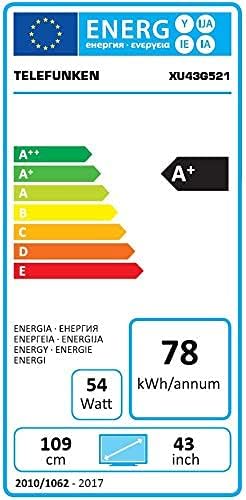
Image: Energy efficiency label for the Telefunken XU43G521, indicating its A+ rating and annual energy consumption.
8. Warranty and Customer Support
Your Telefunken XU43G521 television comes with a manufacturer's warranty. Please refer to the warranty card included in your product packaging for specific terms, conditions, and duration. For technical support, service, or warranty claims, please contact Telefunken customer service or your retailer. Keep your proof of purchase for warranty purposes.