
1. Introduction
Thank you for choosing the OneOdio A70 Bluetooth 5.2 Wireless Headphones. This manual provides essential information for setting up, operating, and maintaining your headphones to ensure optimal performance and longevity. Please read it carefully before use.
2. Package Contents
Verify that all items are present in your package:
- OneOdio A70 Headphone Unit
- Micro-USB Charging Cable (0.6 M)
- 3.5mm to 3.5mm Audio Cable with Microphone (1.2 M)
- 3.5mm to 6.35mm Audio Cable with Spring Wire (2-3 M)
- Protective Pouch
- User Manual

Image: All items included in the OneOdio A70 headphone package, neatly arranged.
3. Setup and Connection
3.1 Charging the Headphones
Before first use, fully charge your headphones. Connect the Micro-USB charging cable to the charging port on the headphone and the other end to a USB power source. The charging time is approximately 2.5 hours. A full charge provides up to 72 hours of playback at 50% volume.
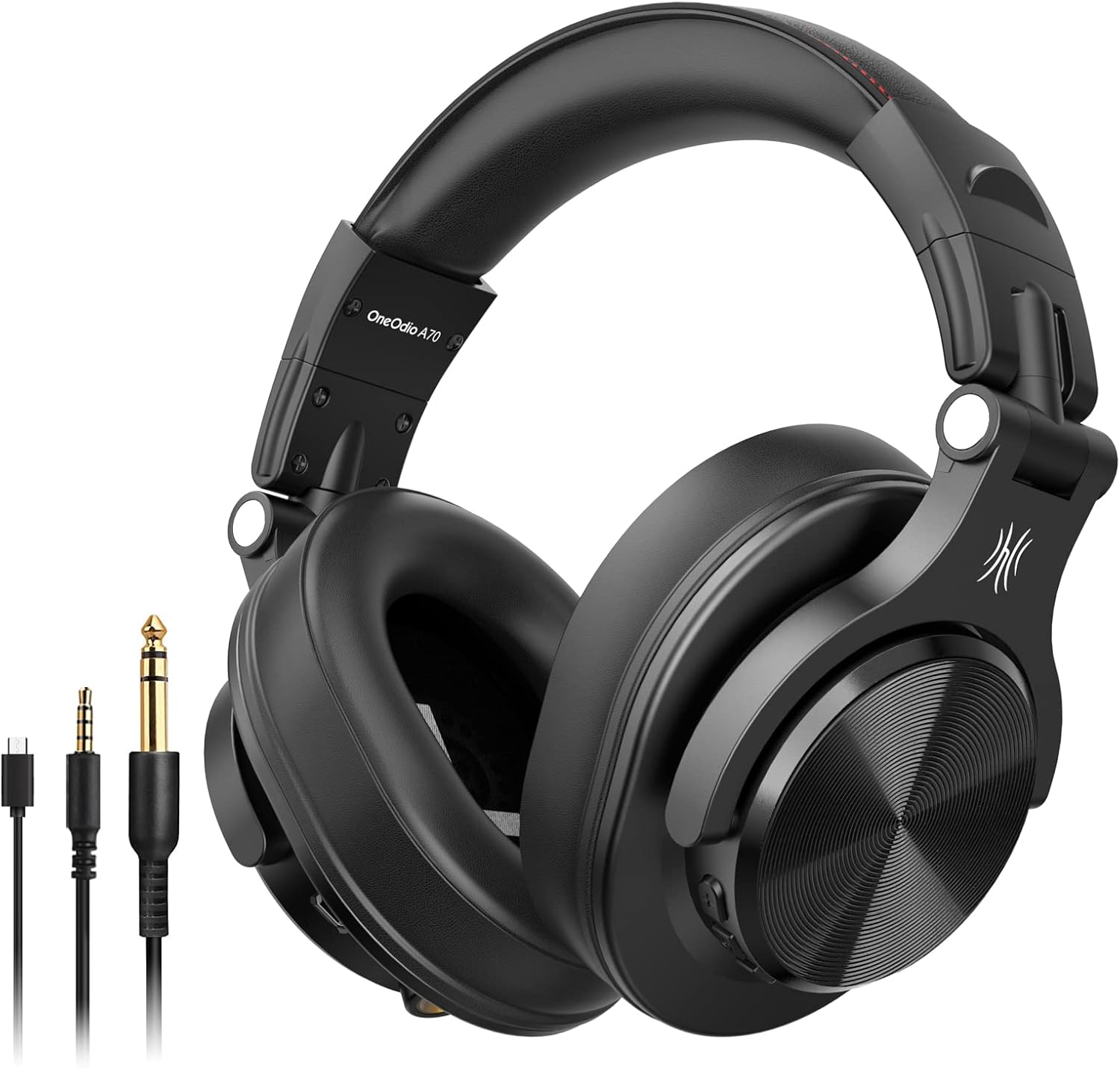
Image: OneOdio A70 headphones highlighting the 72-hour battery life.
3.2 Bluetooth Pairing
- Ensure the headphones are powered off.
- Press and hold the Multi-function button (usually the power button) until the LED indicator flashes red and blue, indicating pairing mode.
- On your device (smartphone, tablet, computer), enable Bluetooth and search for available devices.
- Select "OneOdio A70" from the list.
- Once connected, the LED indicator will turn solid blue or flash blue slowly.
The headphones use Bluetooth 5.2 for a stable connection with a range of up to 10 meters.

Image: A smartphone screen showing the OneOdio A70 available for Bluetooth pairing, with the headphones in the background.
3.3 Wired Connection
The A70 headphones support both 3.5mm and 6.35mm audio jacks for wired use. This allows connection to various devices such as phones, PCs, guitars, and audio interfaces.
- 3.5mm to 3.5mm Cable: Connect one end to the 3.5mm port on the headphone and the other to your device (e.g., smartphone, laptop).
- 3.5mm to 6.35mm Cable: Connect the 3.5mm end to the headphone and the 6.35mm end to professional audio equipment (e.g., guitar amplifier, mixer).
The 3.5mm to 6.35mm cable features a jack lock design for a secure connection, preventing accidental disconnections.

Image: Visual guide demonstrating the use of 3.5mm and 6.35mm audio cables for wide compatibility with various devices.
4. Operating Instructions
4.1 Basic Controls
The headphones feature intuitive controls for managing audio playback and calls:
- Power On/Off: Press and hold the Multi-function button.
- Play/Pause: Press the Multi-function button once.
- Volume Up/Down: Use the dedicated volume buttons (+/-).
- Next Track: Press and hold the Volume Up button.
- Previous Track: Press and hold the Volume Down button.
- Answer/End Call: Press the Multi-function button once.
- Reject Call: Press and hold the Multi-function button.
- Activate Voice Assistant (Siri): Double-press the Multi-function button.

Image: Close-up of the inline microphone and control buttons on the audio cable, showing functions like play, pause, answer, and end call.
4.2 Music Sharing (SharePort Technology)
The OneOdio A70 headphones feature SharePort technology, allowing two headphones to connect and share audio from a single device. Connect the 3.5mm audio cable from the A70's 6.35mm port to the 3.5mm port of another headphone. This enables simultaneous listening for two users.
4.3 Call Functions
The integrated CVC 8.0 noise-canceling microphone ensures clear call quality. Use the Multi-function button to manage incoming and outgoing calls as described in section 4.1.
5. Comfort and Design
The A70 headphones are designed for extended wear with thick foam ear cushions and an adjustable, foldable headband. The circum-aural design fully encloses the ear for optimal comfort.

Image: A woman comfortably wearing the OneOdio A70 headphones, emphasizing the luxurious ear cushions.
5.1 Foldable Design
The headphones feature a foldable design for easy storage and portability. This makes them convenient for travel and daily commuting.

Image: The OneOdio A70 headphones folded and placed inside their protective pouch, demonstrating portability.
6. Maintenance
6.1 Cleaning
To maintain the appearance and hygiene of your headphones, gently wipe the ear cushions and headband with a soft, damp cloth. Avoid using harsh chemicals or abrasive materials.
6.2 Storage
When not in use, store the headphones in the provided protective pouch to prevent dust accumulation and damage. The foldable design allows for compact storage.
6.3 Ear Pad Replacement
The ear pads are designed to be easily replaceable. If they show signs of wear, new ear pads can be purchased and installed by unclipping and re-clipping them into place.
7. Troubleshooting
If you encounter issues with your OneOdio A70 headphones, refer to the following common problems and solutions:
| Problem | Possible Cause | Solution |
|---|---|---|
| Headphones do not power on | Low battery | Charge the headphones fully. |
| Cannot pair via Bluetooth | Headphones not in pairing mode; device Bluetooth off; interference | Ensure headphones are in pairing mode (flashing red/blue). Turn device Bluetooth off and on. Move closer to the device. |
| No sound in wired mode | Cable not fully inserted; incorrect cable type; faulty cable | Ensure cables are securely connected. Use the correct 3.5mm or 6.35mm cable. Test with a different cable if available. |
| Poor sound quality | Low quality audio source; improper fit; excessive bass settings | Use a high-quality audio source. Adjust headphone fit. Some users note strong bass; adjust equalizer settings on your device if available. |
| Headphones freeze/become unresponsive | Software glitch | Power off and on the headphones. If unresponsive, allow the battery to drain completely, then recharge. A small reset button may be present on some models (consult manufacturer for exact location if needed). |
8. Specifications
| Feature | Detail |
|---|---|
| Brand | OneOdio |
| Model Name | A70 |
| Color | Black |
| Form Factor | Circum-Aural (Over-Ear) |
| Connectivity Technology | Wireless (Bluetooth), Wired |
| Bluetooth Version | 5.2 |
| Bluetooth Range | 10 Meters |
| Audio Driver Size | 40 Millimeters |
| Impedance | 32 Ohms |
| Sensitivity | 105 dB |
| Frequency Response | 20 Hz - 20 KHz |
| Noise Control | Passive Noise Reduction, CVC 8.0 for microphone |
| Headphone Jack | 3.5 mm, 6.35 mm |
| Battery Life (Average) | 72 hours (at 50% volume) |
| Charging Time | 2.5 hours |
| Weight | 303 Grams |
| Material | Plastic, Synthetic Leather, Aluminum |
| Special Features | Lightweight, Microphone Included, Foldable, Music Sharing |
| Compatible Devices | Desktops, Car Audio Systems, Phones, Gaming Consoles, Music Production Equipment, Smart Speakers, TVs, Laptops, Tablets, Mobile Phones |
9. Warranty and Support
9.1 Warranty Information
OneOdio products are covered by a manufacturer's warranty. For specific warranty terms and conditions, please refer to the documentation included with your purchase or visit the official OneOdio website. The manufacturer's customer service is known for being responsive and helpful.
9.2 Customer Support
For further assistance, technical support, or inquiries regarding your OneOdio A70 headphones, please contact OneOdio customer service through their official website or the contact information provided in your product packaging.