
Sceptre C248B-144RN
Sceptre 24-Inch C248B-144RN Curved Gaming Monitor Instruction Manual
Model: C248B-144RN
1. Product Overview
The Sceptre C248B-144RN is a 24-inch Full HD curved monitor designed for gaming. It features a 165Hz refresh rate and supports AMD FreeSync for smooth visuals. This monitor includes DisplayPort, HDMI, and Audio Out Jack connectivity. Its curved display offers an immersive viewing experience, and it incorporates features like Anti-Flicker and specialized game modes (FPS/RTS).
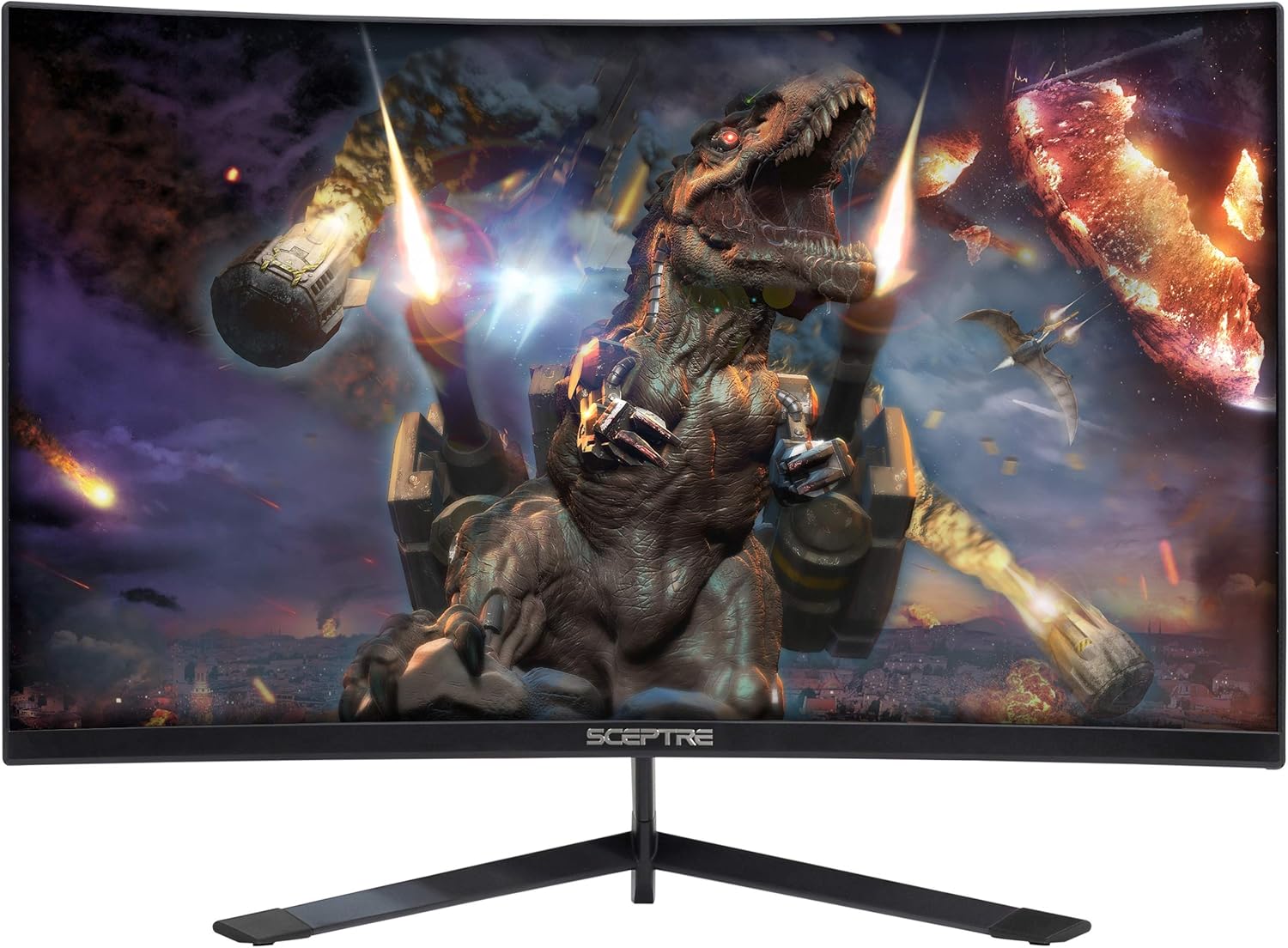
Figure 1: Front view of the Sceptre C248B-144RN Curved Gaming Monitor.
2. Setup Instructions
2.1. Monitor Assembly
Carefully remove the monitor and its components from the packaging. Follow these steps to assemble the stand:
- Attach the stand neck to the monitor panel.
- Secure the stand base to the stand neck using the provided screws.
- Place the assembled monitor on a stable, flat surface.

Figure 2: Sceptre C248B-144RN monitor with its stand assembled.
2.2. Connecting to a Device
The monitor supports DisplayPort and HDMI connections. Ensure your device is powered off before connecting cables.
- DisplayPort: Connect one end of a DisplayPort cable to your computer's graphics card and the other end to the DisplayPort input on the monitor.
- HDMI: Connect one end of an HDMI cable to your computer's graphics card or other HDMI-enabled device and the other end to an HDMI input on the monitor. The monitor has 1 HDMI 2.0 port (up to 165Hz) and 2 HDMI 1.4 ports (up to 144Hz).
- Audio Out: For external audio, connect speakers or headphones to the Audio Out Jack.

Figure 3: Rear view of the monitor displaying the various input ports including DisplayPort and HDMI.
2.3. Power Connection
Connect the power adapter to the monitor's DC IN port, then plug the power cable into a wall outlet.
2.4. VESA Wall Mount (Optional)
The monitor is VESA compatible, allowing for wall mounting. Ensure you use a VESA-compliant mount and follow its instructions for safe installation. The VESA pattern allows for flexible placement.
3. Operating Instructions
3.1. Power On/Off
Press the power button located on the monitor to turn it on or off. The power indicator light will change color to indicate its status (e.g., blue for on, red for standby).
3.2. On-Screen Display (OSD) Menu
Use the buttons on the back or bottom of the monitor to navigate the OSD menu. The OSD allows you to adjust various settings:
- Picture Settings: Adjust brightness, contrast, sharpness, and other visual parameters.
- Color Settings: Modify color temperature, gamma, and individual RGB values.
- System Settings: Access options like FreeSync, Overdrive, Sleep Mode, Language, OSD Position, OSD Timer, Volume, and Reset.

Figure 4: Side view of the monitor highlighting the location of the OSD control buttons.
3.3. Gaming Features
- AMD FreeSync: This technology synchronizes the monitor's refresh rate with your GPU's frame rate to eliminate screen tearing and stuttering. Enable FreeSync in the OSD menu and ensure it's enabled in your graphics card settings.

Figure 5: Visual comparison demonstrating the effect of AMD FreeSync on screen tearing.
- FPS/RTS Game Modes: The monitor includes pre-set display settings optimized for First Person Shooter (FPS) and Real-Time Strategy (RTS) games. These modes enhance visibility and response for specific game genres.
- Anti-Flicker: This feature reduces screen flickering, providing a more comfortable viewing experience and reducing eye strain during extended use.

Figure 6: Illustration of the Anti-Flicker technology reducing visual artifacts.
- Blue Light Filter: Reduces blue light emissions to minimize eye strain, especially during nighttime use.

Figure 7: Demonstration of the Blue Light Filter feature for reduced eye strain.
3.4. Curved Display
The 1500R curved screen provides an immersive viewing experience, wrapping images around your field of vision for enhanced depth and engagement.

Figure 8: Top-down view illustrating the 1500R curvature of the monitor.
3.5. Official Product Video
Video 1: An official product overview video for the Sceptre 24-inch Curved Gaming LED Monitor, showcasing its features and design.
4. Maintenance
To ensure the longevity and optimal performance of your monitor, follow these maintenance guidelines:
- Cleaning the Screen: Gently wipe the screen with a soft, lint-free cloth. For stubborn marks, lightly dampen the cloth with water or a screen-specific cleaning solution. Avoid harsh chemicals or abrasive materials.
- Cleaning the Casing: Use a soft, dry cloth to clean the monitor casing.
- Ventilation: Ensure the monitor's ventilation openings are not blocked to prevent overheating.
- Storage: When not in use for extended periods, store the monitor in a cool, dry place, ideally in its original packaging.
5. Troubleshooting
If you encounter issues with your Sceptre C248B-144RN monitor, refer to the following common problems and solutions:
| Problem | Possible Cause | Solution |
|---|---|---|
| No image on screen | Power cable disconnected, video cable loose, incorrect input source. | Check power connections. Ensure video cables (DisplayPort/HDMI) are securely connected. Select the correct input source via the OSD menu. |
| Image is blurry or distorted | Incorrect resolution, faulty video cable, graphics driver issue. | Set the display resolution to 1920x1080. Try a different video cable. Update your graphics card drivers. |
| Screen flickering | Refresh rate mismatch, FreeSync not enabled, external interference. | Ensure refresh rate is set to 165Hz (or 144Hz for HDMI 1.4). Verify FreeSync is enabled in OSD and GPU settings. Check for nearby electronic devices causing interference. |
| No audio | Volume muted, incorrect audio output selected, faulty audio cable. | Check monitor volume in OSD. Ensure correct audio output is selected on your computer. Verify external speakers/headphones are connected correctly. |
| Vertical or horizontal lines on screen | Faulty video cable, graphics card issue, panel defect. | Try a different video cable. Test the monitor with another device. If the problem persists, contact customer support. |
5.1. Examples of Display Issues (User-Submitted Videos)
The following videos, submitted by users, illustrate common display problems. These are examples of issues and not official troubleshooting guides.
Video 2: This user-submitted video shows a monitor with a damaged screen, potentially due to physical impact.
Video 3: This user-submitted video demonstrates a monitor displaying a red line across the screen, which could indicate a panel defect or a faulty connection.
Video 4: This user-submitted video shows a monitor with a black screen despite being powered on, potentially indicating a signal input problem or internal display issue.
6. Product Specifications
| Feature | Detail |
|---|---|
| Brand | Sceptre |
| Model Number | C248B-144RN |
| Screen Size | 24 Inches |
| Resolution | FHD 1080p (1920 x 1080 Pixels) |
| Refresh Rate | 165 Hz |
| Response Time | 3 Milliseconds |
| Aspect Ratio | 16:9 |
| Curvature | 1500R |
| Display Type | LED |
| Contrast Ratio | 1,000,000:1 |
| Brightness | 250 cd/m² |
| Viewing Angle | 178 Degrees |
| Connectivity | 1x DisplayPort, 1x HDMI 2.0, 2x HDMI 1.4, Audio Out Jack |
| Adaptive Sync | AMD FreeSync |
| Mounting Type | VESA Wall Mountable |
| Additional Features | Blue Light Filter, Built-In Speakers, Curved, Flicker-Free, Frameless, Tilt Adjustment |
| Item Dimensions (WxHxD) | 21.61" x 16.06" x 6.55" (with stand) |
| Item Weight | 6.3 Pounds |
| Power Consumption | 30 Watts |
7. Warranty Information
The Sceptre C248B-144RN monitor comes with a limited 1-year warranty. This warranty covers manufacturing defects and malfunctions under normal use. Please retain your proof of purchase for warranty claims. For full details on warranty terms and conditions, refer to the official Sceptre website or contact customer support.
8. Customer Support
For technical assistance, troubleshooting beyond this manual, or warranty inquiries, please contact Sceptre customer support:
- Website: Visit the official Sceptre website for FAQs, driver downloads, and support resources.
- Contact Information: Refer to the contact section on the Sceptre website for phone numbers or email support.
When contacting support, please have your monitor model number (C248B-144RN) and serial number ready.
Ask a question about this manual
Ask about setup, troubleshooting, compatibility, parts, safety, or missing instructions. Manuals+ will review the question and use this page’s manual context to help answer it.