1. Introduction
The AKAI Professional FORCE is a standalone music production and DJ performance system designed for comprehensive end-to-end workflows. It integrates clip-launching, a linear arranger, MIDI Multi capability, step sequencing, sampling, and advanced synth engines, all within a single device. This manual provides instructions for setting up, operating, and maintaining your FORCE unit.
2. Package Contents
Verify that all items listed below are included in your package:
- FORCE Unit
- User Manual (this document)
- APC Live Software Download Card
- Safety and Warranty Manual
- USB Cable
- (3) 1/8" to 5-pin DIN MIDI Cables
3. Setup
3.1. Power Connection
Connect the included power adapter to the FORCE unit and then to a power outlet. Ensure the power switch is in the OFF position before connecting the power supply.
3.2. Audio Connections
The FORCE unit offers versatile audio input and output options:
- Inputs: Two XLR / ¼-inch combo inputs with phantom power. These inputs are switchable between line and instrument levels.
- Outputs: Two stereo ¼-inch outputs and a dedicated headphone output.
Connect your audio sources (microphones, instruments) to the inputs and your monitoring system (speakers, headphones) to the outputs.

Image: Rear panel connections of the AKAI Professional FORCE, highlighting the XLR/¼-inch combo inputs, stereo ¼-inch outputs, headphone output, CV/Gate outputs, and MIDI In/Out/Thru ports.
3.3. MIDI and CV/Gate Connections
Integrate the FORCE with your studio equipment using its MIDI and CV/Gate capabilities:
- MIDI: MIDI In, Out, and Thru ports with MIDI multi capability. Use the included 1/8" to 5-pin DIN MIDI cables for connecting external MIDI devices.
- CV/Gate: Four configurable CV/Gate outputs for connecting to modular synthesizers and other compatible equipment.
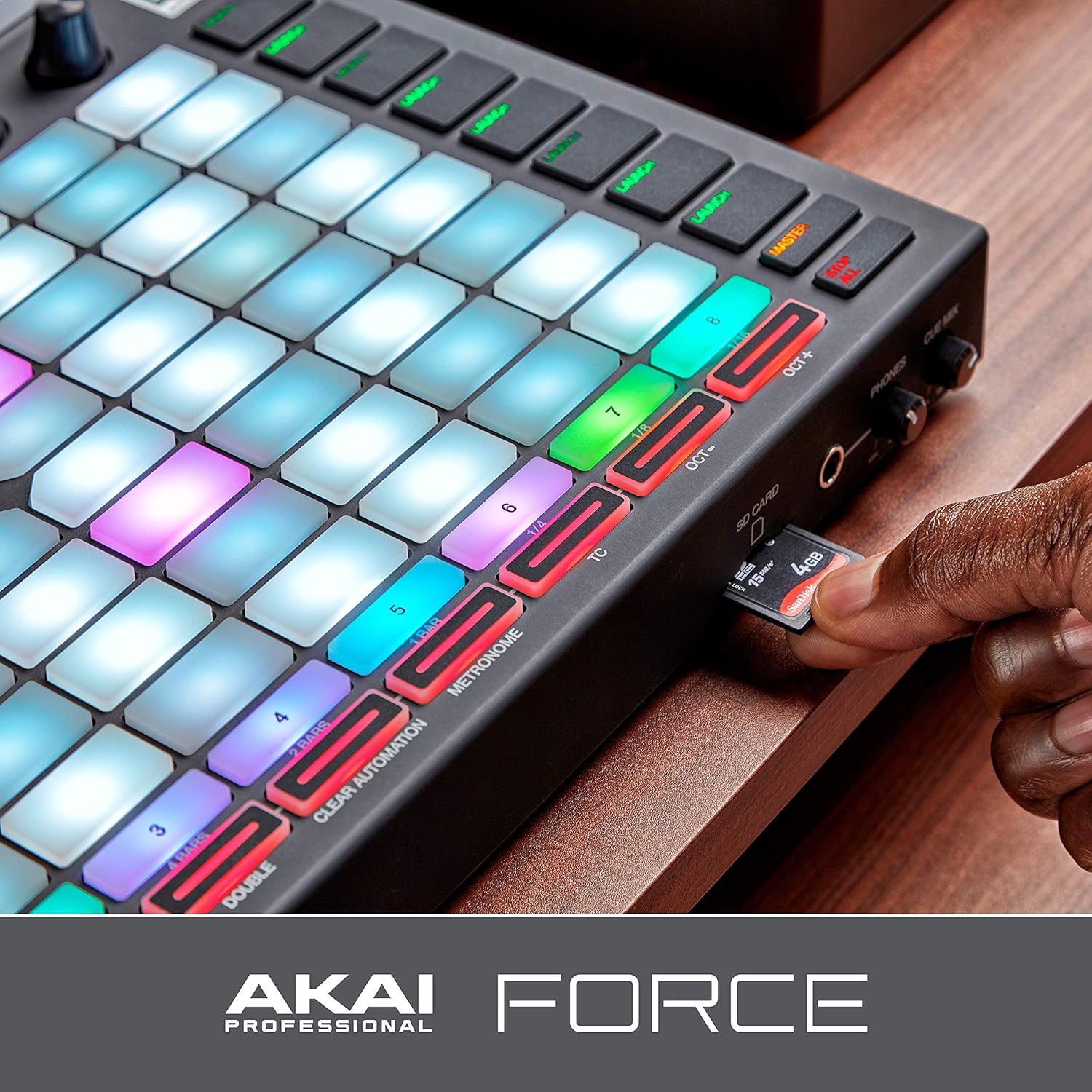
Image: The AKAI Professional FORCE connected to external audio interfaces and MIDI devices, demonstrating its integration capabilities within a studio setup.
3.4. Storage Expansion
The FORCE includes 16GB of internal storage. You can expand this using:
- SD Card Slot: A full-size SD card slot for additional media.
- USB 3.0 Slots: Two USB 3.0 slots for thumb drives or MIDI controllers.
- SATA Drive Connector: A user-expandable 2.5" SATA drive connector for SSD or HDD, enabling disk streaming of audio files.

Image: A user inserting an SD card into the dedicated slot on the AKAI Professional FORCE, with the USB 3.0 ports also visible, illustrating storage expansion options.
4. Operating Instructions
4.1. User Interface Overview
The FORCE features a 7-inch, full-color, capacitive multi-touch display, which serves as the central interface for clip launching, sound browsing, MIDI editing, sample manipulation, and composition arrangement. Tactile controls include an 8x8 clip launch matrix with RGB LEDs and 360-degree rotary encoders with OLED feedback for real-time parameter access.

Image: A user's hands operating the AKAI Professional FORCE, demonstrating interaction with the multi-touch display and the illuminated 8x8 clip launch matrix.
4.2. Basic Workflow
The FORCE supports a comprehensive production workflow:
- Clip Launching: Use the 8x8 matrix to trigger scenes and clips for performance and arrangement.
- Step Sequencing: Create and edit patterns using the step sequencer.
- Sampling: Record and manipulate samples directly on the device.
- Synth Engines: Utilize the 8 built-in synthesizer engines for sound design.
- Arrangement: Arrange your compositions using the linear song arranger.
- Mixing and Effects: Apply XYFX and other effects, and mix your tracks using the tactile controls and touch display.

Image: A detailed view of the AKAI Professional FORCE in use, with a hand adjusting a rotary encoder while the multi-touch display shows a waveform, illustrating the device's production capabilities.
4.3. Sound Content and Splice Integration
The FORCE comes preloaded with over 10GB of sounds from various providers. It also features native Splice integration, allowing direct Wi-Fi access to your Splice library for browsing and auditioning millions of royalty-free samples, sounds, presets, and loops.

Image: The AKAI Professional FORCE's touch screen displaying a sound library browser, indicating the integration with Splice for accessing extensive sound content.
5. Maintenance
5.1. Cleaning
To clean the FORCE, use a soft, dry cloth. For the display, use a microfiber cloth specifically designed for screens. Avoid using abrasive cleaners, solvents, or harsh chemicals, as these can damage the finish or electronic components.
5.2. Software Updates
Regularly check the Akai Professional website for firmware updates. Updates can introduce new features, improve performance, and fix bugs. Follow the instructions provided with each update carefully.
5.3. Storage
When not in use, store the FORCE in a cool, dry environment, away from direct sunlight and extreme temperatures. Protect the unit from dust and moisture. If transporting, use a dedicated case to prevent physical damage.
6. Troubleshooting
This section addresses common issues you might encounter with your AKAI Professional FORCE. For more detailed troubleshooting, refer to the official Akai Professional support resources.
6.1. No Power
- Ensure the power adapter is securely connected to both the FORCE and a working power outlet.
- Verify that the power switch on the FORCE is in the ON position.
- Test the power outlet with another device to confirm it is functional.
6.2. No Sound Output
- Check all audio cable connections from the FORCE outputs to your speakers or headphones.
- Ensure the master volume knob on the FORCE is turned up.
- Verify that individual track volumes and mixer levels within the FORCE software are not muted or set too low.
- Confirm that your monitoring system (speakers, headphones) is powered on and functioning correctly.
6.3. MIDI Device Not Responding
- Check MIDI cable connections between the FORCE and your external MIDI device.
- Ensure the MIDI settings within the FORCE are correctly configured to send and receive data from the connected device.
- Verify that the external MIDI device is powered on and its MIDI settings are compatible with the FORCE.
6.4. Display Issues
- If the display is unresponsive, try restarting the FORCE unit.
- Ensure your fingers are clean and dry when interacting with the multi-touch display.
7. Specifications
| Feature | Detail |
|---|---|
| Item Weight | 9.9 pounds |
| Product Dimensions | 15.16"D x 13.78"W x 2.95"H (38.5cm D x 35cm W x 7.5cm H) |
| Model Name | Force |
| Brand | Akai Professional |
| Display | 7-inch Multi-Touch Display |
| Pads | 8x8 Clip Launch Matrix with RGB LEDs |
| Inputs | (2) XLR / ¼-inch Combo Inputs (with phantom power, switchable line/instrument) |
| Outputs | (2) Stereo ¼-inch Outputs, Headphone Output |
| MIDI Connectivity | MIDI In / Out / Thru (with MIDI multi capability) |
| CV/Gate Outputs | (4) Configurable CV/Gate Outputs |
| Storage | 16GB On-board, Full-Size SD Card Slot, (2) USB 3.0 Slots, 2.5" SATA Drive Connector (SSD or HDD) |
| Connectivity Technology | USB |
| Hardware Interface | USB 3.0 |
| Compatible Devices | Laptop |
| Supported Software | Ableton Live |
| Body Material | Plastic |
| Color Name | Black |
| Date First Available | January 17, 2019 |
8. Warranty and Support
For detailed warranty information and technical support, please refer to the included Safety and Warranty Manual or visit the official Akai Professional website. Product registration is recommended to receive updates and support.
Akai Professional Website: www.akaipro.com


