
AuKing M8-F
AuKing Projector User Manual
Model: M8-F
Introduction
This manual provides essential information for the safe and efficient operation of your AuKing Mini Projector. Please read it thoroughly before use and retain it for future reference.
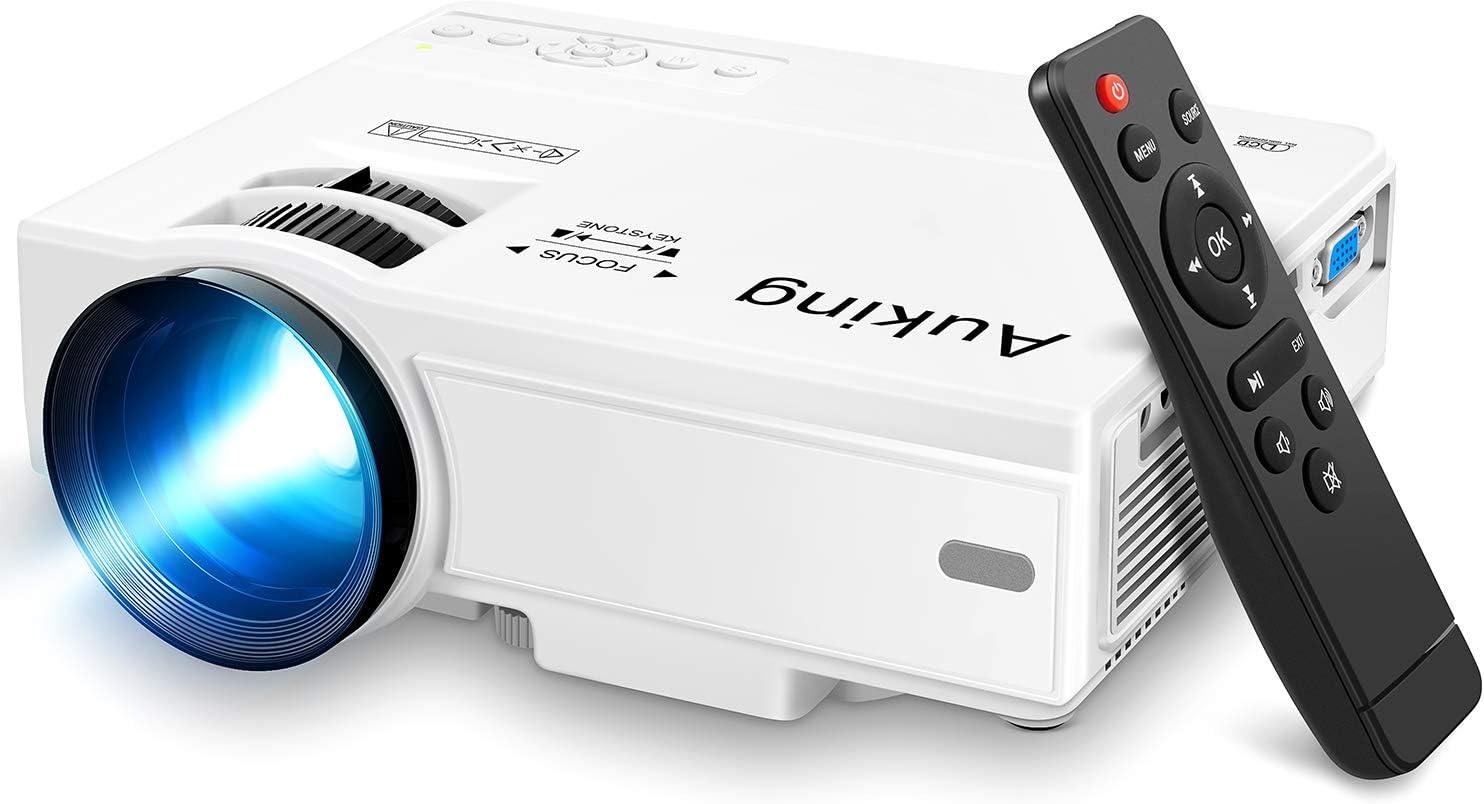
Image: The AuKing Mini Projector, a compact white device, is shown alongside its black remote control. The projector features a prominent lens and control buttons on its top surface.
Product Features
- Full HD 1080P Support: Experience clear and sharp detailed images with the latest color reproduction technology for a vibrant viewing effect.
- Large Projection Screen: Enjoy an immersive viewing experience with a projection size ranging from 35 to 200 inches, suitable for distances between 3.6ft and 16.4ft.
- Long Bulb Life: The powerful cooling system effectively dissipates heat, extending the lamp's life up to 55,000 hours for over 15 years of use.
- Low Noise & Dual Stereo Speakers: Advanced noise reduction technology reduces fan noise by 80%. Built-in dual stereo speakers provide clear sound quality. External speakers can be connected for enhanced audio.
- Multiple Device Connection: Equipped with HDMI, VGA, AV, and USB interfaces, compatible with smartphones, laptops, pads, USB drives, and TV boxes. (Note: An extra HDMI adapter may be needed for phone connection, and copyrighted apps like Netflix, Prime Video, Hulu require a TV Stick or Roku.)

Image: A split image demonstrating the AuKing projector's superior color reproduction and 1080P support compared to a generic projector.
What's in the Box
Your AuKing Projector package includes:
- AuKing Mini Projector
- Remote Control
- Power Cable
- AV Cable
- HDMI Cable
- User Manual
Setup Guide
1. Placement
Choose a suitable location for your projector. It can be placed on a table, mounted on a tripod, or ceiling-mounted. Ensure the projection surface is flat and clear.

Image: Demonstrates various placement options for the AuKing projector, including tripod installation, ceiling mount, and simple table placement.
2. Power Connection
Connect the power cable to the projector and then to a power outlet.
3. Device Connection
Connect your desired input device (e.g., laptop, USB drive, smartphone) to the projector using the appropriate cable (HDMI, USB, AV, VGA). For smartphone connections, an additional HDMI adapter may be required (sold separately).

Image: Illustrates the projector's compatibility with multiple devices, showing connections for smartphones, laptops/PCs, PS4, DVD players, memory cards, and USB drives.
4. Focus and Keystone Adjustment
Use the FOCUS and KEYSTONE rings on the projector to adjust the image clarity and shape until it appears rectangular and sharp on your screen.
Operating Instructions
1. Power On/Off
Press the power button on the projector or the remote control to turn the device on or off.
2. Input Source Selection
Use the "Source" button on the remote or projector to select the correct input source (HDMI, USB, AV, VGA) corresponding to your connected device.
3. Media Playback
Navigate through your media files using the remote control. For streaming services like Netflix, Prime Video, or Hulu, ensure you are using a compatible TV Stick or Roku device connected to the projector due to copyright restrictions.

Image: A living room setup showcasing the projector's ability to create a large 200-inch projection, providing an immersive home theater experience.
4. Audio Output
The projector has built-in dual stereo speakers. For a higher sound quality, connect external speakers via the audio output port.
Maintenance
To ensure optimal performance and longevity of your AuKing projector:
- Dust Cleaning: Regularly clean the lens with a soft, lint-free cloth. Avoid abrasive cleaners.
- Ventilation: Ensure the projector's ventilation ports are not blocked to allow proper airflow and prevent overheating. The advanced cooling system is designed to manage heat effectively.
- Storage: When not in use for extended periods, store the projector in a cool, dry place, away from direct sunlight and extreme temperatures.

Image: An illustration highlighting the projector's advanced cooling system, showing arrows indicating airflow to prevent overheating and extend lamp life.
Troubleshooting
| Problem | Possible Cause | Solution |
|---|---|---|
| No image or "No Signal" | Incorrect input source selected; Loose cable connection; Device not powered on. | Select the correct input source. Check all cable connections. Ensure the input device is powered on. |
| Blurry image | Out of focus; Incorrect keystone adjustment. | Adjust the FOCUS ring until the image is clear. Adjust the KEYSTONE ring to correct image distortion. |
| No sound | Volume too low; Muted; External speakers not connected properly. | Increase volume. Unmute the projector. Check external speaker connections. |
| Projector overheating | Blocked ventilation; Prolonged use in hot environment. | Ensure vents are clear. Turn off and allow to cool. Use in a well-ventilated area. |
Specifications
| Feature | Detail |
|---|---|
| Brand | AuKing |
| Model Number | M8-F |
| Display Resolution | 1920 x 1080 (Full HD supported) |
| Projection Size | 35-200 inches |
| Projection Distance | 3.6ft to 16.4ft |
| Lamp Life | Up to 55,000 hours |
| Connectivity Technology | VGA, USB, HDMI, AV |
| Speaker Type | Built-In Dual Stereo Speakers |
| Item Weight | 2.87 pounds |
| Product Dimensions | 7.95 x 6.3 x 2.91 inches |
Warranty and Support
AuKing offers a 2-year product replacement warranty and lifetime after-sales service for your projector. If you encounter any issues or have questions, please do not hesitate to contact our support team. We are committed to providing 100% customer satisfaction.
For support, please visit the AuKing Store on Amazon or refer to the contact information provided in your product packaging.
Related documentsM8-F


Ask a question about this manual
Ask about setup, troubleshooting, compatibility, parts, safety, or missing instructions. Manuals+ will review the question and use this page’s manual context to help answer it.