
1. Introduction
Welcome to the user manual for your Genius Manticore Gaming Keyboard. This guide provides essential information for setting up, operating, maintaining, and troubleshooting your new gaming keyboard. Please read these instructions carefully to ensure optimal performance and longevity of your device.
2. Product Overview
The Genius Manticore Gaming Keyboard is designed for an enhanced gaming experience, featuring a durable build and responsive keys. It connects via USB and is compatible with a wide range of devices. The keyboard includes 104 keys with a standard QWERTY layout, complemented by additional gaming-specific features.
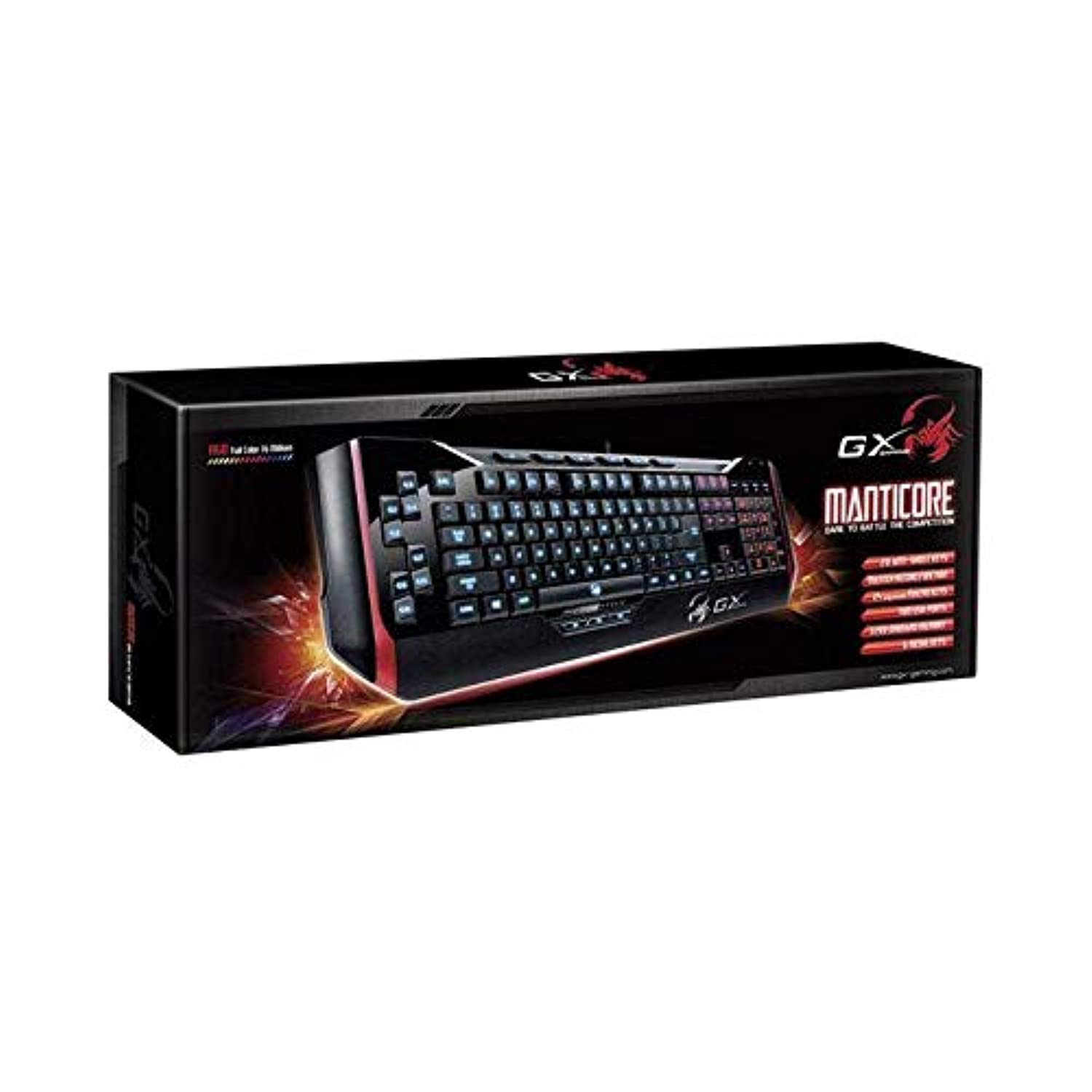
Figure 1: Genius Manticore Gaming Keyboard. This image displays the Genius Manticore Gaming Keyboard, featuring a black body with red accents on the sides. The keys are illuminated, indicating its gaming functionality. The keyboard has a standard QWERTY layout with additional keys on the left side, likely for macros, and a numeric keypad on the right.
3. Setup
- Unpack the Keyboard: Carefully remove the Genius Manticore Gaming Keyboard from its packaging. Ensure all components are present.
- Connect to Your Device: Locate an available USB port on your computer or compatible device. Insert the USB connector of the keyboard firmly into the USB port.
- Driver Installation (if necessary): For most modern operating systems, the keyboard will be recognized automatically, and standard drivers will be installed. If prompted, follow the on-screen instructions to complete any driver installation.
- Test Functionality: Open a text editor or a web browser and test the keys to ensure they are responding correctly.
4. Operating Instructions
The Genius Manticore Gaming Keyboard offers a standard QWERTY layout for general typing and dedicated features for gaming.
- Standard Key Functions: All standard alphanumeric, symbol, and function keys operate as expected on a typical QWERTY keyboard.
- Gaming Features: The keyboard is designed for gaming. Specific gaming features, such as customizable backlighting or programmable macro keys (if available on your model), can typically be configured through dedicated software provided by Genius or through specific key combinations. Refer to the Genius website for any available software downloads or advanced feature guides.
- Power Source: The keyboard is powered directly via the USB connection to your device. No external power supply or batteries are required.
5. Maintenance
Proper maintenance ensures the longevity and performance of your keyboard.
- Cleaning: Use a soft, dry cloth to wipe down the keyboard surface. For dust and debris between keys, use compressed air. Avoid using harsh chemicals or abrasive materials.
- Liquid Exposure: This keyboard is not water resistant. Avoid spilling liquids on the keyboard, as this can cause permanent damage. If liquid exposure occurs, immediately disconnect the keyboard from your device and allow it to dry completely before attempting to use it again.
- Storage: When not in use, store the keyboard in a clean, dry environment away from extreme temperatures and direct sunlight.
6. Troubleshooting
If you encounter issues with your keyboard, try the following solutions:
- Keyboard Not Responding:
- Ensure the USB cable is securely connected to both the keyboard and the computer.
- Try connecting the keyboard to a different USB port on your computer.
- Test the keyboard on another computer to determine if the issue is with the keyboard or the original computer.
- Restart your computer.
- Specific Keys Not Working:
- Check for any physical obstructions under the non-functional keys.
- Clean the keyboard as described in the Maintenance section.
- Ensure no software conflicts are present (e.g., macro software interfering with standard key functions).
- Backlighting Issues:
- If your model features adjustable backlighting, ensure it is not turned off or set to the lowest brightness level. Consult the Genius website for specific key combinations to control backlighting.
If these steps do not resolve the issue, please contact Genius customer support for further assistance.
7. Specifications
| Feature | Detail |
|---|---|
| Brand Name | Genius |
| Model Number | GE31310058108 |
| Compatible Devices | All |
| Connectivity Technology | USB |
| Keyboard Description | Gaming |
| Special Features | Gaming |
| Color | Multi-color (Black and Red) |
| Style | Modern |
| Material | Multiple Materials |
| Theme | Games |
| Power Source | USB power |
| Number of Keys | 104 |
| Keyboard Layout | QWERTY Keyboard |
| Hand Orientation | Ambidextrous |
| Button Quantity | 104 |
| Water Resistance Level | Not Water Resistant |
| Manufacturer | Genius |
| ASIN | B07MQMXJS9 |
8. Warranty and Support
Your Genius Manticore Gaming Keyboard is covered by a standard manufacturer's warranty. For detailed information regarding warranty terms, registration, or to access technical support, please visit the official Genius website or contact their customer service department. Keep your purchase receipt as proof of purchase.
For further assistance, you may visit the Genius Official Website.


