
1. Overview
The ASHATA AC 7265 Network Adapter is a dual-band wireless-AC and Bluetooth network card designed for laptops. It features NGFF M2 interface and supports 802.11 a/b/g/n/ac Wi-Fi standards, offering enhanced connectivity and performance. This adapter is engineered for stable connections and consistent speeds, suitable for browsing, streaming, and downloading.
Key Features:
- Larger capacity, longer distance, and better performance for more devices.
- Reduces connection interruptions for higher reliability.
- Lower power consumption for extended battery life.
- Simple to operate, high performing, and cost-effective.
- Compact size for easy integration.

This image displays the compact ASHATA AC 7265 Dual Band Wireless-AC Network Adapter, highlighting its small form factor suitable for internal laptop installation.
2. Product Components
The ASHATA AC 7265 Network Adapter package typically includes the following:
- 1x ASHATA AC 7265 Network Adapter (NGFF M2)
- Mounting screw (may vary by package)

This image shows the top side of the network adapter, displaying its model number, FCC ID, and other regulatory markings.

This image presents the bottom side of the network adapter, revealing its circuit board and connection pins.
3. Setup & Installation
Installing the ASHATA AC 7265 Network Adapter requires opening your laptop. Please ensure you have the necessary tools and follow proper anti-static procedures to prevent damage to your device. It is recommended to consult your laptop's service manual for specific instructions on accessing the M.2 slot.
3.1 Physical Installation
- Power Off: Completely shut down your laptop and disconnect it from all power sources.
- Access M.2 Slot: Carefully open your laptop's back panel to locate the existing network card or empty M.2 slot.
- Remove Old Card (if applicable): If replacing an existing card, disconnect any antenna cables and remove the securing screw. Gently slide out the old card.
- Insert New Card: Align the ASHATA AC 7265 adapter with the M.2 slot. Gently push it in until it is fully seated.
- Secure Card: Secure the adapter with the provided screw.
- Connect Antennas: Carefully connect the antenna cables to the corresponding connectors on the new network card. Ensure a snug fit.
- Reassemble: Close the laptop's back panel and secure it with screws.

This image demonstrates the physical installation process of the network card into a compatible M.2 slot on a laptop motherboard.
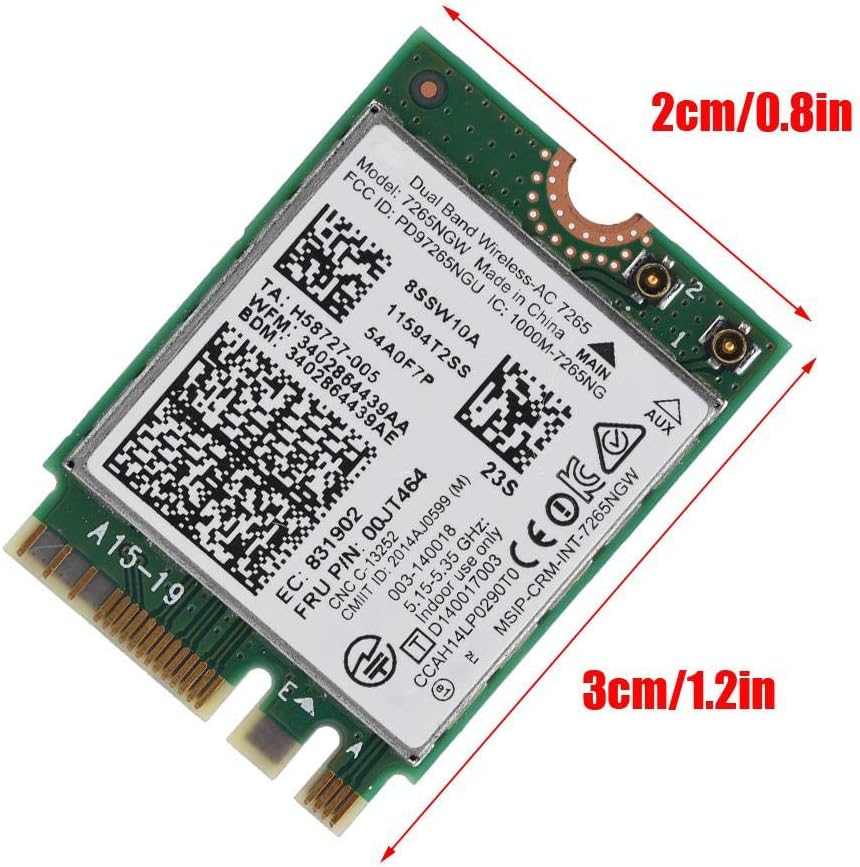
This image provides a visual representation of the network adapter's compact dimensions, showing it measures approximately 2cm by 3cm, ideal for space-constrained laptop environments.
3.2 Driver Installation
After physical installation, you will need to install the appropriate drivers for the network adapter to function correctly. Drivers are typically plug-and-play for most modern operating systems, but manual installation may be required.
Video 1: This video demonstrates the process of installing a WiFi driver for an M.2 WiFi card, which is applicable to the ASHATA AC 7265 adapter. It covers downloading the driver, extracting files, and running the setup executable.
Video 2: This video provides an overview of an M.2 AX1800 WiFi 6 and Bluetooth Combo Card, showcasing its features and compatibility, which can be helpful for understanding the capabilities of the ASHATA AC 7265.
4. Operating Instructions
Once the network adapter is installed and drivers are in place, your laptop should automatically detect the new hardware. You can then connect to Wi-Fi networks and use Bluetooth devices.
4.1 Wi-Fi Connection
- Enable Wi-Fi: Ensure Wi-Fi is enabled in your operating system settings.
- Select Network: Click on the Wi-Fi icon in your system tray (Windows) or menu bar (macOS) and select your desired network.
- Enter Password: If prompted, enter the Wi-Fi password and click Connect.
- Dual Band: The AC 7265 supports both 2.4GHz and 5GHz bands. Your system will automatically choose the optimal band, or you may see separate network names for each band (e.g., "MyWiFi_2.4G" and "MyWiFi_5G").
4.2 Bluetooth Connection
- Enable Bluetooth: Go to your operating system's Bluetooth settings and ensure Bluetooth is turned on.
- Pair Device: Put your Bluetooth device into pairing mode.
- Add Device: On your laptop, search for new Bluetooth devices and select your device from the list to pair.
5. Maintenance
To ensure optimal performance and longevity of your ASHATA AC 7265 Network Adapter, consider the following maintenance tips:
- Driver Updates: Regularly check the ASHATA website or your laptop manufacturer's support page for the latest driver updates. Keeping drivers current can improve performance and stability.
- System Updates: Keep your operating system updated to ensure compatibility and security.
- Physical Inspection: If you experience persistent issues, a physical inspection of the card and antenna connections may be necessary. Ensure all connections are secure.
6. Troubleshooting
If you encounter issues with your ASHATA AC 7265 Network Adapter, try the following troubleshooting steps:
6.1 No Wi-Fi or Bluetooth Connectivity
- Check Device Manager: In Windows, open Device Manager and look for the network adapter under "Network adapters" and "Bluetooth". If there's a yellow exclamation mark or the device is not listed, there might be a driver issue.
- Reinstall Drivers: Uninstall the current drivers from Device Manager and reinstall them using the latest version from the manufacturer's website.
- Physical Connection: Ensure the card is properly seated in the M.2 slot and antenna cables are securely connected.
- BIOS/UEFI Settings: Some laptops may have Wi-Fi or Bluetooth enable/disable options in the BIOS/UEFI settings. Verify they are enabled.
6.2 Slow Speeds or Intermittent Connection
- Router Distance: Ensure your laptop is within a reasonable range of your Wi-Fi router. Obstacles like walls can degrade signal quality.
- Interference: Other electronic devices (microwaves, cordless phones) can cause interference. Try moving your laptop or router.
- Driver Update: Ensure you have the latest drivers installed.
- Router Settings: Check your router's settings to ensure it's configured for optimal performance (e.g., using 5GHz band for faster speeds if available).
7. Specifications
| Feature | Detail |
|---|---|
| Brand | ASHATA |
| Model | AC 7265 |
| Hardware Interface | Bluetooth, NGFF M2 |
| Compatible Devices | Laptop |
| Data Link Protocol | 802.11a/b/g/n/ac, Bluetooth |
| Data Transfer Rate | 867 Megabits Per Second (Wi-Fi) |
| Compatible Operating System Family | Linux, Windows |
| Product Dimensions | 1.18 x 0.83 x 0.08 inches (approx. 1.1"L x 0.7"W x 0.07"H) |
| Item Weight | 0.704 ounces |
| UPC | 791380351751 |
8. Warranty & Support
For warranty information and technical support, please refer to the documentation included with your purchase or visit the official ASHATA website. Keep your proof of purchase for warranty claims.