
1. Introduction
This manual provides detailed instructions for the Redragon K503 Gaming Keyboard. Please read this guide thoroughly to ensure proper setup, operation, and maintenance of your device. The Redragon K503 is a multimedia gaming keyboard featuring RGB LED backlighting and a comfortable wrist rest, designed for use with Windows and MacOS PC systems.
2. Setup
2.1 Package Contents
- Redragon K503 Gaming Keyboard
- USB Cable (integrated)
2.2 Connecting the Keyboard
- Locate an available USB port on your computer.
- Plug the USB connector of the Redragon K503 keyboard into the USB port.
- Your operating system (Windows or MacOS) should automatically detect and install the necessary drivers. No additional software installation is typically required for basic functionality.
- The keyboard's RGB backlighting will illuminate upon successful connection.
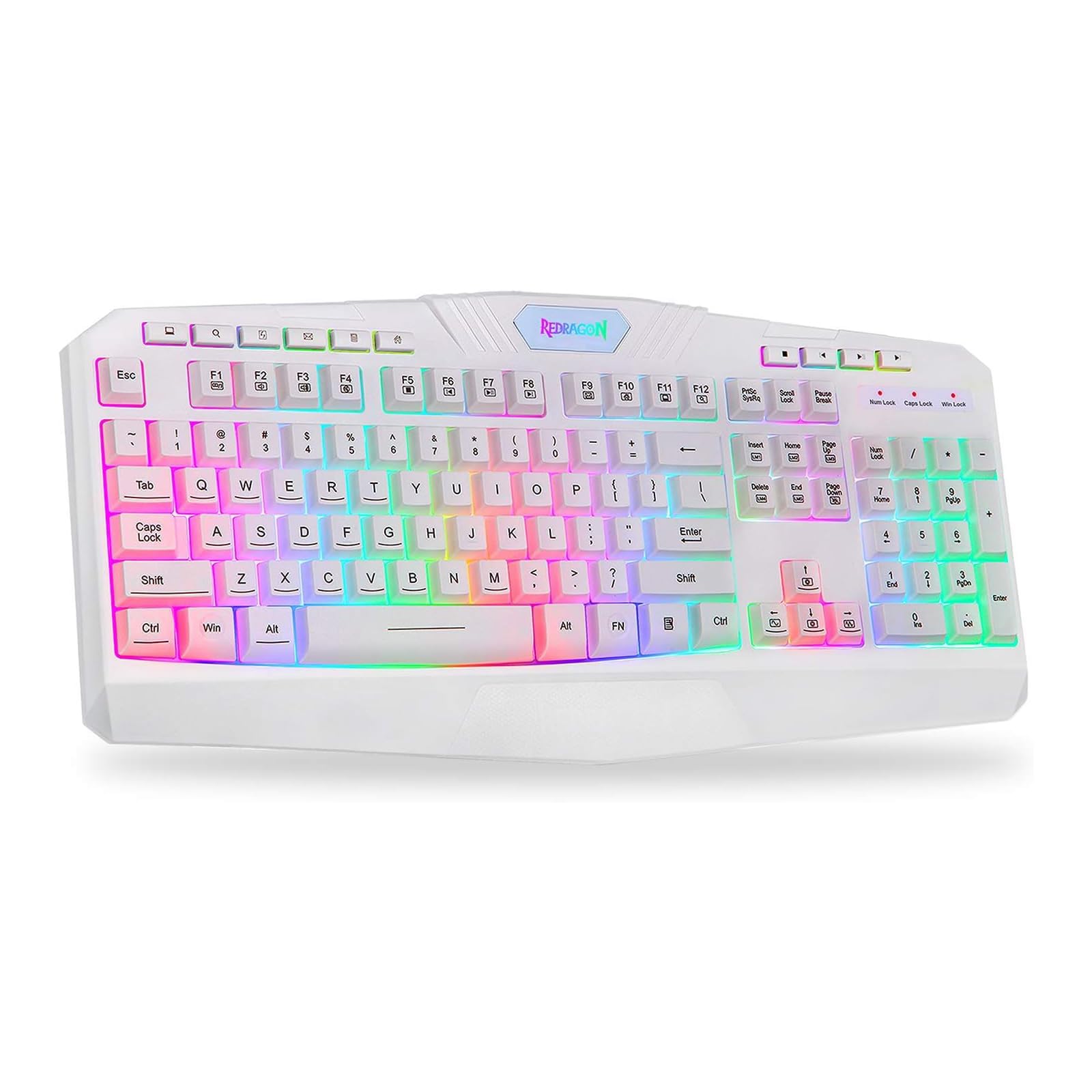
This image shows the Redragon K503 Gaming Keyboard, highlighting its full layout and white finish. The keys feature RGB backlighting, visible around the keycaps.
3. Operating Instructions
3.1 Basic Functions
The Redragon K503 functions as a standard QWERTY keyboard for typing and input. All standard keys operate as labeled.
3.2 Multimedia Keys
The keyboard includes dedicated multimedia keys for convenient control of media playback and system functions. These keys are typically located above the function keys (F1-F12) or integrated with them via the 'Fn' key. Common functions include:
- Volume Control: Increase, decrease, or mute audio.
- Media Playback: Play/pause, stop, previous track, next track.
- Web Browser: Launch default web browser.
- Email: Launch default email client.
3.3 RGB LED Backlighting
The K503 features customizable RGB LED backlighting. The lighting modes and brightness can be adjusted directly on the keyboard using specific key combinations. Refer to the keycap legends for specific lighting control keys, often involving the 'Fn' key combined with other function keys (e.g., Fn + Scroll Lock, Fn + Home/End, or dedicated lighting keys).
- Changing Lighting Modes: Press the designated key combination to cycle through various lighting effects (e.g., static, breathing, wave).
- Adjusting Brightness: Use the specified key combination to increase or decrease the backlight intensity.
- Changing Colors: Some modes allow for color customization using specific key presses.
4. Maintenance
4.1 Cleaning the Keyboard
To maintain optimal performance and appearance, clean your keyboard regularly:
- Disconnect the keyboard from your computer before cleaning.
- Use a soft, lint-free cloth slightly dampened with water or a mild cleaning solution to wipe the keycaps and surface.
- For dust and debris between keys, use compressed air.
- Do not use harsh chemicals, abrasive cleaners, or immerse the keyboard in liquid.
5. Troubleshooting
5.1 Keyboard Not Responding
- Ensure the USB cable is securely plugged into both the keyboard and the computer.
- Try plugging the keyboard into a different USB port on your computer.
- Test the keyboard on another computer to determine if the issue is with the keyboard or the computer's USB port/drivers.
- Restart your computer.
5.2 Backlighting Not Working or Incorrect
- Check if the backlighting has been turned off or set to the lowest brightness level using the keyboard's lighting control keys.
- Ensure the keyboard is properly connected to the computer.
- If a specific key's backlight is not working, it may indicate a hardware issue.
5.3 Specific Keys Not Functioning
- Clean around and under the affected keycap to remove any debris that might be obstructing its movement.
- If the issue persists, it may indicate a hardware malfunction.
6. Specifications
| Brand | Redragon |
| Model Number | K503W-RGB |
| Connectivity Technology | USB |
| Compatible Devices | PC (Windows, MacOS) |
| Keyboard Description | Multimedia |
| Special Feature | Lighting (RGB LED Backlit) |
| Color | White |
| Product Dimensions | 17.6"L x 7.9"W x 1.2"H |
| Material | Acrylonitrile Butadiene Styrene |
| Included Components | USB Cable |
7. Warranty Information
Redragon products are typically covered by a limited manufacturer's warranty. The specific terms and duration of the warranty may vary by region and retailer. Please retain your proof of purchase for warranty claims. For detailed warranty information, refer to the warranty card included with your product or visit the official Redragon website.
8. Customer Support
If you encounter any issues not covered in this manual or require further assistance, please contact Redragon customer support. Contact information can usually be found on the official Redragon website or on the product packaging. When contacting support, please have your product model number (K503) and proof of purchase ready.


