
Introduction
The H2 Smart Home Starter Kit provides a simple and efficient way to monitor and control your home environment. This kit includes a central gateway, an open/closed sensor for doors and windows, and a weather sensor that measures temperature, humidity, and pressure. Designed for ease of use, the system integrates with a dedicated mobile application and is compatible with Alexa for voice control. It offers comprehensive monitoring and alerts for irregularities in your home, even when you are away.

Image: Overview of the H2 Smart Home Starter Kit components and the mobile application interface.
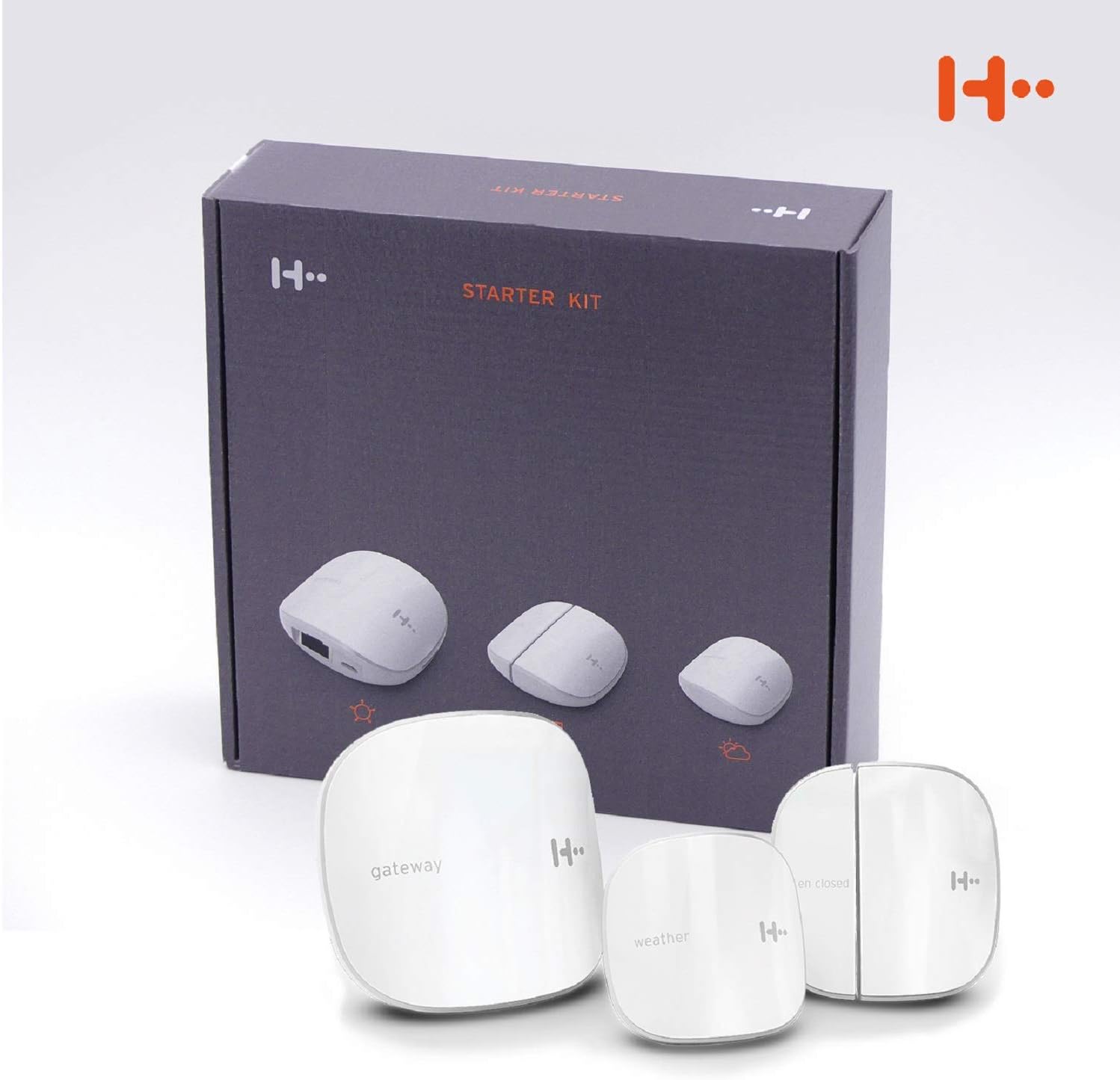
Image: The H2 Smart Home Starter Kit, showing the product packaging and its main components.
Setup Instructions
The H2 Smart Home Starter Kit is designed for quick and straightforward installation. Follow these steps to set up your system:
- Download the H2 Smart Home App: Search for "H2 Smart Home" in your device's app store (available for Android and iOS). Download and install the application.
- Create an Account: Open the H2 Smart Home app and follow the on-screen instructions to create a new user account.
- Register the Gateway:
- Locate the QR code or serial number on the gateway device.
- In the app, select the option to add a new device and scan the QR code or manually enter the serial number.
- Connect the gateway to your internet router using the provided Ethernet cable.
- Connect the gateway to a power source using the provided power adapter.
- Prepare Sensors:
- Remove the battery protection tabs from the open/closed sensor and the weather sensor.
- Ensure batteries are correctly inserted. The sensors use CR2 batteries.
- Install Sensors:
- Open/Closed Sensor: This sensor consists of two parts. Clean the desired surface (door/window frame and the moving part) with alcohol and allow it to dry. Attach the two parts using the adhesive pads, ensuring they are aligned and within the maximum specified distance when the door/window is closed. Use the included spacers if surfaces are not perfectly aligned.
- Weather Sensor: Position the weather sensor in your desired location. It can be discreetly placed on a wall or surface using its adhesive backing.
- Add Sensors to App: In the H2 Smart Home app, add each sensor by scanning its QR code or entering its serial number. Assign each sensor to a specific room or location within your home for easy identification.

Image: Visual guide illustrating the three simple steps for setting up the H2 Smart Home system.

Image: An H2 sensor installed discreetly on a wall, demonstrating its compact design.
Operating Instructions
Once your H2 Smart Home Starter Kit is set up, you can begin monitoring and controlling your home through the mobile application and voice commands.
Using the H2 Smart Home App:
- Real-time Monitoring: The app provides real-time data from your sensors. View the open/closed status of doors and windows, and check temperature, humidity, and pressure readings from the weather sensor. The app also offers historical data, typically for the last 24 hours for open/closed events and up to one month for weather data.
- Notifications and Alerts: Configure custom notifications within the app. You can receive alerts when a door or window is opened, or if temperature or humidity levels exceed predefined thresholds. Ensure the app is allowed to run in the background to receive timely notifications.
- Data Security: The H2 app uses encrypted communication to ensure the maximum protection of your data.
- Remote Control: Control your smart devices and monitor your home from anywhere using the app, providing peace of mind even when you are away.
Alexa Compatibility:
The H2 Smart Home Starter Kit is compatible with Alexa. To enable voice control:
- Open the Alexa app on your smartphone or tablet.
- Navigate to the "Skills & Games" section.
- Search for the "H2 Smart Home" skill and enable it.
- Link your H2 Smart Home account with your Alexa account.
- Discover devices. You can then use voice commands to check the status of your sensors, for example, "Alexa, what is the temperature in the living room?" or "Alexa, is the front door open?".
Maintenance
To ensure optimal performance and longevity of your H2 Smart Home Starter Kit, follow these maintenance guidelines:
- Battery Replacement: The open/closed sensor and weather sensor are powered by CR2 batteries. When the battery level is low, the app will typically notify you. Replace batteries promptly to maintain continuous monitoring. Refer to the sensor's casing for instructions on opening the battery compartment. Exercise care when opening battery compartments to avoid damage.
- Cleaning: Gently wipe the exterior of the gateway and sensors with a soft, dry cloth. Avoid using abrasive cleaners or solvents, as these can damage the device surfaces.
- Software Updates: Regularly check for updates to the H2 Smart Home app through your device's app store. Keeping the app updated ensures you have the latest features, security enhancements, and bug fixes.
- Gateway Connection: Ensure the Ethernet cable connecting the gateway to your router remains secure and undamaged. Periodically check the power connection to the gateway.
Troubleshooting
If you encounter issues with your H2 Smart Home Starter Kit, refer to the following troubleshooting tips:
- App Not Functioning/Crashing:
- Ensure your smartphone's operating system (Android or iOS) is up to date.
- Check if there are any pending updates for the H2 Smart Home app in your app store.
- Try force-closing the app and reopening it.
- Restart your smartphone.
- If the issue persists, uninstall and reinstall the app. Note that some users have reported app instability on older Android versions (e.g., Android 8 or 9).
- No Notifications Received:
- Verify that notifications are enabled for the H2 Smart Home app in your phone's settings.
- Ensure the app is allowed to run in the background and is not being restricted by battery optimization settings.
- Check your in-app notification settings to confirm alerts are configured correctly for each sensor.
- Sensors Not Reporting Data:
- Check the battery status of the sensors in the app. Replace batteries if low.
- Ensure the sensors are within range of the gateway.
- Verify the gateway is powered on and connected to your router. Check the Ethernet cable connection.
- For open/closed sensors, ensure the two parts are correctly aligned and within the specified distance when closed.
- App Language Issues: The H2 Smart Home app and manual may primarily be available in German and English. While the app interface might be available in other languages (e.g., Italian as per some reviews), full localization for all languages (like Spanish) might not be consistently available.
- Physical Damage to Battery Compartment: Some users have reported fragility in the battery compartment covers. Exercise caution when opening and closing them to avoid breakage.
Specifications
| Feature | Detail |
|---|---|
| Model Number | H2 Smart Home Starter Set |
| Brand | H2 |
| ASIN | B07MNPS8V2 |
| Product Dimensions | 12.2 x 13.6 x 5.2 cm; 76 g |
| Color | White |
| Power Source | Electric Cable (for Gateway) |
| Battery Type (Sensors) | 1 CR2 (included) |
| Compatible Devices | Smartphone (via H2 Smart Home App), Alexa |
| Connectivity Technology | Wireless |
| Installation Type | Wireless DIY |
| Alert Type | Motion (implied by open/closed sensor and general smart home alerts) |
| Control Method | Application (Mobile App) |
| Supported Languages (Manual/App) | German, French, English (App interface may vary) |
| Manufacturer | eesy-innovation GmbH |
Warranty Information
Specific warranty details for the H2 Smart Home Starter Kit are not provided in the available product information. Please refer to the product packaging, the manufacturer's official website, or your point of purchase for comprehensive warranty terms and conditions.
Customer Support
For further assistance, technical support, or inquiries regarding your H2 Smart Home Starter Kit, please consult the following resources:
- Manufacturer's Website: Visit the official website of H2 or eesy-innovation GmbH for support documentation, FAQs, and contact information.
- In-App Support: Check the H2 Smart Home application for any built-in help sections or direct support contact options.
- Retailer Support: Contact the retailer from whom you purchased the product for assistance with returns, exchanges, or general product inquiries.


