1. Introduction
The HUION Kamvas Pro 13 GT-133 is a professional pen display designed for digital artists and designers. It features a full laminated IPS HD screen, a battery-free stylus with advanced pressure sensitivity and tilt function, and customizable express keys and a touch bar for enhanced workflow efficiency. This manual provides detailed instructions for setting up, operating, maintaining, and troubleshooting your Kamvas Pro 13.
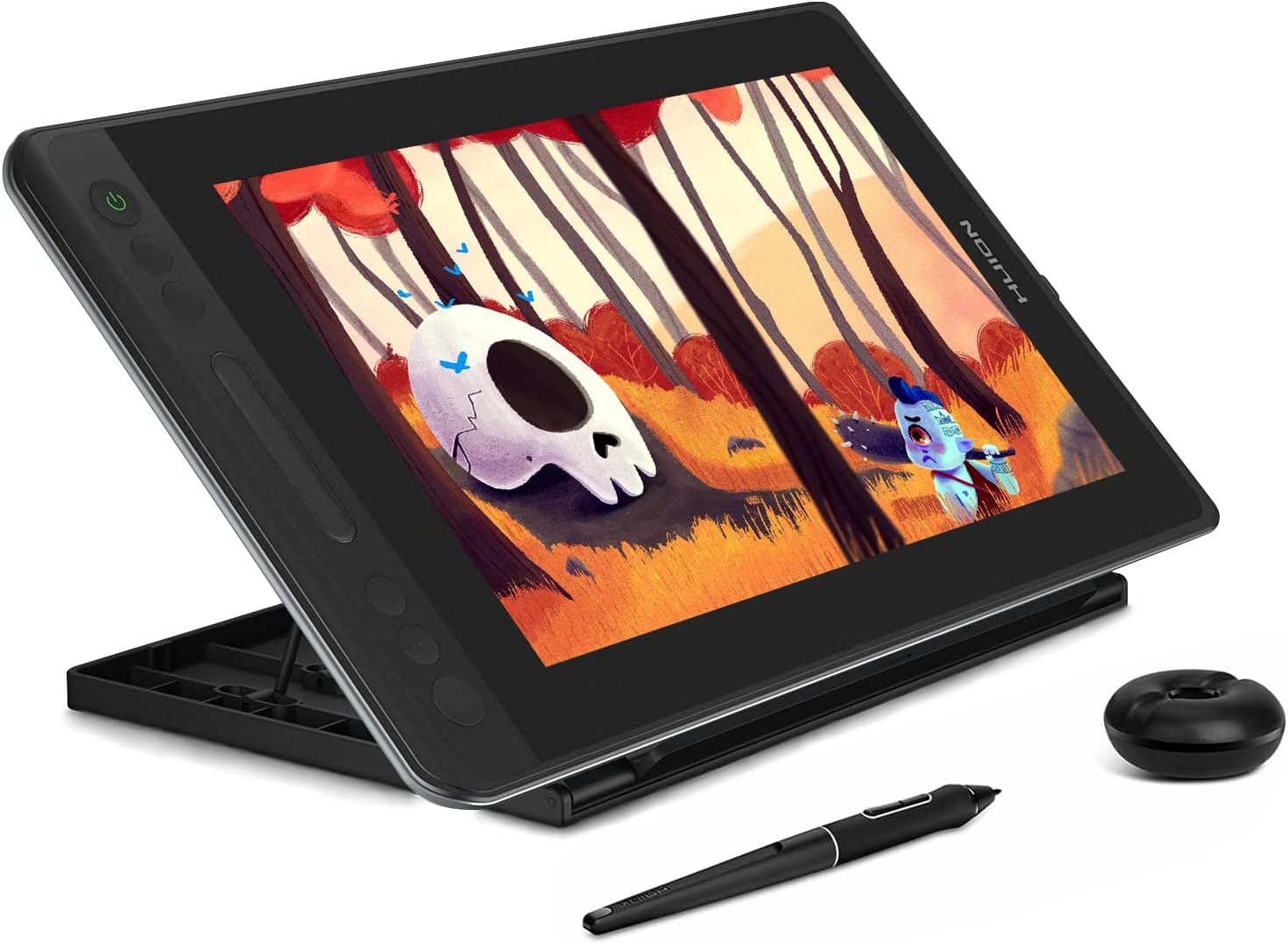
Figure 1.1: HUION Kamvas Pro 13 GT-133 Drawing Tablet with its adjustable stand and battery-free stylus.
Key Features:
- Full Laminated IPS HD Screen: 1920x1080 resolution, 178° viewing angle, 85% NTSC (120% sRGB) color gamut, and anti-glare glass for a clear and vivid display with reduced eye strain.
- Battery-free Stylus (PW507): Offers 8192 levels of pen pressure sensitivity and ±60° tilt support for accurate and natural drawing.
- Customizable Controls: Equipped with 4 programmable express keys and 1 touch bar for quick access to functions like canvas zooming, brush adjusting, and page scrolling.
- Durable and Portable Design: Slim 11mm profile with an aluminum alloy structure, making it robust and easy to transport.
- Adjustable Stand: Includes a 6-angle adjustable stand for comfortable working positions.
- Wide Compatibility: Compatible with Windows 7 or later, macOS 10.12 or later, and Chromebook ChromeOS 88 or later. Supports major art software and online tutoring/conferencing applications.
2. Package Contents
Before you begin, please verify that all items listed below are included in your package:
- Kamvas Pro 13 Pen Display
- Digital Pen (PW507)
- Pen Holder
- Pen Nib Clip
- Replacement Pen Nibs (x20)
- 3-in-1 Cable (HDMI, USB, Power)
- Power Adapter
- Plug
- Cleaning Cloth
- Quick Start Guide
- Glove
- Adjustable Stand

Figure 2.1: All accessories included with the HUION Kamvas Pro 13.
3. Setup
3.1. Connecting the Device
The Kamvas Pro 13 is not a standalone device and requires connection to a computer or laptop. Ensure your computer has available HDMI and USB ports. If not, an adapter may be required. Securely plug the 3-in-1 cable into the tablet and your computer. Allow 30 seconds to 1 minute for the USB hardware driver to load successfully after connection.

Figure 3.1: Connection diagram for the Kamvas Pro 13 to a computer.
3.2. Driver Installation
For optimal performance, always download and install the newest driver from the official HUION website. Before installation:
- Uninstall any drivers from other brands and reboot your computer.
- Close all drawing programs.
- For Mac Mojave (10.14) users, add 'TabletDriverAgent' to the whitelist after installation.
- Ensure the driver is compatible with your operating system (Windows 7 or later, macOS 10.12 or later, Chromebook ChromeOS 88 or later).
3.3. Display Settings
To avoid display offset and ensure accurate calibration:
- Set the display resolution to 1920x1080.
- Set the display size to 100%. On Windows, right-click on the desktop, go to 'Display settings' or 'Screen Resolution', and adjust the scaling to 100%.
4. Operating the Device
4.1. The Battery-Free Stylus (PW507)
The PW507 stylus offers 8192 levels of pressure sensitivity and ±60° tilt recognition, providing a natural drawing experience. It does not require charging, ensuring uninterrupted creative flow. The industry-leading report rate ensures smooth, lag-free drawing.

Figure 4.1: Features of the PW507 Battery-Free Stylus.
4.2. Express Keys and Touch Bar
The Kamvas Pro 13 features 4 customizable express keys and 1 touch bar located on the side of the display. These can be programmed through the HUION driver software to perform various functions, such as:
- Canvas zooming in/out
- Brush size adjustment
- Page scrolling
- Undo/Redo actions
- Switching tools
Refer to the HUION driver software for detailed customization options.
4.3. Full Laminated Screen and Color Gamut
The full lamination technology minimizes parallax between the pen tip and the cursor, providing a more precise and natural drawing experience. The anti-glare glass reduces reflections, allowing you to work comfortably even in brightly lit environments.

Figure 4.2: Benefits of the Full-Laminated Anti-Glare Glass Panel.
With 85% NTSC (120% sRGB) color gamut, the display accurately reproduces a wide range of colors, ensuring your digital artwork appears vibrant and true to life.

Figure 4.3: The Kamvas Pro 13 offers a wide color gamut for accurate color reproduction.
5. Maintenance
5.1. Cleaning the Display
To clean the screen, gently wipe it with the provided cleaning cloth. For stubborn smudges, slightly dampen the cloth with water or a screen-safe cleaner. Avoid using harsh chemicals or abrasive materials that could damage the screen surface.
5.2. Replacing Pen Nibs
Over time, the pen nib may wear down. To replace it:
- Use the pen nib clip to gently pull out the old nib from the stylus.
- Insert a new replacement nib firmly into the stylus until it clicks into place.
Store spare nibs in the pen holder for easy access.
6. Troubleshooting
6.1. No Display/Signal
- Ensure all cables (HDMI, USB, Power) are securely connected to both the tablet and your computer.
- Verify that your computer's display settings are configured to extend or duplicate the display to the Kamvas Pro 13.
- Check if the power adapter is properly connected and receiving power.
6.2. Pen Not Responding/Inaccurate Cursor
- Reinstall the latest HUION driver from the official website. Ensure all other tablet drivers are uninstalled first.
- Calibrate the screen and pen in the HUION driver settings.
- Ensure the display resolution is set to 1920x1080 and scaling to 100% as described in Section 3.3.
- Test with a different USB port on your computer.
6.3. Driver Issues (e.g., 'TabletDriverAgent' not running)
- Temporarily disable your antivirus software during driver installation.
- Run the driver installer as an administrator.
- For macOS, ensure the 'TabletDriverAgent' is added to the Accessibility and Input Monitoring lists in Security & Privacy settings.
6.4. General Support
If you encounter persistent issues, refer to the Quick Start Guide or visit the official HUION website for further assistance and updated troubleshooting resources.
7. Specifications
Key technical specifications for the HUION Kamvas Pro 13 GT-133:
| Feature | Specification |
|---|---|
| Model Name | GT-133 (Kamvas Pro 13) |
| Screen Size | 13.3 Inches |
| Display Type | LCD, Full Laminated IPS HD |
| Display Resolution | 1920x1080 |
| Viewing Angle | 178 Degrees |
| Image Contrast Ratio | 1000:1 |
| Response Time | 25 Milliseconds |
| Refresh Rate | 60 Hz |
| Pressure Sensitivity | 8192 Levels |
| Tilt Function | ±60° |
| Stylus | Battery-Free (PW507) |
| Express Keys | 4 Customizable |
| Touch Bar | 1 Programmable |
| Connectivity | HDMI, USB |
| Operating System Compatibility | Windows 7 or later, macOS 10.12 or later, Chromebook ChromeOS 88 or later |
| Product Dimensions | 38.8 x 21.9 x 1.1 cm |
| Item Weight | 910 g |
8. Warranty and Support
For information regarding product warranty, please refer to the warranty card included with your product or visit the official HUION website. HUION provides technical support and resources to assist users with any questions or issues. You can typically find support contact information on the HUION website or within the driver software.
9. Usage Scenarios
The Kamvas Pro 13 is versatile and suitable for various applications beyond traditional digital art:
9.1. Online Education & Working from Home
The Kamvas Pro 13 is an excellent tool for online teaching, remote work, web conferencing, and presentations. It is compatible with common office software like Microsoft Office (Word, Excel, PowerPoint) and online tutoring platforms. You can use it for webinars, screen sharing, and web conferencing to enhance efficiency and interactivity.

Figure 9.1: Using the Kamvas Pro 13 for online education and remote work.


