
DJI CP.MA.00000080.01
DJI Smart Controller User Manual
Model: CP.MA.00000080.01
Introduction
The DJI Smart Controller is engineered to provide an optimized outdoor flying experience. It integrates a high-brightness display with robust OcuSync 2.0 video transmission technology, ensuring clear and stable video feeds even in direct sunlight. Designed for convenience and performance, this controller simplifies drone operation by eliminating the need for a separate mobile device.
Product Overview
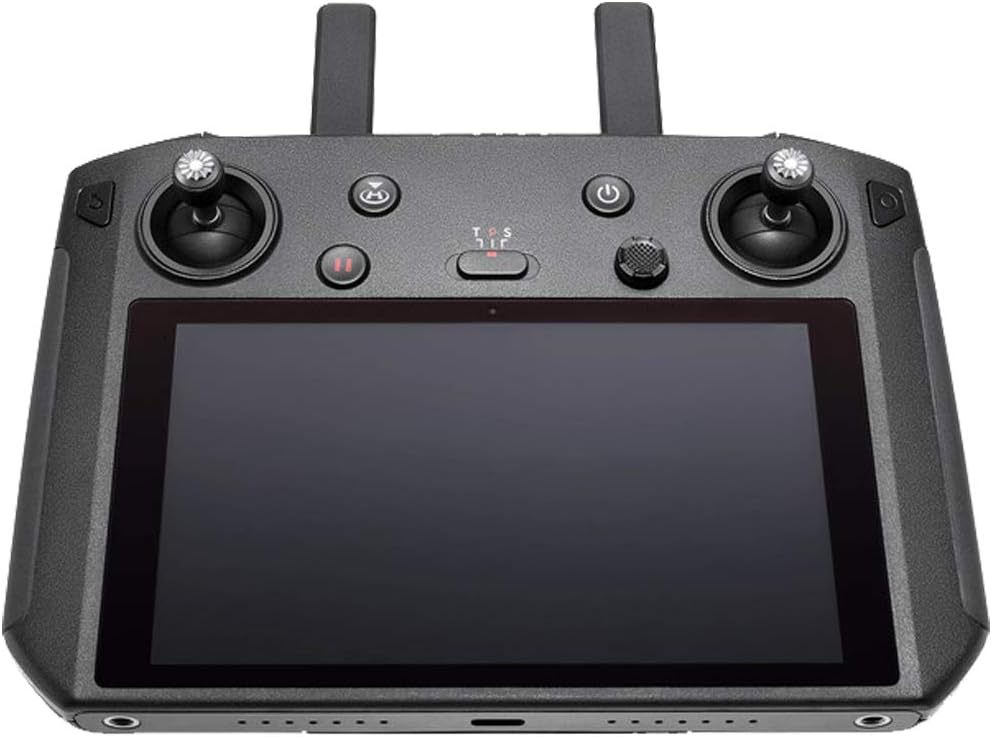
Front view of the DJI Smart Controller, showcasing its integrated display, control sticks, and various buttons.
Key Features:
- Ultra-bright Display: 5.5-inch 1080P display with 1000 cd/m² brightness for clear viewing in bright conditions.
- OcuSync 2.0 Transmission: Automatic switching between 2.4GHz and 5.8GHz frequencies for stable, long-range video transmission up to 8 km.
- Customized Android System: Optimized for DJI GO 4 app and other third-party applications.
- Integrated Design: Detachable control sticks for enhanced portability.
- Versatile Connectivity: Built-in microphone, speaker, and HDMI port for media playback and sharing.
Setup
1. Unboxing and Initial Inspection:
Carefully remove the DJI Smart Controller from its packaging. Verify that all components listed in the 'What's in the Box' section are present and undamaged.
What's in the Box:
- DJI Smart Controller
2. Charging the Controller:
Before first use, fully charge the DJI Smart Controller. Connect the provided USB-C cable to the controller's charging port and a compatible USB power adapter. The battery level indicators will illuminate during charging and turn off when fully charged.
3. Attaching Control Sticks:
The control sticks are detachable for portability. To attach, align the threaded base of each stick with the corresponding port on the controller and gently screw them in until secure. Do not overtighten.
4. Powering On:
Press the Power button once, then press and hold it for two seconds to power on the controller. The display will light up, and the system will boot.
5. Pairing with Aircraft:
Ensure your DJI aircraft is powered on. On the Smart Controller, navigate to the pairing menu within the DJI GO 4 app or relevant flight application. Follow the on-screen instructions to initiate pairing. The OcuSync 2.0 system will establish a stable connection automatically.
Operating
1. Display and Interface:
The 5.5-inch 1080P display provides a clear, bright view of your drone's camera feed and flight data. Its 1000 cd/m² brightness ensures visibility even in direct sunlight. The customized Android system offers a familiar and intuitive user interface for accessing flight applications and settings.
2. Flight Controls:
Use the control sticks for precise manipulation of your aircraft's movement, altitude, and orientation. The left stick typically controls throttle and yaw, while the right stick controls pitch and roll. Refer to the DJI GO 4 app for customizable control modes.
3. Button Functions:
- Power Button: Powers the controller on/off, or puts it to sleep/wakes it up.
- Return-to-Home (RTH) Button: Initiates the Return-to-Home procedure for the connected aircraft.
- 5D Button: A multi-directional button for navigating menus and adjusting settings. Pressing it in different directions (up, down, left, right) or pressing it down activates various functions within the system.
- Record Button: Starts and stops video recording.
- Shutter Button: Takes a still photograph.
- Customizable Buttons (Fn): Assign specific functions for quick access during flight.
4. Connectivity:
The OcuSync 2.0 technology automatically selects the best transmission frequency (2.4GHz or 5.8GHz) to minimize interference and maintain a strong connection with your drone. The controller also supports Wi-Fi for internet access and Bluetooth for connecting accessories.
5. Media Management:
Utilize the DJI GO 4 app to quickly transfer photos and videos from your drone to the controller. The built-in microphone and speaker allow for audio recording and playback. For larger displays, connect the controller to an external monitor via the HDMI port, supporting 4K 60 fps video output.
Maintenance
1. Cleaning:
Regularly clean the controller's screen and body with a soft, lint-free cloth. For stubborn smudges, a slightly damp cloth can be used. Avoid abrasive materials or harsh chemicals that could damage the surface.
2. Battery Care:
To prolong battery life, avoid fully discharging the controller frequently. If storing for extended periods, charge the battery to approximately 50-60% and store in a cool, dry place. Recharge every three months to prevent over-discharge.
3. Software Updates:
Periodically check for and install firmware updates for the DJI Smart Controller. Updates often include performance improvements, bug fixes, and new features. Connect the controller to the internet and follow the prompts within the DJI GO 4 app or system settings to update.
Troubleshooting
Common Issues and Solutions:
- Controller Not Powering On: Ensure the battery is sufficiently charged. If the issue persists, try connecting to a different power source or contact support.
- Loss of Connection with Aircraft: Move closer to the aircraft, ensure no major obstructions are present, and check for strong electromagnetic interference. Restarting both the controller and aircraft may resolve the issue.
- Screen Not Responding: Try restarting the controller. If the screen remains unresponsive, a factory reset might be necessary (note: this will erase user data).
- 5D Button Malfunction: If the 5D button (multi-directional control) feels loose, unresponsive, or detaches, it may indicate a physical defect. This component is critical for menu navigation. Inspect the connection point for any visible damage. If a defect is identified, contact DJI Support for repair or replacement options.
- App Crashes or Freezes: Ensure the DJI GO 4 app is updated to the latest version. Clear the app's cache or reinstall it if problems persist.
Specifications
| Feature | Detail |
|---|---|
| Product Dimensions | 9.1 x 9.1 x 9.1 inches |
| Item Weight | 1 pounds |
| Item Model Number | CP.MA.00000080.01 |
| Batteries | 1 Lithium Polymer batteries required (included) |
| Screen Size | 5.5 Inches |
| Connectivity Technology | Wi-Fi 5 (802.11ac), Wi-Fi Direct, Wireless Display, Wi-Fi with 2x2 MIMO, Bluetooth Protocol 4.2 |
| Video Capture Resolution | 1080p |
| Supported Audio Format | WMA, PCM |
| Flash Memory Type | SD |
Warranty and Support
For detailed warranty information and technical support, please refer to the official DJI website or the user manual provided with your product. You can also access the User Manual (PDF) for comprehensive guidance.
DJI offers customer support to assist with any product-related inquiries, troubleshooting, or service needs. Please visit DJI Support for further assistance.
Ask a question about this manual
Ask about setup, troubleshooting, compatibility, parts, safety, or missing instructions. Manuals+ will review the question and use this page’s manual context to help answer it.