Introduction
This manual provides detailed instructions for the setup, operation, and maintenance of your PROMETHEAN PRM-35 Short-Throw DLP Home Theater Projector. Please read this manual thoroughly before using the projector to ensure proper operation and to extend the life of your device. Keep this manual for future reference.
Safety Information
Observe the following safety precautions to prevent fire, electric shock, or injury:
- Do not block ventilation openings. Ensure adequate space around the projector for proper airflow.
- Do not expose the projector to rain or moisture.
- Do not open the projector casing. Refer all servicing to qualified service personnel.
- Avoid looking directly into the projector lens when the lamp is on, as the bright light can damage your eyes.
- Use only the power cord supplied with the projector or a suitable replacement.
- Unplug the projector from the power outlet before cleaning or when not in use for extended periods.
Package Contents
Verify that all items are present in your package:
- PROMETHEAN PRM-35 Projector
- Power Cord
- Remote Control
- HDMI Cable (may vary by region/bundle)
- User Manual (this document)

Image: The PROMETHEAN PRM-35 projector shown alongside its remote control, power cord, and an HDMI cable, illustrating the typical package contents.
Product Overview
Front View

Image: Front view of the PROMETHEAN PRM-35 projector, highlighting the lens, brand logo, and various certifications.
The front of the projector features the main projection lens, which includes manual focus and digital zoom capabilities. The PROMETHEAN logo and other product identifiers are also visible.
Rear View (Connectivity Ports)
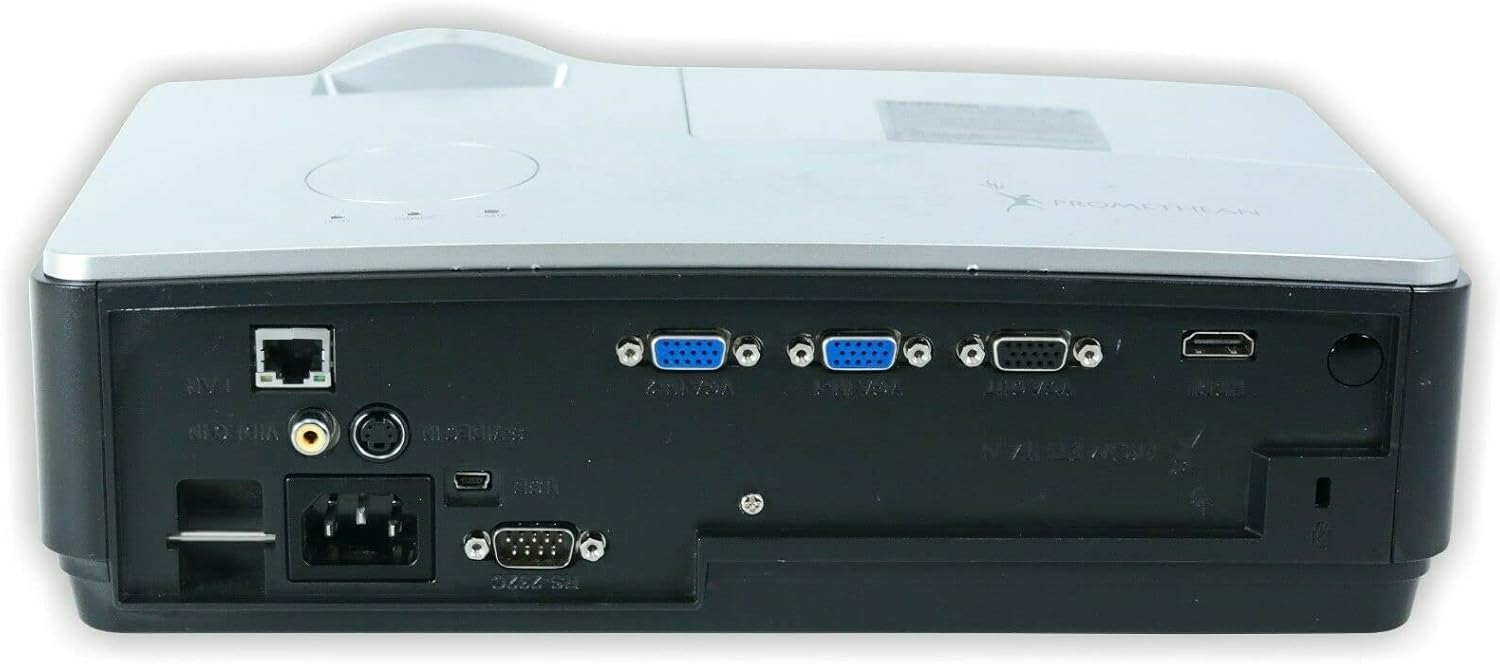
Image: Rear view of the PROMETHEAN PRM-35 projector, displaying a variety of input and output ports including HDMI, VGA, USB, S-Video, and network connections.
The rear panel provides all the necessary input and output ports for connecting to various devices. These include HDMI, VGA, S-Video, USB Mini Type-A, RS232, RJ-45 (LAN), and audio jacks.
Side Views (Ventilation)

Image: Side view of the PROMETHEAN PRM-35 projector, showing the ventilation grilles for heat dissipation.

Image: Another side view of the PROMETHEAN PRM-35 projector, also featuring ventilation grilles.
Both sides of the projector feature ventilation grilles to ensure proper airflow and prevent overheating. It is crucial to keep these vents unobstructed during operation.
Top View
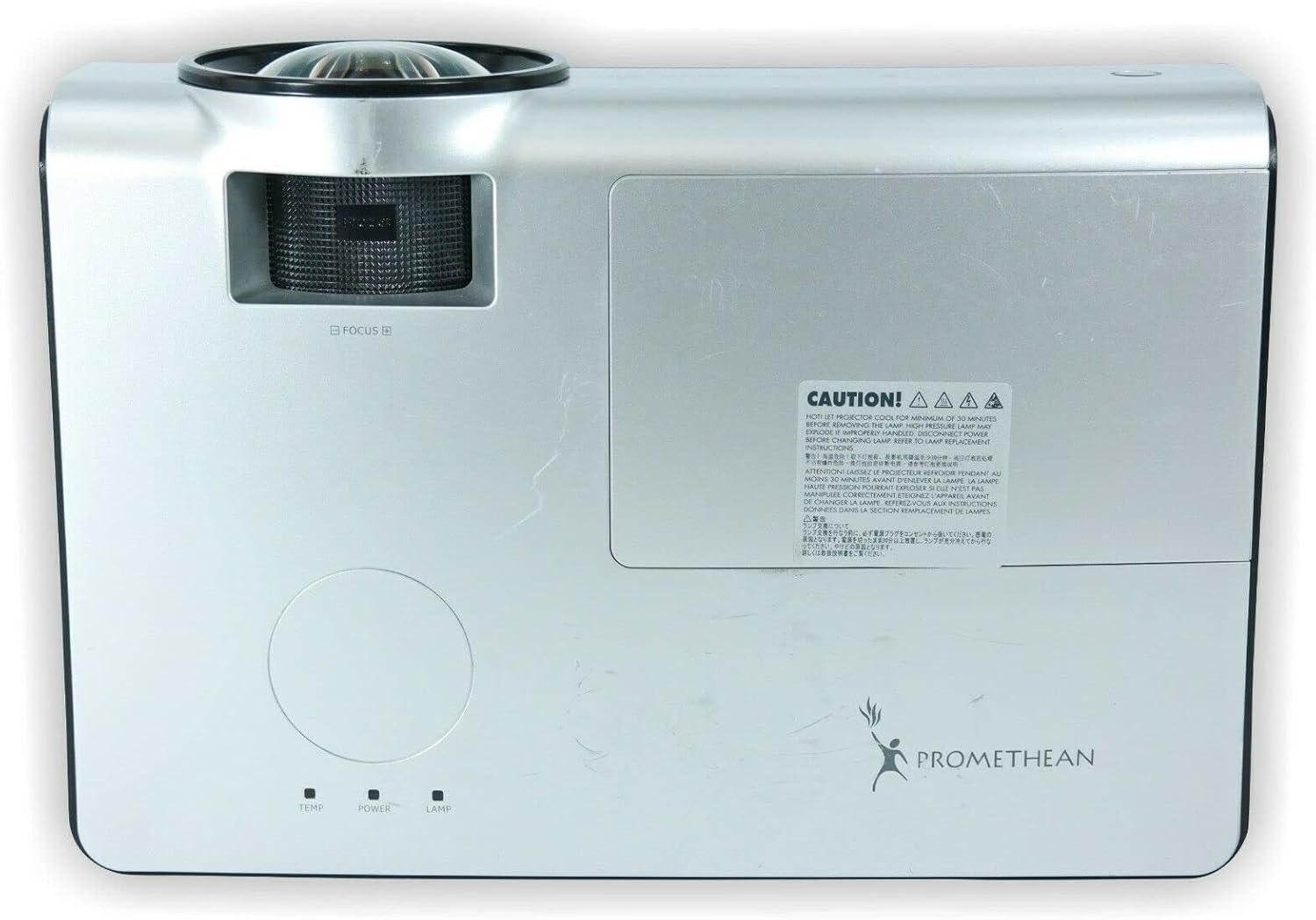
Image: Top view of the PROMETHEAN PRM-35 projector, showing the control panel area and lamp access cover.
The top panel includes indicator lights for temperature, power, and lamp status, along with a caution label regarding lamp heat.
Bottom View

Image: Bottom view of the PROMETHEAN PRM-35 projector, showing mounting points and regulatory labels.
The bottom of the projector features mounting points for ceiling or table top projection, along with product information and regulatory compliance labels.
Setup
1. Placement
Position the projector on a stable, flat surface or mount it securely. For short-throw projection, place the projector close to the screen. Ensure there is adequate space around the projector for ventilation.
- Table Top Projection: Place the projector on a table in front of the screen.
- Ceiling Projection: Use a compatible ceiling mount (sold separately) and ensure the projector is securely fastened.
- Rear Projection: If your screen supports it, the projector can be placed behind the screen. Adjust settings in the projector menu for rear projection.
2. Connecting to Power
- Connect the power cord to the projector's power input port on the rear panel.
- Plug the other end of the power cord into a grounded electrical outlet.
- The power indicator light on the projector should illuminate.
3. Connecting Input Sources
The PRM-35 offers multiple connectivity options:
- HDMI: For high-definition digital video and audio. Connect an HDMI cable from your source device (e.g., Blu-ray player, game console, PC) to the HDMI port on the projector.
- VGA: For analog video connection from computers. Connect a VGA cable from your PC to one of the VGA/SVGA D-Sub ports.
- S-Video: For standard definition video.
- USB Mini Type-A: For certain data or control functions.
- RS232 (DB-9pin): For serial control of the projector.
- RJ-45 (LAN): For network connectivity and control (e.g., Crestron RoomView).
- Audio: Use the headphone jack for audio output or connect external speakers if desired.
4. Focus and Digital Zoom Adjustment
Once the projector is powered on and displaying an image:
- Focus: Rotate the focus ring around the projector lens until the image appears sharp and clear on the screen.
- Digital Zoom: Use the remote control or projector's on-screen display (OSD) menu to adjust the digital zoom. This feature allows you to enlarge or reduce the image size without moving the projector.
Operating the Projector
Powering On/Off
- Power On: Press the Power button on the projector's control panel or the remote control. The power indicator light will change to solid green.
- Power Off: Press the Power button again. A confirmation message may appear. Press Power a second time to confirm shutdown. The projector will enter a cooling cycle before fully powering off. Do not unplug the projector during the cooling cycle.
Menu Navigation (OSD)
Use the buttons on the projector's control panel or the remote control to navigate the On-Screen Display (OSD) menu:
- Use the Menu button to open or close the OSD.
- Use the Arrow buttons (Up, Down, Left, Right) to navigate through menu options.
- Press the Enter or OK button to select an option or confirm a setting.
- Use the Exit or Back button to return to the previous menu or exit the OSD.
Input Source Selection
To switch between connected devices:
- Press the Source or Input button on the remote control or projector.
- A list of available input sources will appear on the screen.
- Use the Arrow buttons to highlight the desired source and press Enter or OK.
Picture Adjustments
Access the Picture menu in the OSD to fine-tune image quality:
- Brightness: Adjusts the overall lightness or darkness of the image.
- Contrast: Controls the difference between the lightest and darkest areas.
- Color: Adjusts the intensity of colors.
- Tint: Fine-tunes the color balance (primarily for NTSC video sources).
- Sharpness: Enhances or softens the edges of objects in the image.
- Aspect Ratio: Selects the display format (e.g., 16:10, 16:9, 4:3). The native aspect ratio is 16:10.
Audio Settings
The PRM-35 has built-in speakers. Adjust audio settings via the OSD:
- Volume: Controls the output level of the built-in speakers.
- Mute: Temporarily silences the audio.
3D Modes (PC 3D Ready)
The projector supports PC 3D Ready functionality. To experience 3D content:
- Ensure your PC's graphics card and software support 3D output.
- Use compatible 3D glasses (sold separately).
- Refer to your PC's 3D software instructions for specific setup.
Maintenance
Regular maintenance ensures optimal performance and longevity of your projector.
Cleaning the Projector
- Exterior: Use a soft, lint-free cloth dampened with a mild, non-abrasive cleaner. Do not spray cleaner directly onto the projector.
- Lens: Use a professional lens cleaning kit or a soft, dry microfiber cloth specifically designed for optical lenses. Avoid touching the lens with your fingers.
- Ventilation Openings: Periodically check and gently clean the ventilation grilles to prevent dust buildup, which can impede airflow. Use a soft brush or compressed air (held upright to prevent propellant discharge).
Lamp Life and Replacement
The PRM-35 projector lamp has a long lifespan, up to 6000 hours. When the lamp reaches the end of its life, the lamp indicator light on the projector will illuminate or flash, and a message may appear on the screen.
Note: This projector features a filter-free design, eliminating the need for filter replacement or cleaning, which reduces maintenance time and cost.
For lamp replacement, it is recommended to contact qualified service personnel or refer to the detailed lamp replacement guide available from Promethean support.
Storage
If storing the projector for an extended period:
- Power off the projector correctly and allow it to cool down completely.
- Disconnect all cables.
- Store the projector in a cool, dry place, away from direct sunlight and extreme temperatures.
- Use the original packaging or a protective case to prevent dust and damage.
Troubleshooting
This section addresses common issues you might encounter with your PRM-35 projector.
| Problem | Possible Cause | Solution |
|---|---|---|
| No image on screen |
|
|
| Image is blurry |
|
|
| Projector overheats or shuts down |
|
|
| Remote control not working |
|
|
Specifications
| Feature | Detail |
|---|---|
| Brand | PROMETHEAN |
| Model | PRM-35 |
| Display Type | DLP |
| Native Resolution | 1280x800 |
| Image Brightness | 2500 ANSI Lumens |
| Contrast Ratio | 2000:1 |
| Aspect Ratio | 16:10 (Native) |
| Video Modes Supported | 720p, 1080i, 1080p |
| 3D Modes | PC 3D Ready |
| Throw Distance | Short Throw |
| Connectivity | HDMI, VGA, USB Mini Type-A, RS232, S-Video, RJ-45 (LAN), Headphone Jack |
| Special Features | Portable, Short Throw, 3D-Ready, Closed Captioning, Crestron RoomView, Built-in Speakers, Filter-free design |
| Item Weight | 6 lbs (approx.) |
| Product Dimensions | 11 x 12 x 4 inches (approx.) |
| Lamp Life | Up to 6000 hours |
| Compatibility | PC and MAC computers |
Warranty and Support
For information regarding the warranty coverage for your PROMETHEAN PRM-35 projector, please refer to the warranty card included with your purchase or visit the official PROMETHEAN website. Warranty terms may vary by region and retailer.
For technical support, service, or to purchase replacement parts, please contact PROMETHEAN customer support through their official channels. You may need your product model number (PRM-35) and serial number when contacting support.
Official PROMETHEAN Website: www.prometheanworld.com (This is a placeholder link, please refer to actual manufacturer website for support.)


