1. Introduction
This manual provides instructions for the UGREEN USB 2.0 to RJ45 RS232 FTDI Console Cable. This cable is designed to connect your computer or laptop to networking devices such as routers, switches, and firewalls that feature an RJ45 console port. It eliminates the need for traditional RS232 adapters and offers broad operating system compatibility.
2. Product Overview and Features
The UGREEN USB to RJ45 Console Cable integrates an FTDI FT232RL chip, ensuring reliable performance and broad compatibility across various operating systems. Its design focuses on ease of use and durability for professional and personal applications.
2.1 RJ45 Console Port Pin Definition
Understanding the pinout is crucial for proper connection to compatible devices. The cable adheres to standard pin definitions for console ports.

Image: RJ45 Console Port Pin Definition. This diagram illustrates the pin assignments for the RJ45 connector, including Pin number, Name (e.g., CTS, DSR, RXD), Description (e.g., Clear To Send, Data Device Ready, Receive Data), and corresponding wire Color.
2.2 Device Compatibility
This console cable is compatible with a wide range of networking equipment from various manufacturers.

Image: Compatible Devices. The image displays the UGREEN console cable with its USB and RJ45 ends, alongside illustrations of compatible output devices (Switch/Server, Wireless LAN Controller, Router) and input devices (Laptop, Desktop).
2.3 Universal Operating System Compatibility
The cable supports major operating systems, often requiring no additional driver installation for newer versions.
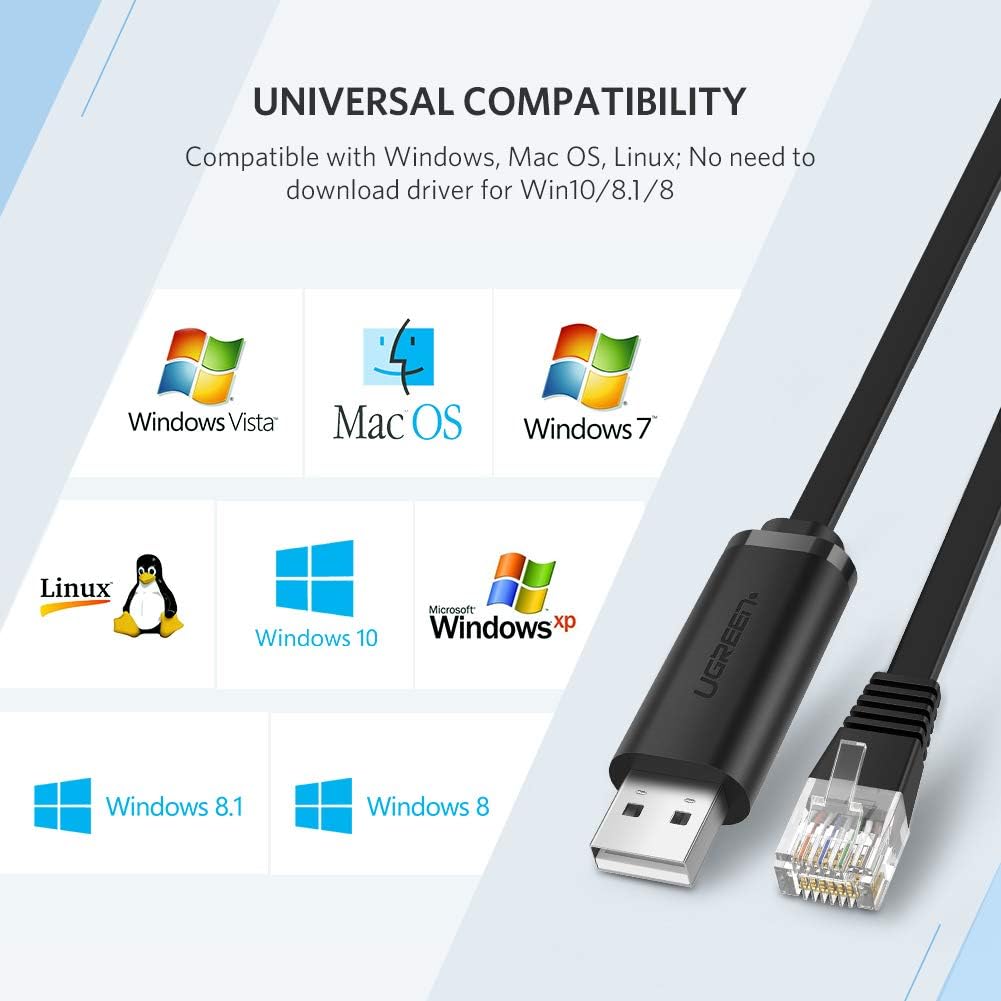
Image: Universal Compatibility. This graphic shows the UGREEN console cable and logos of supported operating systems: Windows Vista, Mac OS, Windows 7, Linux, Windows 10, Windows XP, Windows 8.1, and Windows 8. It notes "No need to download driver for Win10/8.1/8."
2.4 Built-in FTDI Chip and ESD Protection
The integrated FTDI FT232RL chip provides stable and reliable data conversion. An Electrostatic Discharge (ESD) guard circuit offers protection against voltage spikes up to 4KV.

Image: Stability and Compatibility. A detailed view of the USB connector's internal components, revealing two FTDI-FT232RL chips and the circuit board. Text indicates "Built-in ESD guard circuit (voltage capacity up to 4KV) for electrostatic protection."
2.5 Cable Design Features
The cable features a space-saving flat design and nickel-plated connectors for enhanced durability and signal integrity.

Image: Cable Design Features. This image highlights three aspects: the "Space-saving flat cable" for flexible arrangement, the "Nickel plated USB connector" for anti-oxidation and stable transmission, and the "8P8C RJ45 crystal head" with an easy-to-grasp retention clip.
3. Setup Instructions
Follow these steps to set up your UGREEN USB to RJ45 Console Cable.
3.1 Driver Installation
- Automatic Driver Installation: For Windows 10, 8.1, and 8, the necessary drivers are typically installed automatically upon connecting the cable to your computer's USB port.
- Manual Driver Installation: For older operating systems (e.g., Windows 7, Vista, XP) or specific Linux distributions, you may need to download and install the FTDI VCP (Virtual COM Port) drivers from the official FTDI website (www.ftdichip.com/Drivers/VCP.htm). Follow the instructions provided on the FTDI website for your specific operating system.
- Verification: After installation, verify the driver status in your computer's Device Manager (Windows) or by checking system logs (Linux/Mac OS) to ensure the cable is recognized as a COM port or serial device.
3.2 Connecting the Cable
- Connect the USB 2.0 end of the cable to an available USB port on your computer or laptop.
- Connect the RJ45 end of the cable to the console port (often labeled "Console" or "MGMT") on your networking device (router, switch, firewall, etc.).

Image: Easy to Connect. This diagram illustrates the simplicity of connecting a laptop to a router/switch using the UGREEN USB 2.0 to RJ45 cable, contrasting it with a more complex setup involving an RJ45 to DB-25 or DB-9 adapter.
4. Operating Instructions
Once the cable is connected and drivers are installed, you can use a terminal emulation program to access your device's console interface.
- Identify the COM Port: Open your computer's Device Manager (Windows) or use terminal commands (
ls /dev/tty*on Linux/Mac) to identify the assigned COM port number for the FTDI USB Serial Port. - Launch Terminal Emulator: Open your preferred terminal emulation software (e.g., PuTTY, Tera Term, SecureCRT for Windows; Screen, Minicom for Linux/Mac).
- Configure Connection Settings:
- Serial Line: Select the COM port identified in step 1.
- Speed (Baud Rate): Typically 9600 or 115200 (check your device's documentation).
- Data Bits: 8
- Stop Bits: 1
- Parity: None
- Flow Control: None
- Establish Connection: Click "Open" or "Connect" in your terminal software. You should now see the console output from your networking device.
5. Maintenance
Proper care will extend the life of your console cable.
- Store the cable in a clean, dry environment away from extreme temperatures.
- Avoid bending the cable sharply or placing heavy objects on it to prevent internal damage.
- Clean the connectors periodically with a dry, lint-free cloth to ensure optimal contact.
- Do not expose the cable to liquids or corrosive substances.
6. Troubleshooting
If you encounter issues, refer to the following troubleshooting tips:
- Cable Not Recognized:
- Ensure the cable is securely plugged into both the USB port and the console port.
- Try a different USB port on your computer.
- Verify that the FTDI drivers are correctly installed (check Device Manager). Reinstall drivers if necessary.
- Test the cable on another computer if possible.
- No Console Output:
- Confirm that the correct COM port is selected in your terminal emulation software.
- Double-check the serial connection settings (baud rate, data bits, stop bits, parity, flow control) against your networking device's documentation. The baud rate is a common mismatch.
- Ensure the networking device is powered on and functioning correctly.
- Try restarting your terminal software or computer.
- Intermittent Connection:
- Check for physical damage to the cable or connectors.
- Ensure there are no loose connections.
- Avoid electromagnetic interference by keeping the cable away from power sources or other electronic devices.
If problems persist, contact UGREEN customer support for further assistance.
7. Specifications
Detailed technical specifications for the UGREEN USB to RJ45 RS232 FTDI Console Cable.
| Feature | Detail |
|---|---|
| Brand | UGREEN |
| Connector Type | RJ45, USB 2.0 |
| Cable Type | USB |
| Compatible Devices | Laptop, PC |
| Connector Gender | Male-to-Male |
| Data Transfer Rate | 1 Megabits Per Second |
| Shape | Round (Note: Product images show a flat cable, this specification might be generic) |
| Unit Count | 1 Count |
| Item Weight | 2.39 ounces |
| Package Dimensions | 4.5 x 4.5 x 0.95 inches |
| ASIN | B07MK22FTY |
| Date First Available | August 27, 2019 |
8. Warranty and Support
UGREEN products come with a standard warranty. For specific warranty terms, technical support, or service inquiries, please refer to the official UGREEN website or contact their customer service directly. Keep your purchase receipt for warranty claims.
UGREEN Official Website: www.ugreen.com


