
Introduction
This manual provides comprehensive instructions for the setup, operation, and maintenance of your Gotega External DVD Drive. Designed for portability and high performance, this device allows you to read and write CDs and DVDs on various computer systems. Please read this manual thoroughly to ensure optimal performance and longevity of your device.

Figure 1: Gotega External DVD Drive connected to a laptop, emphasizing its USB 3.0 high-speed capability.
1. Setup
1.1 Package Contents
- Gotega External DVD Drive
- User Manual (this document)
1.2 Connecting the Drive (Plug and Play)
The Gotega External DVD Drive features plug-and-play technology, requiring no additional software installation for basic functionality. Simply connect the integrated USB cable to an available USB port on your computer.
- Locate the integrated USB 3.0 cable on the underside of the drive. The cable is designed to be stored neatly within a groove for portability.
- Carefully pull out the USB cable from its storage slot.
- Insert the USB-A connector into a compatible USB 3.0 port on your laptop, desktop PC, or MacBook. The drive is also backward compatible with USB 2.0 ports.
- Once connected, your operating system should automatically detect the device. A device icon should appear in the lower right corner of your computer display (Windows) or in Finder (Mac OS).

Figure 2: The ultra-slim design includes an embedded data cable for easy storage and anti-skid pads for stability.

Figure 3: The drive supports USB 3.0 for fast data transfer, with maximum CD read/write speed of 24X and DVD read/write speed of 8X.
1.3 System Compatibility
This external DVD drive is broadly compatible with various operating systems and hardware platforms:
- Operating Systems: Windows 98 / SE / ME / XP / Vista / 7 / 8 / 10, all versions of Mac OS (8.6 to 10.14), and Linux.
- Hardware Platforms: PC, Laptop, Comprehensive Computer, MacBook, Desktop.
Important Note on Incompatibility: This device is NOT COMPATIBLE with Chromebooks, Blu-ray discs, cars, mobile phones, iPhones, iPads, Tablets, projectors, or TVs. It is designed for use with computers only.
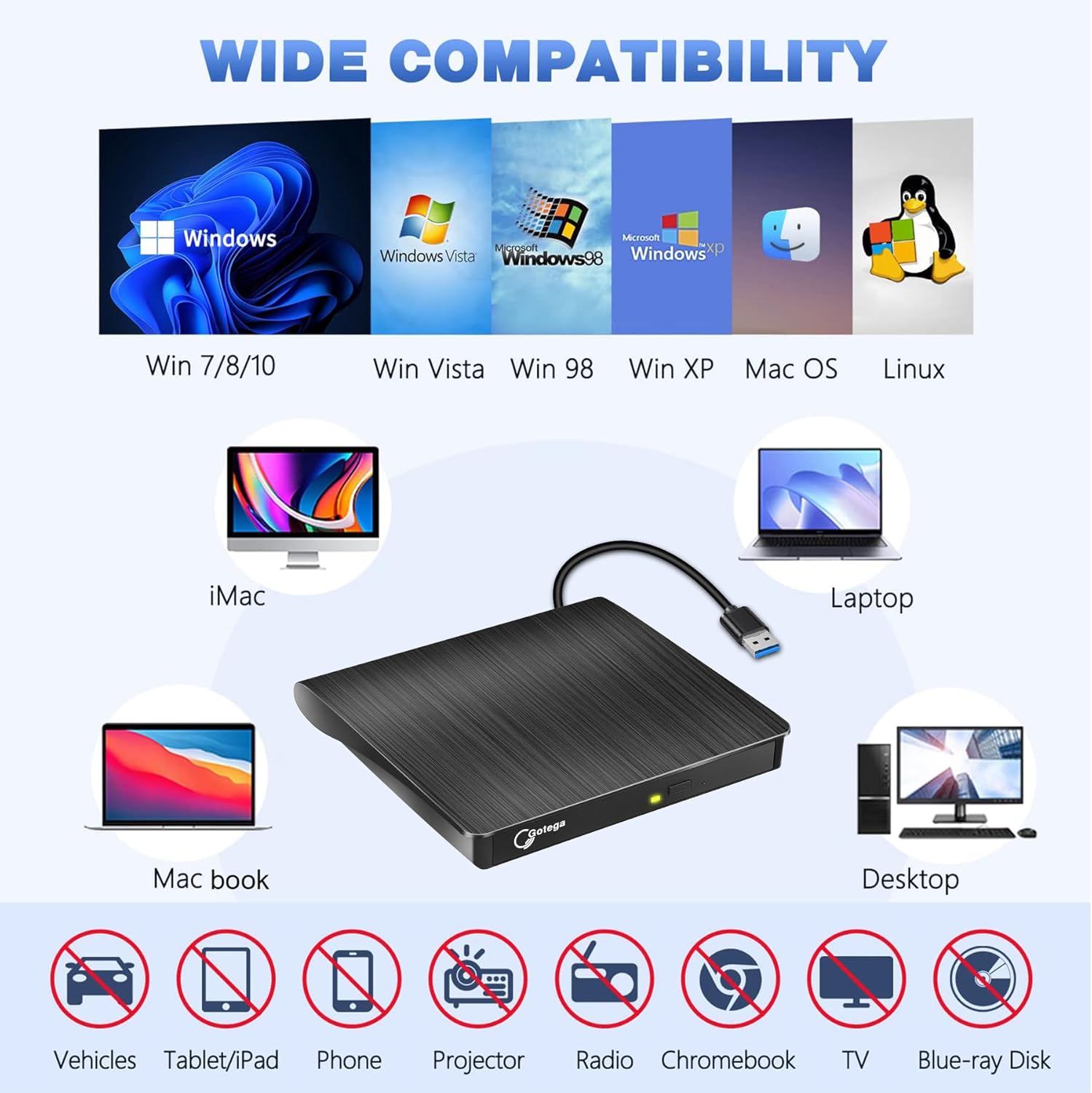
Figure 4: Compatibility overview, highlighting supported operating systems and devices, along with a clear list of unsupported devices.
2. Operating the Drive
2.1 Inserting and Ejecting Discs
The drive features a convenient pop-up design with an eject button.
- To open the disc tray, press the eject button located on the front of the drive. The tray will pop out slightly.
- Gently pull the tray out completely.
- Carefully place your CD or DVD onto the spindle in the tray, ensuring it clicks securely into place.
- Gently push the tray back into the drive until it closes completely.
- To eject a disc, press the eject button again.

Figure 5: The drive features a pop-up design for easy disc insertion and removal, along with advanced features for reliable performance.
2.2 Core Functions
This external DVD drive supports a variety of functions for your optical media needs:
- Watching Movies: Play DVD movies directly from the drive on your computer.
- Enjoying Music: Play audio CDs or rip music tracks to your computer.
- Burning CDs/DVDs: Create your own data or audio CDs/DVDs (requires compatible burning software, not included).
- Copying Files: Transfer files from discs to your computer, or vice-versa.
- Installing Software: Install software, drivers, or games from CD/DVD media.

Figure 6: Versatile applications of the external DVD drive for entertainment, data management, and software installation.

Figure 7: Additional use cases including burning discs, watching movies, and playing disc-based games.
2.3 Official Product Video
Video 1: An official product video from Gotega demonstrating the external CD/DVD drive for laptops, showcasing its features and ease of use.
3. Maintenance
To ensure the longevity and optimal performance of your Gotega External DVD Drive, follow these simple maintenance guidelines:
- Keep Clean: Regularly wipe the exterior of the drive with a soft, dry cloth. Avoid using harsh chemicals or abrasive materials.
- Disc Care: Always handle discs by their edges. Store them in protective cases when not in use to prevent scratches and dust accumulation.
- Cable Management: When not in use, store the integrated USB cable neatly in its designated slot on the underside of the drive to prevent damage.
- Storage: Store the drive in a cool, dry place away from direct sunlight, extreme temperatures, and strong magnetic fields.
- Avoid Liquids: Do not expose the drive to water or other liquids.
4. Troubleshooting
If you encounter issues with your Gotega External DVD Drive, please refer to the following common troubleshooting steps:
| Problem | Possible Cause | Solution |
|---|---|---|
| Drive not detected by computer. | Loose USB connection, incompatible USB port, driver issue. | Ensure the USB cable is securely connected to a working USB 3.0 or 2.0 port. Try a different USB port. Restart your computer. For Windows, check Device Manager for the drive. |
| Disc not reading or writing. | Dirty/scratched disc, incorrect disc type, incompatible software. | Clean the disc with a soft cloth. Ensure the disc type (CD/DVD) is supported. Verify your burning/playback software is compatible and up-to-date. Note: Blu-ray discs are not supported. |
| Slow data transfer speed. | Connected to USB 2.0 port, system resource limitations. | For optimal speed, connect to a USB 3.0 port. Close unnecessary applications to free up system resources. |
| Disc stuck in drive. | Eject button malfunction, power issue. | Ensure the drive is powered (green light on). Use the emergency eject hole (small pinhole next to the eject button) with a straightened paperclip to manually open the tray. |
5. Specifications
| Feature | Detail |
|---|---|
| Model Number | External DVD Drive |
| Interface | USB 3.0 (backward compatible with USB 2.0) |
| Optical Drive Type | CD-ROM/CD-R/CD +/-RW/DVD-ROM/DVD-R |
| Max CD Write Speed | 24x |
| Max DVD Write Speed | 8x |
| Item Weight | 12.3 ounces |
| Product Dimensions (LxWxH) | 6.5 x 6.5 x 1 inches |
| Color | Black |
| Power Supply | DC 5V (USB Powered) |
6. Warranty and Support
Gotega is committed to providing high-quality products and excellent customer service. Your Gotega External DVD Drive comes with a manufacturer's warranty. For specific warranty details and to register your product, please refer to the warranty card included in your package or visit the official Gotega website.
If you have any questions, concerns, or require technical assistance, please do not hesitate to contact Gotega Customer Support. We are dedicated to ensuring your satisfaction.
- Online Support: Visit the official Gotega store on Amazon for FAQs and contact options.
- Email Support: Refer to your product packaging or warranty card for direct email contact.

Gotega: Providing high-quality products that facilitate life, with a focus on user experience and continuous progress.

