
1. Introduction
The Alctron UM900 is a professional USB condenser microphone designed for high-quality audio recording. Featuring a cardioid pickup pattern and a standard USB interface, it offers plug-and-play compatibility with Windows and Mac operating systems without requiring additional driver installations. Its 16mm back electret capsule ensures vivid and natural sound reproduction, making it suitable for various applications including podcasting, voiceovers, music recording, and multimedia presentations.
2. Safety Information
- Do not expose the microphone to extreme temperatures, humidity, or direct sunlight.
- Avoid dropping or subjecting the microphone to strong impacts.
- Do not attempt to disassemble or modify the microphone. This may void the warranty and cause damage.
- Keep the microphone away from strong electromagnetic fields.
- Clean the microphone with a soft, dry cloth only. Do not use liquid cleaners.
3. Package Contents
Please verify that all items are present in your package:
- Alctron UM900 USB Condenser Microphone
- USB Cable
- Shock Mount
4. Product Overview
The Alctron UM900 microphone is designed for ease of use and high-fidelity audio capture. It features a robust metal body and an integrated shock mount to minimize handling noise and vibrations.
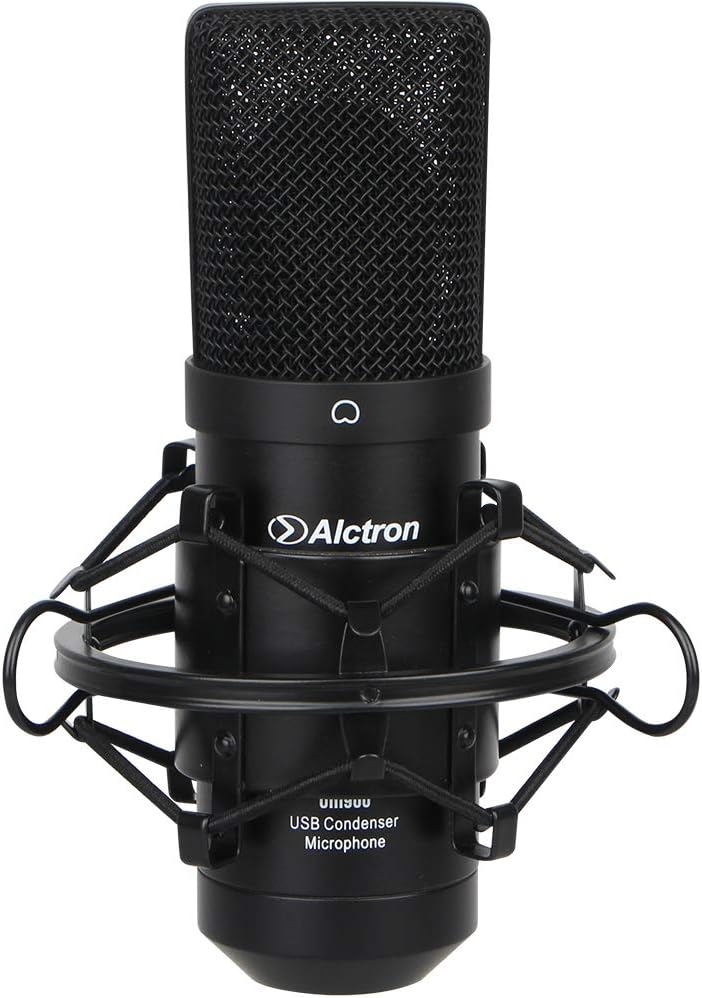
Figure 1: Alctron UM900 USB Condenser Microphone with included shock mount.
The microphone's design focuses on capturing clear and natural sound, making it suitable for both vocal and instrument recording.

Figure 2: Front view of the Alctron UM900 USB Condenser Microphone, showing the grille and Alctron logo.
5. Setup
Follow these steps to set up your Alctron UM900 microphone:
- Attach the Shock Mount: Securely attach the provided shock mount to a microphone stand (not included). The shock mount helps isolate the microphone from vibrations and handling noise.
- Insert the Microphone: Carefully place the Alctron UM900 microphone into the shock mount. Ensure it is firmly seated.
- Connect the USB Cable: Plug one end of the supplied USB cable into the USB port at the base of the microphone.
- Connect to Computer: Plug the other end of the USB cable into an available USB port on your Windows or Mac computer.
- Automatic Driver Installation: The microphone is plug-and-play. Your operating system (Windows or Mac) will automatically detect and install the necessary drivers. This process may take a few moments.
- Select as Input Device: Once installed, navigate to your computer's sound settings (e.g., 'Sound' in Windows Control Panel or 'Sound Preferences' in macOS System Settings) and select the Alctron UM900 as your default audio input device.
6. Operating
The Alctron UM900 features a cardioid pickup pattern, which means it is most sensitive to sound coming from the front of the microphone and less sensitive to sounds from the sides and rear. This helps in isolating the desired sound source and reducing background noise.
- Microphone Placement: For optimal sound quality, position the front of the microphone (where the Alctron logo is visible) directly towards the sound source (e.g., your mouth for vocals, or an instrument).
- Recording Software: Open your preferred audio recording software (e.g., Audacity, GarageBand, OBS Studio). Ensure that the Alctron UM900 is selected as the input device within the software's audio settings.
- Monitor Levels: Before recording, perform a test recording and monitor your input levels. Adjust the gain settings in your software or operating system to prevent clipping (distortion) while ensuring a strong signal.
- Distance: Experiment with the distance between the microphone and the sound source. Generally, a distance of 6-12 inches (15-30 cm) is a good starting point for vocals.
7. Maintenance
Proper maintenance will ensure the longevity and performance of your microphone:
- Cleaning: Use a soft, dry, lint-free cloth to wipe the exterior of the microphone. Do not use abrasive cleaners, solvents, or chemical sprays.
- Storage: When not in use, store the microphone in a clean, dry environment, preferably in its original packaging or a protective case, to prevent dust accumulation and physical damage.
- Cable Care: Avoid bending or kinking the USB cable excessively. Always grasp the plug, not the cable, when disconnecting.
8. Troubleshooting
If you encounter issues with your Alctron UM900 microphone, refer to the following common solutions:
- No Sound Output:
- Ensure the USB cable is securely connected to both the microphone and the computer.
- Verify that the Alctron UM900 is selected as the default input device in your computer's sound settings and within your recording software.
- Check the input volume levels in your computer's sound settings and recording software.
- Try connecting the microphone to a different USB port on your computer.
- Restart your computer.
- Poor Sound Quality / Distortion:
- Reduce the input gain or microphone sensitivity in your software or operating system settings to prevent clipping.
- Ensure the microphone is positioned correctly, facing the sound source.
- Check for environmental noise that might be picked up by the microphone.
- Ensure the microphone is not too close to the sound source, which can cause proximity effect or distortion.
- Microphone Not Recognized:
- Disconnect and reconnect the USB cable.
- Try a different USB port.
- Ensure your operating system is up to date.
- If using a USB hub, try connecting directly to the computer.
9. Specifications
| Feature | Specification |
|---|---|
| Microphone Form Factor | Handheld |
| Polar Pattern | Unidirectional (Cardioid) |
| Power Source | USB Condenser |
| Connectivity Technology | USB |
| Connector Type | USB |
| Hardware Platform | PC |
| Compatible Devices | Personal Computer |
| Signal-to-Noise Ratio | 68 dB |
| Audio Sensitivity | 32 Decibels |
| Item Weight | 3.59 pounds |
| Product Dimensions (L x W x H) | 12.2 x 9.3 x 3.5 inches |
| Recommended Uses | Voice Recording, Video Recording |
10. Warranty and Support
For warranty information and technical support, please refer to the documentation provided with your purchase or visit the official Alctron website. Keep your proof of purchase for any warranty claims.


