
Introduction
Thank you for purchasing the Paladone Playstation Controller Digital Alarm Clock. This officially licensed alarm clock is designed to resemble a Playstation Dual Shock 4 controller, offering a unique way to display time and manage alarms. This manual provides essential information for proper setup, operation, and maintenance of your device.
Safety Information
- Read all instructions before use and retain for future reference.
- This product is not a toy. Keep out of reach of small children.
- Use only the provided USB cable for power. Ensure the power source is compatible (5V DC).
- Do not expose the device to water or excessive moisture.
- Avoid extreme temperatures, direct sunlight, or heat sources.
- Do not attempt to disassemble or repair the device. Refer servicing to qualified personnel.
- Dispose of batteries responsibly according to local regulations.
Package Contents
- 1 x Paladone Playstation Controller Digital Alarm Clock
- 1 x Micro USB to USB Power Cable (Adapter not included)
- Instruction Manual (this document)
Product Overview
The Paladone Playstation Controller Digital Alarm Clock features a digital display integrated into the controller's touchpad area. The iconic buttons and D-pad are used for setting time and alarm functions.
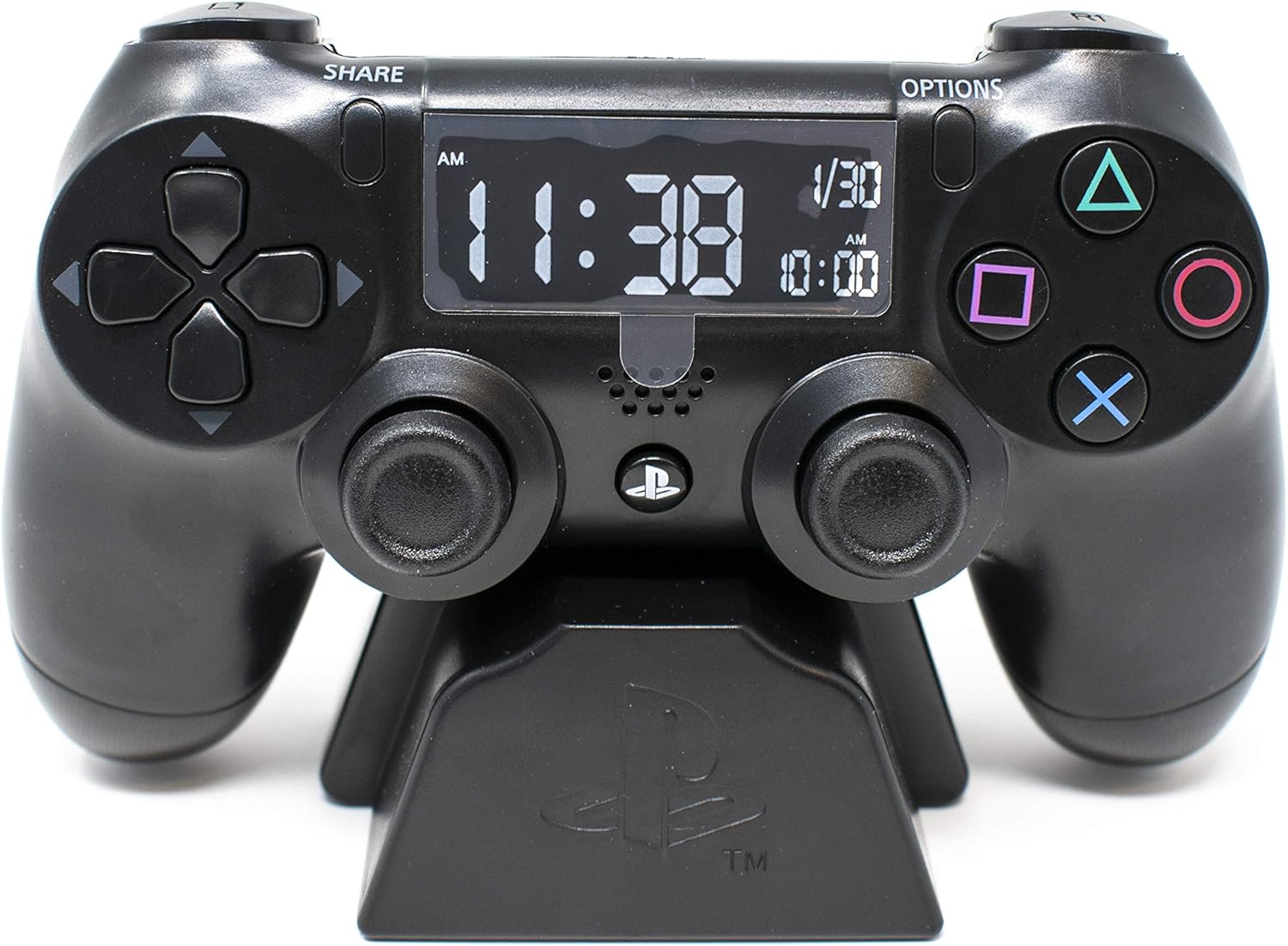
The clock is powered via a Micro USB to USB cable. For backup power to retain settings during power outages, 2 AA batteries are required (not included).

Setup
- Insert Backup Batteries: Open the battery compartment (located on the underside) and insert 2 x AA batteries. These batteries are essential for retaining time and alarm settings during power interruptions.
- Connect Power: Insert the Micro USB end of the provided cable into the port on the back of the alarm clock. Plug the USB-A end into a compatible 5V USB power adapter (not included) or a powered USB port.
- Placement: Place the alarm clock on a stable, flat surface.
Operating Instructions
Setting the Time
- Locate the "SET" button (often the "SHARE" or "OPTIONS" button, or a dedicated button on the back/bottom). Press and hold this button until the hour display begins to flash.
- Use the D-pad (Up/Down) or specific buttons (e.g., Triangle/X) to adjust the hour.
- Press the "SET" button again to confirm the hour and move to setting the minutes. The minute display will begin to flash.
- Use the D-pad (Up/Down) or specific buttons to adjust the minutes.
- Press the "SET" button one more time to confirm the minutes and exit time setting mode.
Setting the Alarm
- Locate the "ALARM SET" button (often the "OPTIONS" button, or a dedicated button). Press and hold this button until the alarm hour display begins to flash.
- Use the D-pad (Up/Down) or specific buttons to adjust the alarm hour.
- Press the "ALARM SET" button again to confirm the alarm hour and move to setting the alarm minutes. The alarm minute display will begin to flash.
- Use the D-pad (Up/Down) or specific buttons to adjust the alarm minutes.
- Press the "ALARM SET" button one more time to confirm the alarm minutes and exit alarm setting mode.
- To activate or deactivate the alarm, briefly press the "ALARM ON/OFF" button (often the "SHARE" button or a dedicated button). An alarm icon will appear on the display when the alarm is active.

Snooze Function
When the alarm sounds, press any of the D-pad buttons to activate the snooze function. The alarm will temporarily pause and sound again after a short interval (typically 5-9 minutes).
Turning Off the Alarm
To completely turn off the alarm after it sounds, press and hold the "ALARM ON/OFF" button until the alarm icon disappears from the display.
Display Brightness
The digital display brightness is fixed and cannot be adjusted manually.
Product Video

Maintenance
- Cleaning: Wipe the device with a soft, dry cloth. Do not use abrasive cleaners or solvents.
- Battery Replacement: If the time and alarm settings are frequently lost during power outages, replace the 2 x AA backup batteries.
Troubleshooting
| Problem | Possible Cause | Solution |
|---|---|---|
| Clock display is off. | No power supply. | Ensure the USB cable is securely connected to a working 5V power source. |
| Time/Alarm settings reset after power loss. | Backup batteries are dead or missing. | Replace the 2 x AA batteries in the battery compartment. |
| Alarm sound is too quiet. | Fixed alarm volume. | The alarm volume is not adjustable. Consider alternative wake-up methods if the volume is insufficient. |
| Cannot set time/alarm. | Incorrect button sequence. | Refer to the "Operating Instructions" section for the correct button presses and holds. |
Specifications
- Brand: Paladone
- Model: PP4926PS
- Display Type: Digital
- Power Source: USB (Corded Electric)
- Backup Power: 2 x AA Batteries (not included)
- Material: Plastic (Made from Breakdown Plastic)
- Dimensions: Approximately 17 cm (6.5 in) width x 10 cm (4 in) height (based on product images)
- Special Features: Retro gaming alarm sound, unique Playstation controller design.

Warranty and Support
This product comes with a limited warranty. For specific warranty details or technical support, please refer to the packaging or contact Paladone customer service directly. Contact information can typically be found on the product packaging or the official Paladone website.
