1. Introduction
This manual provides essential information for the installation, operation, and maintenance of your Samsung 970 EVO Plus 1TB NVMe M.2 Internal Solid State Drive. Please read these instructions carefully before proceeding to ensure proper usage and to maximize the performance and lifespan of your SSD.

Figure 1: Samsung 970 EVO Plus SSD and its retail packaging.
2. Product Overview
The Samsung 970 EVO Plus is a high-performance NVMe M.2 SSD designed for demanding computing tasks. It leverages V-NAND technology and a PCIe Gen 3.0 x4 interface to deliver exceptional read and write speeds, making it suitable for gaming, graphics, and intensive workloads.
Key Features:
- Capacity: 1TB
- Interface: NVMe M.2 (PCIe Gen 3.0 x4)
- Sequential Read Speed: Up to 3,500 MB/s
- Sequential Write Speed: Up to 3,300 MB/s
- Technology: V-NAND, Dynamic Thermal Guard, Intelligent TurboWrite
- Software: Samsung Magician for drive management

Figure 2: The 970 EVO Plus SSD delivering high performance in a laptop environment.
3. Setup and Installation
Before installation, ensure your system's motherboard supports NVMe M.2 SSDs and has an available M.2 slot. Refer to your motherboard's manual for specific M.2 slot locations and installation procedures.
Safety Precautions:
- Always power off your computer and disconnect it from the power source before installing any internal components.
- Discharge any static electricity by touching a grounded metal object before handling the SSD.
- Handle the SSD by its edges to avoid touching the gold connectors or components.
Installation Steps:
- Locate an available M.2 slot on your motherboard.
- Carefully insert the Samsung 970 EVO Plus SSD into the M.2 slot at a slight angle.
- Gently push the SSD down until it is parallel with the motherboard.
- Secure the SSD with the provided screw (or the screw from your motherboard's M.2 standoff).
- Close your computer case and reconnect the power.
- Boot your computer and initialize the new SSD through your operating system's Disk Management utility.
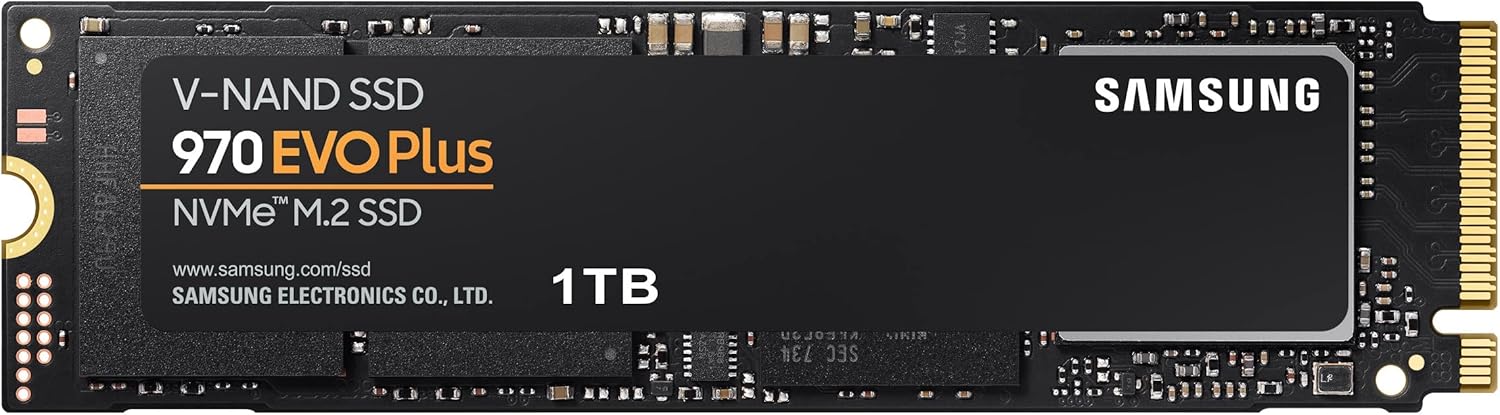
Figure 3: The Samsung 970 EVO Plus NVMe M.2 SSD module.
4. Operating Instructions
Once installed and initialized, your Samsung 970 EVO Plus SSD is ready for use. For optimal performance and drive health management, it is recommended to install the Samsung Magician software.
Samsung Magician Software:
Samsung Magician is a suite of user-friendly tools designed to help you manage your SSD. It allows you to:
- Monitor drive health and temperature.
- Benchmark performance.
- Update firmware.
- Optimize performance settings.
- Securely erase data.
Download the latest version of Samsung Magician from the official Samsung website.

Figure 4: The Samsung Magician software interface for SSD management.
5. Maintenance
Regular maintenance helps ensure the longevity and optimal performance of your SSD.
Firmware Updates:
Periodically check for and install firmware updates using the Samsung Magician software. Firmware updates can improve performance, stability, and compatibility.
Heat Management:
The 970 EVO Plus features Dynamic Thermal Guard technology, which automatically monitors and maintains optimal operating temperatures to minimize performance drops. Ensure adequate airflow within your computer case to assist with heat dissipation.

Figure 5: Illustration of Dynamic Thermal Guard for heat dissipation.
6. Troubleshooting
If you encounter issues with your Samsung 970 EVO Plus SSD, consider the following troubleshooting steps:
- SSD Not Detected:
- Ensure the SSD is correctly seated in the M.2 slot.
- Check your motherboard's BIOS/UEFI settings to confirm the M.2 slot is enabled and configured correctly.
- Verify that your motherboard drivers are up to date.
- Performance Issues:
- Ensure the latest firmware is installed via Samsung Magician.
- Check for sufficient free space on the drive (performance can degrade with very full drives).
- Monitor drive temperature using Samsung Magician to ensure it's not overheating.
- Operating System Not Booting:
- Verify the boot order in your BIOS/UEFI settings.
- If migrating an OS, ensure the migration process was completed successfully.
For persistent issues, consult the Samsung support website or contact customer service.
7. Specifications
| Feature | Detail |
|---|---|
| Model Number | MZ-V7S1T0B/AM |
| Capacity | 1 TB |
| Interface | NVMe (PCIe Gen 3.0 x4) |
| Form Factor | M.2 (2280) |
| Sequential Read Speed | Up to 3,500 MB/s |
| Sequential Write Speed | Up to 3,300 MB/s |
| V-NAND Technology | Yes |
| Dynamic Thermal Guard | Yes |
| Item Dimensions (LxWxH) | 3.15 x 0.87 x 0.09 inches |
| Item Weight | 0.32 ounces |
| Voltage | 3.3 V ± 5% Allowable voltage |

Figure 6: Physical dimensions of the Samsung 970 EVO Plus SSD.
8. Warranty and Support
Limited Warranty:
The Samsung 970 EVO Plus 1TB SSD comes with a 5-year limited warranty or up to 600 Terabytes Written (TBW), whichever comes first. For detailed warranty terms and conditions, please refer to the enclosed warranty statement in the product package.
Customer Support:
For further assistance, technical support, or warranty claims, please visit the official Samsung website or contact their customer service department. Keep your product's model number (MZ-V7S1T0B/AM) and serial number handy when seeking support.