Introduction
This manual provides comprehensive instructions for the installation, operation, and maintenance of your HP AF651A 8-Port G3 KVM Console Switch. Please read this manual thoroughly before using the device to ensure proper setup and functionality. This KVM switch allows you to control multiple computers from a single console (keyboard, monitor, and mouse).
Setup
1. Unpacking and Inspection
Carefully unpack the KVM switch and all accessories. Inspect the unit for any signs of damage that may have occurred during shipping. If any damage is found, contact your supplier immediately.
- Ensure all components listed in the packing list are present.
- Place the KVM switch on a stable, flat surface or mount it in a standard 19-inch rack.
2. Connecting the KVM Switch
Refer to the diagram below for proper connection of all cables.
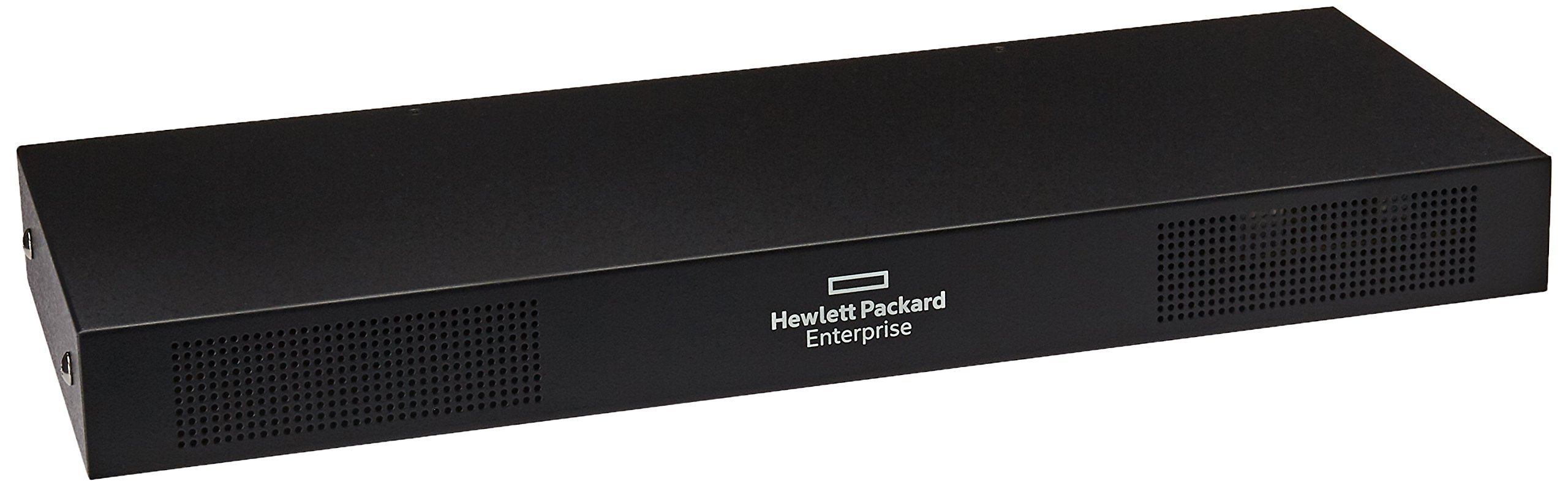
Figure 1: Rear Panel Connections of the HP AF651A KVM Switch. This image displays the rear panel of the KVM switch, highlighting the power input (100-240V, 0.6A, 50/60 Hz), LAN port, DIAG port, two USB ports (0.75A MAX), a VGA port, and eight numbered KVM ports for connecting to servers.
- Power Connection: Connect the power cord to the AC inlet (100-240V, 0.6A, 50/60 Hz) on the rear panel and then to a grounded power outlet.
- Console Connections:
- Connect your VGA monitor to the VGA port.
- Connect your USB keyboard and mouse to the USB ports (0.75A MAX).
- Server Connections: Connect KVM cables (not included) from your servers to the 8 numbered KVM ports on the rear panel. Each KVM port supports video, USB keyboard, and USB mouse signals from a single server.
- Network Connection (Optional): Connect an Ethernet cable from your network to the LAN port for remote management capabilities.
- Diagnostic Port (Optional): The DIAG port is for service and diagnostic purposes.
Operating Instructions
1. Powering On
After all connections are made, power on the KVM switch. Then, power on the connected servers. The KVM switch will automatically detect the active video signals.
2. Switching Between Servers
You can switch between connected servers using the following methods:
- Front Panel Buttons: If available, press the corresponding button on the front panel to select a server.
- Hot-Key Commands: Use specific keyboard combinations to switch between servers. Common hot-keys include:
- Double-tap Scroll Lock then press a number (1-8) to switch to that port.
- Double-tap Scroll Lock then Up Arrow or Down Arrow to cycle through ports.
- Refer to the KVM switch's on-screen display (OSD) or specific product documentation for a complete list of hot-key commands.
- On-Screen Display (OSD): Access the OSD menu by pressing a specific hot-key combination (e.g., Scroll Lock + Scroll Lock + F12). Use the arrow keys to navigate and Enter to select.
3. Remote Management (if connected to LAN)
If the KVM switch is connected to a network, you may be able to access its management interface via a web browser or dedicated software. Consult the specific HP documentation for your KVM switch model for detailed remote management instructions.
Maintenance
- Cleaning: Use a soft, dry cloth to clean the exterior of the KVM switch. Do not use liquid or aerosol cleaners.
- Ventilation: Ensure that the ventilation openings are not blocked to prevent overheating.
- Firmware Updates: Periodically check the HP support website for firmware updates for your KVM switch model. Firmware updates can improve performance and add new features.
Troubleshooting
This section addresses common issues you might encounter with the KVM switch.
| Problem | Possible Cause | Solution |
|---|---|---|
| No video display. | Loose video cable, incorrect port selection, server not powered on. | Check all video cable connections. Ensure the correct server port is selected. Verify the server is powered on and functioning. |
| Keyboard or mouse not responding. | Loose USB cable, incorrect port selection, KVM switch not recognizing devices. | Check all USB cable connections. Ensure the correct server port is selected. Try reconnecting the keyboard/mouse. Restart the KVM switch. |
| Cannot switch between servers. | Incorrect hot-key command, KVM switch frozen. | Verify the hot-key commands. Try cycling power to the KVM switch. |
| Remote access not working. | Network cable disconnected, incorrect IP settings, firewall issues. | Check LAN cable connection. Verify network settings on the KVM switch and your management station. Check firewall configurations. |
Specifications
| Feature | Detail |
|---|---|
| Brand | HP |
| Model | AF651A |
| Ports | 8 x KVM port(s) |
| Subtype | KVM |
| Enclosure Type | Rack-mountable |
| Mounting Type | Rack Mount |
| Item Weight | 10.75 pounds |
| Product Dimensions | 0.02 x 0.02 x 0.02 inches |
| Compatible Devices | Computers with USB and/or Ethernet ports, Monitors with VGA, DVI, or HDMI inputs, USB keyboards and mice |
| Control Method | App (for remote management) |
| Connectivity Protocol | X-10 |
| Power Input | 100-240V, 0.6A, 50/60 Hz |
Warranty and Support
For warranty information and technical support, please refer to the documentation provided with your purchase or visit the official HP support website. As this product is listed as "Renewed," specific warranty terms may vary. Please consult the seller or Amazon Renewed Guarantee for details regarding your purchase.
For further assistance, you may need the product model number (AF651A) and serial number (if applicable) when contacting support.