
Introduction
This manual provides detailed instructions for the installation, operation, and maintenance of the Supermicro SCD812 IDE Backplane Board. Please read this manual thoroughly before installation and use to ensure proper functionality and to prevent damage to the product or other components.
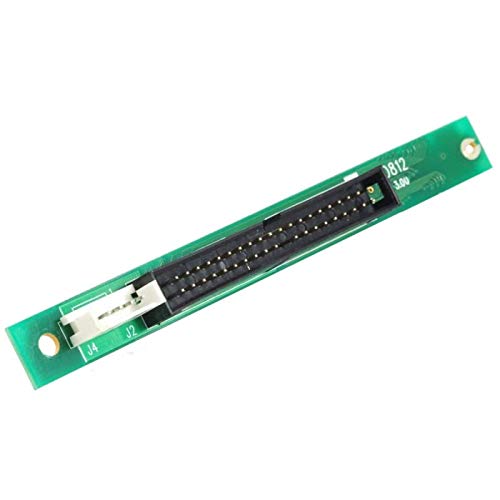
The Supermicro SCD812 is an IDE backplane board designed to connect multiple IDE hard drives to a system, typically within a server chassis. It facilitates organized cabling and power distribution for IDE storage devices.
Package Contents
Verify that all items are present in your package:
- Supermicro SCD812 IDE Backplane Board
- Mounting Screws (if included)
- Quick Installation Guide (if included)
Note: Specific cables (IDE data cables, power cables) are typically not included with the backplane board and must be sourced separately.
Safety Information
Always observe the following safety precautions:
- Ensure the system is powered off and unplugged before installation.
- Wear an anti-static wrist strap to prevent electrostatic discharge (ESD) damage.
- Handle the board by its edges to avoid touching components.
- Refer to your chassis and motherboard manuals for additional safety guidelines.
Setup and Installation
Follow these steps to install the Supermicro SCD812 IDE Backplane Board:
- Prepare the Chassis: Identify the drive bays where the backplane will be mounted. Ensure adequate space and proper alignment for the board.
- Mount the Backplane: Carefully align the SCD812 backplane board with the mounting holes in the chassis drive cage. Secure it using the appropriate screws. Do not overtighten.
- Connect Power: Connect the power cable(s) from your power supply unit (PSU) to the power connectors on the backplane board. Ensure a secure connection.
- Connect Data Cables:
- Connect the IDE data cable(s) from your motherboard's IDE controller (or an add-on IDE controller card) to the host IDE connector(s) on the backplane.
- Connect your IDE hard drives to the drive-side IDE connectors on the backplane. Ensure proper master/slave jumper settings on your IDE drives as required by your system configuration.
- Verify Connections: Double-check all power and data connections to ensure they are firm and correctly oriented.
Operating Instructions
Once installed, the Supermicro SCD812 IDE Backplane Board operates passively, acting as a conduit for power and data between your IDE drives and the host system. No specific software or drivers are required for the backplane itself.
- Power On: After installation, power on your system. The connected IDE drives should be detected by your motherboard's BIOS/UEFI and operating system.
- Drive Detection: Verify that all connected IDE drives are recognized in your system's BIOS/UEFI settings and within your operating system's disk management utilities.
- Jumper Settings: Ensure that the master/slave/cable select jumpers on your IDE drives are correctly configured according to your system's requirements and the IDE channel setup. Incorrect jumper settings are a common cause of drive detection issues.
Maintenance
The Supermicro SCD812 IDE Backplane Board requires minimal maintenance.
- Cleaning: Periodically, with the system powered off and unplugged, use compressed air to remove dust accumulation from the board and connectors. Avoid using liquid cleaners.
- Connection Checks: If experiencing issues, ensure all power and data cables remain securely connected.
Troubleshooting
| Problem | Possible Cause | Solution |
|---|---|---|
| Drives not detected |
|
|
| System fails to boot |
|
|
| Intermittent drive issues |
|
|
Specifications
| Feature | Detail |
|---|---|
| Brand | Supermicro |
| Model | SCD812 |
| Hardware Connectivity | IDE |
| Item Weight | 99.79 grams |
| ASIN | B07MCWSZGY |
Warranty and Support
For specific warranty information, please refer to the documentation included with your purchase or visit the official Supermicro website. Supermicro products typically come with a limited warranty covering manufacturing defects.
For technical support, driver downloads, or further assistance, please visit the Supermicro Support Website or contact their customer service department.