
XTRONS DVR025S
XTRONS Full HD 1080P Car DVR User Manual
Model: DVR025S
Introduction
This manual provides detailed instructions for the installation, operation, maintenance, and troubleshooting of your XTRONS Full HD 1080P Car DVR. Please read this manual thoroughly before using the device to ensure proper functionality and safety.
The XTRONS DVR025S is a compact and efficient car driving recorder designed to capture high-quality video footage of your journeys. Featuring a 1080P resolution camera, a 140-degree wide-angle lens, and loop recording capabilities, it provides reliable video evidence and enhances your driving experience.
Package Contents
Before proceeding with installation, please verify that all items listed below are included in your package:
- 1 x XTRONS Car DVR (Model: DVR025S)
- 1 x USB Cable (230mm)
- 1 x User Manual

Image: Contents of the XTRONS DVR025S package, including the DVR unit, USB cable, and user manual.
Setup and Installation
Follow these steps to properly install your XTRONS Car DVR:
- Choose a Mounting Location: Select a position on your windshield that does not obstruct your view of the road. The area behind the rearview mirror is often ideal. Ensure the chosen spot allows for easy cable routing.
- Clean the Surface: Thoroughly clean and dry the area on the windshield where the DVR will be mounted. This ensures optimal adhesion of the 3M sticker.
- Attach the DVR: Peel off the protective film from the 3M adhesive sticker on the DVR mount. Firmly press the DVR onto the cleaned windshield surface for at least 30 seconds.
- Insert Micro SD Card: Locate the Micro SD card slot on the DVR. Gently insert a compatible Micro SD card (up to 64GB, not included) until it clicks into place. Ensure the card is inserted correctly to avoid damage.
- Connect to Head Unit: Connect the provided USB cable to the DVR and then to a compatible USB input on your aftermarket Android head unit. The DVR is compatible with most Android head units running Android 8.0 and above.
- Install Software: The DVR contains its own software in its internal ROM. Once connected to your Android head unit, navigate to the head unit's file manager or app installer to locate and install the DVR application.
- Adjust Camera Angle: Once installed, adjust the camera lens to ensure it captures the desired view of the road. The lens has a 45-degree rotation capability.

Image: The XTRONS DVR025S showcasing its durable 3M sticker for mounting, support for up to 64GB SD card, and compact design that does not restrict driver's view.

Image: Dimensions of the XTRONS DVR025S, showing its compact size of 86mm length, 49mm width, and 35mm height.
Operating Instructions
Once installed and connected, the XTRONS Car DVR is ready for operation. The device is designed for automatic and continuous recording.
1080P Full HD Resolution
The DVR is equipped with a high-end chip capable of 1080P image processing. It utilizes H.264 video compression to capture detailed and clear pictures, ensuring high-quality video recordings both during the day and at night.

Image: Comparison of video quality captured by the XTRONS DVR025S during daytime and nighttime conditions, demonstrating clear 1080P resolution in both.
Wide-Angle Lens
The 140-degree wide-angle lens provides a broad viewing perspective, minimizing blind spots. This feature is particularly beneficial for larger vehicles like SUVs and 4x4s, ensuring a comprehensive recording of the road ahead.
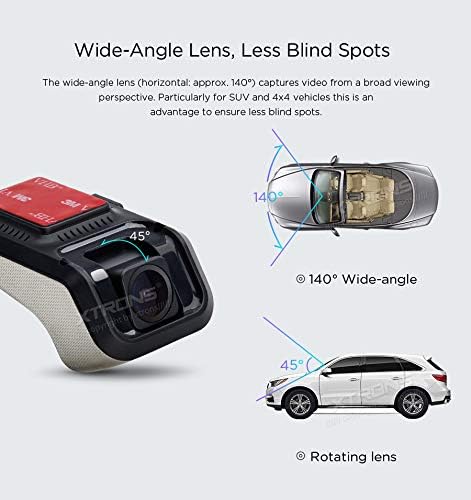
Image: Diagram illustrating the 140-degree wide-angle view and 45-degree rotating lens capability of the XTRONS DVR025S.
Loop Recording
The loop recording function automatically overwrites older video files with newer recordings when the Micro SD card is full. This ensures continuous recording without the need for manual deletion of old files. Video playback is directly accessible on your connected head unit.

Image: Screenshot of the XTRONS DVR interface on an Android head unit, showing options for voice control and video playback, with a visual representation of loop recording.
Maintenance
To ensure the longevity and optimal performance of your XTRONS Car DVR, follow these maintenance guidelines:
- Cleaning: Use a soft, dry cloth to clean the camera lens and the body of the DVR. Avoid using abrasive cleaners or solvents, as they may damage the device.
- SD Card Management: Periodically format the Micro SD card (e.g., once a month) through the DVR's software on your head unit to maintain optimal recording performance and prevent data corruption. Back up any important footage before formatting.
- Temperature: Avoid exposing the DVR to extreme temperatures, both hot and cold, for extended periods.
- Cable Inspection: Regularly check the USB cable for any signs of wear or damage. Replace if necessary to ensure a stable connection.
Troubleshooting
If you encounter issues with your XTRONS Car DVR, refer to the following common problems and their solutions:
- DVR Software Not Loading/Installing:
Ensure your Android head unit is running Android 8.0 or above. Verify that the USB connection is secure. If the software doesn't auto-install, use your head unit's file manager to locate and manually install the application from the DVR's internal storage. - Loop Recording Not Working / Videos are Short:
This is often related to the Micro SD card. Ensure you are using a high-quality, compatible Micro SD card (up to 64GB). Try formatting the SD card through the DVR software or on a computer. A faulty or too small SD card can cause issues. - No Picture During Playback (Audio Only):
If you can hear audio but see no video during playback on the head unit, try removing the Micro SD card from the DVR and viewing the files on a computer. This can help determine if the issue is with the DVR's recording or the head unit's playback capability. - Incorrect Date/Time on Recordings:
The DVR typically obtains date and time information from the connected head unit. Ensure your head unit's date and time settings are correct and set to update automatically, preferably via GPS signal if available, for consistent accuracy. - Micro SD Card Difficult to Remove:
Due to the compact design, accessing the Micro SD card slot can be challenging once mounted. If frequent removal is necessary, consider unmounting the DVR for easier access. - Adhesive Sticker Failure:
If the 3M adhesive fails, ensure the mounting surface was thoroughly cleaned and dry before initial installation. In hot climates, strong, heat-resistant adhesive alternatives may be considered, or a different mounting system if available. - Video Appears Choppy:
Ensure your Micro SD card has sufficient write speed for 1080P recording. A slower card can lead to choppy footage. Formatting the card can also help. - Blue LED on Camera is Distracting:
The blue LED indicates operation. There is no built-in feature to disable this LED. If it causes significant distraction, a small piece of electrical tape can be used to cover it, ensuring not to obstruct the lens or ventilation. - Dash Reflection in Video at Night:
Reflections from the dashboard can sometimes appear in night recordings. Adjusting the camera angle slightly or placing a non-reflective material on the dash directly below the camera might help mitigate this.
Technical Specifications
| Feature | Specification |
|---|---|
| Model Name | DVR025S |
| Video Capture Resolution | 1080p Full HD |
| Lens Angle | 140° Wide Angle |
| Lens Rotation | 45° |
| Special Feature | Loop Recording |
| Connectivity Technology | USB |
| Compatibility | Most aftermarket Android head units (Android 8.0 and above) |
| Storage Support | Micro SD card up to 64GB (not included) |
| Mounting Type | Adhesive Mount (3M sticker) |
| Item Weight | 3.52 ounces |
| Package Dimensions | 4.84 x 4.84 x 2.17 inches |
| Color | Red, Black, Grey |
Warranty and Customer Support
XTRONS provides a 3-month warranty for this product, covering manufacturing defects and malfunctions under normal use. Please retain your proof of purchase for warranty claims.
For technical assistance, troubleshooting beyond this manual, or warranty inquiries, please contact XTRONS customer service. You can find contact information and additional support resources by visiting the official XTRONS store on Amazon or their official website.
XTRONS Store Link: https://www.amazon.com/stores/XTRONS/page/8EE1F454-1060-4D1E-AEC9-A5D390083FBE
Related documentsDVR025S


Ask a question about this manual
Ask about setup, troubleshooting, compatibility, parts, safety, or missing instructions. Manuals+ will review the question and use this page’s manual context to help answer it.