
Introduction
This manual provides comprehensive instructions for the installation, operation, and maintenance of your Aerocool LUX RGB 650M semi-modular power supply. The LUX RGB 650M is designed to deliver stable power to your PC components while offering customizable RGB lighting effects. Please read this manual thoroughly before installation and use to ensure proper functionality and safety.

Image: Angled view of the Aerocool LUX RGB 650M Power Supply, showcasing its black finish and RGB lighting panel.
Safety Information
- Ensure the power supply is disconnected from the AC power outlet before installation or maintenance.
- Do not open the power supply unit. High voltages are present inside, which can cause electric shock.
- Install the power supply in a well-ventilated area. Do not block the ventilation openings.
- This product is designed for use in personal computers. Do not use it for any other purpose.
- Keep the power supply away from water, moisture, and extreme temperatures.
- Use only the cables provided with the power supply. Using third-party cables may cause damage.
Package Contents
Verify that all items are present in the package:
- Aerocool LUX RGB 650M Power Supply Unit
- Modular Cable Set (PCIe, SATA, Peripheral)
- Main ATX 20+4 Pin Cable (fixed)
- CPU 4+4 Pin Cable (fixed)
- AC Power Cord
- Mounting Screws
- User Manual
Setup and Installation
Follow these steps to install your Aerocool LUX RGB 650M power supply:
- Prepare your PC Case: Ensure your computer is powered off and unplugged from the wall outlet. Open your PC case to access the power supply mounting area.
- Mount the Power Supply: Carefully slide the LUX RGB 650M into the designated power supply bay in your PC case. Secure it with the provided mounting screws.
- Connect Fixed Cables:
- Connect the 20+4 Pin ATX cable to your motherboard's main power connector.
- Connect the 4+4 Pin CPU cable to your motherboard's CPU power connector.
- Connect Modular Cables: Identify the necessary modular cables for your components (graphics card, SSDs/HDDs, optical drives).
- Connect the required PCIe cables to your graphics card(s).
- Connect SATA power cables to your storage drives (SSDs, HDDs).
- Connect Peripheral (Molex) cables for any other components requiring them.

Image: Angled view of the Aerocool LUX RGB 650M Power Supply, illustrating the semi-modular design with fixed and detachable cables.
- Cable Management: Utilize the semi-modular design to manage cables efficiently, improving airflow and aesthetics within your PC case.
- Connect RGB:
- For motherboard synchronization, connect the power supply's Addressable RGB cable to a +5V Addressable RGB header on your compatible motherboard.
- If your motherboard does not have an Addressable RGB header, you can control the lighting effects directly via the LED control button on the power supply.
- Power Connection: Connect the AC power cord to the power supply's input socket and then to a wall outlet. Ensure the power switch on the PSU is in the OFF (0) position before plugging it in.
- System Configuration Note: For optimal performance and stability, ensure your system's power requirements do not exceed the PSU's capacity. A recommended maximum configuration for this 650W model is an Intel i5 processor, an RTX 3060 graphics card, and 16GB DDR4 RAM. For precise power calculations, consult online PSU calculators.
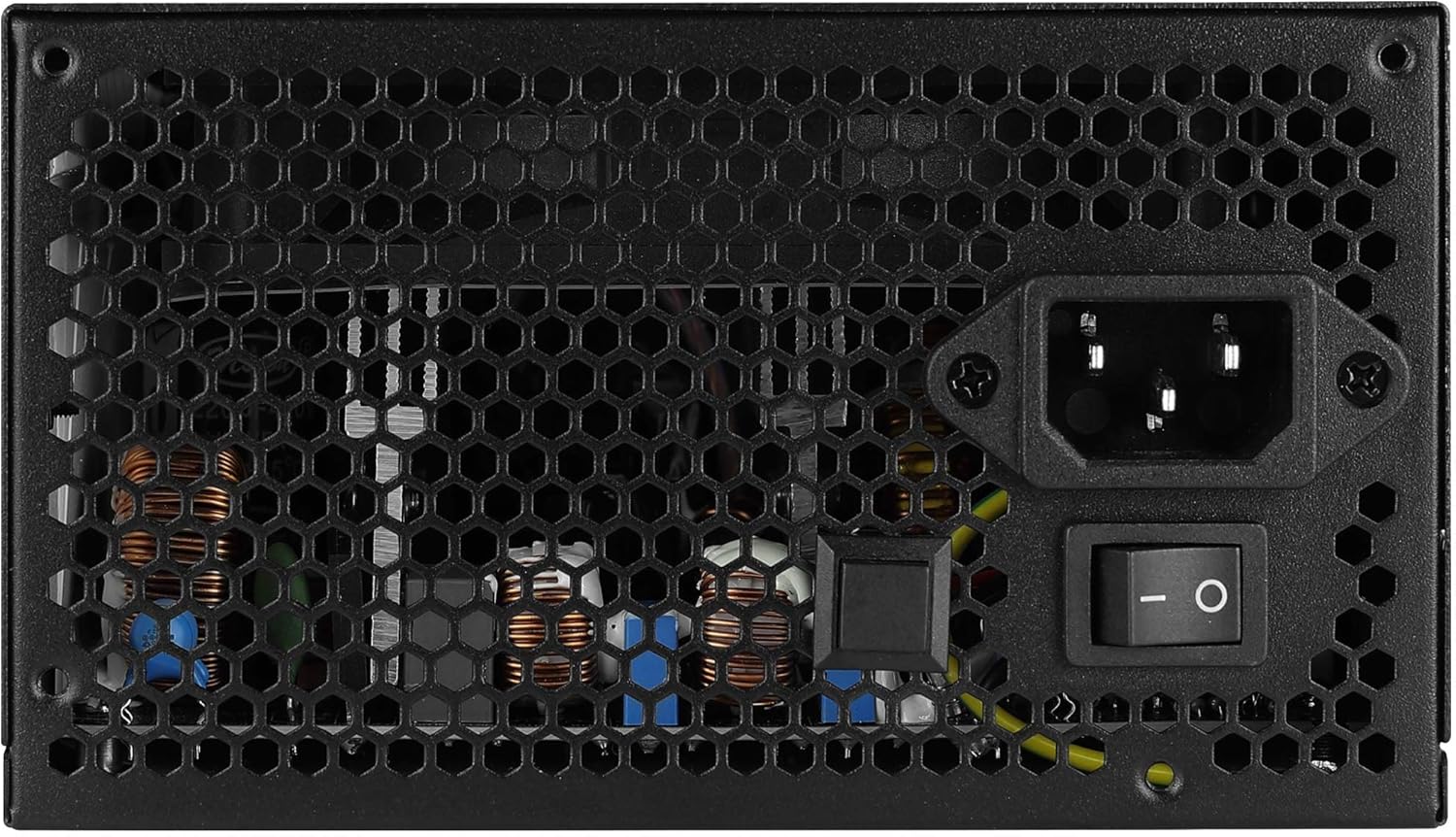
Image: Rear view of the Aerocool LUX RGB 650M Power Supply, showing the AC power input, power switch, and ventilation grille.
Operating Instructions
After successful installation, follow these steps to operate your power supply:
- Power On: Flip the power switch on the rear of the power supply to the ON (I) position. Then, power on your computer using the case's power button.
- RGB Lighting Control:
- Via LED Control Button: If not connected to a motherboard ARGB header, press the dedicated LED control button on the power supply to cycle through 13 predefined lighting effects.
- Via Motherboard Software: If connected to a +5V Addressable RGB header on your motherboard, you can control and synchronize the power supply's lighting effects using your motherboard's RGB software (e.g., ASUS Aura Sync, MSI Mystic Light Sync, Gigabyte RGB Fusion, ASRock Polychrome Sync).
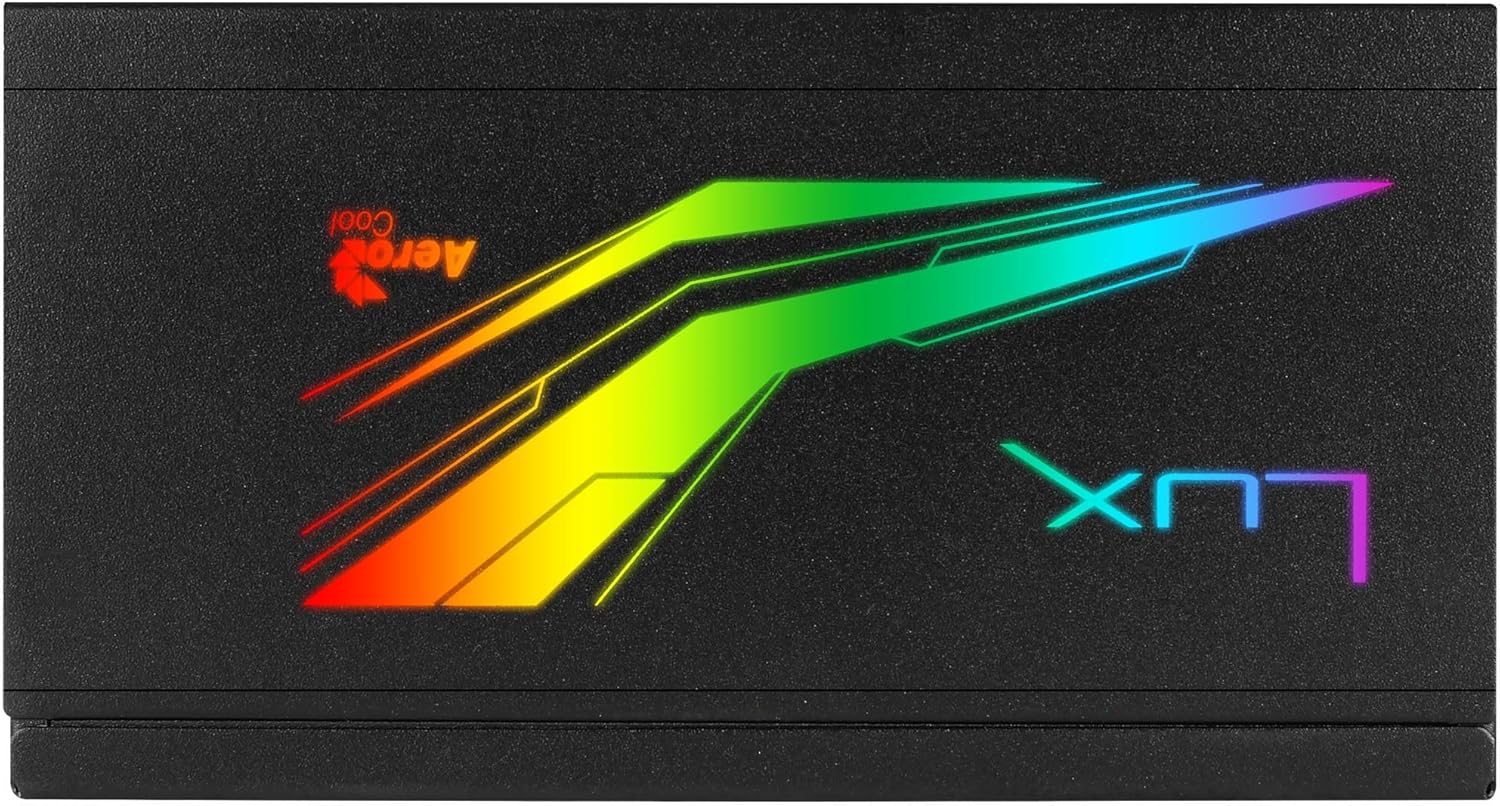
Image: Top view of the Aerocool LUX RGB 650M Power Supply, highlighting the integrated RGB lighting panel with the "LUX" and "AeroCool" logos.
Maintenance
Proper maintenance ensures the longevity and optimal performance of your power supply:
- Dust Cleaning: Periodically clean the power supply's fan and ventilation grilles to prevent dust buildup, which can impede airflow and cooling. Use compressed air for best results. Ensure the power supply is off and unplugged before cleaning.
- Airflow: The LUX RGB 650M features a 30% increased ventilation area for enhanced airflow. Ensure your PC case has adequate ventilation to support efficient heat dissipation from the power supply.
- Fan Operation: The 12cm silent black fan operates with optimized thermal fan speed control, adjusting its speed based on temperature to maintain quiet operation and effective cooling.

Image: Side view of the Aerocool LUX RGB 650M Power Supply, highlighting the extensive honeycomb ventilation pattern for improved airflow.
Troubleshooting
If you encounter issues with your power supply, refer to the following common problems and solutions:
- No Power to System:
- Check if the AC power cord is securely connected to both the power supply and the wall outlet.
- Ensure the power switch on the rear of the PSU is in the ON (I) position.
- Verify that all power cables (20+4 Pin ATX, 4+4 Pin CPU, PCIe, SATA) are correctly and firmly connected to their respective components.
- Test the wall outlet with another device to confirm it has power.
- System Instability/Crashes:
- Ensure your system's power draw does not exceed the 650W capacity of the PSU. Overloading can cause instability.
- Check for loose cable connections.
- Ensure adequate ventilation within the PC case to prevent overheating.
- RGB Lighting Not Working:
- If using the LED control button, ensure it is being pressed correctly to cycle effects.
- If connected to a motherboard ARGB header, verify the connection is secure and that your motherboard's RGB software is installed and configured correctly. Ensure it's a +5V ARGB header, not a +12V RGB header.
Specifications

Image: Electrical specifications label for the Aerocool LUX RGB 650M Power Supply, detailing voltage and current outputs.
| Feature | Detail |
|---|---|
| Model Number | LUXRGB650M |
| Brand | AeroCool |
| Power Output | 650 Watts |
| Efficiency Certification | 80Plus 230V EU Bronze (up to 88%+ efficiency) |
| Form Factor | ATX |
| Cabling Design | Semi-Modular |
| Cooling Method | Air (12cm silent black fan with optimized thermal speed control) |
| RGB Lighting | Prism RGB (13 predefined effects via button, compatible with +5V Addressable RGB motherboards) |
| Input Voltage | 115-230 Volts |
| Dimensions (L x W x H) | 16 x 15 x 8.6 cm |
| Weight | 1.5 Kilograms |
| Compatible Devices | Personal Computer |
Warranty
The Aerocool LUX RGB 650M Power Supply comes with a 2-year warranty on spare parts. Please retain your proof of purchase for warranty claims. The warranty covers defects in materials and workmanship under normal use. It does not cover damage caused by misuse, accident, modification, or unauthorized repair.
Support
For technical assistance, troubleshooting beyond this manual, or warranty inquiries, please contact AeroCool customer support. Visit the official AeroCool website for contact information and additional resources.
Online Resources: www.aerocool.io


