1. Introduction
This manual provides instructions for the JuYuish Silicone Keyboard Cover, designed to protect your laptop keyboard from dust, spills, and wear. This cover is made from high-quality silicone, offering a soft and durable layer over your existing keyboard.

Image 1: The JuYuish Silicone Keyboard Cover, demonstrating its flexible and rollable design. The cover features an ombre pink color gradient.
2. Compatibility
The JuYuish Silicone Keyboard Cover is specifically designed for various 14-inch HP laptop models. To ensure proper fit, please verify your laptop model and keyboard layout against the list below and the provided images.
Compatible HP Laptop Models:
- HP Stream Laptop PC 14-ax Series: 14-ax010nr, 14-ax020nr, 14-ax020wm
- HP ENVY 14-j0 Series: 14-j000, 14-j004
- HP Pavilion 14-ab Series: 14-ab010, 14-ab011, 14-ab166us
- HP Pavilion 14-ac Series: 14-ac137, 14-ac159nr
- HP Pavilion 14-ad Series: 14-ad006
- HP 14-inch Notebook 14-an Series: 14-an010nr, 14-an013n, 14-an080nr
- HP Pavilion 14-al Series: 14-al061nr, 14-al062nr
Important Keyboard Layout Check:
Before installation, carefully compare your laptop's keyboard layout with the images provided. Pay close attention to the shape of the 'Enter' key and the corner keys, especially the 'Ctrl' key.

Image 2: An example of a keyboard layout where the cover may not align correctly. Note the highlighted keys (top left and Z, X, C) that indicate potential incompatibility. Ensure your keyboard matches the cover's layout.
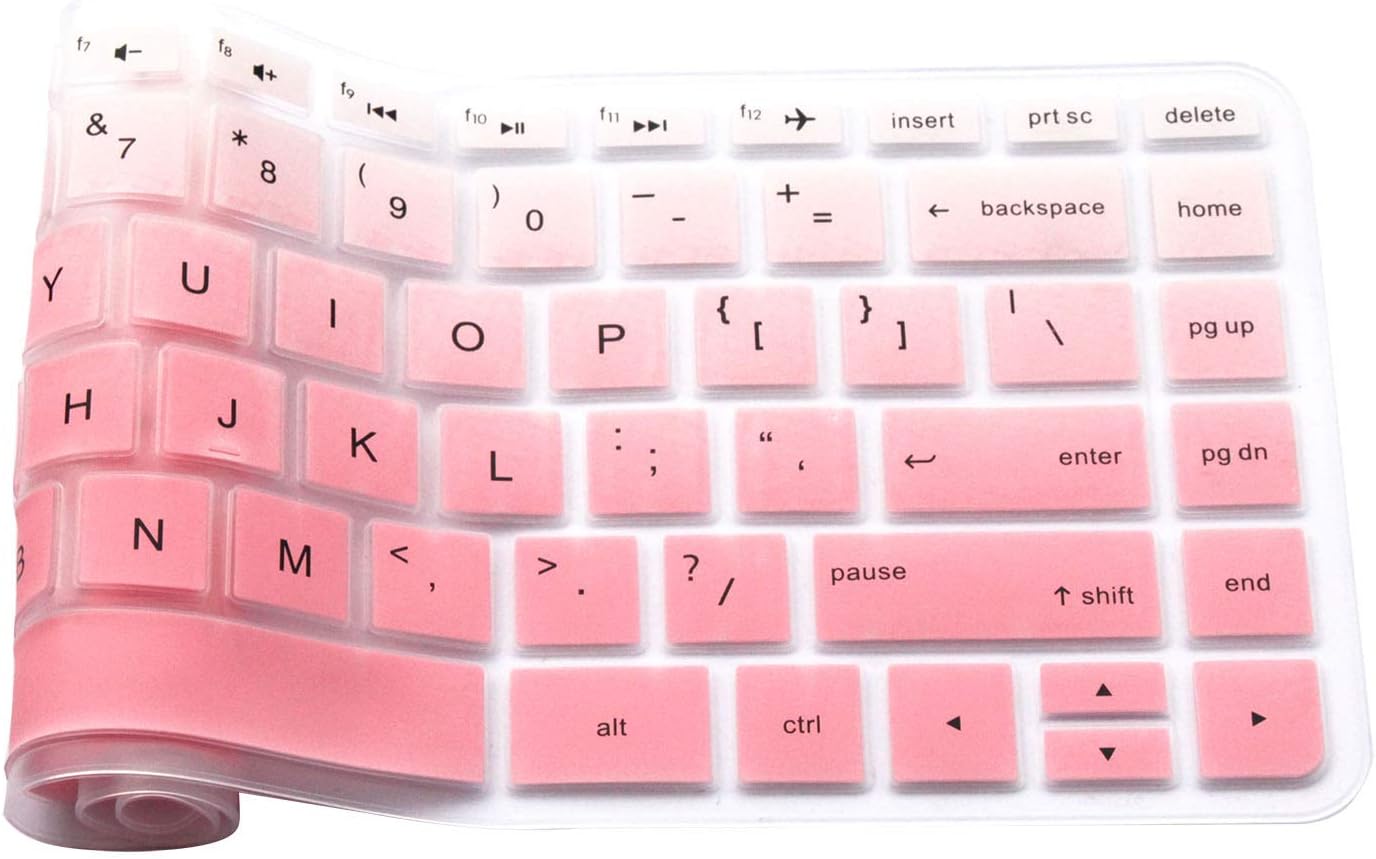
Image 3: This image illustrates the specific requirement for the 'Ctrl' key. The keyboard cover is designed to fit layouts where the 'Ctrl' key has a rounded corner, as indicated by the red arrow.
3. Setup and Installation
Installing your JuYuish Silicone Keyboard Cover is a simple process. Follow these steps for optimal placement:
- Clean Your Keyboard: Ensure your laptop keyboard is clean and free of dust, crumbs, or oils before applying the cover. Use a soft, dry cloth or a specialized keyboard cleaner.
- Align the Cover: Carefully place the silicone cover over your laptop's keyboard. Start by aligning one corner, typically the top left, and gently smooth it across the keys.
- Adjust for Fit: Ensure each keycap on the cover sits snugly over its corresponding key on the laptop. The flexible nature of the silicone allows for minor adjustments. The cover should lay flat without bubbling or lifting.
- Verify 'Enter' Key: Confirm that the 'Enter' key on the cover matches the shape of your laptop's 'Enter' key (US version typically has a rectangular 'Enter' key).
4. Operating and Usage
Once installed, the JuYuish Silicone Keyboard Cover provides a protective layer without significantly altering your typing experience. It is designed to be thin and smooth.
- Typing Experience: The cover is thin enough to allow for comfortable typing. Some users may require a short adjustment period to become accustomed to the feel of the silicone.
- Protection: The cover acts as a barrier against dust, liquid spills, and general wear and tear, extending the life of your laptop's keyboard.
- Noise Reduction: The silicone material can help to slightly dampen typing sounds.
5. Maintenance and Cleaning
To maintain the cleanliness and effectiveness of your keyboard cover, regular cleaning is recommended.
- Removal: Gently peel the keyboard cover off your laptop.
- Washing: Wash the cover with mild soap and cold water. Avoid harsh chemicals or abrasive cleaners.
- Drying: Allow the cover to air dry completely before placing it back on your keyboard. Do not use heat to dry it, as this may deform the silicone.
- Reapplication: Once dry, reapply the cover following the installation steps.
6. Troubleshooting
Common Issues and Solutions:
- Cover Does Not Fit Properly:
- Double-check your laptop model against the compatibility list in Section 2.
- Verify your keyboard layout matches the images provided, especially the 'Enter' key and corner keys.
- Ensure the cover is correctly aligned from the start.
- Typing Feels Unnatural:
- It may take a few days to adjust to typing with the cover. Continue using it for a short period.
- Ensure the cover is lying flat and not bunched up on any keys.
- Cover Appears Tacky After Cleaning:
- Ensure all soap residue is thoroughly rinsed off during cleaning.
- Allow the cover to air dry completely.
7. Specifications
| Product Name | JuYuish Silicone Keyboard Cover |
| Model Number | JYH-HP14-GY |
| Material | Silicone |
| Color (Variant) | Ombre Pink |
| Compatible Devices | 14-inch HP Laptops (Specific models listed in Section 2) |
| Special Features | Washable, Reusable, Flexible, Durable |
| Item Weight | 0.739 ounces |
| Package Dimensions | 12.48 x 5.43 x 0.08 inches |
8. Warranty and Support
Warranty Information:
Please refer to the product packaging or the retailer's website for specific warranty details. Generally, products are covered against manufacturing defects for a limited period from the date of purchase.
Customer Support:
For any questions, concerns, or assistance with your JuYuish Keyboard Cover, please contact the seller or retailer from whom you purchased the product. They will be able to provide further support and guidance.


