
1. Introduction and Overview
The Estink Power Meter Plug is designed to monitor the electricity consumption of your household appliances. It provides real-time data on various electrical parameters, helping you understand and manage your energy usage. This device features a digital LCD display with multiple modes, an overload warning function, and a user-friendly interface for easy operation.

Figure 1: Estink Power Meter Plug.
2. Setup
- Unpack: Carefully remove the power meter plug from its packaging.
- Plug In: Insert the power meter plug into a standard wall outlet.
- Connect Appliance: Plug the appliance you wish to monitor into the socket on the front of the power meter plug.
- Initial Display: Upon connection, the device will power on and display default information, typically voltage and frequency.
3. Operating Instructions
3.1 Display Modes
The power meter features 7 distinct display modes. Press the FUNCTION button to cycle through these modes:
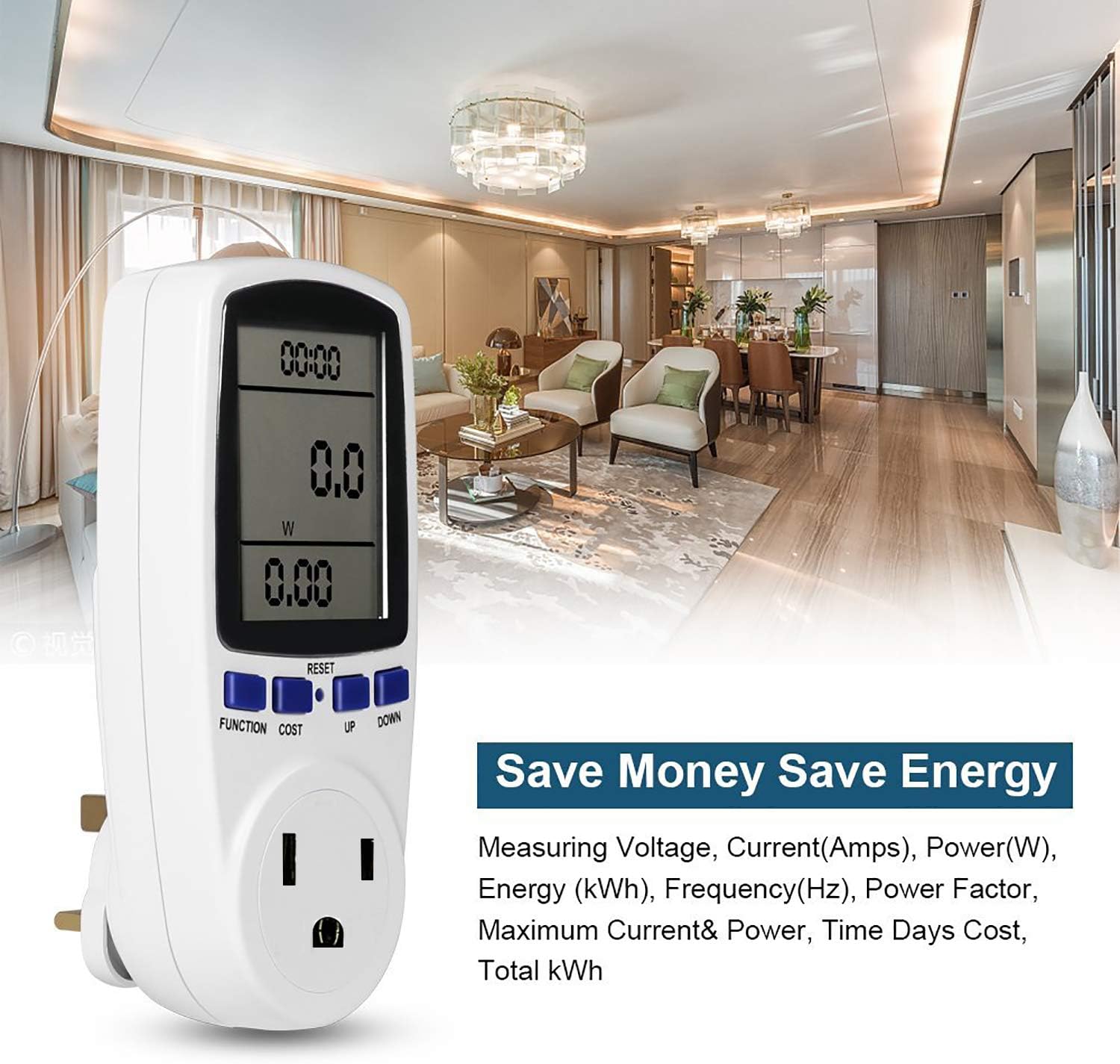
Figure 2: Cycling through display modes.
- Mode 1: Time, Wattage (W), and Cost.
- Mode 2: Time, Cumulative Electrical Quantity (kWh), and Days.
- Mode 3: Time, Voltage (V), and Frequency (Hz).
- Mode 4: Time, Current (A), and Power Factor.
- Mode 5: Time, Minimum Power (Lo W).
- Mode 6: Time, Maximum Power (Hi W).
- Mode 7: Time, Cost per kWh.
3.2 Setting Cost per kWh
To set the electricity cost per kilowatt-hour (kWh):
- Press the COST button to enter cost setting mode.
- Use the UP and DOWN buttons to adjust the cost value.
- Press FUNCTION to confirm and exit the setting mode.
3.3 Resetting Data
To clear all accumulated data (time, kWh, cost), press and hold the RESET button for approximately 5 seconds until the display clears.
4. Display Features
The Estink Power Meter Plug features a clear digital LCD with an optional blue backlight for enhanced visibility in various lighting conditions. For accurate readings, always view the display directly from the front, as the visual angle is optimized for vertical viewing (120°).
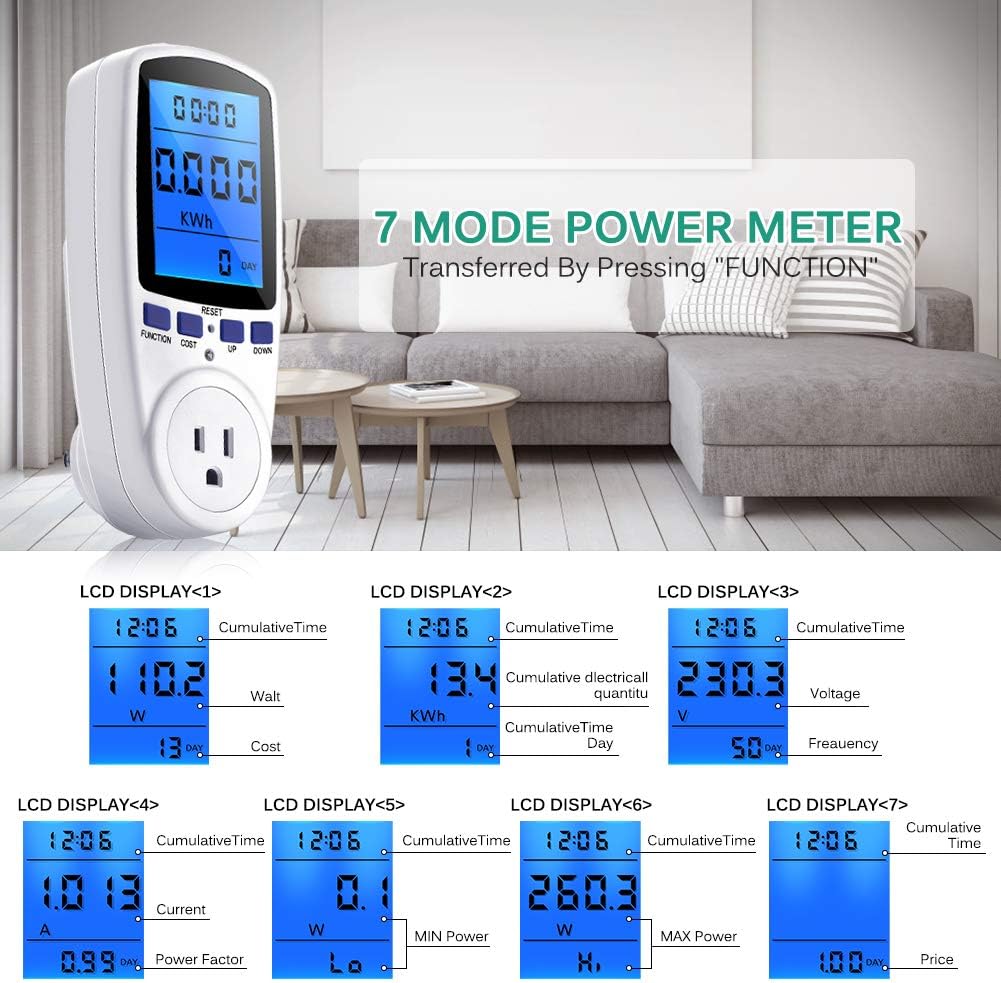
Figure 3: Blue backlight display for improved readability.
5. Overload Protection
The device includes an overload protection feature to prevent damage to the meter and connected appliances. If the connected load exceeds 1650W, the LCD will display "OVERLOAD" and emit an audible warning sound. Immediately disconnect the appliance if this occurs to prevent potential hazards.
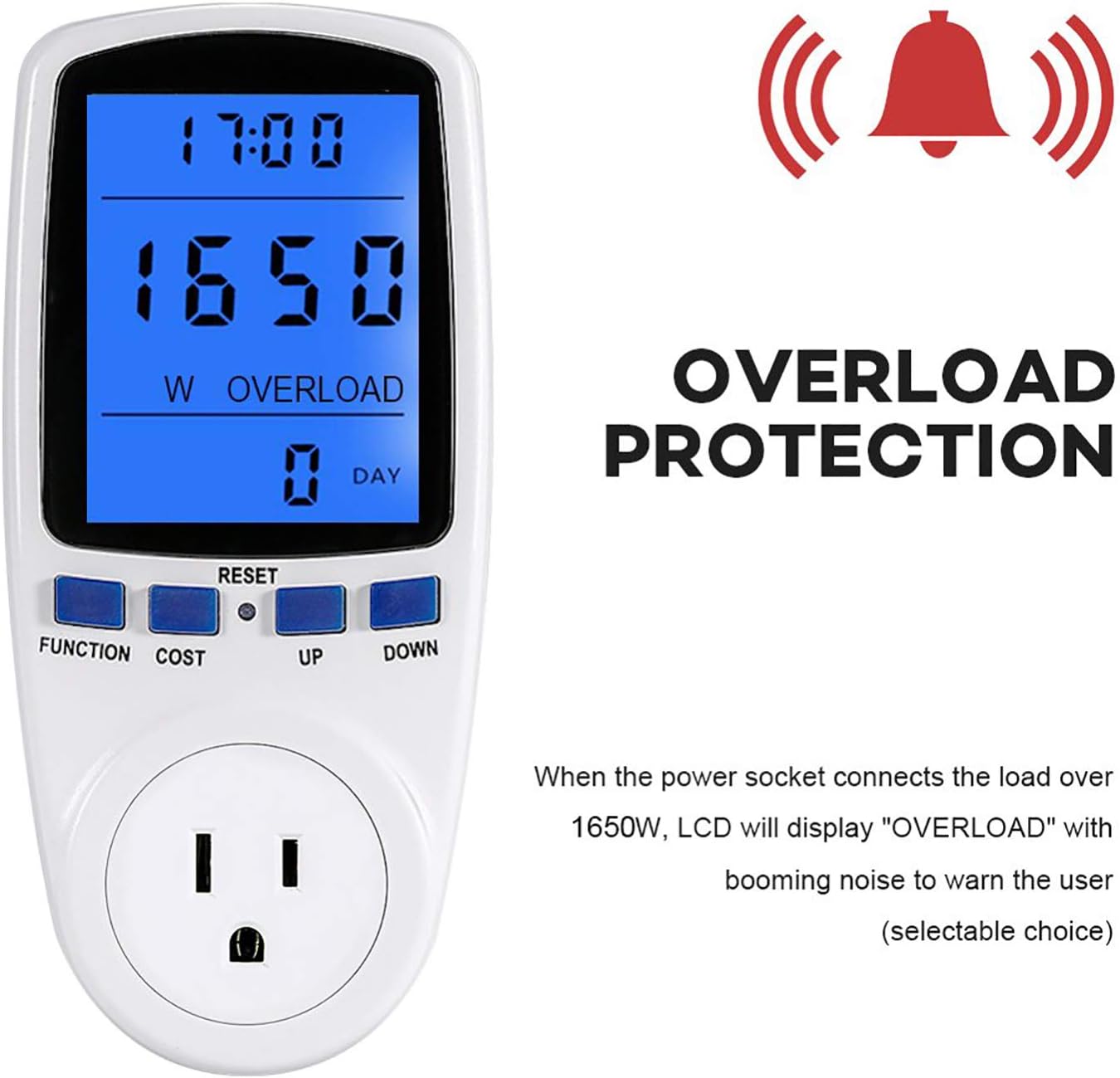
Figure 4: Overload warning display.
6. Specifications
| Feature | Value |
|---|---|
| Item Weight | 7.2 ounces |
| Package Dimensions | 6.8 x 3.5 x 3 inches |
| Item Package Quantity | 1 |
| Batteries Included? | No |
| Batteries Required? | No |
| ASIN | B07M9KJRKP |
| Date First Available | December 24, 2018 |
7. Troubleshooting
- Display is blank: Ensure the power meter is securely plugged into a live outlet and an appliance is connected. If the issue persists, try a different outlet.
- Incorrect readings: Verify that the appliance is functioning correctly. If the readings seem unusually high or low, try resetting the device by holding the RESET button.
- Overload warning: If the "OVERLOAD" message appears, the connected appliance is drawing more than 1650W. Disconnect the appliance immediately. This device is not suitable for appliances exceeding its maximum wattage rating.
8. Maintenance and Care
- Cleaning: Wipe the device with a soft, dry cloth. Do not use abrasive cleaners or immerse in water.
- Storage: Store the power meter in a cool, dry place away from direct sunlight and extreme temperatures when not in use.
- Avoid Impact: Protect the device from drops or strong impacts, which can damage internal components.
9. Warranty and Support
For warranty information or technical support, please refer to the contact details provided with your purchase or visit the official Estink website. Keep your purchase receipt as proof of purchase for any warranty claims.