
Introduction
The ARRIS SURFboard SBG8300 is a high-performance DOCSIS 3.1 Cable Modem and Wi-Fi Router combo designed to deliver ultra-fast internet speeds for streaming, gaming, and general browsing. This device integrates a cable modem with a powerful AC2350 Wi-Fi router, providing a comprehensive solution for your home networking needs. It is compatible with major Internet Service Providers (ISPs) such as Comcast Xfinity, Cox, and Spectrum, offering a reliable and efficient connection.
Key features include advanced DOCSIS 3.1 technology for faster speeds and enhanced security, dual-band AC2350 Wi-Fi for broad and fast wireless coverage, and the ability to eliminate monthly modem rental fees from your ISP.
Package Contents
Before you begin, please ensure all items are present in your package:
- ARRIS SURFboard SBG8300 Cable Modem
- Power Supply
- Quick-Start Guide
- 2-year Warranty Card

Image: The ARRIS SURFboard SBG8300 modem shown alongside its retail packaging, highlighting the product and its box contents.
Setup Guide
1. Physical Connection
Follow these steps to physically connect your SBG8300 modem:
- Connect Coaxial Cable: Connect a coaxial cable from your wall outlet to the Cable port on the back of the SBG8300. Ensure the connection is finger-tight.
- Connect Power: Plug the power supply into the Power port on the back of the SBG8300, then plug the other end into an electrical outlet. The modem will begin its startup sequence.
- Connect Ethernet Cable (Optional): For a wired connection, connect an Ethernet cable from one of the Ethernet ports on the back of the SBG8300 to your computer or Wi-Fi router (if using the SBG8300 as a modem only).

Image: A diagram illustrating the three simple steps for setting up the SBG8300: connecting the coaxial cable, power, and Ethernet cable.

Image: Rear view of the ARRIS SBG8300 modem, clearly showing the coaxial cable input, power input, and four Gigabit Ethernet ports.
2. Modem Activation
Once the SBG8300 is physically connected and powered on, you will need to activate it with your Internet Service Provider (ISP). This typically involves:
- Opening a web browser on a device connected to the SBG8300 (either via Wi-Fi or Ethernet).
- You may be redirected to your ISP's activation page. Follow the on-screen instructions.
- If not redirected, you may need to call your ISP's customer support and provide them with the modem's MAC address (located on a sticker on the device) and serial number.
Ensure your ISP has registered your new modem to avoid rental fees if you previously used their equipment.
Operating Instructions
LED Indicators
The front panel of the SBG8300 features LED indicators that provide status information:
- Online LED:
- Solid Green: Indicates the modem is online and operating in DOCSIS 3.0 mode.
- Solid Blue: Indicates the modem is online and operating in DOCSIS 3.1 mode (desired state for optimal performance).
- Blinking Green: Indicates downstream and upstream channel search.
- Wi-Fi LED:
- Solid Green: Wi-Fi is enabled and active.
- Power LED:
- Solid Amber: Unit is powered on.
- Blinking Amber: Firmware download is in progress.
- Error Mode:
- Blinking Blue and Green: Indicates an error mode in sequence.
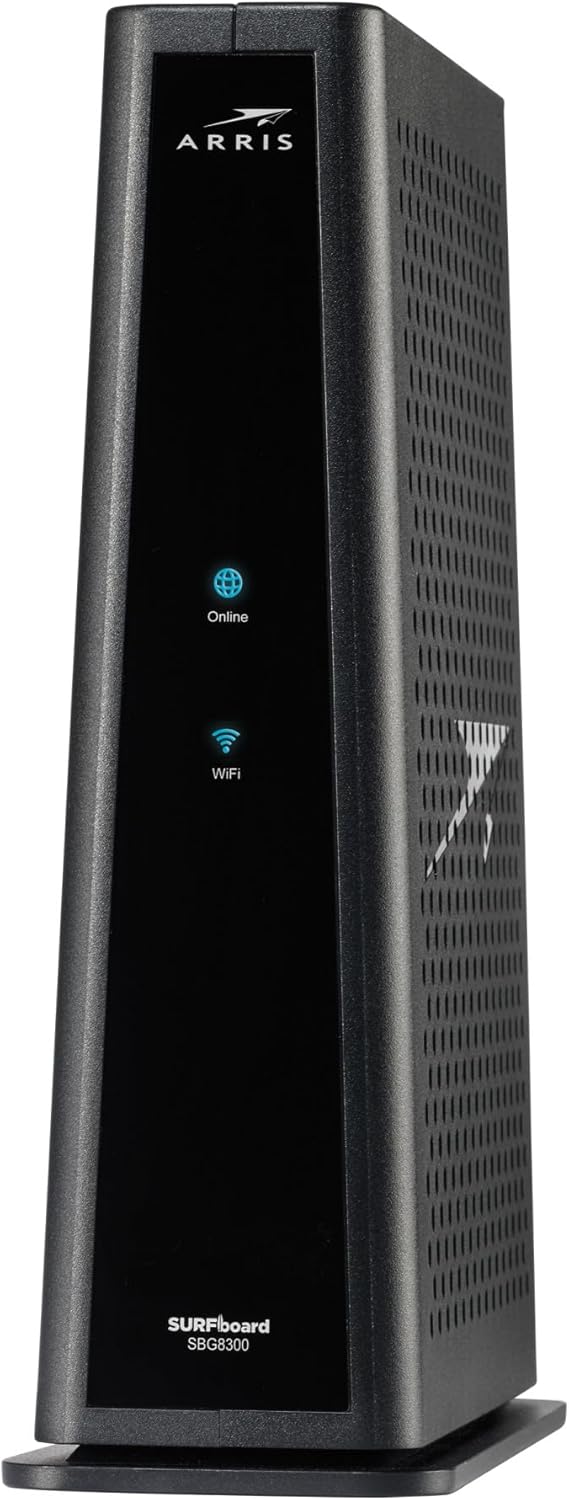
Image: Front view of the ARRIS SBG8300 modem, showing the Online and Wi-Fi LED indicators.
Network Configuration
You can manage your network settings, including Wi-Fi names (SSIDs) and passwords, through the modem's web interface. To access it:
- Connect a device to the SBG8300's Wi-Fi network or via an Ethernet cable.
- Open a web browser and enter
http://192.168.0.1(or the IP address found on the modem's label) into the address bar. - Log in using the default username and password (usually found on the modem's label or in the Quick-Start Guide). It is highly recommended to change these default credentials for security.
- From the interface, you can configure Wi-Fi settings (2.4GHz and 5GHz bands), guest networks, parental controls, and other advanced features.
The SBG8300 supports dual-band Wi-Fi (2.4 GHz and 5 GHz) for optimal performance across various devices. It also features four Gigabit Ethernet ports for high-speed wired connections.
Maintenance
To ensure optimal performance and longevity of your ARRIS SBG8300, consider the following maintenance tips:
- Placement: Place the modem in an open, central location to maximize Wi-Fi coverage and ensure proper ventilation. Avoid enclosed spaces or areas with extreme temperatures.
- Firmware Updates: Firmware updates are typically managed by your Internet Service Provider (ISP) and are pushed automatically. Ensure your modem remains powered on to receive these updates, which can improve performance and security.
- Regular Reboots: Periodically rebooting your modem (unplugging the power for 30 seconds and plugging it back in) can help resolve minor connectivity issues and refresh network performance.
- Cleaning: Keep the modem free from dust and debris. Use a soft, dry cloth to clean the exterior. Do not use liquid cleaners.
Troubleshooting
If you encounter issues with your ARRIS SBG8300, try the following troubleshooting steps:
- No Internet Connection:
- Check all cable connections (coaxial, power, Ethernet) to ensure they are secure.
- Verify the Online LED is solid green or blue. If blinking or off, contact your ISP as there might be a service outage or activation issue.
- Reboot the modem by unplugging it from power for 30 seconds, then plugging it back in. Wait for all LEDs to stabilize.
- Slow Internet Speeds:
- Ensure your devices are connected to the 5GHz Wi-Fi band for faster speeds, if supported.
- Check for interference from other electronic devices or neighboring Wi-Fi networks.
- Perform a speed test (e.g., via speedtest.net) to confirm actual speeds. If significantly lower than your plan, contact your ISP.
- Verify your ISP's line signal quality. Poor signal quality can lead to reduced performance and modem overheating.
- Wi-Fi Connectivity Issues:
- Ensure the Wi-Fi LED is solid green.
- Check your Wi-Fi password and network name (SSID).
- Try forgetting the network on your device and reconnecting.
- If many devices are connected, consider reducing the number or upgrading your internet plan.
- Accessing Web Interface:
- If you cannot access the web interface at
http://192.168.0.1, ensure your device is connected to the modem. - If you changed the firewall setting to "MEDIUM" or higher, you might need to use
https://192.168.0.1and accept security warnings.
- If you cannot access the web interface at
For more detailed troubleshooting, refer to the official ARRIS User Guide and Troubleshooting Guide available as PDF documents:
Specifications
| Feature | Detail |
|---|---|
| Model Name | SURFboard SBG8300 DOCSIS 3.1 |
| DOCSIS Standard | DOCSIS 3.1 (32x8 DOCSIS 3.0, 2x2 DOCSIS 3.1 OFDM Channels) |
| Wi-Fi Standard | 802.11ac (AC2350) |
| Frequency Band Class | Dual-Band (2.4 GHz and 5 GHz) |
| Ethernet Ports | 4 x 1-Gigabit Ethernet Ports |
| Dimensions (H x W x D) | 9.33 x 8 x 2.87 inches |
| Item Weight | 2.82 pounds |
| Compatible Devices | Personal Computer, Smart Television, Smartphone |
| Recommended Use | Business, Gaming, Home |

Image: An "At-A-Glance" graphic summarizing key features and compatibility of the SBG8300, including its function as a cable modem with Wi-Fi, non-compatibility with DSL/Fiber/Satellite, and approval for major US cable internet providers.

Image: A speed comparison chart showing the ARRIS SBG8300's compatibility with Cox, Spectrum, and Xfinity, indicating maximum supported speeds for each provider.

Image: A graphic displaying logos of various Internet Service Providers that have approved the ARRIS SBG8300, including Xfinity, Spectrum, Cox, Astound Broadband, Grande Communications, RCN, Sparklight, and Wave.
Warranty and Support
The ARRIS SURFboard SBG8300 comes with a 2-year warranty. For technical support, additional resources, or to register your product, please visit the official ARRIS support website or refer to the documentation included in your package.
You can also find comprehensive user guides and troubleshooting tips through the provided PDF links:


