
Garmin DriveSmart 55
Garmin DriveSmart 55 and Traffic GPS Navigator User Manual
Model: DriveSmart 55 (010-02037-02)
Introduction
The Garmin DriveSmart 55 and Traffic GPS Navigator is designed to enhance your driving experience with intuitive navigation, real-time traffic updates, and smart features. This manual provides essential information for setting up, operating, maintaining, and troubleshooting your device.

Image: The Garmin DriveSmart 55 GPS Navigator, showing its 5.5-inch edge-to-edge touchscreen display.
What's in the Box
Verify that all items are present in your product packaging:
- Garmin DriveSmart 55 device
- Vehicle suction cup mount
- Traffic receiver/vehicle power cable
- USB cable
- Quick start manual
Setup
1. Mounting the Device
The Garmin DriveSmart 55 comes with a vehicle suction cup mount for dashboard installation. Ensure the mounting surface is clean and dry for optimal adhesion.
- Attach the suction cup mount to the back of the device.
- Press the suction cup firmly against your dashboard or windshield and flip the lever to secure it.
- Adjust the device angle for optimal viewing without obstructing your view of the road.
2. Powering On and Charging
Connect the traffic receiver/vehicle power cable to the device and plug it into your vehicle's 12V power outlet. The device will automatically power on. For initial use, ensure the device is sufficiently charged.
3. Initial Configuration
Upon first power-on, follow the on-screen prompts to select your language, time zone, and other preferences.
4. Connecting to Wi-Fi
Built-in Wi-Fi allows for easy map and software updates without a computer.
- From the main menu, select Settings > Wireless Networks.
- Select your desired Wi-Fi network and enter the password if prompted.
- Once connected, the device will check for available updates.
5. Pairing with a Smartphone (Bluetooth)
Pair your device with a compatible smartphone via Bluetooth for hands-free calling and smart notifications.
- Enable Bluetooth on your smartphone.
- On the DriveSmart 55, go to Settings > Bluetooth.
- Select Add Phone and follow the on-screen instructions to complete the pairing process.
Operating Instructions
1. Basic Navigation
To begin navigating, touch the screen to access the main menu. Select Where To? and choose your destination method (e.g., Address, Saved Locations, Categories).

Image: The Garmin DriveSmart 55 displaying a split-screen navigation view, showing both a map and a 3D road perspective with turn-by-turn directions.
2. Voice Control
The device supports voice activation for hands-free operation. Simply say "OK Garmin" to initiate voice commands, then speak your desired action or destination.
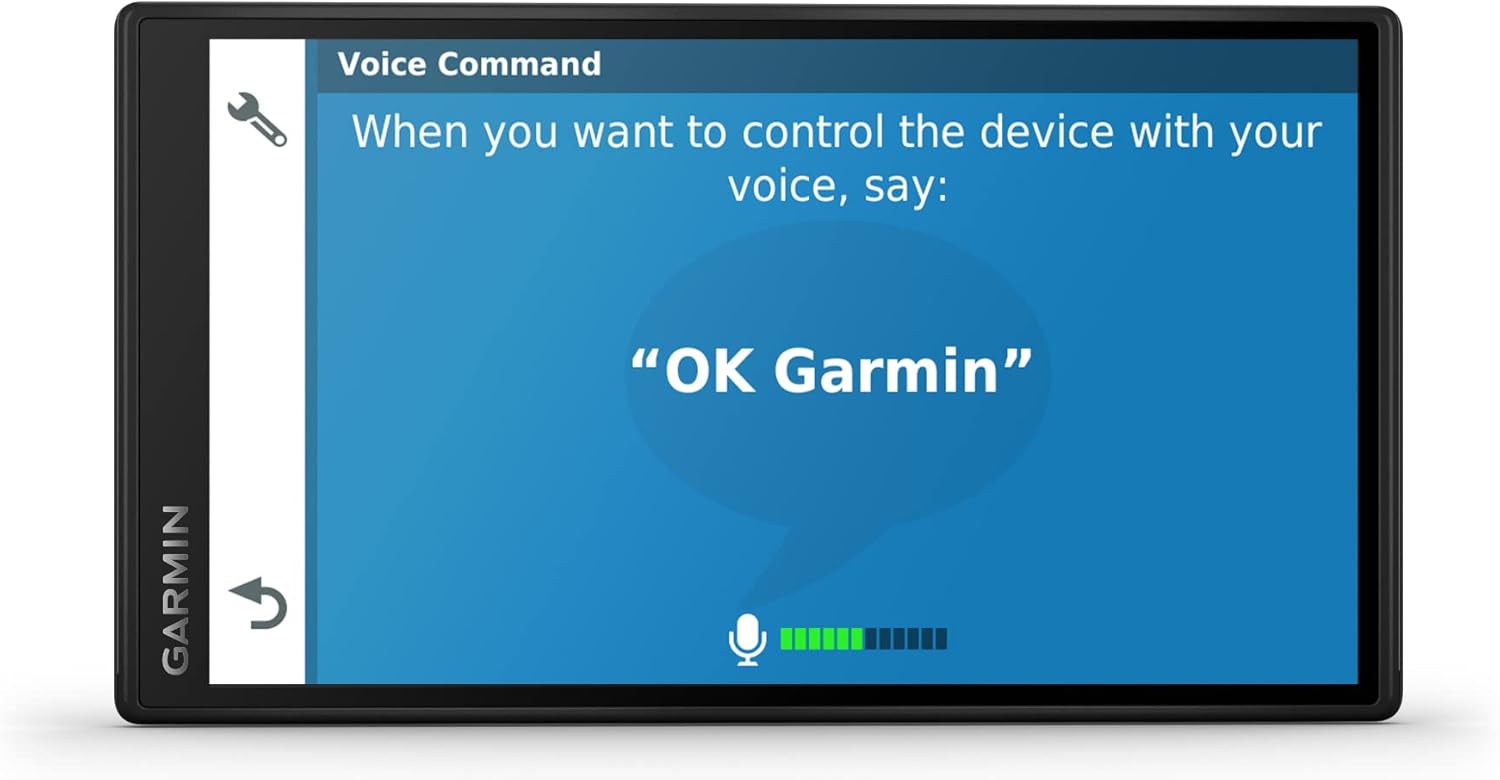
Image: The Garmin DriveSmart 55 screen showing the "Voice Command" interface, prompting the user to say "OK Garmin" to activate.
3. Real-time Traffic Information
The included traffic receiver/vehicle power cable provides real-time traffic updates, suggesting alternate routes to avoid delays. Ensure the cable is connected for this feature to function.
4. Smart Notifications
When paired with your smartphone, the DriveSmart 55 can display smart notifications for calls, texts, and app alerts directly on its screen.
5. Trip Planner
Use the Trip Planner feature to create and save multi-point routes, allowing you to organize your journeys in advance.
6. Points of Interest (POIs)
The device includes a comprehensive database of points of interest, including TripAdvisor ratings for hotels, restaurants, and attractions, as well as a National Parks Directory.
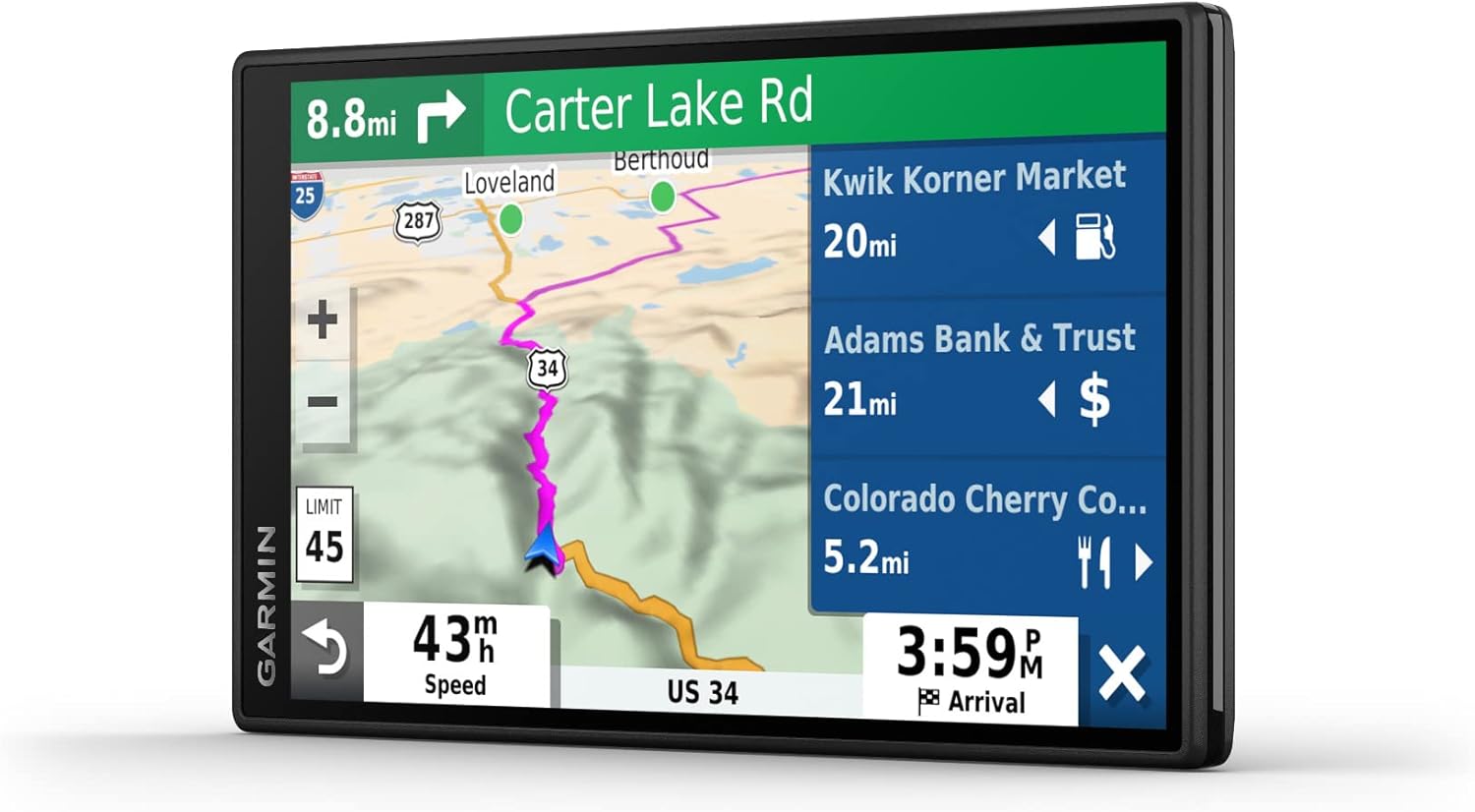
Image: The Garmin DriveSmart 55 displaying navigation with an overlay of nearby points of interest such as gas stations and restaurants.

Image: The Garmin DriveSmart 55 displaying navigation with real-time parking availability and pricing information.
Maintenance
1. Cleaning the Device
To clean the screen, use a soft, lint-free cloth. For stubborn marks, dampen the cloth with water or a screen cleaner designed for electronics. Avoid abrasive materials or harsh chemicals.
2. Software Updates
Regularly update your device's software and maps via Wi-Fi to ensure optimal performance and the most current navigation data. Connect to a Wi-Fi network and the device will prompt you for available updates.
3. Battery Care
The device has a battery life of approximately 1 hour. For longer trips, keep the device connected to vehicle power. Avoid exposing the device to extreme temperatures, which can affect battery life and performance.
Troubleshooting
Device Not Powering On
- Ensure the device is properly connected to vehicle power or fully charged.
- Check the vehicle's 12V power outlet for functionality.
- Perform a soft reset by holding the power button for 10-15 seconds.
No GPS Signal
- Ensure the device has a clear view of the sky. Obstructions like tall buildings or dense foliage can interfere with GPS reception.
- Move the vehicle to an open area.
- Allow several minutes for the device to acquire satellite signals.
Traffic Information Not Updating
- Verify that the traffic receiver/vehicle power cable is securely connected to both the device and the vehicle's power outlet.
- Ensure you are in an area with traffic coverage.
- Check for any software updates that might improve traffic reception.
Bluetooth Connectivity Issues
- Ensure Bluetooth is enabled on both the DriveSmart 55 and your smartphone.
- Make sure both devices are within close proximity.
- Try unpairing and re-pairing the devices.
- Restart both the DriveSmart 55 and your smartphone.
Specifications
| Feature | Detail |
|---|---|
| Brand | Garmin |
| Model Name | GRDRIVE55 |
| Model Number | 010-02037-02 |
| Screen Size | 5.5 inches |
| Display Type | WQVGA color TFT with white backlight, resistive touch |
| Resolution | 480 x 272 pixels |
| Connectivity Technology | Bluetooth, USB, Wi-Fi |
| Control Method | Voice, Touchscreen |
| Supported Satellite Navigation System | GPS |
| Battery Life | Up to 1 hour |
| Mounting Type | Dashboard Mount (suction cup) |
| Item Dimensions (L x W x H) | 5.4"L x 0.7"W x 3"H |
| Item Weight | 5.3 ounces |
Warranty Information
The Garmin DriveSmart 55 and Traffic GPS Navigator comes with a 1-year limited warranty from the date of purchase. This warranty covers defects in materials and workmanship under normal use. For specific terms and conditions, please refer to the warranty documentation included with your product or visit the official Garmin website.
Extended protection plans may be available for purchase:
- 2-Year Protection Plan
- 3-Year Protection Plan
Please note that these protection plans are separate from the manufacturer's limited warranty.
Support and Additional Resources
For further assistance, detailed instructions, or to download the full user manual, please refer to the following resources:
- Official User Manual (PDF): Download PDF Manual
- Garmin Support Website: Visit the official Garmin support website for FAQs, software downloads, and contact information.
Product Overview Video
Video: An overview of the Garmin DriveSmart 55 GPS unit, highlighting its Wi-Fi and Bluetooth capabilities. This video provides a visual guide to the device's features and functions.
Related documentsDriveSmart 55


Ask a question about this manual
Ask about setup, troubleshooting, compatibility, parts, safety, or missing instructions. Manuals+ will review the question and use this page’s manual context to help answer it.