1. Introduction
The ASUS Lyra Voice is a versatile 3-in-1 device combining a Wireless AC2200 Tri-Band Mesh Wi-Fi Router, a Bluetooth speaker, and an Amazon Alexa-enabled smart speaker. It is designed to provide seamless whole-home Wi-Fi coverage, high-quality audio, and convenient voice control for your smart home devices. Featuring ASUS AiMesh technology, it can integrate with other compatible ASUS routers to create a unified Wi-Fi network, and ASUS AiProtection ensures commercial-grade network security.
2. What's in the Box
- ASUS Lyra Voice Unit
- Power Cord
- Ethernet Cable
- Quick Start Guide (OSG)
- Warranty Card
3. Product Features
- All-in-1 AiMesh Gigabit Router with Smart Speaker: Combines mesh Wi-Fi, Bluetooth speaker, and Alexa voice assistant.
- AiMesh Support: Connects to other compatible ASUS routers to create a powerful and flexible whole-home Wi-Fi network.
- Smart-Home Ready with Alexa: Built-in Alexa compatibility eliminates the need for a separate Alexa-enabled device.
- AiProtection Classic: Features advanced parental controls powered by Trend Micro with website filters and scheduling for commercial-grade home network security.
- ASUS Router App: Enables PC-free setup, network management, and diagnostics for full network control.
- Dual-Stereo Speakers: Provides clear audio for music and voice interactions.
- Connectivity: Includes RJ45, Ethernet, Wi-Fi, and Bluetooth.

Figure 3.1: The ASUS Lyra Voice functions as a connected all-in-one device, integrating AiMesh Wi-Fi, Amazon Alexa, and a Bluetooth speaker.

Figure 3.2: The Lyra Voice includes AiProtection Pro, powered by Trend Micro, offering features like malicious site blocking and infection detection.

Figure 3.3: The Lyra Voice can extend your current Wi-Fi network, working with both ASUS and other brand routers.
4. Setup
- Power On: Connect the power cord to the Lyra Voice and plug it into a power outlet. Wait for the device to boot up.
- Connect to Modem: Use the provided Ethernet cable to connect your modem's LAN port to the Lyra Voice's WAN port.
- Download ASUS Router App: Download the ASUS Router app on your mobile device from your app store.
- Initial Configuration: Open the ASUS Router app and follow the on-screen instructions to set up your Lyra Voice. This includes creating your Wi-Fi network name (SSID) and password, and configuring Alexa.
- AiMesh Setup (Optional): If you are integrating the Lyra Voice into an existing ASUS AiMesh system, follow the instructions within the ASUS Router app to add it as an AiMesh node.

Figure 4.1: Rear view of the ASUS Lyra Voice showing the power switch, WAN port, LAN port, and DC-In socket for connectivity.
5. Operating Instructions
5.1 Wi-Fi Functionality
Once set up, the Lyra Voice provides a robust Wi-Fi network. Connect your devices (smartphones, tablets, computers, smart home devices) to the Wi-Fi network using the SSID and password you configured during setup. The tri-band design optimizes device connections for speed and stability.
5.2 Bluetooth Speaker Mode
To use the Lyra Voice as a Bluetooth speaker:
- Ensure Bluetooth is enabled on your mobile device.
- Press the Bluetooth button on the top of the Lyra Voice to enter pairing mode (the LED indicator will flash blue).
- Select 'ASUS Lyra Voice' from the list of available Bluetooth devices on your mobile device.
- Once paired, you can stream audio from your device to the Lyra Voice.
5.3 Amazon Alexa Voice Assistant
The Lyra Voice has Amazon Alexa built-in. To activate Alexa, simply say "Alexa" followed by your command. You can ask Alexa to play music, get news updates, control smart home devices, set alarms, and more.
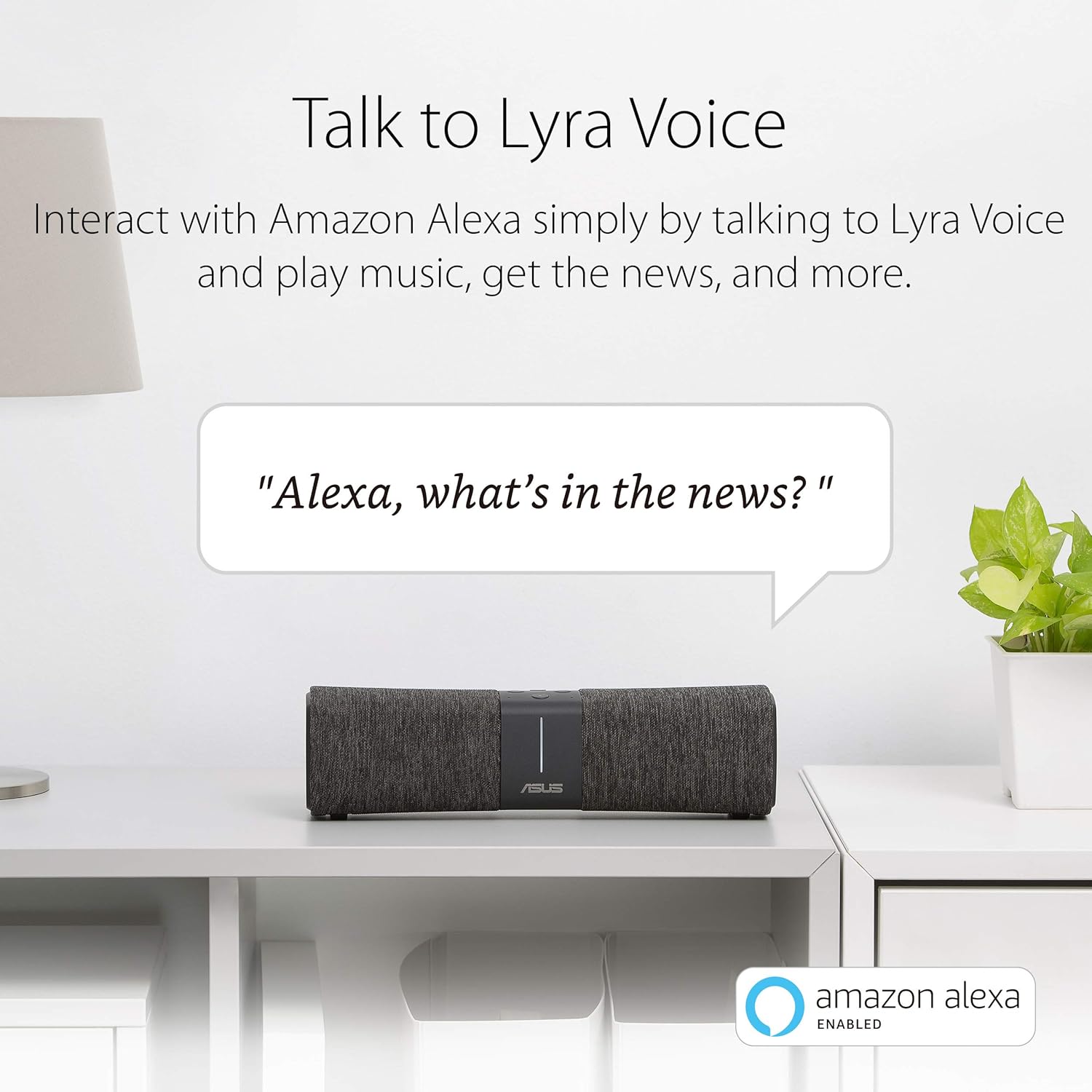
Figure 5.1: Interact with Amazon Alexa by speaking commands to your Lyra Voice.

Figure 5.2: Stream your favorite music and audio content from various platforms to the Lyra Voice.
Video 5.1: An official product video demonstrating the ASUS Lyra Voice with Amazon Alexa features and capabilities.
6. Maintenance
6.1 Firmware Updates
Regularly check for and install firmware updates via the ASUS Router app. Firmware updates provide performance improvements, security enhancements, and new features. It is recommended to keep your device's firmware up-to-date for optimal operation.
6.2 Cleaning
To clean the Lyra Voice, gently wipe the exterior with a soft, dry cloth. Do not use liquid cleaners or abrasive materials, as these can damage the device. Ensure the device is powered off before cleaning.
6.3 Optimal Placement
Place the Lyra Voice in a central location within your home, away from obstructions like large metal objects or thick walls, to maximize Wi-Fi coverage and signal strength. Avoid placing it near other electronic devices that may cause interference.
7. Troubleshooting
7.1 No Internet Connection
- Check if the Ethernet cable is securely connected between the modem and the Lyra Voice's WAN port.
- Restart your modem and then the Lyra Voice.
- Verify your internet service provider (ISP) connection is active.
7.2 Wi-Fi Signal Drops or Weak Signal
- Relocate the Lyra Voice to a more central position, away from potential interference sources.
- Ensure the firmware is up-to-date.
- If using AiMesh, ensure all nodes are within optimal range of each other.
7.3 Alexa Not Responding
- Check if the Lyra Voice has an active internet connection.
- Ensure the microphone is not muted (check the physical button on the device).
- Restart the Lyra Voice.
- Verify Alexa settings within the ASUS Router app or Amazon Alexa app.
8. Specifications
| Feature | Detail |
|---|---|
| Model Name | Lyra Voice |
| Wireless Standard | 802.11a, 802.11ac, 802.11b, 802.11g, 802.11n |
| Frequency Band Class | Tri-Band |
| Connectivity Technology | Bluetooth, Ethernet, RJ45, Wi-Fi, Wireless, Mesh |
| Product Dimensions | 2.95 x 10.62 x 2.95 inches |
| Item Weight | 1.5 pounds |
| Compatible Devices | Personal Computer |
| Included Components | Ethernet cable, Lyra Voice, OSG, power cord, warranty card |
| Color | Black |
9. Warranty Information
The ASUS Lyra Voice comes with a manufacturer's warranty. For detailed information regarding warranty terms, conditions, and duration, please refer to the warranty card included in your product packaging or visit the official ASUS support website. Keep your proof of purchase for warranty claims.
10. Support
For further assistance, technical support, or to download the latest drivers and firmware, please visit the official ASUS support website:
You can also find helpful resources and manage your device through the ASUS Router App.