
Introduction
Thank you for purchasing the Lobkin 7-Port USB 2.0 Hub. This device expands a single USB port on your computer into seven, allowing you to connect multiple USB peripherals simultaneously. It features individual on/off switches for each port and LED indicators for convenient operation. Please read this manual carefully to ensure proper use and optimal performance.
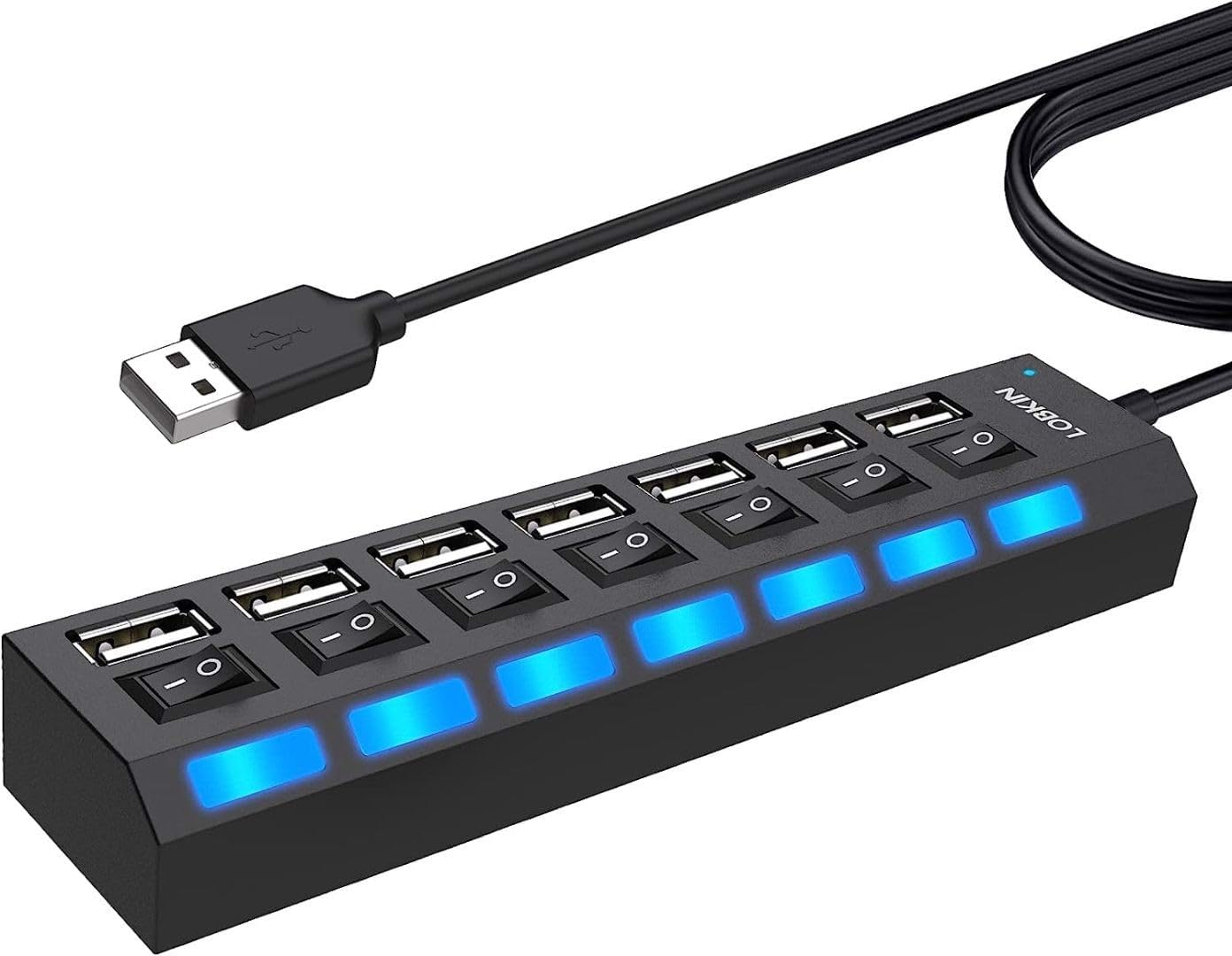
Image: The Lobkin 7-Port USB 2.0 Hub, a black rectangular device with seven USB ports, each featuring an individual on/off switch and a blue LED indicator. A USB-A cable extends from one end.
Product Features
- Multiple USB Ports: Expands one USB port on your computer into seven USB 2.0 ports.
- High-Speed Data Transfer: USB 2.0 interface supports data transfer rates up to 480 Mbps.
- Individual On/Off Switches: Each port has its own power switch to control connected devices independently.
- LED Indicators: Blue LED lights for each port indicate its operating status.
- Wide Compatibility: Compatible with Windows, Mac, and Linux operating systems.
- Compact and Portable Design: Slim, lightweight, and durable, making it ideal for travel, office, home, and school use.
Image: A close-up view highlighting one of the USB ports on the hub, showing the individual on/off switch and the illuminated blue LED indicator.
Setup
- Connect the Hub: Plug the USB-A connector of the Lobkin 7-Port USB 2.0 Hub into an available USB port on your computer (desktop, laptop, etc.).
- Driver Installation: The hub is plug-and-play and typically does not require any additional driver installation for most operating systems. Your computer should automatically recognize the device.
- Connect Peripherals: Connect your USB devices (e.g., USB drives, mouse, keyboard, printer) to the available ports on the hub.

Image: The Lobkin USB hub connected to a laptop, with several USB flash drives inserted into its ports, demonstrating its use for expanding connectivity.
Operating Instructions
- Powering On/Off Ports: Each USB port on the hub has an individual on/off switch. Press the switch to turn the port on or off.
- LED Indicators: When a port is active and powered on, its corresponding blue LED indicator will light up. This allows you to easily monitor the status of each connected device.
- Data Transfer: For optimal data transfer performance, it is recommended to use 2 to 3 ports simultaneously, especially for high-bandwidth devices.
- Compatibility: The hub supports various USB devices such as USB flash drives, external hard drives (self-powered), keyboards, mice, and other low-power peripherals.
Important Note on Charging:
This USB hub is primarily designed for data transfer and is NOT intended for charging high-power devices. The hub's charging current support is limited to 5V-1A, and the USB 2.0 version has a current limit of 500mA per port. Connecting high-power charging devices may result in insufficient power delivery or damage to the hub or device.

Image: A diagram showing the USB hub with a clear warning that it is not designed for charging high-power devices like tablets or smartphones, indicated by a red 'X' over charging icons.
Maintenance
- Cleaning: Use a soft, dry cloth to clean the surface of the hub. Avoid using liquid cleaners or solvents.
- Storage: Store the hub in a cool, dry place away from direct sunlight and extreme temperatures when not in use.
- Handling: Avoid dropping the device or subjecting it to strong impacts. Do not attempt to disassemble or repair the hub yourself.
Troubleshooting
- Device Not Recognized:
- Ensure the hub is securely plugged into your computer's USB port.
- Check if the individual switch for the connected port is turned on (blue LED should be lit).
- Try connecting the device directly to your computer's USB port to confirm the device itself is working.
- Restart your computer.
- Slow Data Transfer:
- Ensure you are using USB 2.0 compatible devices and ports.
- Avoid connecting too many high-bandwidth devices simultaneously.
- If using an external hard drive, ensure it has its own power supply.
- LED Not Lighting Up:
- Verify the hub is connected to a powered USB port on your computer.
- Ensure the individual switch for that port is in the 'on' position.
Specifications

Image: A diagram illustrating the physical dimensions of the Lobkin 7-Port USB 2.0 Hub, showing its length as 16.5 cm (6.5 inches), width as 3.5 cm (1.4 inches), and height as 2.5 cm (1 inch).
| Feature | Detail |
|---|---|
| Brand | LOBKIN |
| Model Number | LOBKIN-1277 |
| Hardware Interface | USB 2.0 |
| Total USB Ports | 7 |
| Data Transfer Rate | Up to 480 Mbps |
| Special Features | Individual LED Indicators, Portable, Lightweight |
| Compatible Devices | USB drives, Desktop computers, Laptops, Smartphones (for data transfer) |
| Compatible Operating Systems | Windows, Mac, Linux |
| Material | Plastic |
| Color | Black (with Blue LEDs) |
| Product Dimensions (L x W x H) | 16.5 cm x 3.5 cm x 2.5 cm (6.5 in x 1.4 in x 1 in) |
| Charging Current Limit | 5V-1A (Hub total), 500mA (per port, USB 2.0 standard) |
| UPC | 702735846570 |
Warranty and Support
For warranty information or technical support, please refer to the product packaging or contact Lobkin customer service directly. Keep your purchase receipt for warranty claims.