
Introduction
The GolfBuddy VOICE3 Band Type is an easy-to-use voice-enabled GPS golf rangefinder designed to provide accurate distance measurements on the golf course. This device connects to your smartphone via Bluetooth for automatic course data updates and features a Dynamic Green View to show the green shape from your perspective. This manual provides essential information for setting up, operating, maintaining, and troubleshooting your GolfBuddy VOICE3.
Package Contents
Please check that all items are present in your package:
- GolfBuddy VOICE3 (Band Type) Main Unit
- USB Charging Cable
- Instruction Manual (this document)

Image: The GolfBuddy VOICE3 device, USB charging cable, and a quick start guide are included in the package.
Product Overview
Familiarize yourself with the device's components and controls.
Front Display

Image: The device's display shows the current hole (H01), par (P4), signal strength, and distances to the front (320), center (334), and back (305) of the green. It also indicates the green shape (Dynamic Green View) and left/right green selection.
Side Buttons and Ports
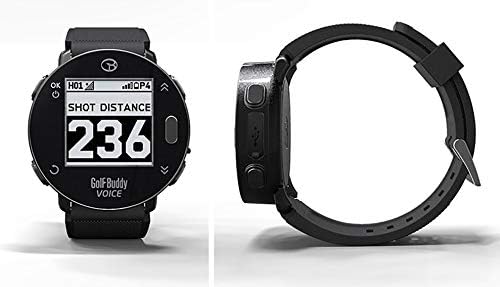
Image: A side view of the GolfBuddy VOICE3, illustrating the physical buttons for navigation and selection, and the MicroUSB charging port.
Setup
1. Charging the Device
Before first use, fully charge the GolfBuddy VOICE3. Connect the supplied USB charging cable to the device's MicroUSB port and plug the other end into a USB power adapter or a computer's USB port. The battery indicator on the display will show charging status.
2. Powering On/Off
- To Power On: Press and hold the Power button (usually marked 'OK' or a similar icon) until the screen illuminates.
- To Power Off: Press and hold the Power button until the power-off option appears, then confirm.
3. Initial Setup (Language, Time, Units)
Upon first power-on or after a reset, you may be prompted to set basic preferences:
- Language: Select your preferred language from the 8 available options (English, Japanese, French, Spanish, Italian, German, Chinese, Korean).
- Time: The device will automatically set the time once GPS signal is acquired.
- Units: Choose between Yards or Meters for distance measurement.
4. Course Data Update (Bluetooth Connection)
To ensure you have the latest course data, connect your GolfBuddy VOICE3 to a smartphone via Bluetooth:
- Download the official GolfBuddy app on your smartphone.
- Enable Bluetooth on your smartphone and the VOICE3 device.
- Pair the devices through the GolfBuddy app.
- Follow the app's instructions to download and update course data. The device supports over 30,000 courses worldwide.
Operating Instructions
1. Golf Mode and GPS Acquisition
Once powered on, the device will automatically attempt to acquire a GPS signal. Ensure you are in an open area for best signal reception. Once acquired, it will display nearby golf courses. Select your course to enter Golf Mode.

Image: The GolfBuddy VOICE3 worn on a wrist, showing the display with distances to the green during a golf round.
2. Distance Display
In Golf Mode, the main screen displays distances to the green:
- Front Edge: Distance to the front of the green.
- Center: Distance to the center of the green.
- Back Edge: Distance to the back of the green.
3. Dynamic Green View
The Dynamic Green View feature automatically rotates the green shape on the display to match your current position relative to the green, providing a more intuitive understanding of the green layout.
4. Shot Distance Measurement
To measure your shot distance:
- At your starting point, press the designated Shot Measurement button (refer to device diagram for exact button).
- Walk to where your ball landed. The device will display the distance traveled.
- Press the button again to reset for the next shot.
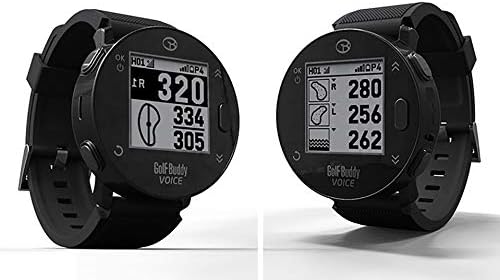
Image: The GolfBuddy VOICE3 display showing 'SHOT DISTANCE' and a measured distance of '236'.
5. Hazard Information
The device can provide distances to various hazards on the course. Navigate through the display modes using the side buttons to view hazard information.
6. Menu Navigation
Access settings and other functions through the main menu. Use the navigation buttons to scroll and select options.

Image: The GolfBuddy VOICE3 menu screen showing icons for Bluetooth connectivity, settings (gear icon), and two different activity tracking modes.
Maintenance
Cleaning
Wipe the device with a soft, damp cloth. Do not use harsh chemicals or abrasive cleaners. Ensure the charging port is dry before charging.
Storage
Store the device in a cool, dry place away from direct sunlight and extreme temperatures. For long-term storage, ensure the battery is partially charged (around 50%) to prolong its lifespan.
Battery Care
The device uses a rechargeable Lithium-ion battery. Avoid fully discharging the battery frequently. Charge the device regularly, especially if it has not been used for an extended period.
Troubleshooting
- Device not powering on: Ensure the device is fully charged. If it still doesn't power on, try connecting it to a different USB power source.
- No GPS signal: Move to an open area with a clear view of the sky. Ensure the device is in Golf Mode. It may take a few minutes to acquire a signal.
- Incorrect distances: Ensure your course data is up-to-date via the GolfBuddy app. Verify that the correct course and hole are selected on the device.
- Bluetooth connection issues: Ensure Bluetooth is enabled on both the device and your smartphone. Restart both devices and try pairing again through the GolfBuddy app.
- Display not responding: Try restarting the device. If the issue persists, contact customer support.
Specifications
| Brand | GolfBuddy |
| Model Name | VOICE3 |
| Connectivity Technology | Bluetooth |
| Map Type | Worldwide |
| Display Type | LCD 1.28" |
| Human Interface Input | Button |
| Battery | Rechargeable Lithium-ion (450mAh) |
| Max Registrable Courses | 40,000 courses |
| Supported Languages | 8 languages (Japanese, English, French, Spanish, Italian, German, Chinese, Korean) |
| Waterproof Performance | IP34 |
| Dimensions | 47.0 × 13.6 mm |
| Weight | 38g (main unit) |
Warranty and Support
For warranty information and customer support, please refer to the official GolfBuddy website or contact your local distributor. Keep your proof of purchase for warranty claims.