
Brightsign LS424
BrightSign LS424 Digital Signage Player User Manual
Model: LS424
Introduction
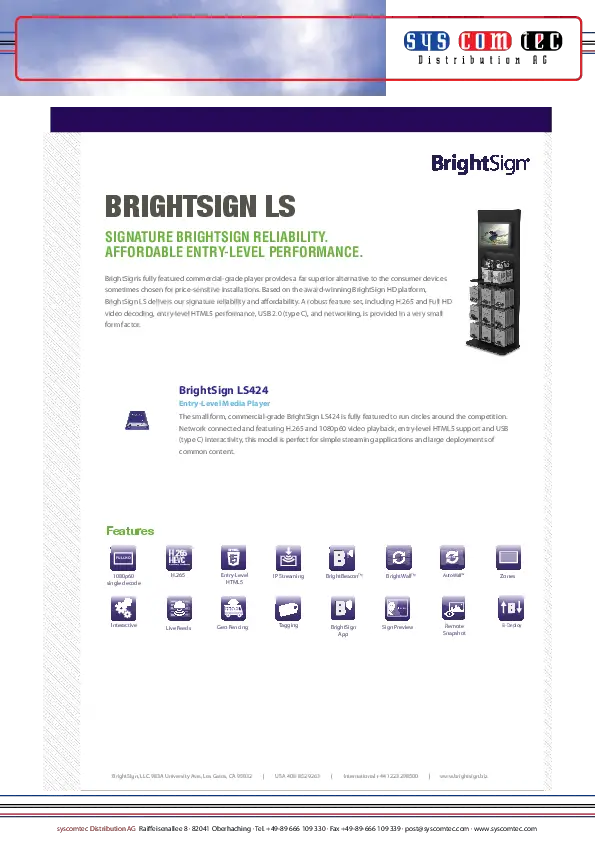
This manual provides comprehensive instructions for the setup, operation, and maintenance of your BrightSign LS424 Digital Signage Player. The LS424 is a commercial-grade, small-form factor player designed for reliable digital signage applications, featuring H.265 1080p60 video playback, entry-level HTML5 support, and USB interactivity. It is ideal for simple streaming applications and large deployments requiring common content.
Safety Information
- Ensure the device is placed on a stable, flat surface to prevent accidental falls.
- Do not expose the device to water, moisture, or extreme temperatures.
- Use only the power adapter supplied with the device. Using an incorrect adapter may damage the unit and void the warranty.
- Do not open the device casing. Refer all servicing to qualified personnel.
- Keep ventilation openings clear to prevent overheating.
Package Contents
Please verify that all items are present in your package:
- BrightSign LS424 Digital Signage Player
- Power Adapter
- Quick Start Guide (if included)
Setup
Follow these steps to set up your BrightSign LS424 player:
1. Insert MicroSD Card
Prepare a microSD card (not included) with your digital signage content and BrightSign OS. Insert the microSD card into the dedicated slot on the front of the player.

Figure 1: Front view of the BrightSign LS424, highlighting the USB-C port and microSD card slot. The microSD card slot is located on the right side of the front panel, designed for easy insertion of content and operating system cards.
2. Connect to Display
Connect an HDMI cable from the HDMI output port on the rear of the LS424 player to the HDMI input on your display or TV.

Figure 2: Rear view of the BrightSign LS424, displaying the HDMI output, 5V 2A power input, and Ethernet port. The HDMI port is on the left, essential for connecting to a display.
3. Connect to Network (Optional)
For network-connected applications, plug an Ethernet cable into the Ethernet port on the rear of the player and connect it to your network router or switch.
4. Connect USB Devices (Optional)
If your content requires interactivity, connect compatible USB devices (e.g., touchscreens, buttons) to the USB-C port on the front of the player.
5. Power On
Connect the supplied power adapter to the 5V 2A power input port on the rear of the player, then plug the adapter into a power outlet. The player will automatically power on and begin booting.
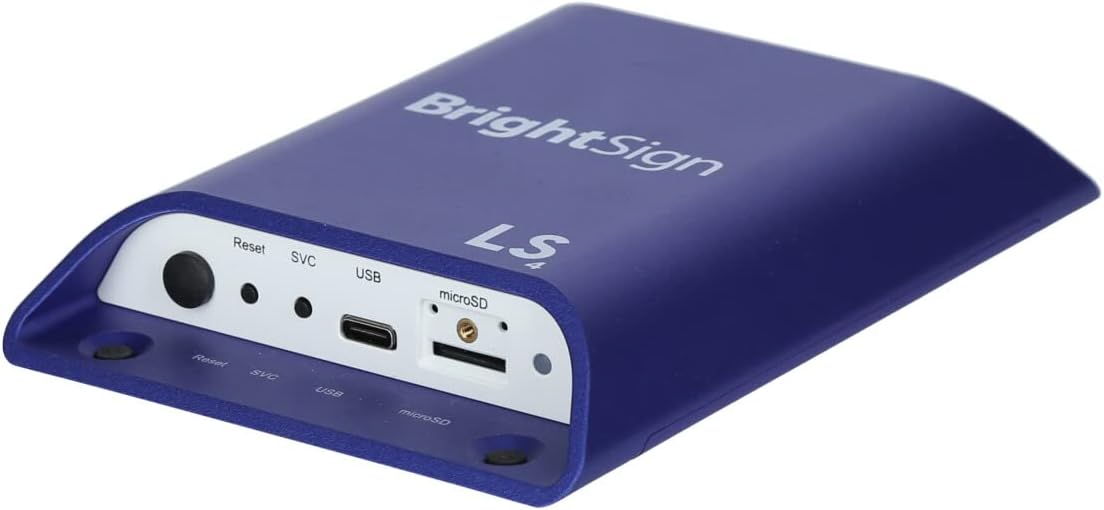
Figure 3: An overall perspective view of the BrightSign LS424 Digital Signage Player, showcasing its compact design and port accessibility.
Operating the BrightSign LS424
The BrightSign LS424 operates by playing content stored on its microSD card or streamed over the network. Content is typically created and published using BrightSign's proprietary software, BrightAuthor.
Content Playback
- Automatic Playback: Once powered on with a valid microSD card containing BrightSign content, the player will automatically begin playback.
- H.265 Decoding: The player supports H.265 video decoding, allowing for smaller file sizes and lower bitrates while maintaining high-quality 1080p60 video playback.
- HTML5 Support: The hardware-accelerated engine supports entry-level HTML5 content, enabling dynamic and interactive presentations.
Advanced Features
- BrightBeacon: With an optional wireless/Bluetooth module, the LS424 supports 2-way Bluetooth/Beacon communication for interaction with mobile devices.
- BrightWall: Achieve synchronized playback across multiple displays for impressive video wall installations.
- AutoWall: Utilize HTML5 capabilities to create unique and flexible multimedia video walls.
Content Updates
Content can be updated by replacing the microSD card or, if networked, by publishing new content through BrightSign Network or local network publishing tools.
Maintenance
- Cleaning: Use a soft, dry cloth to clean the exterior of the player. Do not use liquid cleaners or aerosols.
- Ventilation: Ensure the player's ventilation openings are not obstructed to prevent overheating.
- Firmware Updates: Periodically check the BrightSign website for firmware updates to ensure optimal performance and access to new features. Follow the instructions provided by BrightSign for updating firmware.
Troubleshooting
| Problem | Possible Cause | Solution |
|---|---|---|
| No display output |
|
|
| Content not playing or freezing |
|
|
| Network connectivity issues |
|
|
For further assistance, please refer to the official BrightSign support resources or contact their customer service.
Specifications
| Feature | Detail |
|---|---|
| Model | LS424 |
| Dimensions (LxWxH) | 7.83 x 7.24 x 2.95 inches |
| Weight | 5.6 ounces |
| Video Decoding | H.265 1080p60 |
| HTML Support | Entry-level HTML5 (Hardware-accelerated) |
| Storage | MicroSD slot (supports up to 8 GB Digital Storage Capacity mentioned in specs, but typically supports larger) |
| Connectivity | Ethernet, USB 2.0 (Type C), Bluetooth (with optional module) |
| Output | HDMI |
| Power Input | 5 Volts, 2 Amps |
| First Available Date | January 7, 2019 |
Warranty and Support
For information regarding product warranty, technical support, and service, please visit the official BrightSign website or contact their authorized distributors. Keep your purchase receipt as proof of purchase for warranty claims.
Online Resources:
Related documentsLS424


Ask a question about this manual
Ask about setup, troubleshooting, compatibility, parts, safety, or missing instructions. Manuals+ will review the question and use this page’s manual context to help answer it.