
NADAMOO B07LG4TBVZ
NADAMOO 2D Wired Barcode Scanner (Model B07LG4TBVZ) User Manual
Your guide to efficient and reliable barcode scanning.
1. Introduction
The NADAMOO 2D Wired Barcode Scanner is a versatile and reliable device designed for efficient barcode data capture. This scanner utilizes CMOS imaging technology to read both 1D and 2D barcodes from various surfaces, including paper, computer screens, and mobile phone displays. Its plug-and-play USB wired connection ensures easy setup and compatibility with a wide range of operating systems.
2. Setup
The NADAMOO 2D Wired Barcode Scanner is designed for simple plug-and-play operation, requiring no additional driver installation.
2.1 Connecting the Scanner
- Locate an available USB port on your computer (PC, Mac, or Linux system).
- Plug the USB cable from the scanner into the USB port on your computer.
- The scanner will automatically be recognized by your operating system and installed as a keyboard device.
- Open a text editor, spreadsheet, or any application where you want the scanned data to appear. The scanner is now ready for use.

Figure 2.1: USB Plug & Play connection. Simply connect the scanner's USB cable to your computer.
2.2 System Compatibility
This scanner is compatible with most common operating systems, including:
- Windows XP/7/8/10
- Mac OS
- Linux

Figure 2.2: The scanner is compatible with Windows, Mac OS, and Linux operating systems.
2.3 Setup Demonstration Video
Video 2.1: This video demonstrates the wired connection process and basic scanning functionality of the NADAMOO 2D Barcode Scanner.
3. Operating Instructions
The scanner features CMOS imaging technology, enabling it to read various barcode types from different sources.
3.1 Scanning Barcodes
To scan a barcode, aim the scanner's light at the barcode and press the trigger. A successful scan will typically be indicated by a beep and/or a light indicator.

Figure 3.1: CMOS Image Scanning Technology allows scanning from computer screens, phone screens, and paper.
3.2 Supported Barcode Types
The scanner supports a wide range of 1D and 2D barcode symbologies:
- 1D Barcodes: UPC / EAN (including complement code), Code128, Code93, Code11, Codabar, Code39, Code 39 Full ASCII, Industrial 2 of 5, Interleaved 2 of 5, Matrix 2 of 5, MSI, GS1.
- 2D Barcodes: QR Code, Data Matrix, PDF417, Micro PDF417, Aztec Code.
Special Capabilities:
- Can read reverse 1D barcodes (white barcode on black background).
- Can read reverse QR Code, reverse Data Matrix, reverse Aztec code.
Note: This scanner cannot read reverse PDF417 or Micro PDF417 barcodes.
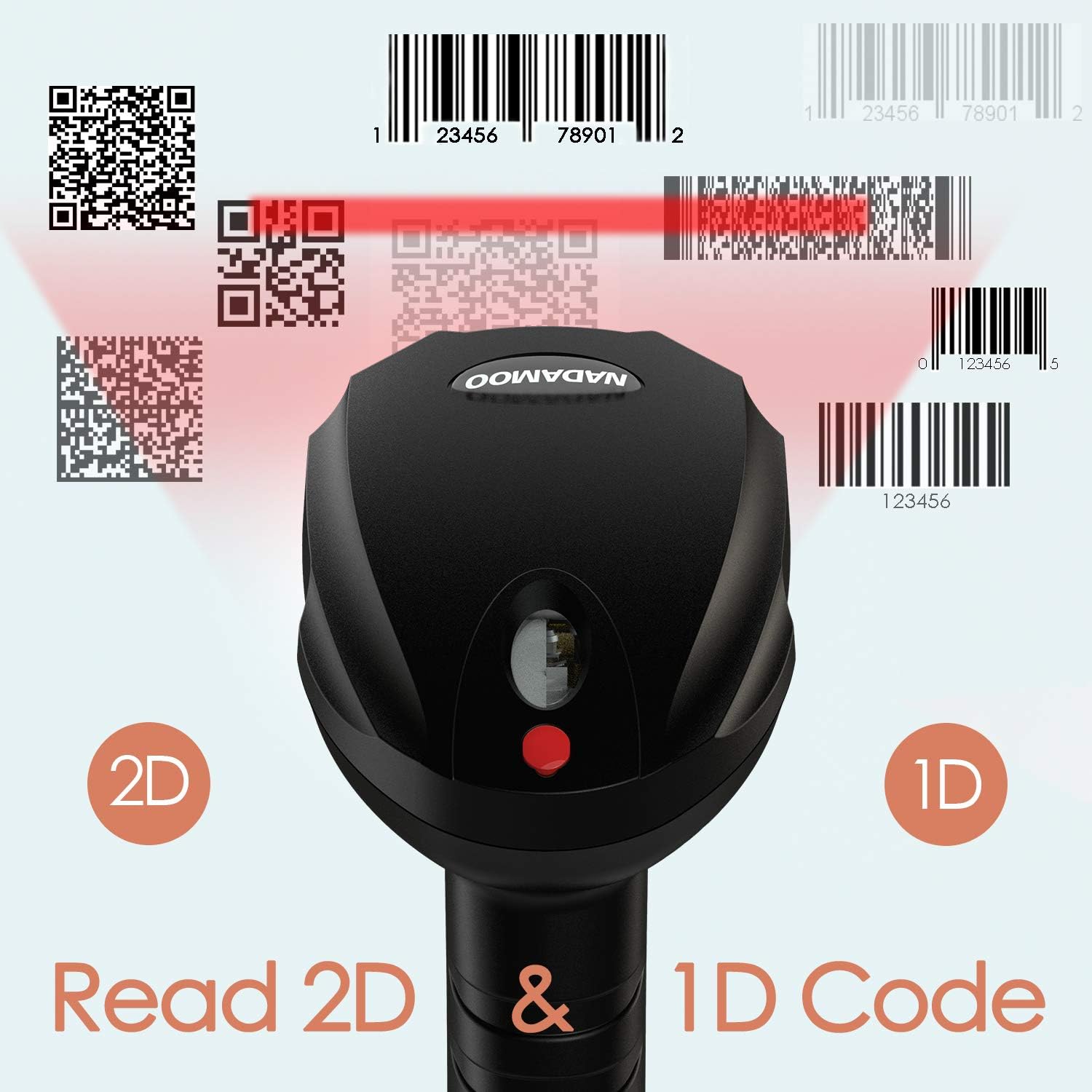
Figure 3.2: The scanner is capable of reading both 1D and 2D barcode types.
3.3 Scanning Modes
The scanner offers multiple scanning modes to suit different operational needs:
- Manual Mode: Press the trigger to scan each barcode individually.
- Continuous Scanning Mode: The scanner continuously emits a scan line, reading barcodes as they pass through the field of view without needing to press the trigger.
- Auto-Induction Mode: The scanning laser automatically turns on to read a barcode once it is detected within the scanning area.
4. Advanced Features
4.1 Barcode Programmability
The scanner supports advanced programming features to customize barcode output:
- Insert/Delete Characters: You can configure the scanner to insert or delete customized characters within the scanned barcode data.
- Termination Strings: Support for adding various termination strings, such as Tab, Enter, CR&LF (Carriage Return & Line Feed), Home, etc., after each scan. This is useful for automating data entry into specific fields.

Figure 4.1: The scanner supports programming for adding or deleting characters in scanned data.
5. Specifications
| Feature | Description |
|---|---|
| Model | B07LG4TBVZ |
| Connectivity Technology | USB Cable, Wired |
| Compatible Devices | Desktop, Laptop, Tablet |
| Scanning Technology | CMOS Imaging |
| Supported 1D Barcodes | UPC / EAN, Code128, Code93, Code11, Codabar, Code39, Industrial 2 of 5, Interleaved 2 of 5, Matrix 2 of 5, MSI, GS1 |
| Supported 2D Barcodes | QR Code, Data Matrix, PDF417, Micro PDF417, Aztec Code |
| Scanning Modes | Manual, Continuous, Auto-Induction |
| Item Weight | 9.6 ounces |
| Package Dimensions | 7.2 x 4 x 3.2 inches |
| Manufacturer | NADAMOO |
| UPC | 757290704063 |
6. Troubleshooting
If you encounter issues with your NADAMOO 2D Wired Barcode Scanner, please refer to the following common troubleshooting steps:
- Scanner Not Responding: Ensure the USB cable is securely connected to both the scanner and the computer. Try plugging the scanner into a different USB port or a different computer to rule out port or computer issues.
- No Data Output: Verify that the scanner is properly recognized by your operating system. Open a simple text editor (like Notepad) and try scanning a known good barcode. If data appears, the scanner is working, and the issue might be with the application you are using.
- Incorrect Data Output: If the scanned data is incorrect or incomplete, ensure the barcode is clean, undamaged, and within the scanner's optimal reading range. Check the scanner's programming settings for any custom prefixes, suffixes, or character modifications that might be altering the output.
- Unable to Scan Specific Barcodes: Confirm that the barcode type you are trying to scan is supported by the device (refer to Section 3.2). For screen scanning, ensure the screen brightness is adequate and there is no glare.
- No Beep/Light Indicator: Check if the scanner's sound and indicator light settings have been disabled. Refer to the full programming manual (if available) for instructions on enabling these features.
For further assistance, please contact NADAMOO customer support.
7. Warranty and Support
NADAMOO products are designed for reliability and performance. For information regarding product warranty, technical support, or service, please visit the official NADAMOO website or contact their customer service department. Keep your purchase receipt for warranty claims.
Ask a question about this manual
Ask about setup, troubleshooting, compatibility, parts, safety, or missing instructions. Manuals+ will review the question and use this page’s manual context to help answer it.