1. Introduction
The Corsair LL120 RGB LED 120mm PWM White triple fan kit is designed to provide efficient airflow and static pressure for PC cooling. Each fan features 16 individually addressable RGB LEDs, allowing for extensive lighting customization. This kit includes the Corsair Lighting Node PRO for software control via Corsair iCUE, enabling users to manage both lighting effects and fan speeds.
2. What's in the Box
Verify that all components are present in your package:
- 3x CORSAIR LL120 RGB White Fans
- 12x Mounting Screws
- 1x Lighting Node PRO
- 1x RGB LED Fan Hub
- 1x Quick Start Guide

Image: A single Corsair LL120 RGB fan, showcasing its white frame and translucent blades with a central Corsair logo, illuminated with a rainbow of colors.
3. Key Features
- Dual RGB Lighting Loop: Each fan is equipped with 16 individually addressable RGB LEDs, split between two separate light loops, offering extensive customization options.
- Striking White Housing: The white fan housing is designed to reflect light, enhancing the brightness of the RGB effects and complementing other white Corsair components.
- Dynamic PWM Control: Allows for precise fan speed adjustment from 360 RPM to 2,200 RPM, enabling users to balance noise levels and airflow as needed.
- Corsair iCUE Software Integration: The included Lighting Node PRO enables control over lighting patterns, effects, and fan speeds through the powerful Corsair iCUE software.
- High Airflow and Static Pressure: The 120mm fan blade design is optimized for both high airflow (63 CFM) and static pressure (3.0 mmH2O), ensuring effective cooling.
4. Setup and Installation
Follow these steps to install your Corsair LL120 RGB fans:
- Mount the Fans: Securely attach the LL120 RGB fans to your PC case using the provided mounting screws. Ensure proper orientation for desired airflow (intake or exhaust).
- Connect to RGB LED Fan Hub: Connect each fan's RGB cable to an available port on the RGB LED Fan Hub. The hub supports up to six fans.
- Connect Fan Hub to Lighting Node PRO: Connect the RGB LED Fan Hub to the Lighting Node PRO using the provided cable.
- Connect Lighting Node PRO: Connect the Lighting Node PRO to an available internal USB 2.0 header on your motherboard and to a SATA power connector from your power supply.
- Connect Fan Power: Connect each fan's 4-pin PWM power cable directly to an available fan header on your motherboard or to a fan controller.
- Install Corsair iCUE Software: Download and install the latest version of Corsair iCUE software from the official Corsair website. This software is essential for controlling RGB lighting and fan speeds.
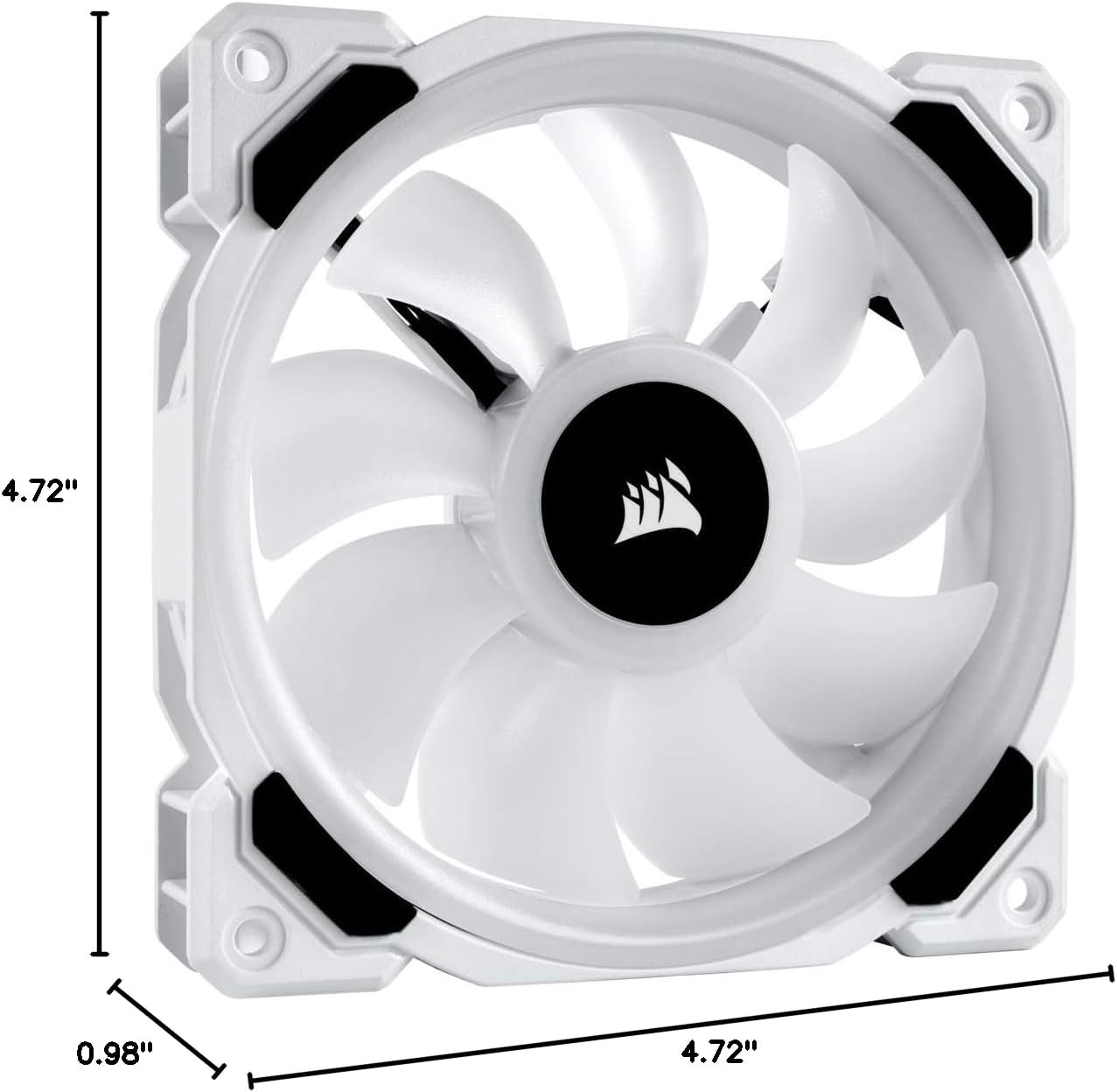
Image: A diagram illustrating the dimensions of the Corsair LL120 RGB fan, showing its 4.72-inch length and width, and 0.98-inch thickness.

Image: A close-up view of a black 4-pin power connector, typical for PC fans, showing the four pins for power and PWM control.
5. Operating Instructions
Once installed, the Corsair LL120 RGB fans are controlled via the Corsair iCUE software:
- RGB Lighting Control: Open the iCUE software to access a wide array of preset lighting effects or create your own custom patterns. You can synchronize lighting across all connected Corsair RGB devices.
- Fan Speed Adjustment: Use iCUE to set custom fan curves based on system temperatures, or select from predefined profiles (e.g., Quiet, Balanced, Extreme) to optimize cooling performance and noise levels.
Video: An official Corsair video showcasing the various RGB lighting effects and customization options available with the Corsair LL Series, LL120 RGB fans.
6. Maintenance
To ensure optimal performance and longevity of your Corsair LL120 RGB fans:
- Regular Cleaning: Periodically clean the fan blades and housing to remove dust buildup. Use compressed air or a soft brush. Ensure the PC is powered off before cleaning.
- Check Connections: Occasionally verify that all power and RGB connections are secure to prevent intermittent issues.
- Software Updates: Keep your Corsair iCUE software updated to benefit from the latest features, performance improvements, and bug fixes.
7. Troubleshooting
If you encounter issues with your Corsair LL120 RGB fans, consider the following:
- Fans Not Spinning:
- Ensure all 4-pin PWM power cables are securely connected to the motherboard or fan controller.
- Check that the Lighting Node PRO is receiving power via the SATA connector.
- Verify fan settings within the Corsair iCUE software.
- RGB Lighting Not Working:
- Confirm that the RGB cables are correctly connected to the RGB LED Fan Hub and the hub is connected to the Lighting Node PRO.
- Check the Lighting Node PRO's USB connection to the motherboard.
- Open Corsair iCUE and ensure the fans are detected and lighting effects are configured. Update iCUE firmware if necessary.
- Excessive Noise:
- Adjust fan speed profiles in Corsair iCUE to a quieter setting.
- Inspect fans for any obstructions or loose components.
8. Specifications
| Feature | Specification |
|---|---|
| Product Dimensions | 4.72"L x 0.98"W x 4.72"H |
| Brand | Corsair |
| Power Connector Type | 4-Pin |
| Voltage | 13.2 Volts |
| Cooling Method | Fan |
| Compatible Devices | Desktop |
| Noise Level | 36 Decibels |
| Material | Copper |
| Maximum Rotational Speed | 2200 RPM |
| Air Flow Capacity | 63 Cubic Feet Per Minute |
| UPC | 840006605584 |
| Item Model Number | CO-9050092-WW |
9. Warranty and Support
For detailed warranty information, please refer to the warranty card included with your product or visit the official Corsair website. Technical support and additional resources can be found on the Corsair support page.
Visit Corsair Support for assistance.