
Ajazz AK50
Ajazz AK50 Mechanical Keyboard User Manual
Model: AK50 with Blue Switches
1. Introduction
The Ajazz AK50 is a high-performance mechanical keyboard designed for both gaming and general use. It features durable Blue mechanical switches, a 104-key standard layout, and customizable yellow LED backlighting. This manual provides detailed instructions for setting up, operating, maintaining, and troubleshooting your keyboard to ensure optimal performance and longevity.
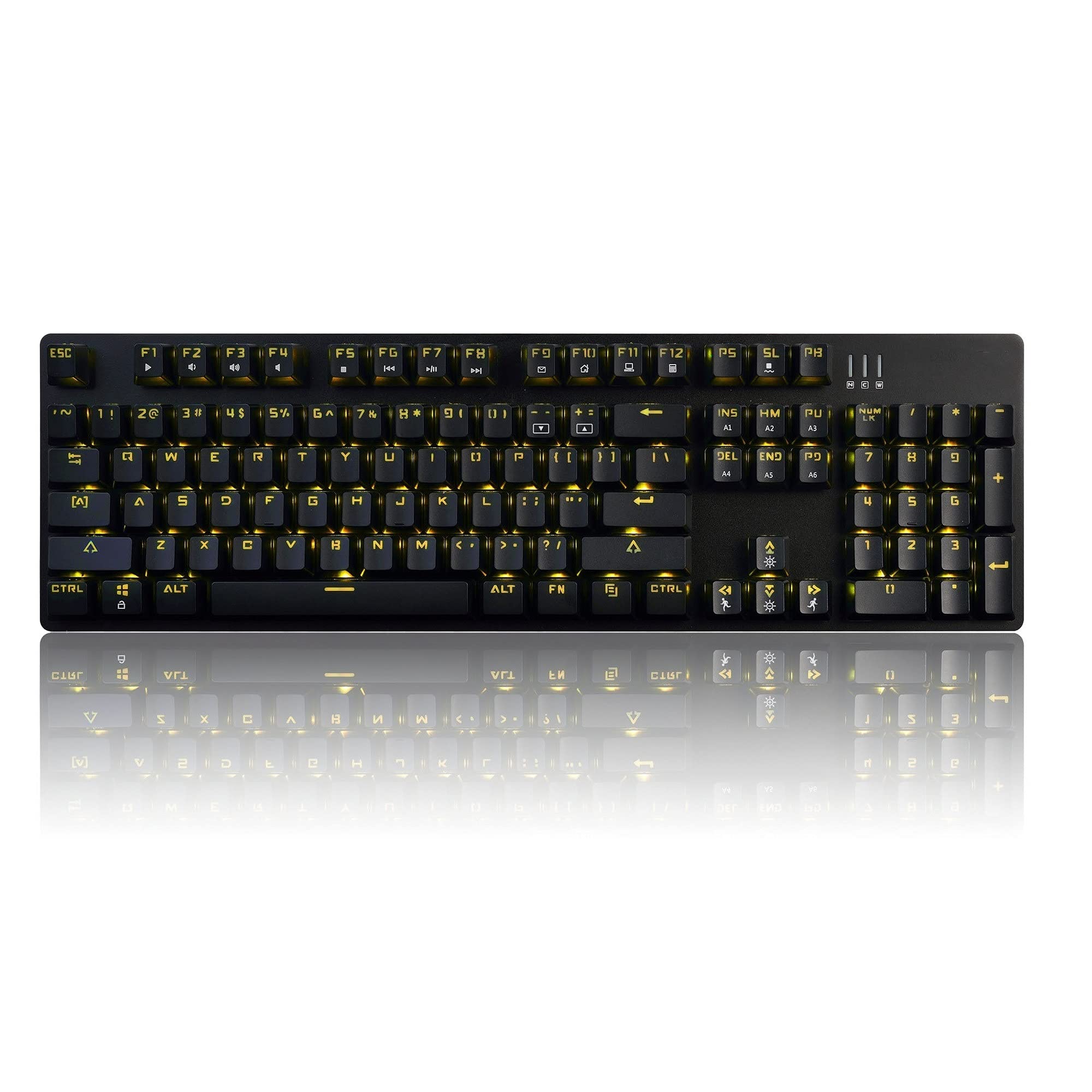
Image 1.1: The Ajazz AK50 Mechanical Keyboard, showcasing its full layout and yellow LED backlighting.
2. Package Contents
Please verify that all items are present in your package:
- Ajazz AK50 Mechanical Keyboard
- USB Cable (attached)
- User Manual (this document)
3. Setup Instructions
- Connect the Keyboard: Locate an available USB 2.0 port on your computer. Insert the USB connector of the keyboard cable into the USB port.

Image 3.1: The Ajazz AK50 keyboard ready for connection to a computer via its USB cable.
- Driver Installation: The Ajazz AK50 is a plug-and-play device. Your operating system (Windows 10/8/7 XP Vista, Mac OS, Linux) will automatically detect and install the necessary drivers. No additional software installation is required for basic functionality.
- Placement: Position the keyboard comfortably on your desk. The keyboard features adjustable feet on the underside to change the typing angle if desired.
4. Operating Instructions
4.1 Key Features and Layout
The Ajazz AK50 features a 104-key standard layout with Blue mechanical switches, providing tactile feedback and an audible click. The ergonomic R5 key design aims to reduce fatigue during extended use.

Image 4.1: Angled view of the keyboard, highlighting the keycap profile and layout.
The keyboard supports 100% anti-ghosting across all 104 keys, ensuring that every keystroke is registered accurately, even during rapid input.
4.2 Backlighting Control
The keyboard features yellow LED backlighting with multiple modes and customization options.
- Default Backlight Modes: The keyboard comes with 8 pre-set backlight modes. Use the FN + INS key combination to cycle through these modes.
- Custom Backlight Modes: 5 custom backlight modes are available for personalized lighting effects. Refer to the specific key combinations for programming these modes (usually involving FN + a specific key to enter programming mode, then selecting keys to light up, and FN + the same key to save).
- Brightness Adjustment: Adjust the backlight brightness using dedicated function keys or combinations (e.g., FN + Up/Down Arrow).
- Speed Adjustment: Adjust the speed of dynamic backlight effects using dedicated function keys or combinations (e.g., FN + Left/Right Arrow).

Image 4.2: A close-up view of the keyboard's keys, illustrating the yellow LED backlighting and keycap design.
4.3 Multimedia and Function Keys
The F1-F12 keys, when combined with the FN key, provide access to various multimedia and system functions. Specific functions are typically indicated by icons on the keycaps.
| Key Combination | Function |
|---|---|
| FN + F1 | My Computer |
| FN + F2 | Search |
| FN + F3 | Calculator |
| FN + F4 | Media Player |
| FN + F5 | Previous Track |
| FN + F6 | Next Track |
| FN + F7 | Play/Pause |
| FN + F8 | Stop |
| FN + F9 | Mute |
| FN + F10 | Volume Down |
| FN + F11 | Volume Up |
| FN + F12 | Lock Keyboard |
| FN + WIN | Lock/Unlock Windows Key |
5. Maintenance and Care
Proper maintenance ensures the longevity and performance of your Ajazz AK50 keyboard.
- Cleaning the Keyboard:
- Disconnect the keyboard from your computer before cleaning.
- Use a soft, lint-free cloth slightly dampened with water or a mild cleaning solution to wipe the keycaps and frame. Avoid excessive moisture.
- For dust and debris between keys, use compressed air.
- The keyboard features a removable bezel cover, which can be detached for easier cleaning of the keyboard base and keycaps. Gently pry it off from the edges.
- Avoid Spills: Keep liquids away from the keyboard to prevent damage to the internal components.
- Storage: When not in use for extended periods, store the keyboard in a clean, dry environment.
6. Troubleshooting
If you encounter issues with your Ajazz AK50 keyboard, refer to the following common solutions:
| Problem | Possible Solution(s) |
|---|---|
| Keyboard not responding. |
|
| Backlight not working or stuck. |
|
| Keys are not registering or double-typing. |
|
7. Technical Specifications
| Feature | Detail |
|---|---|
| Brand | Ajazz (FIRSTBLOOD ONLY GAME.) |
| Model | AK50 Blue Switches |
| Keyboard Type | Mechanical Gaming Keyboard |
| Switch Type | Blue Switches (50 million keystroke lifespan) |
| Key Layout | 104 Standard Keys |
| Anti-Ghosting | 100% Anti-Ghosting |
| Backlighting | Yellow LED Backlit (8 default modes, 5 custom modes) |
| Connectivity | USB 2.0 (Wired, 1.8m braided cable) |
| Operating System Compatibility | Windows 10/8/7 XP Vista, Mac OS, Linux |
| Dimensions (LxWxH) | 43.41 x 12.29 x 3.61 cm |
| Weight | 780 g |
| Material | Aluminum and ABS Construction |
| Special Features | Ergonomic R5 key design, Removable bezel |
8. Warranty and Support
The Ajazz AK50 Mechanical Keyboard comes with a 1-year manufacturer's warranty. Additionally, a 30-day money-back guarantee is offered from the date of purchase.
For technical support, warranty claims, or any product-related inquiries, please contact your retailer or the manufacturer directly through their official support channels. Please retain your proof of purchase for warranty validation.
Related documentsAK50


Ask a question about this manual
Ask about setup, troubleshooting, compatibility, parts, safety, or missing instructions. Manuals+ will review the question and use this page’s manual context to help answer it.