1. Introduction
Thank you for choosing the Itek GGC 49-inch Curved Monitor R3800. This monitor is designed to provide an immersive visual experience with its UltraWide DQHD 5120x1440 resolution, 144Hz refresh rate, and 1ms response time IPS panel. This manual provides essential information for setting up, operating, maintaining, and troubleshooting your new monitor. Please read it thoroughly before use.
2. Safety Information
- Ensure the monitor is placed on a stable, level surface to prevent accidental falls.
- Do not block ventilation openings. Allow adequate space around the monitor for proper airflow.
- Use only the power adapter and cables supplied by the manufacturer.
- Avoid exposing the monitor to extreme temperatures, humidity, or direct sunlight.
- Disconnect the power cable from the outlet before cleaning. Use a soft, dry cloth for cleaning. Do not use liquid cleaners or aerosol sprays.
- Do not attempt to repair the monitor yourself. Refer all servicing to qualified personnel.
3. Package Contents
Please check the package for the following items:
- Itek GGC 49-inch Curved Monitor
- DisplayPort Cable
- Power Adapter
- VESA Connector Screws (for wall mounting)
- User Manual (this document)
4. Physical Overview
The Itek GGC 49-inch Curved Monitor features a sleek, three-side frameless design and a robust stand with height, tilt, and swivel adjustments.

Figure 4.1: Front view of the Itek GGC 49-inch Curved Monitor, showcasing its key features and design.
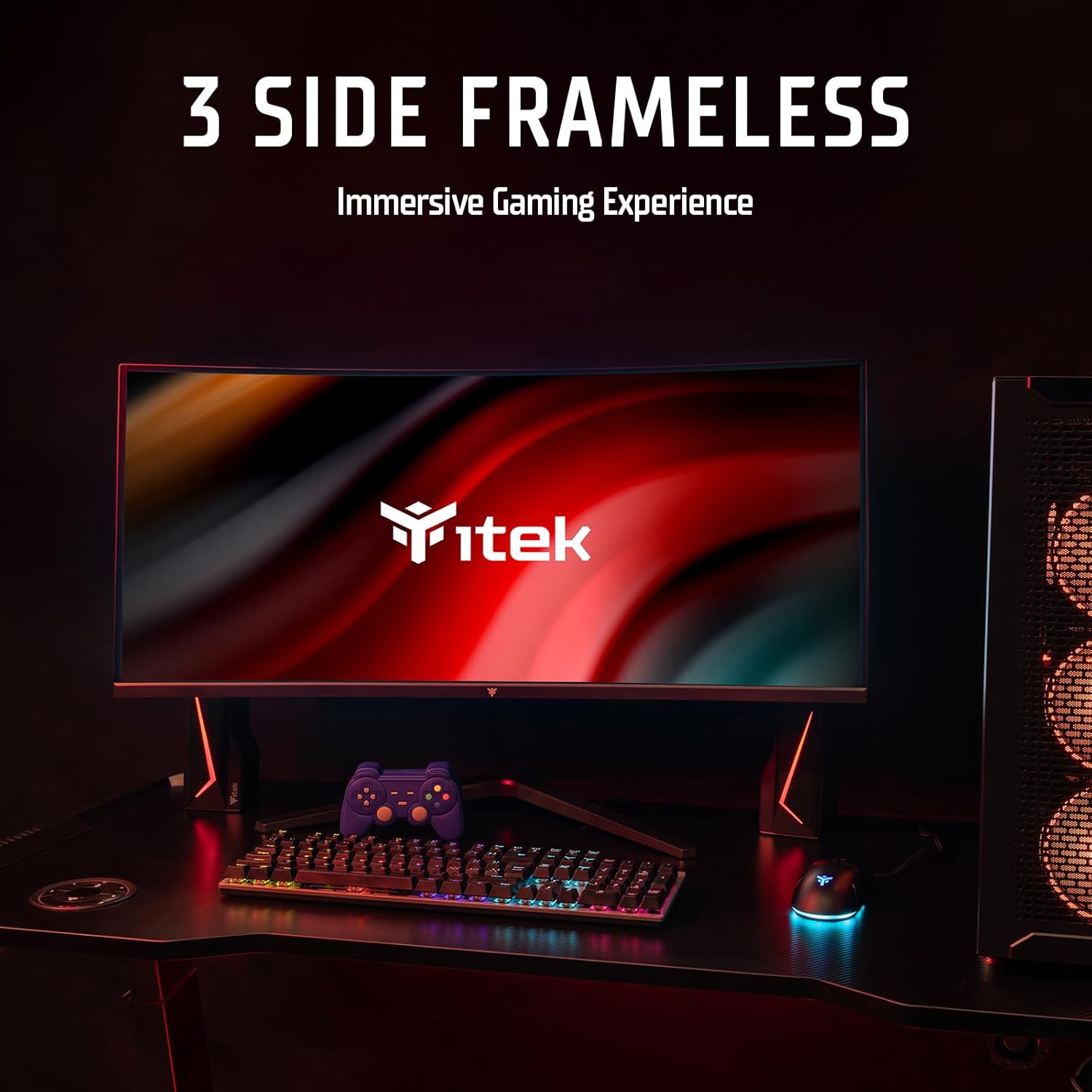
Figure 4.2: The monitor's three-side frameless design integrated into a desktop setup.
4.1 Connection Ports
The monitor is equipped with a variety of input and output ports located on the rear panel for versatile connectivity.

Figure 4.3: Rear view illustrating the monitor's connection ports.
- HDMI 2.1 (x2): For connecting to computers, gaming consoles, and other HDMI-compatible devices.
- DisplayPort 1.4 (x1): For high-resolution and high-refresh-rate connections to computers.
- USB-C (x1): Supports video input, data transfer, and power delivery up to 90W for compatible devices.
- USB A (x2): For connecting peripherals like keyboards, mice, or USB drives (requires USB-B upstream connection).
- USB B (x1): Upstream port to enable the monitor's USB A ports.
- Audio Out (x1): 3.5mm jack for connecting external speakers or headphones.
5. Setup
5.1 Stand Assembly
- Carefully remove the monitor and stand components from the packaging.
- Attach the stand base to the stand neck using the provided screws.
- Align the assembled stand with the mounting slot on the back of the monitor and secure it firmly.
- Place the monitor on a stable, flat surface.
5.2 Connecting to a Computer
Choose one of the following connection methods:
- DisplayPort: Connect one end of the DisplayPort cable to the DP port on your computer's graphics card and the other end to the DisplayPort input on the monitor. This is recommended for optimal performance (5120x1440 at 144Hz).
- HDMI: Connect one end of an HDMI cable to your computer's HDMI output and the other end to an HDMI input on the monitor.
- USB-C: If your computer supports video output via USB-C (DisplayPort Alternate Mode), connect a USB-C cable from your computer to the monitor's USB-C port. This connection can also provide power to your laptop and enable the monitor's USB hub.
- USB Hub: To use the monitor's USB A ports, connect a USB B to USB A cable from your computer to the monitor's USB B upstream port.
- Audio: If you wish to use external speakers or headphones, connect them to the 3.5mm Audio Out jack on the monitor.
5.3 Power On
- Connect the power adapter to the monitor's power input.
- Plug the power adapter into a power outlet.
- Press the power button on the monitor (usually located on the bottom or back) to turn it on.
6. Operating Instructions
6.1 On-Screen Display (OSD) Menu
The OSD menu allows you to adjust various monitor settings. Typically, navigation is done via buttons or a joystick located on the back or bottom of the monitor.
- Press the OSD button to open the menu.
- Use the navigation buttons (or joystick) to move through options.
- Press the select button to confirm a selection or enter a sub-menu.
- Press the exit button to go back or close the OSD menu.
6.2 Display Settings
Adjust these settings for optimal viewing and performance:
- Resolution: Ensure your computer's display settings are set to the native resolution of 5120x1440 for the sharpest image.
- Refresh Rate: The monitor supports up to 144Hz. Set your graphics card to 144Hz for smoother motion, especially in gaming.

Figure 6.1: Visual difference between 60Hz and 144Hz refresh rates.
- Response Time (1ms MPRT): The monitor features a 1ms Moving Picture Response Time (MPRT) to minimize ghosting and motion blur. This setting can usually be adjusted in the OSD menu.

Figure 6.2: Impact of 1ms MPRT on image clarity during fast motion.
- Adaptive Sync (FreeSync/G-Sync Compatible): Enable Adaptive Sync in the OSD menu and on your graphics card to synchronize the monitor's refresh rate with your GPU's frame rate, eliminating screen tearing and stuttering.

Figure 6.3: Adaptive Sync (FreeSync) in action, preventing screen tearing.
- HDR400: The monitor supports HDR400 for enhanced contrast and color depth. Enable HDR in your operating system's display settings for compatible content.
- Low Blue Light: Activate the Low Blue Light feature in the OSD menu to reduce eye strain during prolonged use.

Figure 6.4: Effect of Low Blue Light mode on screen color temperature.
- DCI-P3 Color Space: The monitor offers 96% DCI-P3 color gamut for accurate and vibrant color reproduction.

Figure 6.5: The monitor's wide color gamut for enhanced visual fidelity.
6.3 Curved Display (R3800)
The monitor features an R3800 curvature, providing a comfortable and immersive viewing experience, especially for wide-screen content and gaming.

Figure 6.6: Top view demonstrating the 3800R curvature of the display.
7. Maintenance
7.1 Cleaning the Monitor
- Always unplug the monitor from the power outlet before cleaning.
- Use a soft, lint-free cloth slightly dampened with water to clean the screen. Avoid using alcohol, ammonia, or abrasive cleaners.
- For the monitor casing, use a soft, dry cloth.
- Do not spray cleaning solutions directly onto the screen or casing.
7.2 General Care
- Avoid placing heavy objects on the monitor or its cables.
- Do not expose the monitor to strong magnetic fields.
- If the monitor will not be used for an extended period, unplug it from the power outlet.
8. Troubleshooting
If you encounter issues with your monitor, please refer to the following common problems and solutions:
| Problem | Possible Cause | Solution |
|---|---|---|
| No power | Power cable not connected; Power outlet not working | Ensure power cable is securely connected to monitor and outlet; Test outlet with another device. |
| No signal | Video cable not connected; Incorrect input source selected; Computer not outputting signal | Check video cable connections (DP, HDMI, USB-C); Select correct input source via OSD menu; Restart computer. |
| Image is blurry or distorted | Incorrect resolution; Graphics driver issue | Set display resolution to 5120x1440; Update graphics card drivers. |
| Screen tearing or stuttering | Adaptive Sync not enabled | Enable Adaptive Sync in monitor OSD and graphics card settings. |
| USB ports not working | USB B upstream cable not connected | Connect the USB B upstream cable from the monitor to your computer. |
9. Specifications
Detailed technical specifications for the Itek GGC 49-inch Curved Monitor R3800:
| Feature | Specification |
|---|---|
| Brand | Itek |
| Model Number | ITMC49I141DQHD |
| Screen Size | 49 Inches |
| Panel Type | IPS |
| Curvature | R3800 |
| Resolution | 5120 x 1440 (DQHD Ultra Wide) |
| Aspect Ratio | 32:9 |
| Refresh Rate | 144 Hz |
| Response Time | 1 ms (MPRT) |
| Contrast Ratio | 1000:1 |
| HDR Support | HDR400 Ready |
| Adaptive Sync | Yes (FreeSync/G-Sync Compatible) |
| Color Gamut | 96% DCI-P3 |
| Surface Description | Matte (Anti-glare) |
| Video Inputs | 2x HDMI 2.1, 1x DisplayPort 1.4, 1x USB-C (with 90W PD) |
| USB Ports | 2x USB 3.0 (Type A), 1x USB (Type B upstream) |
| Audio Output | 1x 3.5mm Audio Jack |
| Special Features | Tilt Adjustment, Curved, Blue Light Filter, Flicker-Free, Adaptive Sync, HAS Stand (Height, Tilt, Swivel), VESA Mount Compatible |
| Dimensions (with stand) | 30.55 x 121.5 x 56.71 cm |
| Weight (with stand) | 11.4 kg |
| Color | Black |
10. Warranty and Support
Itek provides a limited warranty for this product. For detailed warranty terms and conditions, please refer to the warranty card included with your purchase or visit the official Itek website. For technical support, troubleshooting assistance, or service inquiries, please contact Itek customer support through the channels provided on the official website.


