
TENVIS T3875D
TENVIS T3875D WiFi IP Camera User Manual
Model: T3875D
1. Introduction
This manual provides detailed instructions for the installation, operation, maintenance, and troubleshooting of your TENVIS T3875D WiFi IP Camera. Please read this manual thoroughly before using the product to ensure proper setup and optimal performance. Keep this manual for future reference.
The TENVIS T3875D is a Full HD 1080P outdoor motorized IP camera featuring 5X optical zoom, speaker, microphone, and MicroSD card support, compatible with ONVIF protocols.
2. Product Overview
2.1 Package Contents
- TENVIS T3875D WiFi IP Camera
- Power Adapter (AC 220V with Italian socket, output DC 12V 1A)
- Mounting Screws and Plugs
- Ethernet Cable (for initial setup or wired connection)
- User Manual (this document)
2.2 Camera Components
Familiarize yourself with the main components of your TENVIS T3875D camera:

Shows the camera lens, infrared LEDs, and light sensor. The camera is mounted on a wall bracket with an antenna visible at the top.

Another perspective of the front, highlighting the dome shape and the array of infrared lights around the central lens.

Displays the back of the camera, revealing the speaker grille and the covered MicroSD card slot at the bottom.

Shows the camera from a side angle, emphasizing the wall mount arm and the antenna connection point.
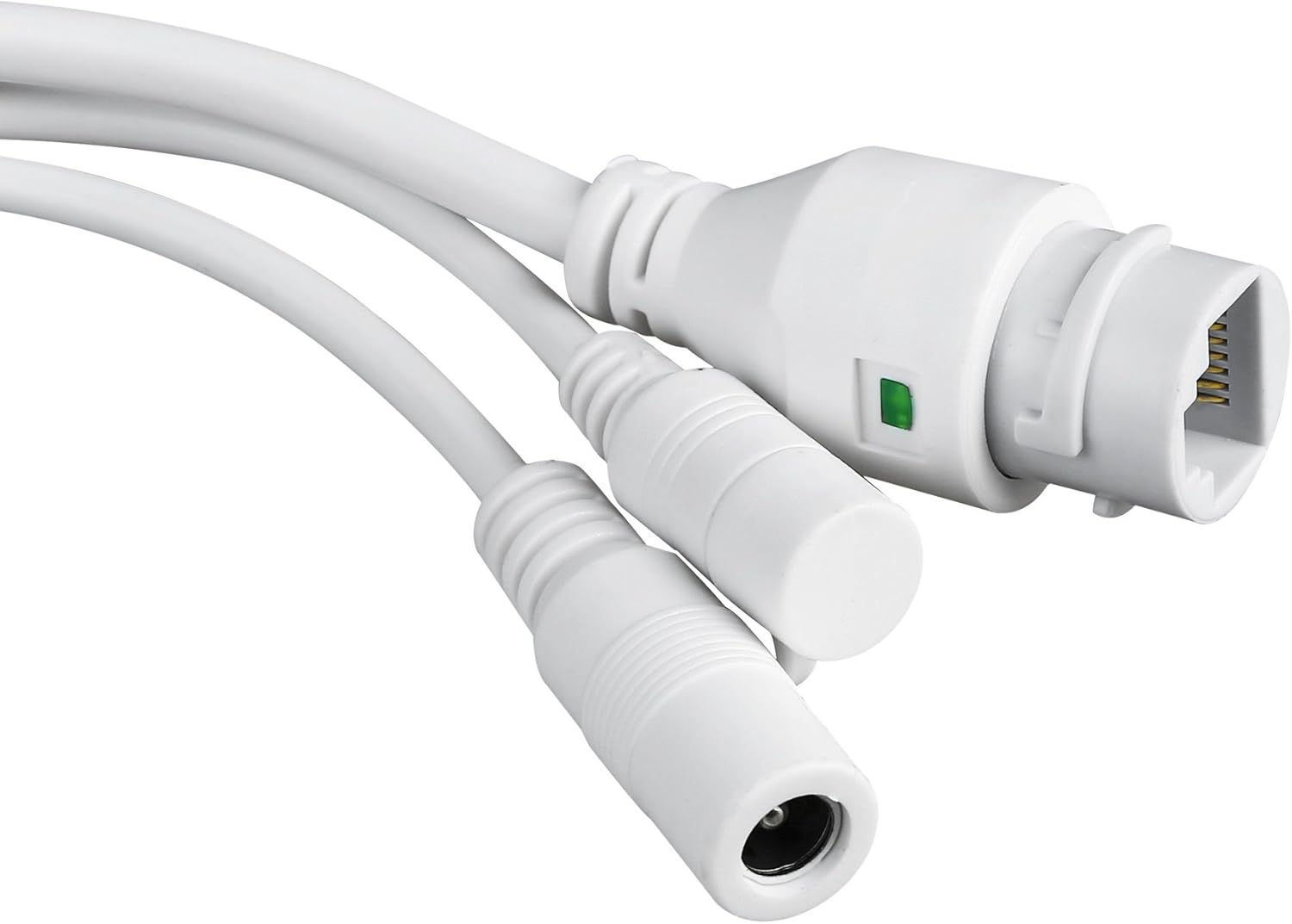
Close-up of the camera's power input and Ethernet port, essential for connectivity.
3. Setup and Installation
3.1 Mounting the Camera
The TENVIS T3875D is designed for outdoor use and is IP66 weatherproof. Choose a suitable location for mounting, ensuring a clear field of view and access to a power source.
- Mark the drilling points on the wall using the mounting bracket as a template.
- Drill holes and insert the provided wall plugs.
- Secure the mounting bracket to the wall using the screws.
- Attach the camera to the mounting bracket.
- Adjust the camera's angle as needed after initial setup.
3.2 Powering On
Connect the provided power adapter to the camera's power input and then plug it into a suitable electrical outlet. The camera will initiate its self-test sequence.
3.3 Network Connection
The camera supports both Wi-Fi (802.11n, WPA, WPA2) and Ethernet (10/100M) connections.
3.3.1 Wired Connection (Recommended for initial setup)
- Connect one end of an Ethernet cable to the camera's Ethernet port.
- Connect the other end of the Ethernet cable to your router or network switch.
- Ensure your router has DHCP enabled for automatic IP address assignment.
3.3.2 Wireless Connection
Wireless setup is typically done via the mobile application after the camera is initially connected to the network (either wired or via P2P QR code setup).
- P2P (Plug & Play) Setup: Download the "TENVISTY" app (available for Android and iOS). Scan the QR code on the product to quickly connect the camera to your smartphone/tablet. This method simplifies network configuration.
- Manual Wi-Fi Configuration: If using the web interface or a different app, you may need to manually select your Wi-Fi network (SSID) and enter the password.
3.4 MicroSD Card Installation
The camera supports MicroSD cards up to 128GB for local storage of recordings.
- Locate the MicroSD card slot on the camera (refer to Figure 2.2.3). It is usually protected by a cover.
- Carefully open the cover.
- Insert the MicroSD card into the slot with the contacts facing down until it clicks into place.
- Close the cover securely to maintain the camera's weather resistance.
- Format the MicroSD card via the camera's settings in the app or web interface for optimal performance.
4. Operating the Camera
4.1 Accessing the Camera
You can access and control your camera using the official TENVISTY app or a web browser.
4.1.1 Using the TENVISTY App
- Download "TENVISTY" from the App Store (iOS) or Google Play Store (Android).
- Register an account or log in.
- Add your camera by scanning the QR code or manually entering its ID.
- Once added, you can view live feed, control pan/tilt/zoom, access recordings, and configure settings.
4.1.2 Using a Web Browser
The camera supports Internet Explorer 11. Other browsers may have limited functionality.
- Ensure your computer is on the same network as the camera.
- Find the camera's IP address (can be found via your router's connected devices list or a network scanner tool).
- Open Internet Explorer 11 and enter the camera's IP address in the address bar.
- Enter the default username and password (refer to the camera's label or initial setup guide for defaults).
4.2 Pan, Tilt, and Zoom (PTZ) Control
The T3875D features motorized pan (355° horizontal), tilt (90° vertical), and 5x optical autofocus zoom.
- In the TENVISTY app or web interface, use the directional controls to move the camera's view.
- Use the zoom controls to optically zoom in or out. The camera will automatically focus.
4.3 Motion Detection and Alarms
Configure motion detection settings to receive alerts and record events.
- Navigate to "Alarm Settings" or "Motion Detection" in the app/web interface.
- Enable motion detection.
- Adjust sensitivity levels and define detection regions to minimize false alarms.
- Configure alarm actions:
- Push Notifications: Receive real-time alerts on your smartphone/tablet via the TENVISTY app.
- Email Alert: Send emails with attached captured images to specified recipients.
- Video Recording: Automatically record video to the MicroSD card, NVR, or FTP server upon motion detection.
4.4 Recording and Playback
The camera supports continuous, scheduled, or alarm-triggered recording.
- Local Recording: Recordings are saved to the installed MicroSD card (up to 128GB).
- NVR/FTP Recording: Compatible with ONVIF 2.1 NVRs or FTP servers (NAS, hard drive connected to router).
- Playback: Access recorded footage through the TENVISTY app or web interface. Select the date and time to review events.
5. Maintenance
5.1 Cleaning the Camera
Regularly clean the camera lens and housing to ensure clear image quality and proper operation.
- Use a soft, damp cloth to wipe the camera body.
- For the lens, use a lens cleaning cloth and solution designed for optical surfaces. Avoid abrasive materials.
- Do not use strong detergents or solvents.
5.2 Firmware Updates
Periodically check for firmware updates to improve camera performance, add new features, and enhance security. Firmware updates are typically available through the TENVISTY app or the manufacturer's website.
- Follow the instructions provided with the firmware update carefully.
- Ensure the camera remains powered during the entire update process to prevent damage.
5.3 MicroSD Card Management
To maintain recording efficiency, it is recommended to format the MicroSD card periodically (e.g., every few months) through the camera's settings. Back up any important footage before formatting.
6. Troubleshooting
| Problem | Possible Cause | Solution |
|---|---|---|
| Camera not powering on. | No power, faulty adapter, loose connection. | Check power outlet, ensure adapter is securely connected to camera and power source. Try a different outlet. |
| Cannot connect to Wi-Fi. | Incorrect Wi-Fi password, camera too far from router, Wi-Fi interference. | Double-check Wi-Fi password. Move camera closer to router or use a Wi-Fi extender. Reduce interference from other devices. Try wired connection for initial setup. |
| Poor image quality. | Dirty lens, low network bandwidth, incorrect resolution settings. | Clean the camera lens. Ensure stable internet connection. Adjust video resolution settings in the app/web interface. |
| Motion detection not working. | Motion detection disabled, sensitivity too low, incorrect detection area. | Enable motion detection in settings. Increase sensitivity. Adjust detection regions. |
| MicroSD card not recording. | Card not inserted correctly, card full, card not formatted, faulty card. | Reinsert card. Check storage space. Format the card via camera settings. Try a different MicroSD card. |
| Camera offline frequently. | Unstable Wi-Fi signal, power interruptions, network issues. | Improve Wi-Fi signal strength. Ensure stable power supply. Check router and internet connection. |
If the problem persists, please contact TENVIS customer support.
7. Specifications
| Feature | Detail |
|---|---|
| Model Number | T3875D |
| Sensor | CMOS with IR Cut Filter |
| Lens | f:2.7-13.5 mm F:2.0 |
| Viewing Angle | 25° to 96° |
| Resolution | Up to 1920 x 1080p (2.0 megapixels) |
| Video Coding | H.264 |
| Frame Rate | Up to 25 fps |
| WDR Technology | Yes |
| Weather Resistance | IP66 standard |
| Pan & Tilt | Horizontal 355°, Vertical 90° |
| Zoom | 5x optical Auto Focus |
| Infrared LEDs | 6 powerful IR LED flashlights |
| Night Vision Range | Up to 60 meters |
| IR-Cut Filter | Yes |
| Micro SD Slot | Up to 128GB |
| Wi-Fi | 802.11n (WPA, WPA2) |
| LAN | Ethernet 10/100M |
| P2P | Yes (QR code setup) |
| Video Stream | Two streams (main for local, sub for remote) |
| Motion Detection | Customizable sensitivity and ranges |
| Alarm Notification | TENVISTY app (push), Email with attachments |
| Recording | On alarms, continuous, programmable (MicroSD, NVR, FTP) |
| Supported Browsers | Internet Explorer 11 |
| App | TENVISTY (Android, iOS), TinyCam Monitor (Android), LiveCams (iOS) |
| Supported Protocols | ONVIF 2.1, RTSP, RTMP |
| Operating Temperature | -10 ℃ ~ 50 ℃ |
| Humidity | 10% ~ 80% (without condensation) |
| Dimensions (L x W x H) | 18 x 17 x 10 cm |
| Weight | 1.28 kg |
| Power Supply | AC 220V input, DC 12V 1A output |
| Power Consumption | 5W (day), 12W (night) |
8. Warranty and Support
8.1 Warranty Information
Specific warranty details may vary by region and retailer. Please refer to your purchase documentation or the TENVIS official website for the most accurate and up-to-date warranty policy.
8.2 Customer Support
For technical assistance, troubleshooting beyond this manual, or warranty inquiries, please contact TENVIS customer support:
- Email: support@tenvis.com
- Website: www.tenvis.com
- For support in Italy, you may also contact DM Soluzioni ICT s.r.l. at info@dm-ict.it or visit www.dm-ict.it.
When contacting support, please have your product model (T3875D) and purchase information ready.
Related documentsT3875D


Ask a question about this manual
Ask about setup, troubleshooting, compatibility, parts, safety, or missing instructions. Manuals+ will review the question and use this page’s manual context to help answer it.